PKI Uncovered – My Review

Security is a very important element in today’s network. The number of people trying to penetrate and disrupt you network is growing by the day, both internally and externally. The consolidation of servers into the data center is especially bothersome, as it tends to place your high-priority targets into one location.  It’s very important to find a way to keep that data secure from as many intruders as possible.

The trend recently has been to use virtual private networks (VPNs) to secure communications between users and critical data sources. Whether it be a remote access VPN for teleworkers or an internal VPN for HIPAA or PCI compliance, securing data with an encrypted tunnel is the fastest and easiest method of protection. However, in many cases the administrators use inherently insecure on non-scalable methods of VPN authentication, such as pre-shared keys (PSK). PSK works well with very small deployments or with very static equipment that requires few changes or little turnover/replacement. The main problem with using PSK is that it doesn’t scale very well, plus the method of distribution leaves a lot be desired.  You write the PSK down in a file for someone to configure and it’s just as insecure as writing it down on a sticky note. In order to really have a secure and scalable design, you must involve a public key infrastructure (PKI) at some point. I was somewhat familiar with PKI from my security training, but my depth of knowledge at implementing it on Cisco equipment was rather shallow.

As luck would have it, Cisco Press asked for volunteers to review books and I jumped at the chance. Imagine my surprise when a shiny new book showed up on my desk. PKI Uncovered is a new book from Cisco Press that looks to give the average Cisco enginee….rock star a crash course in PKI and the many implementations it has in the networking space. What follows is my review of this book.

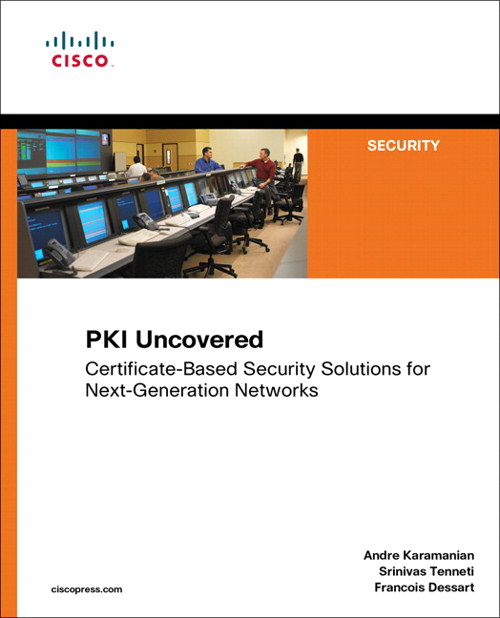
PKI Uncovered Cover - Image courtesy of Cisco Press

The first section is an overview of PKI basics for the non-security people. If you are a CISSP, CCSP, or any other conglomeration of security acronyms, these chapters will be review.  The importance of using PKI, along with the differentiations between it and symmetric key encryption are laid out. As well, the hierarchy of certification authorities (CA) are laid out with great detail. Once we get past the review, it’s time to delve into the nuts and bolts of implementation.

The second section of the book looks at specific deployment scenarios where PKI would be useful. Chapter 5 is the generic model that the other chapters build on, so the most basic ideas of deployment and chaining CAs are presented. In the following chapters, more specific needs are addressed, from large scale implementations of PKI used with GETVPN in site-to-site design to remote access with ASAs and IOS VPN. As well, more application focused examples on 802.1x NAC and CUCM phone security are presented. These chapters give great examples to follow along with as well as detailed output of the process at each step. The troubleshooting sections at the end of each chapter are also well written, and could be very useful if you find yourself staring down a real head scratcher.   The final two chapters are presented more as a case study where the previous examples are used to illustrate deployments with Cisco Virtual Office or Cisco Security Manager.  They help tie everything together and allow you to see the building blocks in action.

Tom’s Take

Overall, I found this book a very quick and easy read. It clocks in at less than 250 pages, which is practically a white paper.  It never assumes that you are a PKI expert and does a great job of letting you wade in before you get to the real meat of the example deployments.

The middle of the book will be the most used section, dog-eared and well-worn from hours of reference. I think this will be how I use it the most, as a quick reference guide for my future PKI deployments.  It’s a simple matter to work through the configuration examples and make sure your output matches the generous output examples. The case studies at the end are less compelling, as I doubt I’ll find myself in those kinds of deployment scenarios any time soon.

Overall, I’d recommend this as one to pick up if you have any desire to learn about PKI and its implementation on Cisco devices or feel that you’ll be implementing it any time in the immediate future.

If you’d like to pick up a copy, you can find it on http://www.ciscopress.com or at http://www.amazon.com.

Disclaimer

This book was provided to me by Cisco Press at no cost for evaluation. It came with no promise of consideration for a review. The ideas and opinions expressed in this review are mine and mine alone and provided freely for the use and consideration of my audience.

Tech Field Day Recap: Day 2

Group pictures always take longer when you use cameras with film

The mythical HP Dirty Chai machine brings pilgrims from far and wide

iPerf is a great way to cause AP meltdown

Roundtables are great, even if they take place at square tables

AirMagnet needs a laptop with a minimum of 8 USB ports to really rock it

Do not underestimate the power of Diet Snapple Peach Iced Tea

Hands-on demos rock the party

Fountain pens hold the key to my future lottery success

The Underhill account is alive and well at Antonella’s

Picking up the Tech Field Day tab is an expensive proposition at best

And so ends another fine day of tech-y fieldness in partly cloudy California.  Good times were had by all.  New friends were made.  Old friends were rekindled.  Alcohol was consumed on occasion.  Last but not least, knowledge was disseminated and consumed by all the delegates to be digested slowly over the course of the next few days, like a fine meal of gnocchi and cannolis.

I have a lot to write about and a lot to catch up on.  Thanks to the graciousness of the crew from Wireless Tech Field Day, I have the opportunity to learn more about something that interests me and can be useful to many.  I will spend the next few weeks talking about all the things I’ve learned in the past 48 hours and hopefully giving you some insights and discussion topics.

Tom’s Take

Tech Field Day isn’t about technology, or vendors, or fine Italian dining.  It’s about people.  Meeting great people and talking about topics ranging from wireless spectrum analyzation to animated GIF manufacturing is what really makes this event so special.  If you are at all interested in being involved, get over to the Gestalt IT website and let us know.  It’s the first step into a much more connected community and the kind of comradery that makes our little industry so much fun to be involved in.

Wireless Tech Field Day Recap: Day 1

Greg is unfamiliar with a substance known as “gravy”

Orville Redenbacher makes a tasty Wi-Fi interference detector

Metageek has the lunchbox all the kids at school want

Eating your own dogfood can be rough in beta

802.11u is something I need to research more

Devin Akin should be the new spokesman for Red Bull

Andrew looks stunning in gold and glitter

AP hide-and-seek works even better when the AP is turned on

One day, I will get to see the computers in the History Museum

Claire and Matthew love taking the scenic route

Tech Field Day Wireless Day 1 is in the books.  Lots of good info, amped presenters, and engaging demos all around.  I once again learned that I have a lot to learn, even about something I thought I was comfortable with.  The amount of knowledge that I am osmosing from the excellent delegates is going to give me a lot to think about and chew on for a while to come.  It’s a very different feel here versus TFD #5, what with all the wireless knowledge concentrated into one room.  Vertical Field Days are a hoot.

If you would like to follow along with the rest of the gang, there are several ways to get engaged.  You can head over to http://www.techfieldday.com and watch the live video stream to see if I’ve lost any more hair this time around.  You can also follow the official Tech Field Day twitter account @TechFieldDay for updates about what’s going on.  If you search for the hastag #TechFieldDay on Twitter, you can see the delegates discussing the presentations in real time as well as seeing the feedback from the presenting companies.  If you have any questions or comments about what you see, don’t hesitate to use the #TechFieldDay hastag to get our attention.  Don’t forget the Tech Field Day is as much about you as it is anything else.  The more knowledge that you can contribute to the gestalt, the better it gets.

Tips for Virtualizing Cisco Unified Communications Manager

I’ve seen a lot of chatter lately about virtualizing Cisco Unified Communications Manager (CUCM) and other applications on Twitter.  It seems that installing CUCM in a VM for the purposes of study or replicating a customer environment is a popular option, since the CUCM software can be powered up at will and doesn’t require a rack full of application servers.  However, when attempting to install CUCM in a VM, there are some things that need to be taken into consideration.  This isn’t necessarily going to be a step-by-step guide to the installation of a virtual CUCM system.  If you’re looking for that, I suggest you head over to http://www.blindhog.net and check out some of their excellent resources.  They even have some play-by-play videos that you can follow along with.  That being said, here are some things to keep in mind when virtualizing your CUCM cluster.

1.  Make sure your VM specs match the requirements. The biggest roadblock to the installation of CUCM in VMware is matching your server specs to the requirements.  For the installation of CUCM or Unity Connection, you are going to need to reserve a minimum of 2GB of RAM and a 72 GB hard disk.  Note that the RAM requirement is in addition to the RAM requirement of your workstation if you are installing your VM in VMware Workstation.  If the CUCM installer can’t see 2GB of RAM when it checks your hardware specs, it will quit and notify you that you don’t appear to be installing on a supported system.  Once you have completed the installation of CUCM, you can reduce the RAM of the VM to 1GB with no serious effects besides things running a little bit slower inside your CUCM environment.  If your laptop only has 2GB of RAM, it’s probably time for an upgrade if you want to try and run CUCM in VMware Workstation.  The hard disk requirements are just as strict.  72GB is the minimum needed for installation.  I’ve never really had any luck with using thin provisioning on the volume, so I always pre-allocate the space when I create the VM in order to be sure to not have any errors during installation.  For the record, if you are trying to install a CUCM Business Edition (CUCMBE) system in a VM, the minimum specs required are 6GB of RAM and 147GB of disk space.  Anything less will cause the installer to think you are installing on something other than a 7828 server and only offer you the choice of CUCM or Unity Connection, not the combined CUCMBE.  For the purposes of VM labbing and learning, it’s actually slightly more efficient to run CUCM and Connection in two separate VMs and integrate them together rather than using CUCMBE.

2.  Know the licensing caveats. Ever since CUCM 5.x was released, the reality of licensing has been present with us.  As I previously talked about, there are three types of licensing on a CUCM server.  Each of these licenses are tied to a MAC address.  In the versions of CUCM from 5.x all the way up to 7.0, this MAC address was the physical MAC address of the first NIC in the CUCM server.  If you wanted to install new licenses on the system, you had to ensure they were tied to the MAC of the first node, usually the publisher.  Once people started installing CUCM in a VM, which wasn’t officially supported in the 7.x train but was possible, it became apparent that a simple MAC licensing scheme wasn’t going to cut it any more, since a VM can be programmed with a specific MAC address fairly easily.  Around the time 7.1(2) was released, Cisco changed their licensing structure to use something called a “License MAC address”.  To prevent unscrupulous users from simple changing the MAC address of their VM and moving the system to new hardware, the License MAC performs a hash calculation of the following user-defined settings at install time:

  • Time zone
  • NTP server 1 (or “none”)
  • NIC speed (or “auto”)
  • Hostname
  • IP Address (or “dhcp”)
  • IP Mask (or “dhcp”)
  • Gateway Address (or “dhcp”)
  • Primary DNS (or “dhcp”)
  • SMTP server (or “none”)
  • Certificate Information (Organization, Unit, Location, State, Country)

Once these values are determined, a 12-character MAC-like address is kicked out and used for the MAC in the license files.  If you want to see what address is generated after installation time, you can run the show status command from the server CLI.  You can also use this handy answer file generator on Cisco’s website ahead of time.  That way, you can have your license MAC ready ahead of time in case you need to move your hardware.  In a lab scenario, however, you’re probably best to either do with the demo license files that are installed with the basic CUCM system or have some other licenses rehosted on the new CUCM VM.  The demo license includes one node license and 150 Device License Units (DLUs) for phone registration, so they should cover most small deployments.  The only side effect is the presence of red text on the home page alerting you to the fact you are running your cluster on demo licensing.  If you want to implement a customer’s environment in a VM for testing, I’m not sure how you would do that if they have more than one CUCM node or more than 150 DLUs.  I’ve been asking Cisco about this for quite some time, but I haven’t found any answers yet.

3.  Be ready for the support issues. If you are trying to virtualize CUCM on any version prior to 8.x, you are going to find support hard to come by.  When the VM boots up, you need to agree to a notice telling you that this is not a supported scenario and no TAC assistance is available.  The SNMP service doesn’t work properly on the pre-8.x versions in VMware, so that function will be unavailable.  Most of the hardware related issues or strange error messages are hard to decode, and since most people doing this are learning CUCM for the first time, it can be mystifying to figure out if this message is something normal or something caused by VMware.   The best resource I’ve found is at the aforementioned http://www.blindhog.net website.  The comments on their virtualizing CUCM posts are almost like a set of forums for some of the error messages you might see.

As long as you keep these things in mind when going through your installation, you shouldn’t run into any premature issues.  Those can be saved for all the fun you’re going to run into once you get the server installed and are trying to figure out calling search spaces and media resource group lists.  If you have any questions about virtualizing CUCM, don’t hesitate to leave a comment.  I’m going to work on more scenarios for virtualizing CUCM, so hopefully I’ll have some more posts on this in the future.

Fruit Company Console: My Review of the Cisco Console Companion for iPad/iPhone

One of the major advantages to owning an iPad, or in some cases an iPhone, is that you have a mobile computer at your fingertips that is quite easy to carry around the datacenter or networking closet.  I have an iPad myself, and I find it very useful for documentation purposes.  Whether it be taking notes about the configuration of a specific device or looking up the PDF of a particular feature from Cisco’s website, the iPad has many uses.  However, if I find myself in need of connecting to a device such as a switch or a router, my iPad/iPhone options are limited.  I can use a telnet or SSH client to remote into the system, but if I don’t know the management IP or the username/password combination I can be sunk.  Or worse yet, if the switch has never been properly configured for remote access it becomes a moot point.  If I want to be able to use my trusty Cisco rollover console cable to get into the switch the old fashioned way, I have to lug out my behemoth Lenovo W701 laptop and get it ready, which can be quite an endeavor depending on the amount of room I have to work with or the amount of time that I’m going to spend consoled in, since my laptop has about 1.5 hours of battery life under the best of circumstances.  Add in the difficulties that I’ve faced with USB-to-serial adapters under Windows 7 64-bit and you can see why I’m reluctant to use the console.  However, there is hope for the best of these two worlds.

A company called Redpark has started selling a rollover cable with a 30-pin iDevice connector.  Engadget had a story about it HERE.  Naturally, I decided that I just had to have one of these.  You know…for work and stuff.  Anyway, I jumped right over to the Redpark website.  Hello sticker shock.  This baby is going to set you back a cool $69.  Add in more if you want shipping and handling (whatever that is), so expect to shell out about $80 to get it to your neck of the woods, more if you need to have one tomorrow.  That’s not all, folks!  Even if you do manage to get your hands on one of these little jewels, you still need an app to access the console.  Now those of you that looked at this excellent blog post by Ruhann about console access on a jailbroken iPad are all set.  The rest of us poor saps that haven’t jailbroken our iPads yet are in a bit of a lurch.  Fear not, because the company also has an official app on the App Store called Get Console (or Cisco Console Companion) that will give you console access.  For a measly $9.99.  After all, you’ve already spent $80 already, what’s a few dollars more?

Once my console cable arrived in the mail, I was a little underwhelmed by the packaging:

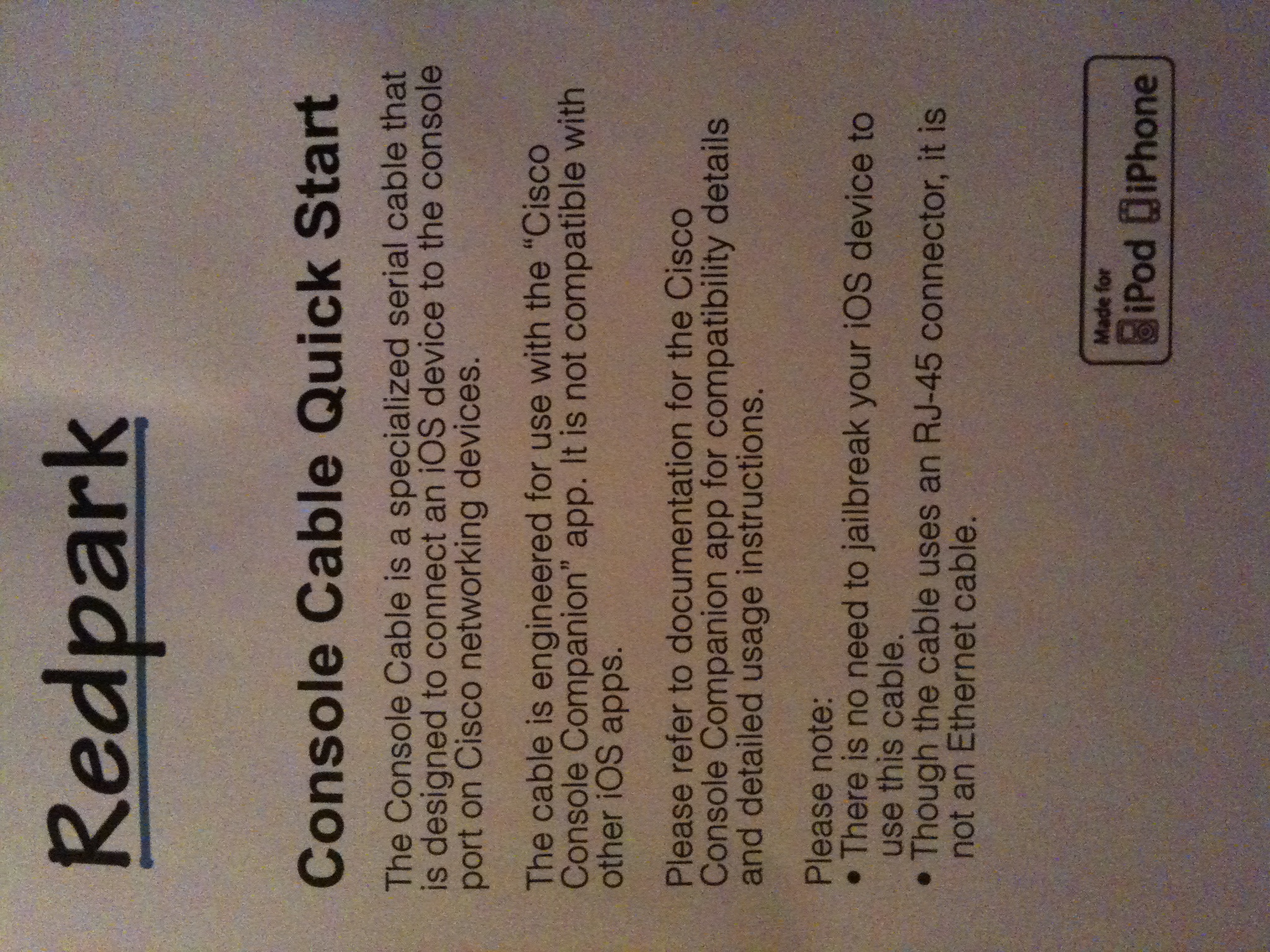
Not much to look at.  The contents of the box were even worse.  The console cable lovingly encased in bubble wrap, and this instruction sheet:

Bravo for making it straightforward and easy to read.  Off to the App Store to download my new app.  Except…”Cisco Console Companion” isn’t the official title of the app.  It’s “Get Console”, along with a big disclaimer that it is in no way associated with Cisco.  I’m guessing they had to use an alternate title in the app store because of some wonky trademark issues that Uncle John wasn’t too pleased about.  At any rate, it was a fast download and then I was off and running.

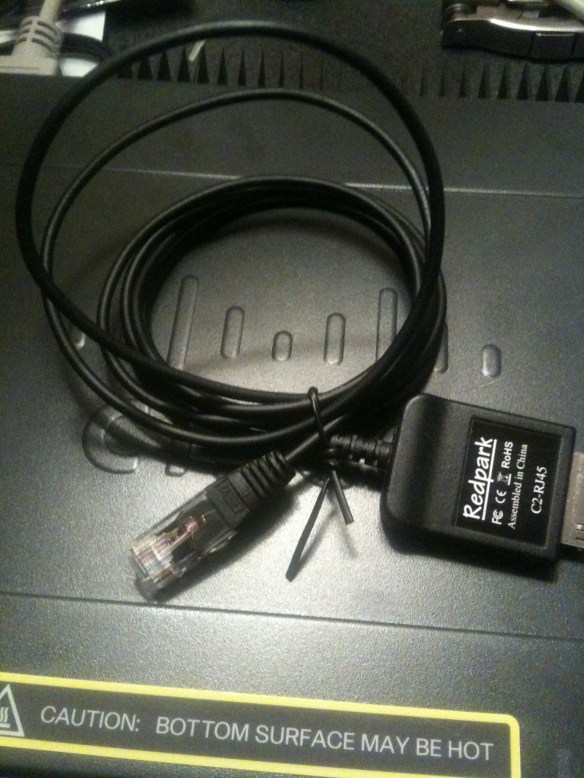
For the purposes of this test, I’m consoling into a Cisco Catalyst 3560 8-port switch.  Once I fired up the program, it popped up with a one-time reminder that it was only for Cisco devices and that it would check each device to ensure that it was a genuine Cisco product.  My best guess is this is there to prevent people from trying to use it as an Ethernet cable or something, because most reports I’ve seen says that it works just fine with any kind of device that uses a rollover cable, like Juniper, or HP, or what have you.  I didn’t test this out during my first run, but I will be testing it down the road of some of those devices.  Note that since it is an RJ-45 rollover cable, it can’t be used on RS-232 or null modem devices.  Oh well, time to upgrade those old switches anyway.  The cable itself feels rather thin, almost like a fiber patch cable rather than a flat rollover cable or even a UTP cable.  It’s about 6 feet long, so you don’t have to be right next to the device you’re trying to console into, but don’t expect to be programming from across the room.  Here’s a picture of the cable on top of my test switch:
My first encounter with the Get Console program led me to this screen:

Fairly utilitarian, but that’s fine by me.  I’m not really a “bells and whistles” kind of guy.  The bottom section of the screen is dominated by the on-screen keyboard, but that’s to be expected.  Just above that is a collapsible keyboard bar that lists some very useful control keys.  First is the all-important TAB key, which I’ve found sorely lacking on some of the telnet clients I’ve used.  TAB saves me a ton of time.  Next is the CTRL key, which when tapped toggles on and allows you to use CTRL+ shortcuts for moving around the command line or sending a CTRL+C or CTRL+Z to end.  Next is the BRK key, which sends an immediate break signal to the console.  Useful for those times when you need to enter ROMMON on bootup.  Next is everyone’s favorite question mark key.  Having it here is really helpful so that I don’t have to waste a keystroke getting to the number/symbol keyboard on the iPad.  This is followed by the up and down error keys, which are used to cycle through your command history forward and backward.  Lastly is a Return key, which I didn’t really use, since the iPad keyboard has one built in.

The upper right corner of the app replicates many of the same keys as the collapsible keyboard, along with a paper clip icon.  When you tap this, it pulls out a drawer that contains the contents of the clipboard.  You can paste those contents directly onto the command line.  So if you find yourself typing the same commands in over and over, this is a handy shortcut (there are others we’ll get to in a second).  As a quick note, while you can type in this clipboard, if you don’t copy the contents before pasting it will simply paste what was in the box before.  So be sure to copy before you paste.

The upper left includes the Settings button, the session button, the keyboard show/hide button, a button to show/hide the collapsible keyboard with the TAB and CTRL keys, and a file drawer for storing config files.  The settings button is very feature rich. You can choose to have the program automatically connect when it launches or wait for you to connect manually.  There are also settings to change the baud rate and stop bits, which really helps when you are connecting to some non-standard gear.  You can have the system log all of your console sessions, which can be stored in the filing cabinet for later examination.  You can change the number of columns and rows, as well as the amount of scrollback in the window.  Be aware that adding too many columns will mean you need to scroll the screen left or right to see the output, as it looks like the main window is about 80 columns wide.  You can change the bell that dings when you do something you aren’t supposed to, as well as changing the color scheme to something other than white-on-black text.  The font size slider doesn’t correspond to actual point sizes, so you might need to play around with it to find a comfortable setting.

The session button allows you to disconnect a console session manually as well as offering one of the added benefits of this program.  By signing up at http://www.get-console.com, you can add an option under settings to connect to a remote console server at that website.  You can then tap the session button and obtain a 7-digit access code that allows someone to access your console session from the Get Console webpage.  This is fairly handy if you have a junior administrator on site and need to walk them through a configuration.  Or if that same junior admin is in a network that is down, you can use a 3G iPad to connect to their console session and do some troubleshooting.  I had to play around with the settings in order to test this feature.  It looks like the app connects to the remote console server when you choose to share the session, and the access code allows the user on the website to connect in like a type of reverse telnet connection.  I couldn’t get the app to connect using the North America servers, but the Europe and Asia servers worked just fine.  However, the latency on these connections was pitiful.  Redraw on my screen could be measured in seconds.  I tried entering some commands on the webpage, but careful typing was enough to overrun the keyboard buffer for the app.  And if you’re going to try and look at live debugs, you might as well forget about it.  By the time you could send a break or “un all”, you’d be swamped in messages.  Better to use the web app as a mirroring device for training or for simple troubleshooting.  You can also choose to encrypt the sessions if you want, which is a pretty good idea if you don’t want everyone on the Internet up in your business.

The filing cabinet is another interesting piece.  By uploading configs to the Get Console website, you can store them in your filing cabinet to copy onto the device locally.  That way, if you have a template for your switches, you don’t need to worry about copying and pasting it out of an e-mail, where it may get buggered up by some strange formatting issues.  You can also have those pesky junior admins share an account and copy the configs to the filing cabinet for them, so all they have to do is walk out and plug in to setup the switch with enough config for you to be able to telnet to it.  There is local shortcut storage as well, so you can keep some of your more clever commands on your own iPad safe from those that could use them to do harm.  You can also store console logs for later upload or email.

Out of the box, the font size was downright tiny.  I had to bump the slider up to about 3/4ths of the way just to read it comfortably, and I was holding the iPad less than a foot from my face.  The keyboard was quite responsive, and the scrolling of the information was smooth and easy to follow.  The app is setup to beep at you when you try to use a key that isn’t supported, such as a down arrow at the prompt when there are no more commands to replay.  This feature is nice because it gives some feedback so you know when you’re beating your head against a brick wall.

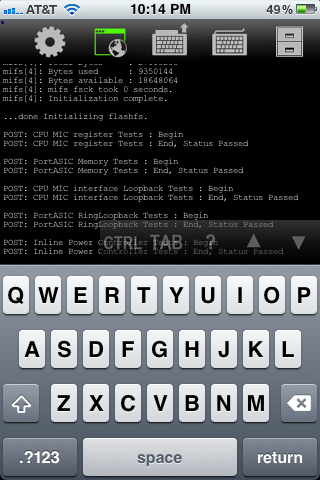
In case you’re curious, this app is universal for both iPad and iPhone/iPod Touch.  But other than just glancing at the console I’m not sure how useful it’s going to be.  There isn’t much screen real estate to start with, and all the extra pieces don’t give you much room to look at things.  Here’s a screen shot to give you and idea of what I’m talking about:
Tom’s Take

It all comes down to money.  Is there enough utility in this cable and app for you to justify spending $100 on it?  Do you often find yourself in a network room with only your iPad and a switch that won’t respond to any other method of input?  I wouldn’t dream of trying to do any kind of heavy duty debugging on this device.  I’d rather have my full laptop with multiple apps and notepad windows to drag around to interpret console spam.  As well, any kind of programming that would require lots of time at the keyboard would probably get uncomfortable after a while, unless you’re one of those people that happens to like typing on the iPad on-screen keyboard.  I suppose you could haul along a wireless keyboard, but at that point you’re dragging along an awful lot of devices for simple console access.

I could see this being a useful tool for training or for an emergency tool kit.  Throw an iPad and a cable in your kit and you have instant access to the console of a device from anywhere in the world.  You could send the less-skilled network admins out on site and a more senior person could stay in the office and do some simple troubleshooting or configuration in order to get to the equipment through SSH or telnet.  The web piece, in my mind, is just too unresponsive to spend a lot of time on.  Plus, if you are fast typist like I am, you’re going to get rather frustrated with the delay in command execution, if you don’t outright lock the system up with all the characters you’re throwing at it.

The app does what it says, there’s no denying that.  I find it very useful to have on my iPad and I’ll probably use it going forward for many of my walkthroughs and audits.  However, I think the $100 price tag is a little steep for something like this.  I hope that the price of the console cable will come down at some point, because $69 dollars for this is a bit of a stretch, even by Apple standards.  If there is enough demand, we may even see some other vendors get into the market and offer something like this.  If that happens, hopefully the Get Console people will support them as well.  I had hoped that maybe the software people could offer a gift card with the purchase of the cable, but I believe that they are two different companies so that’s probably out of the question.  Redpark could always throw in a $10 iTunes gift card if the want to soften the blow of needing the additional app to use the cable, but marketing isn’t my department.

All in all, I think I’m going to be able to find some use out of this app.  However, you really need to think twice about whether or not a C-note is worth giving up for this type of functionality.  If you want to learn more about these products, you can check out the console cable at http://redpark.myshopify.com/products/console-cable and you can check out the software program at http://www.get-console.com/

9.911 Ain’t A Joke In This Town

As one of those icky voice engine…rock stars that everyone always hears about then snickers quietly about, I spend a lot of time implementing phone systems all over the place.  I’m a firm believer in creating my own route patterns/dial peers instead of trying to untangle the knot of evil that is 9.@.  One of the questions that I bring up when talking about design with my customers is “How do you want to handle emergency calls?”.  For those in the USA, this corresponds to 911.  For my friends across the pond, this is 999.  I’m going to use 911 here, but feel free to replace it with 999 or whatever your emergency calling number happens to be.

When I ask this question, more often than not it is met with a reply of “What do you mean?” They’ve never really put any thought into emergency services.  My next question usually sounds like “How do you dial emergency services today?”  Usually people will rattle off ‘911’.  The smarter ones usually respond with, “Oh.  I see.”  They picked up on the fact that dialing emergency services in a PBX environment isn’t always straight forward.

911 is easy enough to program into the phone system.  However, I’ve been asked to leave it out sometimes.  People in certain cases have a tendency to start dialing and forget what the number they were trying to call was.  They dial ’91’ then look back at the paper the telephone number was written on.  As soon as they realize it is a long distance telephone call, they dial an additional ‘1’.  When that happens, before they can dial any additional numbers, they dial peer for ‘911’ is matched and immediately sends those digits to the PSTN, where a friendly emergency services operator answers even if the customer hangs the phone up immediately.  In these cases, if the “Urgent Priority” checkbox is marked in the route pattern, the interdigit timeout is ignored and the call completes immediately.  You can’t hang up fast enough to avoid calling emergency services. I bolded that statement because it’s very important.  If you hang up the phone, the 911 operator will still get your Automatic Number Identification (ANI) information.  What they do with it is up to the policy set by the individual emergency department.  You can see the National Emergency Number Association (NENA) guidelines HERE (PDF Warning).  Many operators will attempt to call you back right away.  Others will dispatch emergency services to the address listed in the Public Safety Answering Point (PSAP) database for the given ANI information.  At any rate, they operator has to ensure the call wasn’t genuine and they work from the assumption it was an emergency call.  As a quick aside, if you do accidentally dial 911/999, stay on the line and explain what you did.  If you fess up, they will be much less grumpy.

With ‘911’ removed from the system as a route pattern because of the above situation, that leaves ‘9.911’ as the access code for emergency services.  Most people feel more comfortable with this solution, since people will avoid the accidental 911 call if they have to press ‘9’ twice to get there.  And in 90% of the cases, this is effective.  However, allow me to paint a hypothetic picture:

I have a young son.  I’ve taught him that if he ever needs the police or if someone is very badly hurt he should dial 911 on the telephone.  Imagine I bring my son to work with me one Saturday morning for some reason.  As we are sitting in the office, I fall over suffering from a heart attack or stroke or some other malady the prevents me from telling my son what to do.  He realizes that Daddy is hurting and needs to dial ‘911’ to get an ambulance.  However, in this office ‘911’ isn’t a valid route pattern due to accidental calls.  My son tries and tries to get the doctors to come help Daddy, but the amount of time that elapses is just to great for help to arrive…

Depressing, isn’t it?  My son isn’t alone.  A great number of people are unreliable when it comes to stress.  They break down and start crying when faced with a stressful situation.  Or they freeze up and don’t act.  Or worse, they lose their minds and start acting on bad instincts, or training for something from 20 years ago.  As a rule, you can never count on what people are going to do in a stressful situation.  In addition, is there additional liability in this case for the company that impeded the ability for me to be saved by restricting the availability of emergency services?  Laugh if you will, but it has come up in courts of law before, so there is precedent for a civil suit if not a criminal case. So what’s the answer?

Tom’s Take

In all my phone systems, I configure both 911 and 9.911.  Being the eternal optimist, I leave nothing to chance and don’t rely on anyone’s bad judgment or stress to prevent the possibility of help reaching those most in need of care.  I look at accidental 911 calls as a training issue to be dealt with.  I train my users to stay on the phone and inform the emergency personnel that they made a mistake.  Usually, there will be a couple of questions asked to verify the identity of the caller, and in some rare cases even non-emergency personnel may be dispatched at a later time to confirm everything.  But that is a small price of time to pay versus the possibility of a fine, which has been suggested by emergency departments in many cases where there have been repeated accidental 911 calls followed by hang-ups.

Should I ever find myself hauled before a judge and jury to testify as an expert witness or worse, the implementer of the system in question, I want to be able to answer truthfully that I configured every possible avenue for support to arrive to assist those who needed it.  I don’t want to think that my actions or inactions caused someone to suffer grave harm or even death.

So if you find yourself having a conversation with someone about implementing a 911 dial peer or route pattern, make sure to bring up all the ramifications and repercussions of leaving off one pattern or the other.  If they make the decision to leave one out anyway, make absolutely sure it is documented in writing somewhere so any later investigation shows that you as the provider/implementer raised all the possible objections first.  You’ll save yourself a ton of headaches down the road.

And those vendors that tell that physical phones are long dead and that soft clients rule the landscape now?  Just ask them this question: “How am I supposed to dial 911 at Fred’s desk if I don’t know the password to unlock his workstation and use his softphone?  How will my 5-year-old do it when he doesn’t know how to type?”  Chances are you’ll be met with silence.  Ain’t no joke there.

Nerd Badges

Every nerd needs a badge to proudly display to others to let everyone know to approach with care lest you be regaled with tales of the true origins of Superman or the proper way to denote port address in IPv6 URIs.  It should be something simple that screams to the world that you know way more about something than most people would find useful.  Nick the Angry Cisco Guy came up with a really fun one that people love:

It says everything that it needs to in one simple statement.  And it looks pretty spiffy too.  However, since I style myself as the Networking Nerd and not the Networking Geek, I needed to change it just a bit to conform to my OCD tendencies.  So, with apologies to Nick…:

Cisco Nerd

I think it announces to the rest of the world that you shouldn’t speak to me unless you are prepared to discuss MPLS, BGP, IRDP, GLBP, or any number of esoteric acronyms.

Feel free to use it if you want.

My Buzzword Security Blanket

If you’ve been following the networking world for a while, you’re probably getting sick of hearing the words cloud and fabric.  The former is something of a nebulous term used to describe all manner of strange things.  Hosted e-mail, hosted websites, hosted storage, infrastructure as a service (IAAS), software as a service (SAAS), virutal machine hosting, and so on.  Every major networking and server player has some sort of cloud-based strategy.  Yet, when I think of clouds, I think of the little white fluffy things I put on network diagrams when I denote a section outside my control that I don’t really care about, like a WAN frame relay section or the Internet.  So when I hear about providers telling me to move “to the cloud”, I laugh.  I think about hosted Hotmail account I’ve had for 13 years.  Or the services like Dropbox that I’m starting to use for many things now.  But I don’t think of them as cloud services, per se.  Just software that is useful.

Fabric is another overused term, especially in the datacenter.  Fabric is the term that describes connecting nodes in the network together in a meshed-type of environment, like a rug or a shirt.  The resulting output is termed fabric.  This term used to be very popular with the storage people back in the day.  Now that the storage network has been unified with the server network the term seems to be leaking into our little world.

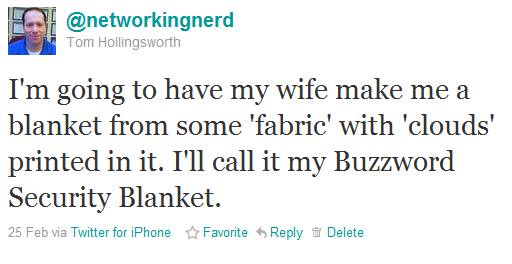
With all this in mind, I tweeted a little joke a week or so ago:

And then people came out of the woodwork.  Someone suggested I make it borderless to be compliant with Cisco’s Borderless Networks initiative.  A couple of people told me that I should send them one.  Greg Ferro even thought it was a good idea.  So, after a little shopping with my wonderful wife this past weekend, we came up with this:

Pretty, isn’t it?  I thought the bears added a little something.  Also, no stitching on the edges so it really is “borderless”.  This is my Buzzword Security Blanket.  I’m going to carry it with me everywhere I go.  Anytime someone talks to me about “Cloud this” or “Fabric that”, I’m going to curl up with my blanket and wait until all the mean people leave me alone.  I think of my nice secure data centers where my packets can cozy up with their Buzzword Security Blankets at night, safe and sound and right where I want them to be, protected from the evil in the cloud.  And when someone carries on about the new exciting fabric options in their strategies, I’ll nuzzle my Buzzword Security Blanket against my cheek and remind myself that it’s all the fabric I’m ever going to need.

Who knows?  If this takes off, I could do a whole line of baby-themed networking buzzword items.  Let me know what you think.

Moving On Up

I’ve gone and done it.  I’ve moved my blog from its formerly cozy home at https://networkingnerd.wordpress.com to some fabulous new digs over at http://networkingnerd.net.  You’ll find, though, that this house looks the same as the old one in pretty much every way so far.  I just shortened the address a little.  Being one of those people cursed with a long last name and working for a company with a long domain name, I get really tired of typing things out and even worse trying to tell people where my blog is.  So, I’ve just decided to make a new name for it.  I’m still hosted through WordPress, so none of that changes.  In fact, the whole process was extraordinarily painless.  I even went to the trouble of setting up Google Apps with my new domain, which took all of half an hour to populate and start running.  That means that I’ve now got a complete presence in the cloud! It also means that I’ve got an e-mail address just waiting for questions and comments that you may not want to leave in public.  Just don’t go to all the trouble of signing me up for strange mailing lists.  I’ve got enough trouble with the ones I’m on now.  You can email me here:


Note that it’s a picture, so CTRL+X and CTRL+V isn’t going to cut it (ha!).  The old domain will still redirect here, so don’t fret about updating RSS feeds or subscriptions or anything like that right away.  You’ll still be able to get here whether you use the long way or the new short way.  Thanks for tuning in and staying with me as I figure out this blogging thing.  I hope my posts have been informative, useful, and above all else funny and snarky.  If there’s anything I can do to make your viewing and reading experience better, you now have a place to let me know.

HP Wireless Updates

Today, HP has launched a couple of new additions to their wireless portfolio.  I was able to get a look at them and ask some questions about their performance and capabilities.  First, a little history lesson for those not up on HP wireless networking.

Back in the day, when HP Networking was the entity formerly known as Procurve, they had their own product line for wireless, centered around their Wireless Edge Services Module.  This little blade plugged into the 54xx and 82xx switches to provide a controller-based wireless solution.  The access points used by HP weren’t called “access points” but “radio ports”, more accurately describing their function as dumb antennas that relayed the signal back to a central controller, where the traffic was then switched to the appropriate port or routed for destinations known or unknown.  It worked fairly well for what it was, and I had a couple of opportunities to deploy it for some customers.  It was 802.11 a/b/g only, so when the newer 802.11n access points started coming along, this solution couldn’t keep up with the users’ faster data access desires.

To rectify this situation, HP announced the purchase of Colubris Networks back in August 2008.  Colubris was one of the first manufacturers of 802.11n APs and had some very interesting plans to start offering a controller that allowed wired and wireless users to be integrated into one appliance for traffic selection and processing.  Alas, this product never really came out, and so the whole development team was swept up into HP after the purchase.  The existing Colubris APs and controllers became the new MSM series access points from HP, and the old Procurve Wireless Edge and Radio Port solution was put out to pasture.

Fast forward about 2.3 years, and you have today’s announcement from HP of their first dual-band a/b/g/n radio sets.  These units are designed to compete with Cisco’s 1142 AP, based on the slide deck that I was shown.  There are two new APs with internal omnidirectional antennas, the E-MSM430 and the E-MSM460.  The 460 is a 3×3:3 AP, which means that it has 3 transmit and 3 receive antennas (3×3), as well as support for 3 data streams (:3).  The 430 is 2X3:2, meaning it has 2 transmit antennas and 2 data streams.  For a point of reference, the competing Cisco 1142 AP is 2×3:2 as well.  Having more spatial streams means that you can really crank up the bandwidth.  The 430 has a max bandwidth of 300 Mbps per radio, when the 460 can top out at 450 Mbps per radio.  There is also an E-MSM 466 that has 3×3:3 antenna support, but uses a selection of external antennas as opposed to the internal omnis of the other units.

The APs use a standards-based implementation of beamforming, as well as 802.3af PoE standards.  They also offer a capability of steering clients to less-used sections of the airspace.  Many devices today offer 802.11a as well as 802.11b/g client radios.  However, many devices will show a preference for one over the other, and in many consumer cases this preference is for the 2.4 Ghz 802.11b/g spectrum, which by now is full of lots of things, like microwaves, cordless phones, Mi-Fi mobile hotspots , and so on.  It’s getting pretty crowded to try and do anything.  The 802.11a spectrum, on the other hand, appears to be very open at this point.  There are very few devices competing up there, and the amount of non-overlapping channels lends itself well to things like channel bonding to increase throughput.  HP’s technology will allow the controller to steer the 802.11a-capable clients to that spectrum and allow the 2.4 space a little breathing room.  That could be a lifesaver for certain markets where connectivity in that band range is very critical, like healthcare for instance.

For those of you have cold sweats about the last wireless announcement, have no fears here.  The new APs are designed to work with the 7xx-series controllers, so you won’t need to rent any more forklifts.  The controllers have the capability to have traffic exit at both the controller end and the AP end, so people who want to access the network printer down the hall won’t have their traffic traversing all the way back to the network core to come back down to the printer.  That aspect has me very interested, as I’m beginning to see some throughput concerns with all AP traffic terminated at the controller.  There are only so many links you can shove into an Etherchannel/LACP setup.

There is also an update to the HP Mobility Manager software.  This Single Pane of Glass (SPoG) software allows you to manage multiple controllers and APs at the same time.  You can get a pretty accurate picture of your network quickly and decide how best to implement policy changes.  This software will also integrate with Procurve Manager Plus and the HP Intelligent Management Center (formerly of H3C).  These capabilities are nice so your NOC people don’t have to keep flipping back and forth between applications to ensure the network is up and running.

Tom’s Take

I’m glad to see HP joining the dual-radio world with this new set of access points.  As pointed out by almost all of the wireless blogs I follow, the 2.4 Ghz space is far too congested now, and with almost all devices being shipped now starting to include 5 Ghz radios as well, it’s very critical that a serious wireless company get involved in both spectrums simultaneously.  This new series of APs will allow them to complete directly with Cisco, and if the specs on the 460/466 hold up those two APs should provide higher throughput for connected clients.  Coupled with the capability to shunt clients to less-congested airspace, it should make some aspects of wireless troubleshooting much easier on us poor wireless rock stars.  The Mobility Manager updates should also prove helpful to those people using the software to control multiple controllers and AP setups.

This offering shows that HP is looking to step up their game and are going to compete with Cisco and most likely Juniper once the dust settles from the Trapeze acquisition.  I’m optimistic that these new offerings will compliment HP’s wireless infrastructure and drive innovation in both the hardware and software from the competition.  It should be a win-win for everyone that deals with wireless regularly.

If you would like to read the press release on these wireless updates, you can see it HERE. If you’d like to see the speeds and feeds on these new products, check out the HP Wireless Networking landing page HERE.