Now You Cius, Now You Don’t

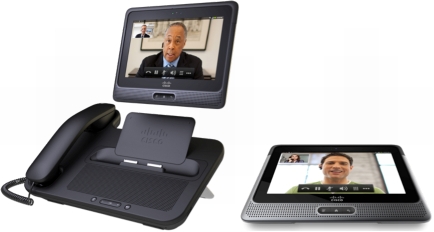
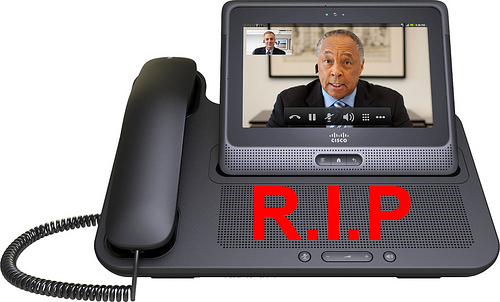
Cisco had some pretty high hopes for the Cius tablet.  When it was first announced at Cisco Live 2010, it was positioned to unseat all manner of devices, including the vaunted iPad.  A year later at Cisco Live 2011, the mood had changed somewhat.  After watching vendor after vendor try to take down the 800-pound Cupertino Tablet Gorilla, Cisco realized that placing the Cius in the sights of the iPad may not be the way to sell it.  Instead, it became an enterprise collaboration endpoint.  The idea was to push it out to those that wanted to use their tablets as unified communications endpoints and enact a bit of control over what they could do.  Today, just before Cisco Live 2012, Cisco quietly announced through O.J. Winge that development on the Cius would effectively halt.  Essentially, what you Cius is what you get (I apologize in advance for all the puns.  I’ve been saving them.).

This really doesn’t come as a surprise to me.  The handwriting has been on the wall for many months, but around the time of Enterprise Connect 2012, that handwriting was outlined in bright neon letters.  Cisco has finally realized that unseating the iPad is all but impossible.  The primary drivers for BYOD in the enterprise come from the Cupertino Fruit Table.  People focus on writing software for the iPad.  Executives want them.  Executives and knowledge workers buy them and bring them into your environment.  The number of non-Apple table devices is shrinking by the day.  Besides Samsung, most other developers have either given up the dream of being the next big post-PC device or are very close to making that decision.  Instead, everyone is jumping on the Apple bandwagon and developing their software for the iPad.  This is what Cisco decided to do when it ported the Jabber IM/Presence/Softphone software from the PC and Mac to the iPad.  While Jabber for iPad won’t be released until sometime in June (my money is on the day of the Cisco Live 2012 Keynote from Chambers), I’ve seen a copy of it running on many Cisco employee’s iPads.  It does everything that you’d want a Cius to do.  More, in fact.  It’s funny that a single application can invalidate an entire device development.  Padma Warrior walked on stage at Enterprise Connect 2012 to show off Jabber.  On an iPad.  More than one person in my Twitter stream made a snarky mention about it, asking where her Cius was.  That was likely the final nail in the coffin of the Cius.  It just took a few months for the final hammer stroke to fall.  If the CTO of your company doesn’t have enough faith in your device to show it off as the gold standard for communication and collaboration on stage in front of thousands, that says more about it that any marketing slide can.

Software development on the Cius has quite frankly been a joke.  It took ten months to get Forced Authorization Codes (FAC) to work when dialing numbers.  That was a deal breaker to me.  The firmware is buggy at best.  It’s based on Android 2.2 (Froyo).  They’re already 2 major versions behind and the hope to get to ICS (or even Honeycomb or Gingerbread) was doubtful at best.  The AppHQ app store never really took off, as most people that I’ve talked to just went over to the Google App Store, or Google Play or whatever it’s called this week, and installed what they wanted.  If this had been the Cius that I had gotten last year at Cisco Live, I’d have had high hopes for it.  Instead, it’s taken a year to get it to the point of being semi-usable.  Assuming there may be one more firmware update in the pipeline, I still don’t think the device is stable enough for everyday use.  My Cius still sits on the side of my desk next to my EX90.  My day-to-day endpoint is still my 9971.  It’s rock solid.  It doesn’t reboot every two hours.  It plays video when I ask it to.  I don’t have to spend 30 seconds poking around the UI before I can make a phone call. Besides getting me a 50 GB Box.net storage account, I’ve used my Cius for very little.  I never felt it was going to replace my phone.  And as a VAR, I’ve never been asked to quote one.  Almost every Cius that I’ve seen has either been in a giveaway or been given to someone to test.  In fact, a couple of days ago my friend Amy Arnold (@amyengineer) asked what the best desktop video phone was.   The answers were basically “anything but the Cius”.  That’s not really a ringing endorsement of the flagship multifunction collaboration device.

Cisco has even tried to extend the reach of the Cius by allowing it to be used as a virtual desktop infrastructure (VDI) endpoint.  Cisco calls it Virtualization eXperience Infrastructure (VXI), but it’s pronounced “VDI”.  That’s a nice idea in theory…except that the Cius has some VDI/VXI issues.  It’s very under-clocked to crunch any real CPU cycles.  The resolution on the output monitor is locked to the resolution of the Cius, which is 1024×600.  That’s worse than my first SVGA monitor from 1994.  It’s great on a 7″ screen, but not on a 24″ LCD monitor.  Cisco should really be spending time concentrating on the plumbing that makes VDI/VXI work, not on providing an endpoint for it.  Look at HP and Dell.  Their latest numbers and guidance are showing weakness in the PC area thanks to things like VDI and tablets.  Do you really want to try to break into this market?  It’s going to be like showing up to the party while everyone is cleaning up the mess.  Spend more time working with the network folks and the server folks through things like UCS and Cisco Prime NCS and ISE.  You’ll make a lot more money than you would otherwise trying to hock tablets.

Tom’s Take

Alright, I’ll say it.  It took Cisco long enough to finally realize that there’s no money to be made in having your own “me too” tablet.  The Cius has been a curiosity.  It’s been a nice desk toy that can make phone calls and host the occasional Webex meeting.  But at the end of the day, another 50,000 Cius units wouldn’t have held off the executioner’s axe.  There aren’t lines around the corner to buy the next Cius.  No one waits with baited breath to hear about the new features that are going to be in the New Cius.  The tablet wars are all but over.  Apple won, and Samsung is waging a guerrilla partisan campaign.  Anyone that is smart will realize that the money is made by having your software ready to install when a shiny new iPad comes into the building.  Cisco is doing the right thing here by eliminating the distraction of developing for a platform no one wants.  Instead, by refocusing on the things they should be doing, like providing top notch network equipment and monitoring software, they’ll still get the pieces of the pie that they’ve been chasing all this time.  The Cius was never meant to be the hot new tablet.  It was meant to drive investment in phone systems and Webex and all the things that go along with VDI/VXI.  Those things will still be there tomorrow and even into the future.  That’ll be long after the Cius on the side of my desk has been relegated to the same pile as my Novell servers.  I highly doubt that anyone will mourn the passing of the Cius.  In fact, I’m pretty sure the only thing I’ll be hearing is “See ya.  Wouldn’t want to be ya.”

Switchport Voice VLAN – What Does It Do?

One of the more tedious parts of any phone system deployment is configuring the access layer switches to support said phones.  The configuration in and of itself isn’t complicated, but every port that may receive a phone needs to be setup correctly.  In Cisco parlance, this is accomplished with the switchport voice vlan <ID> command.  I’ve typed that into the CLI a thousand times and never really knew what it did besides “make the phones work”.  After a little research, I finally found some answers.  I thought I’d share them with you.

In the old days, before the Catalyst 2950, configuring a switch port for use by a phone involved creating an explicit 802.1q trunk.  This made sense from the perspective that it allowed traffic from multiple VLANs to pass on a single link.  It also allowed the 802.1p priority bits for Quality of Service (QoS) tagging to be sent with the frames.  The downside is that it was very difficult for phone mobility.  You either needed to provision every phone-facing switchport in your organization to be an 802.1q trunk or you had to leave the phones were they were.  While the latter is usually the case in most of my deployments, the mobility provided by the ability to plug a phone in anywhere in the network and not worry about extra configuration is key to some clients.  Thankfully, Cisco fixed this starting in the 2950 with a little concept known as the Auxiliary VLAN.

The Auxiliary VLAN (AUX VLAN) is a specialized VLAN that sits beside a regular access VLAN configured on a switch (sometimes called a “normal” VLAN).  The purpose of the AUX VLAN is to allow IP phones to transmit their payloads along with the untagged data coming from a PC that might be plugged into a switchport on the back of the phone.  The AUX VLAN allows these two devices to transmit on the same port without the need to use an explicit trunk on the link.  In addition, since the port is not configured explicitly as an 802.1q trunk, extraneous VLANs will not be flooded over the port.  In essence, the port becomes a two VLAN trunk.  All the phone traffic is tagged with the ID of the AUX VLAN and the PC traffic is untagged.  Curiously, according to this document, the traffic in the AUX VLAN must also carry a Class of Service (CoS) of 5 along with the AUX VLAN ID.  Otherwise, the traffic is dropped.  So how does the phone get the ID of the AUX VLAN so it can start sending the traffic?  Ah, that’s where CDP comes in.

Cisco Discovery Protocol (CDP) is very crucial in the operation of a Cisco IP phone.  It not only provides the AUX (Voice) VLAN ID for the phone to being sending traffic on the AUX VLAN, it also allows the phone to automatically negotiate power settings.  This allows the phone to use less than the maximum 15.4 watts of power under the 802.3af PoE standard.  If you disable CDP on the port facing the phone/PC you will likely start pulling your hair out.  Even though the phone might have already assigned itself in the Voice VLAN, removing CDP from the switchport in question causes it to forget where to find the voice VLAN.  You’ll need to re-enable CDP and reboot the phone.  You could also statically configure an 802.1q trunk to fix the issue, but where’s the fun in that?

One other curious note is that I’ve always been told that the connection between the phone and the switch when switchport voice vlan is configured is a “special 802.1q trunk”.  Not that I’ve ever been able to see that configuration, as show interface trunk seems to think that the port isn’t trunking and show interface switchport says that it’s an access port.  The key is in Cisco’s documentation.  The correct term for a port with switchport voice vlan configured is a “multi-VLAN access port”.  The distinction between the two is that only the two vlans (voice and access) configured on the switchport will be accepted on the link.  If you were to do something silly like, oh I don’t know, plug another switch into the back of the phone and configure an access port on that switch to be in a different VLAN than the voice or PC access VLAN, traffic will not pass through the phone port to the switch.  Once again, that’s because this isn’t a real trunk.  The switch will only accept tagged frames from the Voice (AUX) VLAN.


Tom’s Take

I hope this was a little more insight into what the magical command switchport voice vlan does on a switch.  I’m often asked by people new to voice why this must be configured each time.  Before I blindly regurgitated lines like “special 802.1q trunk” and “do it or it won’t work.”  Now I have a very interesting story to tell and threaten people with if they don’t do it.

Cisco Unified Communications Manager 8: Expert Administration Cookbook – Review

When you spend as much time configuring Cisco Unified Communications Manager (CUCM) servers as I do, you do one of two things.  Either you spend a lot of time reading through documentation, or you write down the important steps as concisely as possible for later use.  Documentation has uses.  When you are first learning something or you need the explanation for exactly what a partition does, documentation is your best friend.  However, when you’ve configured a ton of servers already and know the basics cold, wading through page upon page of prose to find the missing parameter of your Automated Alternate Routing (AAR) configuration is time consuming and frustrating.  If only there was some book that you could keep with you that has the basic configurations spelled out in short snippets.  A book that would allow you to quickly look up a function or feature and get it up and running without a fifteen page lead-in.  Thankfully, such a book does exist:

Tanner Ezell (@tannerezell) does a great job of condensing the mountain of documentation that Cisco has produced to support CUCM into 285 pages of tips and tricks on configuring important features that you’ll run across every day.  Unlike the Cisco Press CUCM guide I reviewed previously, Tanner’s book doesn’t step through the details of configuring a partition or a calling search space (CSS) for the first time.  Instead, this book assumes that you are a professional that has done tasks like that many, many times before.  Instead, this book concentrates on some of the newer features in CUCM 8 that may or may not be something that the reader has configured before.  Things like E.164 normalized dialing using the “+” symbol or Cross-Cluster Extension Mobility.  In fact, after reading the first three recipes in the book, I configured plus-dialing on my production cluster with no fuss.  That’s not something I was comfortable doing after reading through the tome of configuration on Cisco’s website or in the Solution Reference Network Design (SRND) document.

Think of this book as a reference guide for the 20% of features that you may configure once or twice every six months.  Sure, I can create a North American Numbering Plan (NANP) route pattern list in my sleep.  However, when it comes time for me to configure AAR or setup the Real Time Monitoring Tool (RTMT) to email me when something breaks, I’m going to have to look up how to do that.  Now, all I need to do is flip open this book to the appropriate chapter and get right to work without using CTRL + F to sort through to what I need to know.

Tom’s Take

CUCM 8 Expert Administration Cookbook was a pretty quick read for me.  That’s because I’ve seen many of the things in here before.  The problem is that I don’t remember them since they aren’t things I do every day.  It’s nice to know that I have a good reference book that I can rely on to help me in those times of need when I have to have a feature up and running quickly and my mind has gone totally blank on it.  I commend Tanner Ezell for taking the time to boil the feature configuration down to the bare necessities needed to get everything operational and then put it into printed form for us to enjoy.  I’m sure that my copy of this book is going to be well worn for many deployments to come.

Review Disclaimer

The copy of CUCM 8: Expert Administration Cookboook that was reviewed was purchased by me from Amazon.  It was not provided by the publisher.  As such, neither the publisher nor the author were granted any consideration in the writing of this review.  The opinions and analysis contained herein are mine and mine alone.

Moving to CUCM 8.6 – You’ll Never Upgrade Me Alive COPpers!

Upgrades are a fact of life for network rock stars.  Whether we are patching bugs or adding new features to our systems, the installation of software never seems to end.  If you are a Cisco voice rock star, you all too often find yourself upgrading to newer releases of Cisco Unified Communications Manager (CUCM) to support new devices like the Cius or fix show stopping bugs like the 180-day uptime lockup.  However, if you are a user of CUCM 8.x and you’re trying to move to 8.6, you’ve probably had a couple of head scratching moments so far.

If you’ve popped a freshly burned 8.6(1) ISO into your DVD drive or copied it via SFTP, you kicked off you installation and likely saw the following error message:

09/18/2011 19:31:48 refresh_upgrade|********** Upgrade Failed **********|<LVL::Info>
09/18/2011 19:31:48 refresh_upgrade|*** Please install the Refresh Upgrade COP, and reattempt the upgrade ***|<LVL::Info>
09/18/2011 19:31:48 refresh_upgrade|************************************|<LVL::Info>

Huh? What’s a refresh upgrade?  Why isn’t this ISO file working?  Well, it turns out Cisco needs you to take an additional step first.

CUCM runs on an operating system.  Up until version 5, that was Windows 2000 with some hardening and customizations.  Cisco eventually ported CallManager 4.3 to Windows Server 2003, but in the end the decision was made to move to an appliance-based OS that utilized Linux.  The Telephony OS in CUCM 5.x was new for those used to working in Windows but somewhat familiar to those that have seen Linux before, even if the login shell looked nothing like bash.  Cisco provides patches for the OS with every release of CUCM software and the user never knows what’s going on because of the way the system installs the patches transparently.  However, much like the shift from Windows 2000 to Windows 2003, software eventually reaches the end of its life.  Development stops on the old version and it’s time to move to the new one.  Such is the case in CUCM.  With version 8.6, Cisco has moved away from an OS platform based on Redhat Enterprise Linux (RHEL) 4 and upgraded the underlying OS to RHEL 5.  This is good news that allows the system to stay current and support a larger variety of hardware.  The bad news is that the upgrade of the OS can be a bit destructive.  This is part of the reason for the extra steps in moving to CUCM 8.6

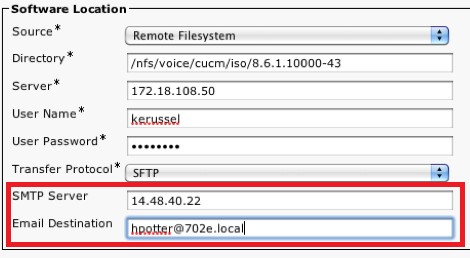
Firstly, Cisco wants you to install a special Cisco Options Package (COP) file on 8.5(1) systems.  This file is ciscocm.refresh_upgrade_v1.0.cop.sgn.  The 8.6 installer checks for the presence of this file and won’t kick off unless it’s present.  It needs to be installed on every server in the cluster.  It’s also going to reboot the server after installation.  As near as I can tell, it makes some changes to the Tomcat service on the server as well as adding two new fields to the Install/Upgrade window:


Notice the new options for email.  This allows the server to send you an email whenever the upgrade is completed.  Probably a long overdue option that comes in handy for those of us that spend more than a few stress-filled moments clicking the Refresh buttons on our web browsers waiting for CUCM to come back to life after an upgrade.  There’s another reason for putting this email field in here now, though.

It turns out that when you upgrade from 8.5 to 8.6, its going to take a while.  Quite a while, in fact.  The system is going to reboot no less than twice, perhaps even three times.  Considering that a CUCM reboot can take 15-20 minutes to complete each time during an upgrade, you’re looking at nearly an hour of rebooting time under certain circumstances.  During the upgrade, CUCM is going to do things in 3 phases:

Phase 1: Export all the pertinent CUCM data to a safe partition

Phase 2: Reboot and install RHEL 5, then reboot and install the CUCM applications

Phase 3: Import all the data from the export partition

On the 7825H3 MCS server, there isn’t enough hard drive space to contain the safe partition during the reformat and installation of CUCM 8.6.  In that case, you’re going to need to plug a 16 GB USB drive into the system to serve as a target for the data export.  If you’re trying to upgrade a CUCM Business Edition system on a 7828H3 server, you better bust out the credit card because you’re going to need a 128 GB USB drive to hold all the CUCMBE data during the upgrade.  The IBM servers aren’t affected by this little caveat, as I’ve done the 8.6 refresh upgrade on a 7825I4 and not had any issues.  Be sure to leave the USB drives plugged in the whole time the system is upgrading.  Also, whatever is on the drive is going to be overwritten without warning, so be sure it’s blank before you start.

After you’ve completed the whole installation with all the reboots, you’re going to have a fresh new system with CUCM 8.6 to support all kinds of wonderful things, like finally being able to use Google Chrome to administer things.

Tom’s Take

I kicked off an upgrade to 8.6 without reading the release notes or documentation.  Thankfully Cisco prevented me from screwing things up big time by halting the installation with the above error message.  The more I dug into things, the more interesting it was.  It also took me two hours to finish things up with many reboots and even more nail biting (Fun fact: I was doing the upgrade during Packet Pushers Show 56, which is one of the reasons why I was quiet – I was trying not to scream at my CUCM server).  However, I think I could have avoided some pain and stress if I’d just read the docs first or even searched for refresh upgrade before I got started.

Cisco Cius – My Long Overdue Review


Cisco has introduced a new unified communications endpoint into its portfolio of devices that it hopes will bring a new user experience to customers wanting to unify video and voice in the palms of their hands.  The Cisco Cius represents a large investment into the intersection of mobility, voice, and video.

I won a Cisco Cius at Cisco Live this year.  I was excited to get it into my hands and start playing with it.  I wanted to put it on my desktop and utilize every function I could.  It’s been four months since I won the device, and I’ve spent time on and off putting it through it’s paces.  Some of the things I found were good.  Others, no so much.

The Cius is an Android-based (Froyo 2.2.2) tablet.  It has a 7″ screen (1024×600) with an Atom Z615 processor and 1GB of RAM.  It has an 802.11 a/b/g/n radio and a 4G LTE radio in an upcoming model as well as front and rear cameras, the latter capable of capturing 720p video.  It is also capable of being docked with a port replicator and handset that allows for speakerphone as well as USB ports to drive a keyboard and mouse.  Why?  Because the Cius also includes a Virtual Infrastructure Experience (VXI) client for running a virtual desktop as a replacement for your desktop PC.


When I got the unit, I first had to cool my jets for a bit.  The unit had pre-production software that wasn’t quite up to specs yet.  One of the things that didn’t work was application installation.  The Cius provides its own app store, AppHQ, which can be controlled via corporate policy to restrict downloads to this store.  You can also sideload apps from the regular Android market, but if your admin overlords decree that you shant be able to do that, you’ll be locked into AppHQ.  I took my time poking around the interface and noting how different it was from my iPad.  This was my first attempt at using a Google tablet, so it did take a bit of getting used to, layout wise. As well, the construction was a little different and the unit felt more ‘solid’.  Not to say that Apple’s iPad feels cheap, but the Cius is a little more dense than the aluminum used on my gen 1 iPad.  However, due to the software difficulties I was unable to do much with the Cius.  I did use it to record my Ultimate Cisco Live Attendee video right before I packed it away for the trip home.  Here you can get a feel for the video quality from the front VGA camera:

After I got it home, I had many stops and starts trying to get the right firmware to update it to a point where I could install things.  Thanks to some help from my friend Jon Nelson, I was at least able to get the right software to register it with my CallManager server, which I finally had to upgrade to 8.5 to get everything working correctly.  When I got the new firmware load installed, I was able to browse to the Android Market and start installing apps.  The process was pretty straightforward, and every app was available for installation.  The 7″ screen did seem a little cramped from my 10″ iPad, but it was very usable for simple browsing tasks.  I also noticed that the media dock didn’t secure the unit when docked.  Normally, I expect to hear a click or a snap as the locks engage on something like that, but there was nothing here.  In fact, if you don’t pay attention when docking the unit, it will slip and slide right off into the floor.

After playing with the Cius for a few days, I hit my first show stopping bug.  In the current firmware load there is a problem with dialing calls that require Forced Authorization Codes (FACs).  The dialpad for the unit disappears when the dial string is completed and won’t show up again until the call is connected.  The problem for me is that all my long distance calls (which represent the majority of my office calls) require me to enter an access code when I dial.  Without a dialpad, I can’t enter the code to complete the call.  For this reason, the 9971 I normally use has stayed on my desk and the Cius has been relegated to the side desk where it gets tested on occasion.  I’m sure that Cisco has seen the oversight in not allowing me to have a dialpad during ring out and will be releasing a firmware to fix that in no time.  Oh, wait…

In order to expedite my firmware update desires, I signed up for the Cius developer program and gained access to the firmware update service for testing.  Never one to shy away from putting beta code on my devices, I followed the developer directions and waited patiently for my Cius to update.  It took a couple of hours to pull the new code and reboot.  Where it promptly locked up.  Every time I tried to install new code, it rebooted and hung on the restart, the Cisco logo taunting me for hours on end until I performed a hard reset.  Which of course reset the firmware back to the old version.  And erased anything I might have installed.  Oh, bother.

Figuring that beta firmware may be just a little too advanced, I decided to head over to Cisco’s website and pull down a new production firmware for CUCM so that I can update it like that.  Which is where I finally encountered the “You do not have a valid contract” error that has bitten so many people as of late, especially Ethan Banks.  Of course, I don’t have a SmartNet contract for this device since I didn’t buy it in the first place.  I figure I need to order one if I want to figure out why it keeps locking up or why I can’t get the dialpad to show up to make long distance calls.  I know the firmware I managed to load did fix some other transient issues, like the unit losing connection to CUCM every night and requiring a reboot to establish a connection again.  However, I’m going to need a lot of support to bring this device up to the point were I consider it a replacement for my 9971 deskphone.


Tom’s Take

If I had to use one word to describe the Cius, it would be potential.  Cisco has obviously invested a lot of money into this unit and sees it as a big step going forward to unify all of their cutting edge technology into a single portable unit.  It makes for a really nice demo and you can argue that it makes a statement sitting on the desk.  The hardware seems to be acceptable for use as a business communications endpoint.  However, software quirks show it to be an early 1.0 product release.  Difficulties in getting my unit into a usable condition hampered me from replacing my current desk phone.  Inability to get software to load without causing reboot loops has forced me to reformat more times than I care to count.  And short-sightedness at allowing me to download production firmware updates means that it will likely sit on the side of my desk until such time as someone decides that, as a Cisco partner, I am not a stinking filthy pirate and only want to get my Cius running so that I can show it off to coworkers and customers in the hopes that they buy a truckload of them.  However, until that day comes, my Cius will be relegated to little more than a curious desk ornament, right next to the Buckyballs and my stressball collection.  Let’s hope I can fix that sooner rather than later.


Disclaimer

The Cisco Cius I have was won in a contest at Cisco Live 2011.  I recieved a Cius and a media dock, as well as a Cisco-branded Jawbone Icon headset.  At no time did Cisco ask me to write a review of the device, nor did they place any restrictions on the content of any reviews written by me.  They did not ask for any consideration nor were they promised any by me in the crafting of this post.  The opinions and conclusions reached are mine and mine alone.

Dial Plan Considerations

A Candlestick Phone (image courtesy of WIkipedia)

Dial Plans are probably one of the hardest parts of learning about voice.  I consider it to be just like subnetting for network enginee…rock stars.  There are volumes upon volumes of how to stage and arrange your dial plans to speed call routing and minimize memory usage on voice over IP (VoIP) equipment.  However, there are a couple of things that I’ve found over the course of my career in voice that I want to pass along that I’ve never really found written down anywhere.  Consider these some of the “street smarts” of VoIP.

– Avoid Placing Extensions in the “9XXX” range.  This one seems to be the most popular issue.  No matter if you’re using 3-digit or 4-digit extensions, consider anything beginning with a “9” to be off limits.  There are actually a couple of reasons for this.  First and foremost, “9” is generally used at the PSTN access code (or escape code) for most PBX-style equipment in the world.  It’s also used as the escape code for Centrex phone service.  If any of the extensions on your Cisco phone system start with a “9”, the system will get a bit confused.  The external route patterns on your CUCM/CUCME system all start with “9” and have the “Provide Outside Dial Tone” box checked (at least they should).  If you have an extension that is 9640, for instance, CUCM will not play the pitch-changed PSTN dial tone until the number you are dialing explicitly matches a route pattern with the “Provide Outside Dial Tone” check box enabled.  In this example, if you are calling a long distance number, when you hit “9”, you won’t hear the higher-pitched tone.  You also won’t hear it if you follow with 1, 3, or 1.  Not until you dial the 5th digit of your long distance call that eliminates the above 9640 extension will the caller hear the PSTN dial tone.  While this doesn’t really affect the operation of the system, it really throws the users for a loop when they don’t hear that dial tone for accessing the PSTN.

The other crucial reason for avoiding extensions that start with “9” is to cut down on the number of misdialed emergency numbers (911 or 999).  I’ve talked about emergency numbers before and taking them into account here is just as critical.  I’ve even had to change the PSTN escape code to something other than “9” (like 8 or 7) in order to correct this emergency calling issue.  In those cases, I have to avoid putting extensions in the 9 range and the new code range to keep my PSTN dial tones and emergency calling behavior straight.

– The 1XXX range is your friend.  If you need a number range for your extensions or voice mail ports or other system directory numbers, anything starting with a “1” is a great idea.  Why?  Well, since the very beginning of phone systems two numbers have always been reserved and not used to start phone numbers.  One of these is “0”.  Zero has always been used as a signal to the phone company operator, so no number in the North American Numbering Plan (NANP) starts with a zero.  The other number is “1”.  One is a more curious case.  It turns out that the original “candlestick” phones had a bad habit of sending a fast pulse when they went off-hook.  In order to prevent a ton of misdialed calls, the system was configured to ignore any numbers that started with a “1”.  Again, no numbers in the NANP start with a “1”.  We now use One to signal a long distance telephone call, but that is really the only time it’s used.  If you use the 1XXX range for all your voice mail ports or park slots or even extensions, you never really have to worry about it colliding with other parts of your dialing plan.  If you’re setting up a home CUCME system, like I’m trying to do once I can convince my wife, you can put your extensions in the 1XX range and not need to worry about using a PSTN access code.  I’ll probably write a little more about this once my experiment is up and running.

– Create a local 10-digit dial peer.  I’ve mentioned this in passing once before, but if you still live in one of those areas that hasn’t switched to 10-digit dialing for all local calls, you should probably program an explicit local dial peer.  For example, in central Oklahoma calls are still dialed with 7 digits locally.  However, there are destinations that are not long distance (prefixed with a 1) that use 10-digits.  If you program a standard 10-digit dial peer (9.[2-9]XX[2-9]XXXXXX), when you dial 7-digit local calls the system must wait for the interdigit timeout to expire before dialing the call.  This is because those 7 digits can match two different dial peers (7-digit and 10-digit) and the system doesn’t know which one to use until you let the digit timeout expire, which could be up to 15 seconds.  That time is an eternity to your users.

Instead, until the time when your state figures out 10-digit dialing is what all the cool kids are doing, you should do this little work around.  Configure your regular 7-digit and long distance dialing codes.  Rather than creating a 10-digit route pattern though, just create a route pattern with your 10-digit local area code.  In the above example for central Oklahoma (area code 405), that explicit dial peer would be 9.405[2-9]XXXXXX.  This way, any 10-digit calls will route immediately.  Most of your 7-digit calls should route immediately as well when they match the 9.[2-9]XXXXXX route pattern.  The only issue you might have is if your local NANP prefix (the [2-9]XX part) is the same as your area code.  Chances are slim in that case, so your local calls won’t wait for the interdigit time to expire.  Just be sure to have the 10-digit dial peer for all local calls ready to go on the day you get switched over.  Otherwise you are going to have some confused and angry users.

Tom’s Take

If you are going to be a voice enginee…miracle worker, you are going to spend a lot of time learning about dial plans.  Before you know it, things will just be automatic and you’ll be able to churn them out without a second thought.  If you take my advice above into account as you’re learning about dial plans, you will have a much easier time when it comes to the strange corner cases you might run into like not hearing a PSTN dial tone or interdigit timeout issues for local calling.

Cisco Phone Cheat Codes

There are many things in this world that are hidden just beneath the surface that make our lives easier.  Whether it be the Secret Menu at In-n-Out Burger or the good old Konami Code, the good stuff that we need is often just out of reach unless you know the code.  This is also the case when dealing with Cisco phones.  There are three key combinations that will help you immensely when configuring these devices, provided you know what they are.

1.  Unlock Settings – *, *, #.  When you check the settings on a Cisco phone, you’ll notice that you can look at the values but you can’t change any of them.  Many of these values are set at the Cisco Unified Communications Manager (CUCM) level.  However, once common issue is the phone not being able to contact the CUCM server or the phone having the wrong address/TFTP server information from DHCP.  While there are a multitude of ways to correct these issues in the network, there is a quick method to unlock the phone to change the settings.

  • Go to the Settings page of the phone
  • While in the settings page, press *, *, # (star, star, pound) about 1/2 second apart
  • The phone will display “Settings Unlocked” and allow you to make changes

It’s that easy.  There won’t be a whole lot to do with the phone Telephony User Interface (TUI), but you can make quick changes to DHCP, IP address, or TFTP server address entries to verify the phone configuration is correct.  By the way, when putting in an IP address via TUI, the “*” key can be used to put a period in an IP address.  That should save you an extra keystroke or two.

2.  Hard Reset – *,*,#,*,*.  Sometimes, you just need to reboot.  There are a variety of things that can cause a phone to need to be reset.  Firmware updates, line changes, or even ring cadence necessitate reboots.  While you can trigger these from the CUCM GUI, there are also times that they may need to be done from the phone itself in the event of a communications issue.  Rebooting is also a handy method for beginning to troubleshoot issues.

But Tom?  Why not just pull the network cable from the back of the phone?  Won’t disconnecting the power reboot?

True, it will.  What if the phone is mounted to the wall?  Or if the phone is running from an external power supply?  Or positioned in such as way that only the keypad is visible?  Better to know a different way to reboot just in case.  Here’s where the reboot cheat code comes in handy.

  • Go to the settings page of the phone
  • Press *,*,#,*,* (star, star, pound, star, star) about 1/2 second apart
  • The phone will display “Resetting” and perform a hard reset

This sequence will cause the phone to reboot as if the power cable had been unplugged and force it to pull a new configuration from CUCM.  Once common issue I find when entering this code is the keypresses not registering with the phone.  Try it a couple of times until you develop a rhythm for entering it about 1/2 second apart.  Much more than that and the phone won’t think you’re entering the code.  Quicker than that and the keys might not all register.

3.  Factory Reset – “1,2,3,4,5,6,7,8,9,*,0,#”.  When all else fails, nuke the phone from orbit.  It’s the only way to be sure.  Some settings are so difficult to change that it’s not worth it.  Or you’ve got a buggy firmware that needs to be erased.  In those cases, there is a way to completely reset a phone back to the shipping configuration.  You’ll need access to unplug the power cable, as well as enough dexterity to press buttons on the front as you plug it back in.

  • Unplug the power from the phone.
  • As you plug it back it, press and hold the “#” key.  If performed correctly, the Headset, Mute, and Speaker buttons in the lower right corner will start to flash in sequence.
  • When those three buttons start flashing in sequence, enter the following code: 1,2,3,4,5,6,7,8,9,*,0,#.  You’ll notice that’s every button on the keypad in sequence from left to right, top to bottom.
  • Phone will display “Upgrading” and erase the configuration.

Don’t worry if you press a key twice on accident.  The phone will still accept the code.  However, you do need to be quick about things.  The phone will only accept the factory reset code for 60 seconds after the Headset, Mute, and Speaker buttons start flashing in sequence.

Tom’s Take

I find myself using these cheat codes all the time.  Whether I’m correcting a bad TFTP server entry or setting a static IP on a subnet, the ability to manipulate a phone without resorting to using CUCM all the time is very useful.  You can also use these codes to impress your friends with your intimate knowledge of the way Cisco phones work.  Just be careful with that reset code.  About every 1 out of 1,000 times it gives you 30 lives instead.

Missing CUCM Configuration Files

Oy.  There’s always one trouble ticket that gives you difficulty and makes you want to throw things around the room.  When you solve it, you yell and dance down the hallway proclaiming how smart you are to have gotten it fixed.  Folks, let me introduce you to that issue.

A Cisco Unified Communications Manager Business Edition (CUCMBE) server started exhibiting strange behavior.  No phones registered and no web GUI.  Not the first time that this has happened, so I’ll just log in via SSH and reboot the server.  When it came back up, nothing.  Same thing.  When I poke around in the CLI, I find out the SSH services are started, but that’s about it.  When I try to start the Tomcat service, which is required for the web GUI, I get an error about the Service Manager not being started.  No problem, I’ll just start that one:

admin:utils service start Service Manager
Aborting servM startup due to invalid configuration files

Oh crap.

Uh, restore from backup?  Hah!  No backup here.  Boot off the recovery CD and check the disk with FSCK (which looks a lot like a curse word I was uttering at this point)?  Fixed a couple of file issues, but still no dice on the services.  No backup partition, as this server had never been upgraded.

Just great.  What now?

Well, if you’re impatient like me when you’re waiting on support engineers to get back with you and you know you’re probably going to have to reload anyway, you can try some crazy things on the off chance they might work.  I mean, what’s the worst that can happen, right?

WARNING!!!!!

The things I’m about to discuss are totally unsupported by Cisco.  I also am not going to support them.  It worked for me this time, but it could have very easily screwed things up.  Don’t come to me and tell me you did this and now you need to reformat and you want me to help you.

Okay, that being said, there are a multitude of ways to gain root access to your CUCM server.  Again, none of them are supported, so don’t do them if you are the least bit squeemish.  The first thing you should read is the great guide at blindhog.net about gaining root access on CUCM 5.x/6.x.  It’s a very handy way to show you that the underlying system in CUCM is actually RedHat Enterprise Linux.  Since I didn’t have a Linux boot disk handy, I instead stumbled across this post which talks about jailbreaking CUCM.  I didn’t have to go all the way through it, but it is a fascinating read nonetheless.

1.  Download PuTTY, PuTTYgen, and PSFTP from HERE.  The instructions at the above link use these files and you should too.

2.  Log into CUCM CLI via SSH as the administrator user.

3.  Type in “file dump sftpdetails ../.ssh/id_dsa” at the CLI.  You’re going to get a dump of the SSH private key for the sftpuser account.  Copy this information to a text file and save it somewhere on your system.

4.  You need to convert this SSH private key from OpenSSH to PuTTY’s SSH format using PuTTYgen.  Import the Private Key file and save it somewhere like c:\temp.  Be sure to save it with the .ppk extension.

5.  Launch PSFTP with this command string:

psftp -2 -i c:\TEMP\id.ppk sftpuser@cucm.example.com

The file location should be where you saved the private key and the user@server should reflect your server’s IP or hostname.  Be sure to type in sftpuser@<your server address here>.

6.  If you’ve logged into the server before and saved the RSA fingerprint, you may get a warning here about the key your using.  Just say “yes” and keep going.

7.  Voila!  You’ve logged into the system as the sftpuser account and you can now download files from the Linux file system or copy files to it.  In the above link, this is where you would jailbreak the system.  For my particular example, we won’t have to go quite that far.

8.  In my troubleshooting case, I changed directories to “/usr/local/platform/conf/” which is where the configuration files live.  I noticed that “server.conf” was missing, but there was a “server.conf.bak” in the same directory.  I typed in “mv server.conf.bak server.conf” since I couldn’t copy the file.  Then I tried to start the Service Manager service again from a SSH CLI session.

SUCCESS!!!

Tom’s Take

I do stupid things all the time.  Like voiding warranties, which is what my little procedure above will do to your CUCM system if you try it.  I was desperate and impatient and it paid off for me this time.  I also have experience on the Linux CLI so I’m not afraid to do things there, even knowing that the outcome for a little slipup could crater my system.  Don’t do what I do unless you know what you’re doing or you aren’t afraid to reload.

That being said, a little Internet searching followed by some practical application can save your bacon in a time of emergency.  Just remember that the Disaster Recovery Tool (DiRT) is there for a reason. Use it wisely and use it often and you shouldn’t find yourself needing to jailbreak your CUCM server anytime soon.

SIP Trunking – Review

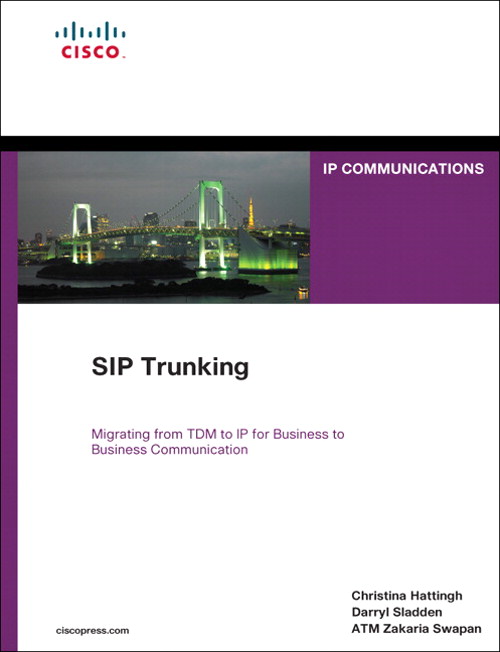
When I first got started working with Voice-over-IP (VoIP), I was excited about all the possibilities of making calls over the Internet and moving away from my old reliance on Ma Bell.  However, the reality of my continued dependence on the good old phone company is an ever-present reminder that sometimes technology needs to mature a little before I can make bigger leaps.  That’s why the idea behind SIP trunking has me excited.  It brings back a little bit of that hopeful magic from my early days of VoIP possibilities.  Thanks to Christina Hattingh, Darryl Sladden, and ATM Zakaria Swapan and the good folks over at Cisco Press, I got my feet wet with SIP Trunking:

This is the “pound cake” of Cisco Press books.  It’s only about 300 pages and a bit on the thin size, but it’s a very dense read.  Part 1 covers the differences between traditional Time-Division Multiplexing (TDM) trunking and SIP trunking.  There is discussion of the cost and benefit of moving to a hybrid model or even to a pure SIP environment.  This is a good part to focus on if you aren’t familiar with SIP trunking in general or you are trying to convince your decision makers to give it a try.

Part 2 is all about planning.  One hundred plus pages of modeling and design and checklists.  An engineer’s dream.  You are going to spend a lot of time in here dissecting the cutover strategies and the list of questions that you need to ask your provider before delving into the SIP-infested waters.  In fact, I would recommend this book for Chapter 9 alone, the checklist chapter.  It goes into great detail about all the questions you need to ask your provider, along with a description of each question and why the answer would be so important to you.

Part 3 is the deployment guide.  No Cisco Press book is complete without some code examples, and Chapter 10 has them in spades.  One thing I did like about their examples of AT&T and Verizon configuration is that they are appropriately annotated with notes to be sure you understand why a particular setting was configured.  I want to see more of this in the networking-focused Cisco Press books, not just the planning ones.  There are also case studies to help you make decisions and a chapter on the future of Unified Communications.  This one’s kind of dubious, though, as most of the time the predictions either end up looking hilariously obvious in hindsight or wide of the mark.  You can’t fault the authors for wanting to put a little bit of vision in at the end of this read, though.

Tom’s Take

If you want to learn a little more about SIP trunking or you are planning to put one in in the next 6-8 months, grab a copy of this book.  Have a cup of coffee before you jump into it, as the material could be a little dry if you aren’t focused on the task at hand.  Make sure to dog-ear the first page of Chapter 9, as you’ll find yourself coming back here more and more as you start implementing your SIP trunk.

Disclaimer

This book was provided to me as a perk at Cisco Live for being a NetVet.  I chose this book from a list of the available titles and it was provided to me at no charge above the cost of the conference.  Cisco Press did not ask for nor did I promise any kind of consideration in the above review.  The thoughts and opinions expressed above represent my true and honest opinion of the material.

Less Than Dial Peer Zero

There was a good question posed by Karla Reyes a few days ago about the use of a voice dial peer that included the string incoming-called-number.  I did my best to figure out why one would use such a dial peer in production, and that led me to a search and discovery of all sorts of interesting things about dial peers and what happens when you are forced into defaults.

On a Cisco phone system, whether it be CallManager or CallManager Express, dial peers on your voice gateways route calls to the correct destinations, both inbound and outbound.  The outbound dial peers I’m familiar with, having configured them on numerous CUCME systems.  The inbound dial peers, not so much.  I configure most of my systems to use connection plar opx <extension> to ring analog circuits and send the calls to an operator or an auto attendant (AA).  Absent that configuration, you can still configure dial peers to evaluate incoming calls and route them to the proper locations.

Cisco voice gateways will evaluate the dial peers and choose the one the has the longest set of matching digits when deciding where to send a call.  So if one dial peer is 8… and the other is 85.., then if you call “8511”, the second dial peer will be used since it has the most matching digits of the two.  If you dial “8721”, the first dial peer is matched.  This is a simple, straight forward process.  When incoming calls are headed into the system, the same process is used.  So what happens if there isn’t a perfect match?

This is where Dial Peer 0 comes into play.  Dial Peer 0 exists on every voice gateway.  It’s a sneaky little default setting that no one pays much attention to until they stumble across it.  Part of the reason is that it’s invisible.  No reference to Dial Peer 0 pops up in the configuration.  Since it’s the default and it’s hard-coded, it’s always there.  It’s kind of like the implicit deny statement at the end of every access list.  And much like that deny statement, it often produces strange and undesirable results when it gets triggered.  That’s because Dial Peer 0 is designed to work with just about anything, so it has some of the silliest settings imaginable:

  • It supports any codec you throw at it.  The designers figured that rather than waste precious time negotiating whether or not your should use G.711 or G.729, Dial Peer 0 should just accept whatever it’s sent and move on.  Not so great when you are trying to keep bandwidth conserved on a slow link and someone sends you big fat voice packets.
  • DTMF packets are sent in-band, so if you decide to use G.729 as your signaling protocol, the tones can get mangled by the compression process.
  • All the voice signaling and data packets have their IP precedence settings remarked to 0.  All that pain and effort you went through getting your perfect Quality of Service (QoS) setup working gets chucked right out the window.
  • Resource Reservation Protocol (RSVP) is disabled.  That means if you spent even more time and pain setting up an Integrated Services QoS setup, it’s going to fail when the call hits Dial Peer 0.
  • IVR applications are disabled.  This means that any scripts that would be used for things like auto attendants are going to break.
  • Last but not least, Direct Inward Dial (DID) isn’t present.  This means your callers will get confused because they’ll hear a secondary dial tone when the call leg completes.  This is where they would enter your extension number to speak to you.  Instead, they’ll figure the call didn’t work then hang up and try again.  Enterprising hackers will hear the dial tone and realize what that means then try and transfer to another number, such as long distance or international calling.  That’ll run up your phone bill fast.

Sounds like a whole bunch of bad reasons to never use Dial Peer 0, right?  Except you can’t get rid of it.  It’s always there, lurking and waiting to screw up your day.  The only way to avoid using it is to configure a new default dial peer to match instead of letting the call fall all the way down to Dial Peer 0.  In order to understand that, you have to know the order in which Cisco matches incoming dial peers:

  1. Match the dialed number with incoming-called-address configured in the dial peer.
  2. Match the calling number with answer-address configured in the dial peer.
  3. Match the calling number with destination-pattern configured in the dial peer.
  4. Match an POTS dial peer with a port command configured in the dial peer.
  5. Take your chances with Dial Peer 0.

The easiest (and by far most popular) method of overriding Dial Peer 0 is to use above like this:

dial-peer voice 1 pots
  incoming-called-number .
  direct-inward-dial

This ensures Dial Peer 1 is always matched ahead of Dial Peer 0, but not matched if a longer match exists.  It also uses DID to disable two-stage dialing, so those nefarious hackers won’t get a chance to call Cuba on your dime.

Tom’s Take

Defaults exist so that we don’t have to think about things sometimes.  Anyone who’s ever told someone how to install Microsoft Office by saying “Click Next, Next, I Agree, Next, Next” will know what defaults come in very handy.  However, if the default settings are baked in and unable to be changed, it makes life difficult if you can’t account for them and find a way to work around them.  At the very worst, it just means you get to spend a little more time on the phone with your favorite TAC engineers.

I’d like to thank Karla Reyes, Amy Arnold, and Aaron Conaway for their help on this post.