How to Transfer

The number one question I get asked when installing a new phone system has to be “How do I transfer a call?”  Seems that most people who have been using phones most of their adult lives are mystified by the little button that allows them to send a call somewhere else.  Especially when I put the complexity of a Voice over IP (VoIP) phone system in their hands.

The majority of people that have been using Private Branch Exchange (PBX) phone systems for the past few decades should be familiar with basic unsupervised transfer.  You may also hear this referred to as a blind transfer or a cold transfer.  In this implementation, the party initiating the transfer presses the transfer button, dials the number that the call needs to go to, and is then disconnected from the call.  The original caller is sent to the new target and when the target answers, they get an earful of whatever the original caller wishes to tell them.  They call this blind (or cold) because the other party has no idea it’s coming.  Some people, especially executives, get kind of upset by all this messy blind stuff.

Most modern phone systems use a method of supervised transfers.  These are also called consult transfers or warm transfers.  These kinds of transfers start out the same.  A called party presses the transfer button and dials the number of the person that needs to get the phone call.  In this case, though, the called party stays on the phone until the target picks up.  All the while, the original caller is hearing the dulcet tones of Streaming Winds (or whatever your music on hold happens to be).  When the target picks up, you get to give them all the gory details of the phone conversation so far, out of earshot of the transferred party.  Only when the person on the other end agrees to take the call do you complete the transfer by pressing the Transfer button again.  It’s a warm transfer because the target gets to hear a friendly voice before the original caller gets to launch into whatever they want to talk about.  It’s still possible for you to pull off a blind transfer in this setup.  When the target’s phone starts ringing, you press the transfer button to complete the transfer.  Now, the original caller will hear the target’s phone ringing and they get to start talking as soon as the phone picks up.  In some cases, depending on how the transfer caller ID works, this can be worse than a blind transfer, because the target will see the caller ID of the original called party and think it’s someone internally wanting to talk, only to get an outside caller when they answer.  It’s caused some embarrassment before, I can assure you.

For whatever reason, some people have a problem with warm transfers.  Especially if they are used to blind transfers.  They hang up on the original caller, thinking the transfer went through with no issues.  The problem is that the call won’t complete until the transfer button is pressed twice, meaning that hanging up without pressing it twice will disconnect the caller.  Then they get to call back, angry they’ve been disconnected.  No amount of training in this world has been able to break people of this bad habit.

Cisco Unified Communications Manager (CUCM) doesn’t have an option for blind transfers.  It’s a consult transfer system only.  However, there is an option you can set that will act like a blind system and allow your users to act as they always have without disconnecting callers.

  1. Log into your CUCM publisher and go to the System menu.
  2. Choose the Service Parameter option.
  3. Choose the publisher server from the dropdown menu.
  4. Choose the Cisco CallManager Service.
  5. Scroll down until you find the Clusterwide Parameters (Device-Phone)
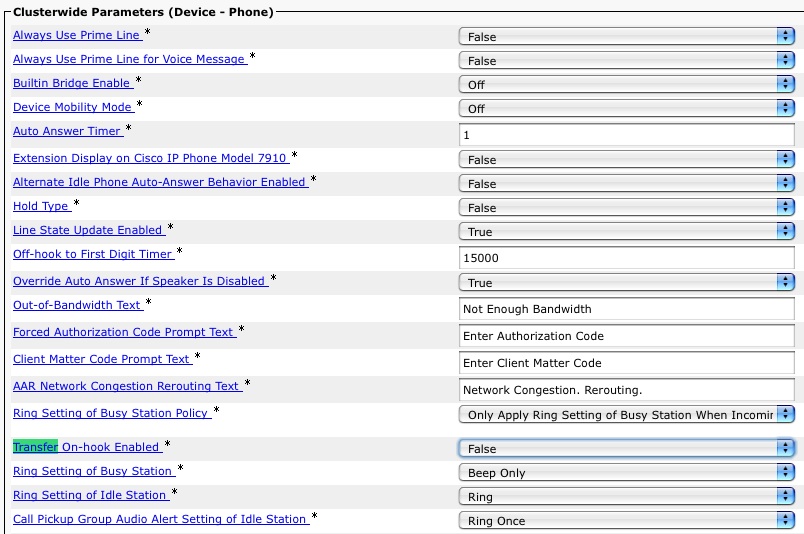
  6. Look for the Transfer On-Hook Enabled setting.  By default, it’s set to FALSE.
  7. Change this setting to TRUE to allow On-hook transfers.

Here’s a picture in case you get lost:
Easy as cake.  If your phones are all SCCP-based, the setting will take effect immediately.  If you phones are SIP, you’re going to have to reset them to change this, so be sure to do it when you can reboot them all without affecting communications.

There you have it.  Once you’ve enabled this little setting, you can still use a warm transfer, but those users that can’t or won’t transfer with the Transfer button can still pull off a transfer by hanging up without disconnecting the caller.  If you can find a way to drill the concept of a warm transfer into the heads of those that just don’t seem to get it for some reason, you can make some real money.  Sure, it may involve some heavy duty mind control, but in the end I think it will all be worth it.

My Phone Number is AAA-BCDA

Anyone that’s used a phone knows that there are letters on the keypad that make it handy to spell out words for those not gifted with the ability to remember long strings of numbers.  It’s also handy for marketing, for instance 1-800-FLOWERS.  Those that still use T9 predictive texting from a digit keypad probably have the letter positions memorized by now.  But what you may not know is that there are actually four letters on a telephone dialpad.

Dual-Tone Multi Frequency (DTMF) dialing is the modern way telephones signal the voice network over analog telephone lines.  Each keypress is a combination of two specific tones that correspond to the pitch of a key.  For instance, the ‘1’ key on a keypad is a combination of 697Hz played in conjunction with 1209Hz.  The ‘2’ key uses the same 697Hz signal, but plays is with a 1336Hz tone.  The ‘4’ key under the ‘1’ key uses a 770Hz tone in conjunction with the 1209Hz tone.  Each DTMF tone is a combination of high-pitched tones and low pitched tones.  Normal telephone keypads are laid out like this:

1209 HZ 1336 HZ 1477 HZ
697 Hz 1 2 3
770 Hz 4 5 6
852 Hz 7 8 9
941 Hz * 0 #

You can click on each of those links to listen to the tone they make (Thanks Wikipedia!!!).

The military once used a special kind of phone system known as AutoVon (Thanks to Matthew Norwood for the correction and Jason Schmidt for pointing it out as well).  This was a phone system designed to survive a nuclear attack.  One of the key differentiators of AutoVon besides being hardened against the Russians was the addition of another column of DTMF keys.  These allowed the person dialing the phone to find an open line quickly, or in the event of a full network, to boot users off that were on lower-priority calls.  The keys were denoted with the letters A-D and had functions with suspiciously familiar sounding names: Flash Override (A), Flash (B), Immediate (C), and Priority (D). I’m sure most of you networking people out there know where those names are used in our little world.  Users that dialed a C before their number could boot those on regular calls or on Priority calls off in the event of line congestion.  Flash Override was reserved for use by the President of the United States, as it could boot off anyone on a call.  This same kind of preemption capability lives on in CUCM as Multilevel Precedence and Preemption (MLPP).  AutoVon was eventually replaced in the 1990s with a newer telephone network for use by the Defense Department.  However, the legacy of the additional keys that most of us have never seen lives on.

This is the above table, including the new A-D DTMF tones:

1209 Hz 1336 Hz 1477 Hz 1633 Hz
697 Hz 1 2 3 A
770 Hz 4 5 6 B
852 Hz 7 8 9 C
941 Hz * 0 # D

If you are a user of Cisco Unified Communications Manager Express (CUCME), you have access to the AutoVon A-D DTMF tones (from here on out, I’m going to call this “Army Dialing”).  The system can replicate the tones from these four keys.  You might say, “Cool.  What in the hell would I ever use this for?  No one can dial these numbers.”  Yep.  No one can dial these numbers from a regular phone keypad.  Think about it like this: you have access to a whole group of numbers that can only be dialed by the people you allow access.  The most popular use of this setup is for phone-to-phone intercoms.  By restricting the intercom number to an “Army Dial” number, no one can dial that intercom number on accident unless they have a button on their phone that speed dials the number.  Here’s an example:

CUCME(config)# ephone-dn 13
CUCME(config-ephone-dn)# number A100
CUCME(config-ephone-dn)# intercom A101 label “Networking Nerd”
CUCME(config-ephone-dn)# exit
CUCME(config)# ephone-dn 14
CUCME(config-ephone-dn)# number A101
CUCME(config-ephone-dn)# intercom A100 label “Junior Admin”
CUCME(config-ephone-dn)# exit
CUCME(config)# ephone 2
CUCME(config-ephone)# button 2:13
CUCME(config-ephone)# exit
CUCME(config)# ephone 3
CUCME(config-ephone)# button 2:14

This way, my intercom line can only be dialed from a phone with a speed dial button associated with the number.  I control who can call me (mwa ha ha…).  This could also be used for multicast paging directory numbers.  That way, only the designated phones have the ability to page and you can prevent unnecessary chatter on the speakers.

I’m sure if you put your mind to it, you could find all sorts of interesting applications for this kind of feature.

Configuring Cisco Unified Communications Manager and Unity Connection – Review

Voice engineering is a world apart from the run-of-the-mill routing and switching work most network rock stars do regularly.  Lots of browser screens, few opportunities for CLI work, and an ever-evolving interface make for interesting work even in the best of times.  Technology changes so quickly that people who have been out of the loop for more than a couple of years may find themselves adrift in a sea of confusion.

When the first edition of Configuring Cisco CallManager and Unity came out, it quickly became a go-to reference for voice engineers that wanted to learn all about Cisco’s preeminent call processing platform. Today, however, that volume is severely out of date, referencing CallManager 4.x and Unity 4.x, both long retired. With the changes that have been introduced since the move away from Windows-based platforms and Exchange, it was time to update the Cisco Press tome of voice knowledge. Not coincidentally, I give you Configuring Cisco Unified Communications Manager and Unity Connection, Volume Two.

Configuring Cisco Unified Communications Manager and Unity Connection

Title just rolls right off the tongue, doesn’t it?  Along with the change to CallManager, now abbreviated CUCM, we get updates to the platform in the book. This volume focuses on CUCM version 8.x and Unity Connection version 8.0. There is also some coverage of Unity 8.0 as well, since those of you with strange curses may find yourself running into it like a patch of poison ivy.

For those of you that are new to CUCM v8, or new to CUCM in general, this book is a wonderful resource that guides you step-by-step through the menu options and settings in CUCM.  There is very little discussion about voice theory or SIP proxy setup or Nyquist’s Theorem. Instead, the meat of the book tells you how to make CUCM sing, from esoteric Enterprise Service parameters to the confusing Calling Search Space (CSS) setup. It guides and teaches do that you can spend time setting things up the right way and less time scratching your head. The style is simple and easy to follow and unlike online documentation, doesn’t read like stereo instructions.

The second half of the book deals with Unity and Unity Connection. Setup, PBX Integration, and even digital networking get their share of coverage. The instructions and features are presented generically so that they may apply to both platforms as necessary. Only in places where a feature is only related to one platform is there specification, such as the need to sprinkle holy water on Unity to make it boot up. Call Handler configuration gets a chapter as well, and I found the information there very good reference material for a feature that can become complicated quite fast.

Tom’s Take

If you are a new voice rock star that has a CUCM server to set up and no experience with the knobs and switches on the platform, go buy this book now. It will guide you through your first deployment much more gently than searching for hours through acres of documentation. For the grizzled veterans of CallManager 4.x who are just getting back into the game after years of therapy deprogramming all those Windows admin skills, this is also a must read. It will get you up to speed on new features like SUBSCRIBE CSS and new interface features.

For the voice rock stars that have been configuring CUCM through version 5 & 6, the purchase of this book is a little less compelling. Many of these things are things we do every day or each time we setup CUCM, so it may feel like a bit of a rehashing. I found some of the more trivia-oriented content, like explanations of Service parameters and less-used feature configuration, to be of great value. I’m going to toss this book into my voice bag and keep it handy for those times when I need to configure a Unity Interview Handler and I don’t have Internet access on site. Think of it more as a Physician’s Desk Reference rather than Encyclopedia Britannica.

Disclaimer

Cisco Press provided an evaluation copy of this book.  At no time did they ask for, nor did they receive any consideration in this review. The analysis and opinions presented here represent my views and mine alone

9.@ Must Die!

Frequent visitors to my site should know that I am a voice rock star on top of my other regular networking/wireless/server/virtualization/etc roles.  One of the things I have tried to do since the very beginning of my time in voice is avoid using unnecessary shortcuts and make things work right the first time.  This is no different when it comes to the likes of route patterns in Cisco Unified Communications Manager (CUCM).  I speak of course of the infamous “@” route pattern.

When configuring a route pattern in CUCM, I have seen some documentation suggest that you configure your route pattern using the “@” wildcard and be done.  In CUCM, the “@” is a wildcard macro that contains most of the numbering plan for North America, also known as NANP.  In North America, we use 10-digit telephone numbers that are composed of a 3-digit area code followed by a 7-digit local number.  The first digit of the area code cannot be a zero or a one, and the first digit of the local number cannot be a zero or a one either.  The NANP format is usually represented as NXX-NXX-XXXX, where N is a number between two and nine, and X is any number.  The “@” wildcard takes this information and builds several route patterns in CUCM than can match numbers that you might want to dial.  However, “@” has some additional issues that have to be addressed.  Often, you must configure your local area code with a route filter to allow the system to recognize when a local call is dialed.  You also will need to configure things like country code and possibly even end-of-dial strings to help calls be terminated quickly.  If these items are not configured properly, CUCM will have to wait for the interdigit timeout to expire before deciding to send the dialed digits to the PSTN gateway.  By default, this interdigit timeout is 15 seconds, which can be an eternity to a user.

In my career, I have never used the “@” wildcard.  I have always configured my own route patterns.  To me, it looks much cleaner and is easier to troubleshoot rather than having to unwind a shortcut macro.  For the following examples, “9” is used as a pre-dot PSTN access code and is assumed to be stripped at some point before arriving at the PSTN.

911 and 9.911 – Emergency services route patterns.  You need to have these or your people can’t dial emergency services.  If you’d like to read more about my reasons for configuring both route patterns, check it out over here.

9.[2-8]XX – Service codes. These are defined by NANP to provide 3-digit access to special services.  There is no 111 access code.  I don’t include 911 in this configuration due to the explicit urgent priority pattern configured explicitly for emergency services.

9.1[2-9]XX[2-9]XXXXXX – Long Distance.  Most long distance providers in the country use “1” to signal that a long distance call outside of your area code is being made.  This route pattern looks for an 10-digit number prefixed with “91”  The “1” is sent with the number to signal a long distance call.  This is pretty straight forward and will likely be required on all route plans.

9.011! – International calls.  I still configure international call route patterns even if my customers don’t care for them.  I limit their use via Calling Search Spaces (CSS).  It’s better to have the route pattern configured and available to turn on at a moment’s notice in case the CxO starts asking why he can’t call London or Tokyo.  I use a “!” at the end of the route pattern to signal that there could be any number of digits after “011”, which is the international access code for the United States.  The caveat is that you must wait for the interdigit timeout to expire before the call is dialed.  You can add an octothorpe (#) after the “!” to signal that you are done dialing digits, but if that is your only route pattern, you must dial the # or the call will not go through.

The remaining two route patterns that get configured are a little trickier and often cause issues on the system depending on how they are configured.  Local calling is different depending on where you live.  Some metropolitan areas are still on the small side, so you are allowed to dial only seven digits to complete a call.  This is true where I live in Oklahoma City, which is totally contained in the 405 area code.  In other areas, such as Dallas/Ft. Worth or New York City, there are so many telephone numbers that you must use a full 10 digit number to make a call.  As more and more phones are sold and activated, especially cellular phones, the move to 10-digit dialing for most everyone is inevitable.  Until the day when 10 digits are universal, there are somethings to keep in mind for route patterns.

9.[2-9]XXXXXX is used for 7-digit dialing for local calls.  9.[2-9]XX[2-9]XXXXXX is used for 10-digit local calling.  If both of these route patterns are configured on the system at the same time, there can be issues.  In the best case, users must wait for the interdigit timeout to expire on local calls, since when only 7 digits are dialed CUCM is still waiting to see which route pattern to match for the call to complete.  In the future, there will be no use for the 7-digit pattern, and only the 10-digit pattern will be present.  Until that time, here’s a trick you can use to help avoid the interdigit timeout for local calls.

Configure the 7-digit pattern for your local calls.  If you live in an area like I do where some calls inside your area code can be dialed at 10-digit and not be long distance, i.e. not prefixed with a “1”, then configure a 10-digit route pattern with the explicit area code set, such as 9.405[2-9]XXXXXX.  You don’t need to configure a 10-digit route pattern in this case, since any non-local call outside your area code will require a “1” to dial.  This will help you avoid the interdigit timeout on local calls, which should keep your users from rioting.  When your city or county or area code finally implements an overlay area code and starts requiring the use of 10-digit dialing, simply remove the explict area code route pattern (9.405[2-9]XXXXXX in the above example) and the 7-digit route pattern and configure the 10-digit route pattern, 9.[2-9]XX[2-9]XXXXXX.

This should be enough to help you configure all of your NANP dialing needs without the horror that is 9.@.  Much like the <none> partition, 9.@ is a dirty crutch that usually ends up doing more harm than good, especially when it comes time to troubleshoot odd behavior of route patterns and why one is being overridden by something you can’t even see.  By having your route patterns explicitly configured, you not only gain more control over your dialing domain, but you also have the ability to block specific route patterns such as 900 numbers or those nasty Carribean international calls without fear that a crusty old shortcut is still in your system causing you grief and and costing you money.

Unity In Your Community – Unified Messaging

Voice mail is a funny thing in the IT industry.  Some people live by it and use it as their primary form of communication.  Others would prefer to take voice mail and throw it into a river.  Regardless of your views, configuring voice mail to integrate with other forms of communication has been an interesting task in the past to say the least.  I’d like to take a few words to talk about unified messaging as I understand it and why I find it so critical in my infrastructures that I design and build.  Note that I’ll be discussing Cisco unified messaging for the most part, with a little Microsoft flavor thrown in here and there.

If you’ve been using a Cisco phone system at any time in the past 10 years, you are probably intimately familiar with Cisco Unity.  Unity has been the flagship voice mail system for Cisco from the very start of their journey down the road of unified communications.  Unity at its heart is a place to store voice mail messages and retrieve them, usually via phone.  It allows you to provision a server for many different kinds of voice mail interfaces besides Cisco CallManager, such as Octel or PIMG.  However, the thing that has most attracted people that I talk to is the promise of what Cisco calls “Unified Messaging”.  This is the idea that your voice mail messages are stored in the same container as your other forms of communication, in this case emails.  By locating the voice messages in the same area as your email, you only need to look at one program or portal to receive all of your messages, voice or electronic.  That is the real promise of unified communications, and the one that I managed to sell my users on.  Couple in the fact that you could receive email on a smartphone and you can get your office voice mail no matter where you might be.  However, Unity is not without it’s drawbacks.

How exactly do you pull off unified messaging?  Well, the key lies in the fact that Unity on supports unified messaging on Microsoft Exchange or Lotus Domino platforms.  You need to specify your platform when you order.  Why’s that?  Because the Unity server you load is actually an Exchange or Domino platform that integrates with your existing environment.  Even if you order a Unity server as a stand-alone voice mail server, you are still loading Exchange and using it to store voice mail messages, except you can only retrieve them via telephone (unless you are crafty…).  Unified messaging can only work if you are storing the messages on a “partner” server, which is a box other than the Unity server.  Essentially Unity serves as a gateway to move messages to the Exchange or Domino server.  This isn’t without its challenges.  Unity requires your directory schema to be extended in order to support unified communications.  Since the latest versions of Unity still load Exchange 2003, you must be able to support that version in your environment, which can be difficult for those that have been running Exchange 2007 or 2010 for a while.  Any time you install a major patch to your partner Exchange server, you have to patch Unity to work with it.  When we upgraded our Exchange 2003 server to 2007, it took two major patches and a few hours to sort out the resulting mess.  I didn’t even want to think about what might happen once we upgraded to Exchange 2010.  Unity 8 has dropped all support for Domino, so if you want to keep unified messaging with Domino you’re kind of stuck.  You still need to use Windows Server 2003 to install and support Unity.  The list could go on for a while, but all you really need to do is go find a Cisco voice person and casually mention Unity to them.  Odds are good you’ll see them twitch, followed by horror story after horror story about Unity.

Cisco has been developing a different form of server for the past few years in parallel to the Unity development.  Originally designed to be a smoother integration with Cisco CallManager, Cisco Unity Connection was positioned to those customers that didn’t need full unified messaging and didn’t need thousands of subscribers.  While the 1.x versions still relied on Windows as the server OS, the message store didn’t not need Exchange or Domino to function.  As Cisco started migrating the CallManager platform from Windows to a Linux-based OS, so too did Unity Connection slowly migrate to the same Unified OS under the hood.  This helped Cisco avoid paying license fees to Microsoft for each CallManager or Connection system sold.  The shift to Linux came in part because Cisco could release security patches for the whole platform at once without the need to wait on Microsoft to patch OS vulnerabilities only to then have Cisco test those same patches to ensure the CallMangager or Connection software still functioned.  Also, when Microsoft introduced Exchange 2007 they included a role for Exchange called Unified Messaging.  This was the beginning of Microsoft’s push toward voice software, and many say that it came because Cisco was having so much success using Exchange as a voice message store that Microsoft wanted to jump in the game.  Hence, Cisco had a great desire to move their voice messaging platforms to a non-Microsoft OS.  There was still a problem, however.

Without Exchange or Domino, there is simply no way to provide true Unified Messaging.  Cisco attempted to do something similar in Connection 6.x and 7.x with what they called “Integrated Messaging”.  This allowed a customer to attach to Connection as an IMAP mailbox or to have Connection deliver a copy of the message to your Exchange mailbox as a forwarded email.  This presented a couple of problems for customers such as the users that I support.  Firstly, my users wanted the ability to check their messages from outside the office.  With Unity, all their messages are delivered into their mailboxes, so they just check the one email account.  With Connection, they needed to log into the Connection server, so I would have needed to expose the Connection server to the outside Internet, something I wasn’t exactly comfortable with.  Secondly, with Unity when a message is checked in Outlook or on the web, it changes the state of the message waiting indicator (MWI) to reflect that the message has been listened to.  For some of my users, the volume of voice mail they receive would cause a panic attack if I told them they had to listen to each message on the phone to clear that light.  Because of things like these, no matter how much I may have hated Unity, I couldn’t get rid of it because Connection didn’t do everything I needed it to do.

Enter Unity Connection 8.5.  Cisco has gone to great lengths to create a true unified messaging platform, sans Exchange.  Sorry for those Domino users out there, but Connection 8.5 only support unified messaging on Exchange.  I think both of you Domino people left in the world will have plenty of time to think about where you’ve gone wrong.  Anyway, Unity Connection 8.5 uses an agent to track the message state in the message store and synchronize it with the copy of the message that is deposited in your Exchange mailbox.  Listen to the voice mail on your phone and the message is marked as read in your inbox.  Delete the message from your inbox and it is removed from your phone and placed in the trash, which is a lot better than it just being outright deleted like it was in Unity.  This is the kind of unified messaging behavior that finally got me to the point of migrating my users off of Unity.  After judicious use of COBRAS, I was able to get my users up and running on Connection and shut off Unity once and for all.  The only “change” was a couple of users asking me if the Cisco Lady’s voice had changed for some reason, since the Connection voice prompts were a little newer than the old ones found on Unity.

Tom’s Take

Unified messaging is a great thing, but the infrastructure that needs to be in place to support it isn’t.  It gives us headaches and indigestion from all the moving parts needed to make the whole thing work correctly.  Those that have survived a Unity install and have labored to support it would do well to take a look at Unity Connection 8.5.  It provides almost every feature you might want from Unity while leaving all the old Microsoft cruft behind.  For those that have never had the ability to use unified messaging, you should definitely give it a try.  You’ll find your users thanking you.

Invalid Information Element Contents Error Message

Problems with no apparent cause really drive me up the wall.  A customer called me with an issue that had no rhyme or reason for existing.  A group of phones at one site were not able to make outbound calls.  They were receiving calls from the PRI and were able to call other extensions with no problems.  Other phones that were using the same route patterns and gateways were able to call with no issues.  Troubleshooting the route pattern at the phone showed the digits landing on the gateway but a fast busy right after that.  It wasn’t until I drilled into things with my new favorite command debug isdn q931 that I found the real problem.  It looked something like this (numbers obscured):

Calling Party Number i = 0x0081, 'XXXX'
Plan:Unknown, Type:Unknown
Called Party Number i = 0x80, 'XXXXXXXXXXX'
Plan:Unknown, Type:Unknown
Sending Complete
ISDN Se0/0/0:23 Q931: RX <- RELEASE_COMP pd = 8 callref = 0x9F
Cause i = 0x82E404 - Invalid information element contents

Hmmm.  Guess it’s off to Google.  Then I found this post from the Cisco VOIP Mailing list.   And after implementing a quick fix, everything turned out fine.  So what happened?

This particular site was the first time I used this excellent guide on rewriting outbound caller ID with Calling Party Transform Masks as opposed to doing it on the Route Lists or the Route Patterns.  In my haste to import all the phones, I missed a critical group of phones in my transform mask set.  As such, they weren’t sending a full 10-digit number to the PRI and the provider was rejecting the call.  I’ve never had this happen before, as I see customers that only send 4 digits to the PSTN sometimes.  I can see the allure of not allowing less than 10 digits on the PRI as a final check to ensure your station ID is correct for things like emergency services and I like that idea a lot better than the provider just overwriting your station ID without warning.

In the end, all is well and I now know where to track the issue down again.  Hopefully others might find this post enlightening.

Deciphering A PRI Turn-up Worksheet

One of the many wonderful things I get to do at $employer is work on voice systems and convincing my customers to move from old clusters of analog trunks to new, shiny Primary Rate Interface (PRI) trunks to carry their calls.  PRIs are wonderful things, capable of taking up to 23 calls at a time, providing calling party and called party information, and dispensing with the need to have kludgy “rollover” analog trunks.  However, in my experience with turning these circuits on, the worksheet the telco provider sends out tends to look like speaking Greek to most network enginee…rock stars.  It took a while for me to figure out what all the obscure acronyms meant, since the telco just assumed that I knew what they all stood for.  In an effort to provide help to my readers that may not be telco people, or might be getting forced into working on a PRI worksheet, I thought it might be helpful to provide some translations.

PIC/LPIC – Probably the most confusing acronym out of the bunch.  PIC stands for Primary Interexchange Carrier.  This is your long distance carrier.  This is a code that is kept in a database and when you need to make a long distance call, the telco consults this database to know whose network to send the call along.  A great explanation of long distance calls can be found HERE.  Conversely, the LPIC is the Local Primary Interexchange Carrier.  In other words, they are the company that handles your local calls that aren’t long distance.  These two providers can be different, and in many cases they are.  In rural areas, the LPIC is the local telco, and the PIC is a larger carrier like AT&T or Verizon.  I’ve found that many companies will give you a deal if you specify them for both PIC and LPIC.  Most of the time, the PIC/LPIC choice will be whomever is installing the PRI for you, such as AT&T or Cox Communications.

DID – Another one that confuses people.  In this case, DID stands for Direct Inward Dial.  This is a huge change from the way an analog circuit works.  With an analog circuit (like my house), when you call my number it sends an electrical signal along the wire telling the device at the other end to ring.  When we hook this circuit up to a CUCM/CCME system, we usually have to configure Private Line Automatic Ringdown (PLAR) in order to be sure something gets trigger when the electrical signal arrives.  A PRI doesn’t use electric signals to trigger ringing.  Instead, they are configured with two different fields, the Calling Party and the Called Party.  In this example, the Calling Party is what is most often referred to as “Caller ID”.  The Called Party on a PRI is the DID.  This is a number that is delivered to the PRI and sent to the PBX equipment on the other end.  The name comes from the fact that these numbers are most often used to directly reach internal extensions without the need to reach a PBX operator or automated attendant.  The DID can be configured to ring a phone, a group of phones, or even a recording.  The numbers that used to belong to your analog circuits will usually be moved over to a group of DIDs and pointed at the PRI.

Outpulsed Digits – This one sounds straight forward.  Digits are being sent somewhere, right?  Remember that this worksheet is from the perspective of the service provider, so the outpulsed digits are what the provider is sending to your equipment.  You have tons of options, but most providers will usually limit your options to 4, 7, or 10 digits.  This is the number of digits that you get from the PRI to determine where your calls get sent.  Since I’m a big fan of using translation patterns on my systems to send the digits around, I tend to pick 7 or 10 digits.  In areas like Dallas, you may be forced to take 10 digits, as most metro areas are now mandatory 10-digit dialing. This also helps me avoid dial plan collisions when a phone number for a site is the same as a 4 digit extension internally.  If I get 7 digits coming from the PRI, I can be pretty sure that none of my extensions will have the same number.  If you don’t want to configure translation patterns and have a lot of DID numbers that correspond to phone extensions, you may want to consider a 4-digit outpulse setup from the telco.

NFAS – This one I don’t use very often, but it might come up.  NFAS stands for Non-Facility Associated Signaling.  This is used when you have more than one PRI configured in your environment.  With a 24-channel PRI, 23 of those channels are used to provided data/calls.  These are bearer channels or B-channels.  The 24th channel is used to send control and signalling data.  This is the Data Channel or the D-channel.  When you configure your environment with multiple PRIs, you have multiple D-channels to provide signalling.  However, you can pay a premium for each of those D-channels.  In an effort to save some money, the idea of NFAS allows one D-channel to provide the signalling for up to 20 PRI lines.  The catch is that if the D-channel goes down for any reason, so does the signalling for all the PRIs participating in the NFAS setup.  Usually, if you designate NFAS on your worksheet, the telco will make you choose whether or not to have a backup D-channel.  This is a good idea just in case, because you can never go wrong with a backup.

Station Caller ID – I include this one because of more than one issue I’ve gotten into with a telco over it.  Like, a full-on yelling match.  If you are given the option of using the station ID as the outbound caller ID, use it.  You have much more control over how the caller ID is represented inside of CUCM than you do if you the telco takes over for you.  If you don’t use the station ID as the caller ID, they will usually use the first DID number in your list, or set it to the billing number of the main telephone line.  As most PRIs I setup are usually for multi-site deployments, this creates issues.  People see the caller ID of the headquarters or the administration building instead of the individual unit number.  They call that number back expecting to get their child’s school (for instance), but instead get the board of education building.  Some telcos will go to war with you about the inherent danger in letting the user specify their station ID for use with emergency services like 911 or 999.  I usually tell the telco rep to get stuffed, since my route lists will get the Caller ID more correct that their ham-handed attempts to just slap a useless billing ID number on the PRI and call it good.  If they pick a DID number that doesn’t appear in the phone book or in the PS/ALI database for the local emergency service provider, then you can get into a liability issue.  Better to just check the “station ID” box and build your system right.

Tom’s Take

These were the most confusing parts of the PRI worksheets that I’ve filled out from multiple providers.  I hope that my explanations help if and when you need to fill out your own sheet.  If it saves time having to Google what LPIC and NFAS mean, then I’ll sleep happy knowing that you were able to conserve some of your Google-fu.

“None” Ain’t No Partition I Ever Heard Of

When you setup your first Cisco Unified Communications Manager (CUCM) server, you’ve got a lot of programming to do.  You have to program phones and partitions and calling search spaces.  You have to worry about gateways and route patterns and voice mail.  Many times, the default settings in the setup will be more than sufficient to get you up and running quickly.  However, there is one default that you must avoid no matter what.  The dreaded <none>.

You see, when you configure a directory number (DN) on a phone, the default partition for this number is a special partition labeled <none>. None exists on the system mostly as a placeholder, a catch-all for devices without a home, much in the same way Uncategorized is the default category for posts on my blog.  Normally, <none> isn’t much of a bother.  I ignore it almost entirely.  However, in situations where I’m forced to deal with it, I start wanting to pull my hair out.

<none> interacts with the system in some pretty strange ways.  By rule, when you configure a DN, it can call other DNs in the same partition (provided the calling search spaces match).  As long as all your devices exist in the same partition everything is great.  However, much like creating a large network with only one VLAN, creating a phone system with only one partition can lead to problems down the road.  What if you want your voice mail system segregated from certain phones?  One of my other favorites is the executive that only wants his phone to be dialable from certain extensions on the system.  In order to accomplish these things (and more), you are going to need to create additional partitions. And the second you do, the <none> problem becomes a real hassle.

<none> is actually a null partition.  It doesn’t really exist in the system, so it can’t be assigned or removed from any calling search spaces (CSS).  This means that <none> exists in EVERY CSS.  If a phone or gateway is located in <none>, any partition on the system will be able to dial it.  However, the phones located in <none> won’t be able to dial any other partitions.  You could create a special CSS to allow it to dial other partitions, but you’ll never be able to make the phone non-dialable.  No matter what, every search space created will be able to dial that phone because every CSS has the <none> partition listed as an unlisted member, kind of like the understood “deny” statement at the end of an access list.

The best thing to do is create two different partitions for your internal devices.  One, which I call “InternalDN”, is where all your phone’s directory numbers go.  If you are creating partitions for multiple groups for a multi-tenant cluster, you could give them more specific names like “InternalDN-CoA” and so on.  Then, you create CSS groups that only allow phones in those partitions to call each other, but no one else.  Then, you put your devices that need general access to only the cluster, such as voice mail and gateways, in a partition name “ClusterOnly”.  That way, you can remember to keep your DNs different from your VM ports, and you can restrict access to each as needed.

Tom’s Take

Don’t use <none>! I’ll come and slap you.  Seriously, while it may be quick and easy to set up, if you keep using <none> for everything, it’s like building a house on quicksand.  Sooner or later, you’re going to get sucked into a huge time sink to fix a strange problem that is going to require you to unravel your entire configuration to fix it.  Better to split your phones and cluster resources into separate partitions and build it right the first time.  Just pretend you’ve never even heard of <none> and all will be well.

Tips for Virtualizing Cisco Unified Communications Manager

I’ve seen a lot of chatter lately about virtualizing Cisco Unified Communications Manager (CUCM) and other applications on Twitter.  It seems that installing CUCM in a VM for the purposes of study or replicating a customer environment is a popular option, since the CUCM software can be powered up at will and doesn’t require a rack full of application servers.  However, when attempting to install CUCM in a VM, there are some things that need to be taken into consideration.  This isn’t necessarily going to be a step-by-step guide to the installation of a virtual CUCM system.  If you’re looking for that, I suggest you head over to http://www.blindhog.net and check out some of their excellent resources.  They even have some play-by-play videos that you can follow along with.  That being said, here are some things to keep in mind when virtualizing your CUCM cluster.

1.  Make sure your VM specs match the requirements. The biggest roadblock to the installation of CUCM in VMware is matching your server specs to the requirements.  For the installation of CUCM or Unity Connection, you are going to need to reserve a minimum of 2GB of RAM and a 72 GB hard disk.  Note that the RAM requirement is in addition to the RAM requirement of your workstation if you are installing your VM in VMware Workstation.  If the CUCM installer can’t see 2GB of RAM when it checks your hardware specs, it will quit and notify you that you don’t appear to be installing on a supported system.  Once you have completed the installation of CUCM, you can reduce the RAM of the VM to 1GB with no serious effects besides things running a little bit slower inside your CUCM environment.  If your laptop only has 2GB of RAM, it’s probably time for an upgrade if you want to try and run CUCM in VMware Workstation.  The hard disk requirements are just as strict.  72GB is the minimum needed for installation.  I’ve never really had any luck with using thin provisioning on the volume, so I always pre-allocate the space when I create the VM in order to be sure to not have any errors during installation.  For the record, if you are trying to install a CUCM Business Edition (CUCMBE) system in a VM, the minimum specs required are 6GB of RAM and 147GB of disk space.  Anything less will cause the installer to think you are installing on something other than a 7828 server and only offer you the choice of CUCM or Unity Connection, not the combined CUCMBE.  For the purposes of VM labbing and learning, it’s actually slightly more efficient to run CUCM and Connection in two separate VMs and integrate them together rather than using CUCMBE.

2.  Know the licensing caveats. Ever since CUCM 5.x was released, the reality of licensing has been present with us.  As I previously talked about, there are three types of licensing on a CUCM server.  Each of these licenses are tied to a MAC address.  In the versions of CUCM from 5.x all the way up to 7.0, this MAC address was the physical MAC address of the first NIC in the CUCM server.  If you wanted to install new licenses on the system, you had to ensure they were tied to the MAC of the first node, usually the publisher.  Once people started installing CUCM in a VM, which wasn’t officially supported in the 7.x train but was possible, it became apparent that a simple MAC licensing scheme wasn’t going to cut it any more, since a VM can be programmed with a specific MAC address fairly easily.  Around the time 7.1(2) was released, Cisco changed their licensing structure to use something called a “License MAC address”.  To prevent unscrupulous users from simple changing the MAC address of their VM and moving the system to new hardware, the License MAC performs a hash calculation of the following user-defined settings at install time:

  • Time zone
  • NTP server 1 (or “none”)
  • NIC speed (or “auto”)
  • Hostname
  • IP Address (or “dhcp”)
  • IP Mask (or “dhcp”)
  • Gateway Address (or “dhcp”)
  • Primary DNS (or “dhcp”)
  • SMTP server (or “none”)
  • Certificate Information (Organization, Unit, Location, State, Country)

Once these values are determined, a 12-character MAC-like address is kicked out and used for the MAC in the license files.  If you want to see what address is generated after installation time, you can run the show status command from the server CLI.  You can also use this handy answer file generator on Cisco’s website ahead of time.  That way, you can have your license MAC ready ahead of time in case you need to move your hardware.  In a lab scenario, however, you’re probably best to either do with the demo license files that are installed with the basic CUCM system or have some other licenses rehosted on the new CUCM VM.  The demo license includes one node license and 150 Device License Units (DLUs) for phone registration, so they should cover most small deployments.  The only side effect is the presence of red text on the home page alerting you to the fact you are running your cluster on demo licensing.  If you want to implement a customer’s environment in a VM for testing, I’m not sure how you would do that if they have more than one CUCM node or more than 150 DLUs.  I’ve been asking Cisco about this for quite some time, but I haven’t found any answers yet.

3.  Be ready for the support issues. If you are trying to virtualize CUCM on any version prior to 8.x, you are going to find support hard to come by.  When the VM boots up, you need to agree to a notice telling you that this is not a supported scenario and no TAC assistance is available.  The SNMP service doesn’t work properly on the pre-8.x versions in VMware, so that function will be unavailable.  Most of the hardware related issues or strange error messages are hard to decode, and since most people doing this are learning CUCM for the first time, it can be mystifying to figure out if this message is something normal or something caused by VMware.   The best resource I’ve found is at the aforementioned http://www.blindhog.net website.  The comments on their virtualizing CUCM posts are almost like a set of forums for some of the error messages you might see.

As long as you keep these things in mind when going through your installation, you shouldn’t run into any premature issues.  Those can be saved for all the fun you’re going to run into once you get the server installed and are trying to figure out calling search spaces and media resource group lists.  If you have any questions about virtualizing CUCM, don’t hesitate to leave a comment.  I’m going to work on more scenarios for virtualizing CUCM, so hopefully I’ll have some more posts on this in the future.

9.911 Ain’t A Joke In This Town

As one of those icky voice engine…rock stars that everyone always hears about then snickers quietly about, I spend a lot of time implementing phone systems all over the place.  I’m a firm believer in creating my own route patterns/dial peers instead of trying to untangle the knot of evil that is 9.@.  One of the questions that I bring up when talking about design with my customers is “How do you want to handle emergency calls?”.  For those in the USA, this corresponds to 911.  For my friends across the pond, this is 999.  I’m going to use 911 here, but feel free to replace it with 999 or whatever your emergency calling number happens to be.

When I ask this question, more often than not it is met with a reply of “What do you mean?” They’ve never really put any thought into emergency services.  My next question usually sounds like “How do you dial emergency services today?”  Usually people will rattle off ‘911’.  The smarter ones usually respond with, “Oh.  I see.”  They picked up on the fact that dialing emergency services in a PBX environment isn’t always straight forward.

911 is easy enough to program into the phone system.  However, I’ve been asked to leave it out sometimes.  People in certain cases have a tendency to start dialing and forget what the number they were trying to call was.  They dial ’91’ then look back at the paper the telephone number was written on.  As soon as they realize it is a long distance telephone call, they dial an additional ‘1’.  When that happens, before they can dial any additional numbers, they dial peer for ‘911’ is matched and immediately sends those digits to the PSTN, where a friendly emergency services operator answers even if the customer hangs the phone up immediately.  In these cases, if the “Urgent Priority” checkbox is marked in the route pattern, the interdigit timeout is ignored and the call completes immediately.  You can’t hang up fast enough to avoid calling emergency services. I bolded that statement because it’s very important.  If you hang up the phone, the 911 operator will still get your Automatic Number Identification (ANI) information.  What they do with it is up to the policy set by the individual emergency department.  You can see the National Emergency Number Association (NENA) guidelines HERE (PDF Warning).  Many operators will attempt to call you back right away.  Others will dispatch emergency services to the address listed in the Public Safety Answering Point (PSAP) database for the given ANI information.  At any rate, they operator has to ensure the call wasn’t genuine and they work from the assumption it was an emergency call.  As a quick aside, if you do accidentally dial 911/999, stay on the line and explain what you did.  If you fess up, they will be much less grumpy.

With ‘911’ removed from the system as a route pattern because of the above situation, that leaves ‘9.911’ as the access code for emergency services.  Most people feel more comfortable with this solution, since people will avoid the accidental 911 call if they have to press ‘9’ twice to get there.  And in 90% of the cases, this is effective.  However, allow me to paint a hypothetic picture:

I have a young son.  I’ve taught him that if he ever needs the police or if someone is very badly hurt he should dial 911 on the telephone.  Imagine I bring my son to work with me one Saturday morning for some reason.  As we are sitting in the office, I fall over suffering from a heart attack or stroke or some other malady the prevents me from telling my son what to do.  He realizes that Daddy is hurting and needs to dial ‘911’ to get an ambulance.  However, in this office ‘911’ isn’t a valid route pattern due to accidental calls.  My son tries and tries to get the doctors to come help Daddy, but the amount of time that elapses is just to great for help to arrive…

Depressing, isn’t it?  My son isn’t alone.  A great number of people are unreliable when it comes to stress.  They break down and start crying when faced with a stressful situation.  Or they freeze up and don’t act.  Or worse, they lose their minds and start acting on bad instincts, or training for something from 20 years ago.  As a rule, you can never count on what people are going to do in a stressful situation.  In addition, is there additional liability in this case for the company that impeded the ability for me to be saved by restricting the availability of emergency services?  Laugh if you will, but it has come up in courts of law before, so there is precedent for a civil suit if not a criminal case. So what’s the answer?

Tom’s Take

In all my phone systems, I configure both 911 and 9.911.  Being the eternal optimist, I leave nothing to chance and don’t rely on anyone’s bad judgment or stress to prevent the possibility of help reaching those most in need of care.  I look at accidental 911 calls as a training issue to be dealt with.  I train my users to stay on the phone and inform the emergency personnel that they made a mistake.  Usually, there will be a couple of questions asked to verify the identity of the caller, and in some rare cases even non-emergency personnel may be dispatched at a later time to confirm everything.  But that is a small price of time to pay versus the possibility of a fine, which has been suggested by emergency departments in many cases where there have been repeated accidental 911 calls followed by hang-ups.

Should I ever find myself hauled before a judge and jury to testify as an expert witness or worse, the implementer of the system in question, I want to be able to answer truthfully that I configured every possible avenue for support to arrive to assist those who needed it.  I don’t want to think that my actions or inactions caused someone to suffer grave harm or even death.

So if you find yourself having a conversation with someone about implementing a 911 dial peer or route pattern, make sure to bring up all the ramifications and repercussions of leaving off one pattern or the other.  If they make the decision to leave one out anyway, make absolutely sure it is documented in writing somewhere so any later investigation shows that you as the provider/implementer raised all the possible objections first.  You’ll save yourself a ton of headaches down the road.

And those vendors that tell that physical phones are long dead and that soft clients rule the landscape now?  Just ask them this question: “How am I supposed to dial 911 at Fred’s desk if I don’t know the password to unlock his workstation and use his softphone?  How will my 5-year-old do it when he doesn’t know how to type?”  Chances are you’ll be met with silence.  Ain’t no joke there.