Why Virtualize Communications Manager (CallManager)?

With version 8.x of Cisco’s Communications Manager (CallManager or CUCM) software, the capability to virtualize the OS in VMware is the most touted feature.  Many people that I talk to are happy for this option, as VMware is quickly becoming an indispensable tool in the modern datacenter.  The ability to put CUCM on a VM gives the server admins a lot more flexibility in supporting the software.  However, some people I talk to about virtual CUCM say “So what?”.  They’re arguments talk about the fact that it’s only supported on Cisco hardware at the moment, or that it only supports ESXi, or even that they don’t see the utility of putting an appliance server on a VM.  I’ve been thinking about the tangible reasons for virtualizing CUCM beyond the marketing stuff I keep seeing floating around that involves words like flexibility, application agility, and so on.

1.  Platform Independence – A key feature of putting CUCM in a VM is the ability to divorce the OS/Application from a specific hardware platform.  Anyone who has tried to install CUCM on a non-MCS knows the pain of figuring out the supported HP/IBM hardware.  Cisco certified only certain server models to run CUCM.  This means that if the processor in your IBM-purchased server is 200Mhz faster than the one quoted on the specs, your CUCM installation will fail.  This means that Cisco has a hard time buying servers when they OEM them from IBM or HP.  Cisco has to buy a LOT of servers of the exactly same specifications.  Same processor, same RAM, same hard disk configurations.  This means moving to new technology when it’s available become difficult, as the hardware must be certified for use with the software, then it must be moved into the supply chain.  Look at how long it has taken to get an upgraded version of the 7835 and 7845 servers.  Those are the workhorses of large CUCM deployments, and they have only been revised 3 times since their introduction years ago.

Now, think about virtualization.  Since you’ll be using the same OVA/OVF templates every time to create your virtual machines, you don’t need to worry about ensuring the same processor and RAM in each batch of hardware purchases.  You get that from the VM itself.  All you need to do is define what virtual hardware you are going to need.  Now, all you really need to do is worry about certifying the underlying VM hardware.  Luckily, VMware has taken care of that for you.  They certify hardware to run their ESX/ESXi software, so all you need to do as a vendor like Cisco is tell the users what their minimum supported specs are supposed to be.  For those of you that claim that this is garbage since vCUCM is only supported on Cisco hardware right now, think about the support scenario from Cisco’s perspective.  Would you rather have your TAC people troubleshooting software issues on a small set of mostly-similar hardware while they work out the virtualization bugs?  Or do you want to slam your TAC people with every conceivable MacGyver-esque config slapped together for a lab setup?  Amusingly, one of those sounds a whole lot more like Apple’s hardware approach, and the other sounds a lot like Microsoft’s approach.  Which support system do you like better?  I have no doubts that the ability to virtualize CUCM on non-Cisco hardware will be coming sooner rather than later.  And when it does, it will give Cisco a great opportunity to position CUCM to quickly adapt to changing infrastructures and eliminate some of the supply chain and ordering issues that have plagued the platform for the last year or so.  It also makes it much easier to redeploy your assets quickly in case of strategic alliance dissolution.

2.  Failover / Fault Tolerance – Firstly, vMotion is NOT supported on vCUCM installation today.  Part of the reason is that the call quality of a cluster can’t be confirmed to be 100% reliable when a CUCM server has 100 calls going out of an MGCP gateway and suddenly vMotions to a cluster on the other side of a datacenter WAN link.  My own informal lab testing says that you CAN vMotion a CUCM VM.  It’s just not supported or recommended.  Now, once the bugs have been worked out of that particular piece of technology, think about the ramifications.  I’ve heard some people tell me they would really like to use CUCM in their environments, but because the Publisher / Subscriber model doesn’t support 100% uptime in a failover scenario, they just can’t do it.  With vMotion and HA handling the VMs, hardware failures are no longer an issue.  If there is a scenario where an ESXi server is about to go down for maintenance or a faulty hard disk, the publisher can be moved without triggering a subscriber failover.  Likewise, if the ESXi system housing the publisher gets hosed, the publisher can be failed over to another system with no impact.  I don’t see a change to the Pub/Sub model coming any time soon, but the impact of having an offline publisher is greatly reduced when you can rely on other mechanisms to ensure that the system is up.  Another thing to think about is the fault tolerance of the hardware itself.  Normally, we have an MCS server with two power supplies and a RAID 1 setup, along with one or two NICs. Now, think about the typical server used in virtualization in a datacenter.  Multiple power supplies, multiple NICs, and if there is onboard storage, it’s usually RAID 5 or better.  In many cases, the VMs are stored on a very fault-tolerant SAN.  Those hardware specs are worlds better than any you’re every going to be able to achieve with MCS hardware.  I’d feel more comfortable having my CUCM servers virtualized on that kind of hardware even without vMotion and HA.

3.  True appliance behavior – A long time ago, CallManager used to be a set of software services running on top of an operating system.  Of course, that OS was Windows 2000, and it was CallManager version 3.x and 4.x.  Eventually, Cisco moved away from the Services-on-OS model and went to an appliance solution.  Around the 6.x release time frame, I heard some strong rumors that said Cisco was going to look at abstracting the services portion of CUCM from the OS and allow that package to run on just about anything.  Alas, that plan never really came to fruition.  The appliance model works well for things like CUCM and Unity Connection, so the hassle of porting all those services to run on Windows and Solaris and MacOS was not really worth it.  Now, flash forward to the present day.  By allowing CUCM to run in a VM, we’ve essentially created a service platform divorced from a customer’s OS preference.  In CUCM, the OS really acts as a hardware controller and a way to access the database.  In the terms of server admins and voice people, the OS might as well not exist.  All we’re concerned about is the web interface to configure our phones and gateways.  Now, there has been grousing in the past from the server people when the VoIP guys want to walk in a drop a new server down that consumes powers and generates heat in their perfectly designed datacenter.  Now that CUCM can be entirely virtualized, the only cost is creating a new VM from an OVF template and letting the VoIP people load their software.  After that, it simply serves as an application running in the VMware cloud.  This is what Cisco was really going after when they said they wanted to make CUCM run as a service.  Little to no impact, and able to be deployed quickly.

Those are my thoughts about CUCM virtualization.  I think this a bold step forward for Cisco, and once they get up to speed by allowing us to do the things we take for granted with virtualization, like running on any supported hardware and vMotion/HA, the power of a virtualized CUCM model will allow us to do some interesting things going forward.  No longer will we be bound by old hardware or application loading limitations.  Instead, we can concentrate on the applications themselves and all the things they can do for us.

2011 – Looking Forward

I almost wrote an end-of-year recap for this particular blog post.  I thought back to all of the things I’d accomplished over the past year.  It didn’t take me long to realize that I didn’t really keep track of them as well as I should.  The other thing that changed my mind was Greg’s great post about looking forward.  I’ve only been blogging for about 3 months.  I’ve really only had an online presence for about half the year.  So recapping what I’ve done wouldn’t really do much to help me take stock of what’s been going on.  But I’ve been trying to codify some things that I’m looking forward to in 2011 and I thought that putting them down in print would be a great way to make me own up to them.  So, without further ado, here’s what I’m looking forward to for the next 365 days.

1.  Passing the CCIE R&S lab. We are quickly getting to put-up or shut-up time when it comes to my CCIE lab.  I know that I’ve only failed when I decide to quit trying, but the trying is really starting to smart.  I’m in a unique position amongst some of my peers, in that my employer has been very gracious in allowing me to keep attempting the lab.  But I’m starting to feel like I’m imposing on their goodwill.  I’m starting to see a lot of RFPs being released that are requiring CCIE credentials to design what are essentially enhanced layer 2 networks.  I realize that these RFPs have been crafted in some degree to lock my employer out of consideration in the bidding process.  My pride tells me that I want to pass the lab for no other reason that to fly a big middle finger to them, as if to say “Ha! Guess what I did?!?”  In the end, I want to really succeed here because I’ve never let any test beat me, save one.  And I’m not about to let the CCIE become the second.

2.  Upgrade my VCP to version 4. The other thing that I do a lot of at my job that doesn’t revolve around networks concentrates on VMware.  I work with it more than I do with the actual OSes that get loaded to it, and I think it’s about time I made the move to getting certified on the current version.  There are some interesting possibilities that await should I manage to get there, including the idea of getting the VCAP4 – Design.  My job focus is quickly moving on toward building networks and systems on paper rather than physically, so some more designed-focused learning would do me some good.  But first things first.  I’ve got to get with the now.

3.  Start looking at the CCIE Voice. Heh, compared to , this one looks kind of silly.  Why start looking at another CCIE track when you aren’t even done with the one you started with?  If the truth be told, I’ve stuck with R&S as long as I have because of my stubborn streak.  I don’t work with BGP or MPLS in my every day job.  I doubt I ever will unless I switch roles and/or employers.  But I deal with voice every day.  It’s not what I started out to do, but I find it interesting.  And so I’m thinking that I might consider looking at some of the Voice courses and whether or not they appeal to me.  Who knows?  Maybe Voice will be an easier lab for me?

4.  Wikify my documentation. I’ve been putting this off for a lot longer than I should.  I need to take all of the information that I’ve gathered that resides on my laptop and put it into a form that other people can use and edit easily.  I want to have all of my knowledge in a place my peers can get to so that they might find the information they need quickly.  I want to clean up my haphazard note-taking style and make it readable.  I also want to be able to disappear for a few days at a time without getting ten phone calls and tons of e-mails.   I want to be able to pass the Bus Test.

5.  Start teaching more. Part of the reason that I started this blog was to collect all the random things that I come across and write them down in a place that I could easily find.  As an ancillary objective, I hope that other people might benefit from my research and study so that they could avoid the mistakes I’ve made.  I’ve considered bringing that into something a little more formal.  Some of my old college professors have talked to me about speaking to student groups.  My boss has discussed having me train user groups and train-the-trainer type scenarios.  I look at it as a two-fold opportunity.  I get to disseminate my knowledge, but I also gain the ability to tighten my presentation skills and put a little polish on my approach.  I don’t want to end up as a curmudgeon that sits behind a keyboard all day and loses all social ability.  I figure that forcing myself to get out and speak to people might just do that.

I figure five things should be a good list to work on.  Especially since  #1 is going to consume a lot of my time.  I hope to look back on this in 52 weeks and check off a few things.  I also hope that I can add a few more items to the list as I go.  Because surprises are always a good way to keep your edge sharp.

Changing CallManager’s IP Address

Network renumbering happens from time to time.  You outgrow a segment or buy a company and need to readdress things.  Or you start doing that new IPv6-thingy and need to renumber IPv4 to make more sense.  In any case, you go through everything that is attached to the network and make your changes.  The routers act just fine.  The switches couldn’t care less.  Even the toaster is still churning out perfect slices.  And then you get to CallManager.  As soon as you type in your password to the web administration page, ominous organ music starts playing in the back ground after a thunderclap.  You start to get the feeling that maybe this isn’t such a good idea.

There’s a good reason for that.  CallManager is very dependent on using IP addresses to communicate with the rest of the CUCM cluster (you did cluster your call processors, didn’t you???).  In fact, Cisco’s best practice is to use IP for communication with the cluster as opposed to relying on DNS.  You have to make the choice during the platform installation, and the only way to change is to completely reload the system.  For the purposes of this post, I’m going to assume you followed best practice and are using IP addresses for your communications.  When the time comes to change the IP addresses of your cluster members, you shouldn’t fret about the complexities.  That is, provided you have some patience and some familiarity with the CUCM command line interface.

1.  Make sure your cluster is healthy. This can’t be stressed enough.  If you’ve got database replication issues or network instability, this whole process is going to suck like a graviton-powered Hoover.  SSH to the publisher using your favorite SSH client and log in using the platform administrator login.  Once there, run this command:

show perf query class "Number of Replicates Created and State of Replication"

It should come back with the number of replicates created and what the replicate state is.  The state should say “2”.  This means your cluster is healthy and replicating like it should.  You could also see a “0” here if you only have one publisher and no subscribers.  This would be the case if you’re running a Business Edition (CUCMBE) all-in-one system.  Next, you should check the network connectivity with this command:

utils diagnose module validate_network

This command should return a status of “passed”.  If those command both succeed with no errors, your cluster is healthy and ready for the next step.

2.  Change the Subscriber Server IP in CUCM Administration. This is where my first IP change attempt failed spectacularly.  You need to change the IP address of the server in the CUCM Admin page before you do anything at the OS level.  This is due to the fact that the database services rely on the IP for a great number of things, and changing the IP at the OS level without changing the database first will cause the DB services to fail to start when you reboot. You need to change the subscribers before the publisher in order to maintain consistency.  First, login into the administration page, then go to System –> Server and select the node name for the subscriber you want to start with.  Change the IP address on this page to reflect the subscriber’s new IP address.  At this point, stop what you are doing and go get some coffee.  Just walk away from the PC for a few minutes.  While you’re up, I like my coffee with sugar and cream.

Back already?  And, I see you didn’t bring me any coffee.  Oh well.  We need to verify that the database has replicated the changes across the cluster before we start monkeying around with the OS configuration.  SSH into the publisher and run this command:

run sql select name,nodeid from ProcessNode

You should see the new IP address in the output table.  Now we need to actually change the subscriber’s IP.

3.  Change the Subscriber IP address in the OS. Fire up that SSH client again and connect to the subscriber you just changed in the publisher admin page.  Don’t worry, the address is still the same at the OS level, so you’ll be able to connect.  Once on the command line, you need to change the IP.  I recommend doing it this way to be sure the changes stick and make it a little easier to reboot the system afterwards.  If you’re moving the server to a different subnet, make sure to change the default gateway first like this:

set default gateway x.x.x.x

After that, or if you didn’t need to change the gateway, you need to change the IP address for the server.

set network ip eth0 x.x.x.x y.y.y.y

When you complete this command, you’re going to get a warning popup:

***   W A R N I N G   ***

If there are IP addresses (not hostnames)
configured in CallManager Administration
under System -> Servers
then you must change the IP address there BEFORE
changing it here or call processing will fail.
This will cause the system to restart
=======================================================
Note: To recognize the new IP address all nodes within
the cluster will have to be manually rebooted.
=======================================================

You can safely ignore this warning because you’re following these steps and you’ve already done this.  Type “Yes” at the prompt to force the subscriber to reboot.  Now would be a great time to enjoy that coffee.  It’s going to take a little longer than usual for the subscriber to come back up due to the changes to need to be made to the Tomcat server and the DB server.  At this point, if this is the only change you are making, Cisco recommends you reboot all the other cluster servers to change the name resolution and hosts file entries.  If you’ve still got more servers to do, go ahead and keep changing the subscribers as above.  Make sure the database replicates with the new IP before changing the OS IP address.  If your cluster is configured correctly, the phones should fail over to the active subscribers as you take down the other subscribers for the IP changes.  Once you’ve completed the subscriber IP changes, you’re almost done.

4.  Change the Publisher Server IP Addresses. The above steps are still correct for the the publisher server, except for one added step.  After you’ve returned with your fifth cup of coffee following the DB replication issues, you need to change the publisher IP on all the subscribers.  Go to the OS admin page of each one and go to Settings –> IP –> Publisher.  Once there, change the IP address of the Publisher server to the new IP you are going to set on the publisher.  If you happen to be a CLI junkie, you can do this from the comfort of your SSH program provided you’re on CUCM 6.1(2) or later with this command:

set network cluster publisher ip x.x.x.x

Be warned that you’ll need to reboot immediately after typing in that command.  Once that’s taken care of on all the subscribers, you can proceed to change the IP address in the OS admin of the publisher and then reboot.  After the publisher comes back up, communication should be restored and all the ominous organ music and thunderclapping in the background should stop.

Should you find yourself unlucky enough to use DNS for cluster identification, you’re going to want to start putting some Irish Crème in that coffee.  You’ll also want to refer to this page to get some information about the additional steps required to sort out the DNS mess on your system as you start changing IPs.

And there you have it.  With a little patience, a few cups of coffee, and a little CLI wizardry, even the mean, nasty CallManager can get a new IP address.  Just be sure to check the database replication after changing the IP in the system administration page.  Because if the DB changes haven’t replicated before you start changing OS settings, you’re going to have a bunch of fun getting things back to a good running state before you try again.  Good luck, and may the voice be with you.

COBRAS!

If you are a voice networking professional, and you are tasked with working on any Cisco voice mail product, do yourself a favor and go download the Cisco (Unified) Backup and Restore Application Suite (COBRAS).  You’ll thank me later.

If you’ve ever tried to upgrade Unity, you know the pain that comes from the good old Disaster Recovery Tool (DiRT).  Cisco’s best practice for upgrading Unity involves using DiRT to backup your existing database, installing a new server, installing the old version of Unity and performing a restore, then attempting to upgrade the new server to the new version of Unity.  Any one of those steps if fraught with danger and terror.  DiRT was never really designed to do upgrades.  It was only ever meant to restore your Unity configuration and data in the event of a meteor strike or alien invasion.  Other than those two corner cases, it pretty much sucks.  In case you couldn’t tell, I’m not a fan of DiRT.  It’s like magnetic tape.  It serves one purpose that it’s good for, but if you start getting creative you are asking for trouble.

When Cisco started pushing Unity Connection as a viable alternative to Unity, the need arose to find a way to get the data out of Unity and import it into Unity Connection.  This is not a job for DiRT.  The worst-case-scenario is that you need to pop up two web browsers and input the information from one system into the other.  Not a fun job if you have even 50 mailboxes.  A nightmare if you have a few thousand.  And, you can’t move user passwords and PINs.  A better solution needed to be found.  And, thanks to some enterprising TAC engineers, we have COBRAS.

COBRAS started its life as a very unsupported tool on the Cisco Unity Tools website.  Anyone that has worked on Unity for more than five minutes has been to this website.  At various points in its life, it has been referred to as AnswerMonkey.net and LindborgLabs.com.  My best guess is that it started as a repository run by some TAC engineers for the purpose of giving the long-suffering Unity support people a place to download tools and scripts to help get Unity working as properly as you can for a program that requires you to speak in tongues to fix it.  About three years ago, I had the good fortune to take a class at Cisco Live Networkers that dealt with the problem of migrating CallManager and Unity to newer versions.  I specifically took the class because I was about to face an unpleasant customer upgrade from CUCM 4.1 to 6.1.  At the same time, the customer wanted to move from Unity 4 to 5.  All of the official documentation I read said that the DiRT migration was the best way to move to new hardware.  Luckily, the class from Brandon Ta at Cisco Networkers pointed me in the direction of COBRAS.  Of course, when I went to download it from the Unity Tools website, the warning messages and dire predictions told me why I hadn’t seen it before – it wasn’t quite supported.  As in, it wasn’t supported at all.   Still, faced with the choice of something that I knew I wouldn’t like or the idea of trying something new that had little support, I bit the bullet and went with the new idea.  And boy did I like it.  COBRAS pulled all the Unity information from the old system in short order.  When I brought the new system online, a quick import into Unity 5 got the voicemails flowing again in no time.  Rather than spend hours waiting for the inevitable issues with DiRT restores, I could instead concentrate of cursing the Data Migration Assistant.  But that’s another story entirely.

Flash forward to this past month.  We’d been running Unity at our office for several years, and my users had become very dependent on unified messaging.  When the Windows admins decided to upgrade to Exchange 2007, they forgot to warn me about when they had planned on doing this.  So, when I walked the next morning, the voicemail integration was offline.  It took a couple of hours before I was able to install the correct engineering special and repair all the Unity permissions with the scripts from the Grand Unity Grimoire.  I’ve known that an upgrade to Exchange 2010 is in the works at some point.  I’ve also grown tired of the difficulties that Unity presents.  I can only administer it from Internet Explorer.  The need to keep Active Directory healthy just for the sake of Unity was annoying.  The need to know intimate details about Exchange 2003 made me cringe.  Even my conversations with product managers from Cisco didn’t leave me all that excited about Unity.  But, I couldn’t move to Unity Connection just yet.  Because of the unified messaging issue.  My coworkers couldn’t fathom the idea of NOT getting voicemails in one inbox.  IMAP wasn’t going to cut it.  So I bided my time and plotted the demise of Unity.  When Cisco formally announced the feature set for Unity Connection 8.5, I jumped for joy.  Unity Connection 8.5 contains a unified messaging agent that allows you to synchronize your Unity Connection mailstore with Exchange 2003, 2007, and 2010.  My users would receive the same benefits as they had now with Unity, and I would get a unified management platform on the back end that was no longer soulbound with Exchange.

Once I got Unity Connection installed on a spare server, I needed to export 50 mailboxes worth of data from Unity.  I checked Cisco Unity Tools and found they had updated COBRAS to support the latest versions of Unity Connection, and in fact COBRAS was now supported by TAC!  It felt like this angel finally got its wings!  I downloaded the Unity Export and Connection Import programs and installed them.  The Unity Export program needs to be installed on Unity.  In fact, it’s only support on Windows Server platforms.  The Connection Import program can be installed on any Windows system, but you also need to install the IBM Informix Database drivers to allow communication with the Unity Connection database directly.  I resorted to installing the program and database drivers in Windows XP virtual machine, as my 64-bit Windows 7 installation has already show an intolerance for drivers in general, which my USB-to-serial adapter will attest to.  Once I installed the programs, I exported all the configuration data from Unity in one shot.  It took all of 20 minutes.  I was shocked.  I had fully expected this whole export to eat up my entire afternoon.  When I went to export the voicemail messages from the database, I found that I needed to be logged in as the “UnityMsgStoreSvc” account to have access to that particular database.  Hopefully, you’ve got that account’s password jotted down somewhere in the deep, dark recesses of the documentation black hole.  The message export process took a little longer, mainly because there are some users on my system that have never deleted a voicemail.  In all, I exported 168 MB of WAV files into a backup folder, along with a database of the account configuration.

Now, to import into Unity Connection.  When you first fire up the Import program, you’ll be asked to pick the backup you wish to restore from.  You then have to navigate though a 68-step wizard.  Don’t worry, it’s not as bad as it sounds.  Many of the steps are verification of the Unity Connection configuration.  And there are many steps that get skipped depending on what kind of data you are importing.  It took me a couple of steps to get the messages imported due to some configuration issues (click here for those steps).  Once that was accomplished, everything went great.  I was able to mirror the Unity database onto the Unity Connection server.  I setup a separate voicemail profile in CUCM and awaited my cutover.  Just like expected, the actual cutover took about 10 minutes.  Once the call handlers and voicemail greetings were verified everything was done.

I’m now ready to shutdown the old Unity server and remove all the old voice mail profile information.  Once that’s done, Unity and I have a date in the parking lot.  I’m hoping to recreate something like this scene.  Fast forward to 1:09 for the good stuff, and be warned the audio has NSFW words.

In the end, I don’t think any of this would have been possible without the help of COBRAS.  It may not be a ruthless terrorist organization determined to rule the world, but I’m sure it would help them migrate their voicemail server.  And now you know, and as always knowing is half the battle.

License to Call: A Guide to Unified Communications Manager Licensing

For those of you out there that spend your time installing collaboration applications, or phones as the rest of the world knows them, all I have to do is mention the word “licensing” and you immediately have a Pavlovian reaction and start shaking uncontrollably.  Over the years, the process of obtaining the correct licensing for Cisco’s line of Communication Manager appliances has ranged from tolerable to outlawed by the Geneva Convention.  Today I hope to shed a little light on things.

In the Beginning

Not too long ago, Unified Communications Manager was known as CallManager.  And it ran on Windows.  Yes, let that sink in for a moment.  From the beginning, Selsius (The company that developed CallManager) developed the platform on Windows 2000 server.  When Cisco acquired it around version 3.0, they kept that OS choice intact.  They did harden it somewhat to keep it from getting easily hacked, but you still had Windows running under all your call processing tasks.  In those days, licenses were purchased when you purchased your phones.  The phones had part numbers like CP-7960-CH1.  When you purchased this part number, you also purchased a license to use this phone with CallManager.  You got a little Right To Use certificate in the box, which you promptly took out and put in a file folder somewhere.  Should Cisco ever come around and ask for your phone license, you went to that folder and pulled out the certificate and showed it to the person that asked.  And you were licensed.

Should your phone ever break, you could always order a replacement part, CP-7960=.  The equals sign meant it was a “spare” part.  What made it spare?  It didn’t ship with a license.  It was meant to replace a broken phone.  Consequently, it was also about $100 cheaper.  If a person was so inclined, they could order a whole bunch of spare phones and use them with CallManager.  How?  Because CallManager 3.x and 4.x had no mechanism for license enforcement.  Other than your conscience, there was nothing stopping you from saving $100 per phone and using the spare parts with no licenses.  And, I’m guessing a lot of people started doing this.  Which led to improvements in 5.x

DLUs, Nodes, and Features

When Cisco moved CallManager to version 5.x, they moved the OS to an “appliance OS”.  Okay, so it’s a highly customized verison of Red Hat Enterprise Linux with a totally different shell.  But at least it’s not Windows, right?  In doing so, Cisco also decided to make some changes to the licensing model.  First and foremost, they needed a way to be sure the licenses were bought and enforced when the phones were purchased.  Now, instead of buying the phones bundled with the licenses, you would buy the spare phones and buy a separate license.  Secondly, Cisco realized that charging a straight $100 fee for a phone license was inefficient.  The same $100 that powered a 7906 phone powered a 7985 video endpoint.  So, Cisco decided to ‘weight’ these devices.  Instead of buying a single license, you bought a Device License Unit (DLU).  These DLUs worked out to be about $25 each.  The 7906 above only counted as 3 DLUs, so it’s license cost was effectively $75.  The 7985 video phone was 8 DLUs, so its advanced features cost $200 to license.  The 794x and 796x phones that formed the bread-and-butter of phone handset sales counted as 4 DLUs, which worked out to be roughly equivalent to the original $100 license.

In addition, Cisco decided to start licensing the number of CallManagers that went into the cluster.  Previously, if you bought the software, you could load as many CallManagers into the cluster as you wanted (up to the limit of 5 per cluster).  Cisco decided that those additional servers now needed to be licensed as ‘nodes’.  So bringing a new subscriber node online in your cluster required an additional license.  I can remember when this change first hit the street.  There were entire classes devoted to figuring out the new licensing structure of CallManager.  Towns were pillaged.  Statues were toppled.  Human sacrifice, dogs and cats living together, mass hysteria.  It took some time for the old school voice…architects to get used to the idea of purchasing a block of DLUs for the phones they just ordered.  But it ended up working really well.  When a phone died, you removed it from CallManager and added its replacement in.  The DLUs the old phone consumed were freed for use with the new phone.  When you did an upgrade from 4.x to 5.x, you called TAC and provided them with the count of your old licenses.  You could also provide them with a list of the phones you had registered with the cluster.  And TAC issued you a DLU license that matched up to the number of DLUs you needed to run those phones.

The downside to DLUs is that it’s a hard count.  If you need 3 DLUs to add another phone, and you only have 2, you don’t get to add the phone.  Cisco gives you an ‘overdraft’ of a few DLUs just in case you need 1 or 2 more, but you also get a big warning telling you that you’re running on borrowed time and that you need to contact Cisco and get another few DLUs.

When version 6.x appeared, Cisco changed the name of the product to Unified Communcations Manager to better fit with the portfolio of communications as a whole solution.  They also did it to make my typing job harder and differentiate how long you’ve been working with voice by how many times you call the new product “CallManager”.  They also introduced a new license type, the ‘feature’ license.  To this day, I still don’t actually know what the feature license is really for.  I know that it prevents you from upgrading from 6.0 to 6.1 unless you have it.  I know you can’t start the CallManager service (yes it kept the name) without a valid feature license.  I know it has something to do with making sure you’re running the right version of the software. I also know that this one license has caused me more pain and consternation than any other license in the history of the world, save perhaps my driver’s license.

The ‘feature’ license is required when you upgrade from any major version.  Going from 5.x to 6.x?  Feature License.  Going from 6.0 to 6.1?  Feature license.  When you upgrade from 5.x to 6.x, you can move your DLUs and node licenses, but when you boot the system for the first time, the number of DLUs on the system are negative.  Wha?  Yes, in an effort to make sure you call TAC during an upgrade, any 5.x to 6.x migration will take the number of DLUs you have (say, 250) and give you the exact number as a negative after the migration (as in, -250).  At this point, your system runs, but you can’t add anything to it.  Why?  Because if you remove a phone, you decrement the number of licenses used, but it’s still negative.  So you can’t add a phone when you have negative licenses.  How to fix this?  You need a feature license.  As soon as you add it, bang!  All the numbers go back into the black.

This feature license stuff annoys me to no end, but I guess it needs to be there to keep people from upgrading to software they have no right to run.  But, occasionally, it comes back to bite you in the ass.  CallManager 6.0 was plagued with a bug that caused it to lock up after 180 days of uptime.  The fix?  Upgrade to version 6.1.  But, if you do this without getting a new feature license, your CallManager service won’t start and your phones won’t register.  And, should this ever happen to you, you get to spend 2-3 days bouncing back and forth between licensing and TAC, explaining your problem.  And pulling out what hair you have left on your head.

DLU-based licensing had finally started to work and be understood.  So, when Cisco released version 8 of Unifed Communications Manager, naturally it was time to change things again.  I give you…UCL

I Feel Like Such A User

Cisco has a ton of applications to support collaboration.  Unity, Unity Connection, Presence, Mobility, Contact Center, MeetingPlace, Webex, and so on.  And every one of them is licensed.  Keeping all the licensing straight is enough to employ an army of well trained bean counters.  So, in an effort to spur collaboration application adoption, Cisco came up with a program called Cisco Unified Workspace Licensing (CUWL, pronounced “cool”).  CUWL licensing said that for any given user in your enterprise, you could pay a fee and license certain applications.  For instance, if you wanted the basic CUWL user, you could pay your money and get an endpoint (phone) license, a voicemail license, and a mobility license.  When you purchased those licenses, Cisco shipped you a certain number of DLUs to cover the handset and the mobility, as well as shipping you a voicemail license for the platform of your choice (Unity or Unity Connection).

So, in version 8.x of Unified Communications Manager, Cisco extended this idea to the basic licensing of the platform itself.  Now, instead of buying a set of DLUs for a phone, you purchase a ‘user license’ to connect that user (User Connect Licensing, or UCL).  Except that right now, it functions just like CUWL.  When you buy 1 UCL license, Cisco still ships you DLUs to put into the system.  I guess its still a holdover from the old system.  But, by version 9, UCL will be the only licensing method available.  So you’ll be stuck counting users instead of handsets.

I suppose UCL works best from the standpoint that most users anymore don’t rely on one single communcations device to do all their talking.  Myself, I use a desk phone, my cell phone running Cisco Mobility Client, as well as Cisco Unified Presence Client.  I have many different ways to talk to you, but not all of them involve one device.  And so by licensing the user for any device they want to use, it gives you some flexibility in the method you use to communicate.  And, in a curious case of remembering the past, you can now order a phone part number, CP-7965-CH1, that includes a user connect license.  For $200, roughly.

I hope that this post clears up some of the intricacies of licensing in CallManager/Unified Communications Manager.  It’s not hard to grasp when you work with it every day, but when you first encounter it it can be daunting.  Just like learning how to drive, the key is practice and exposure.  Learn how each license type functions and what its relationship is to the others.  Don’t be shy about contacting TAC or licensing@cisco.com to sort out any issues you might have.  And don’t forget to buckle up.  Because it may be a bumpy ride.

Sending Calls Directly to Voice Mail

The number one feature request I get when I setup a new CallManager system is for direct voice mail transfers.  But you might say, “That’s easy.  Just put the iDivert softkey on the softkey template.” Oh ho, not so fast.  This request is for people to transfer a caller directly to someone else’s voice mail.  It seems that I either deal with some very polite customers that don’t want to interrupt the other person with a phone call or don’t want to the caller to wait the four or so rings before voicemail picks up.  Either that, or direct voice mail transfers are great ways to get rid of pushy salespeople.

At any rate, this is a feature that should probably have been baked into CallManager by now but hasn’t been for some reason.  Don’t ask me why.  But should you ever find the need to set it up for yourself, here’s how you do it:

1.  Figure out a transfer pattern. It goes without saying that  you should figure out what pattern you are going to use to allow calls to do direct voice mail transfer.  Some people are huge fans of using the pound/hash/octothorpe key.  Since I hate explaining exactly what an “octothorpe” is to people, I tend to favor the star/asterisk key.  Mainly because I like saying “asterisk”  You could also use a combination of the octothorpe and asterisk and one or more numbers.  The important thing is that you need to make sure it doesn’t collide something in your current dial plan.

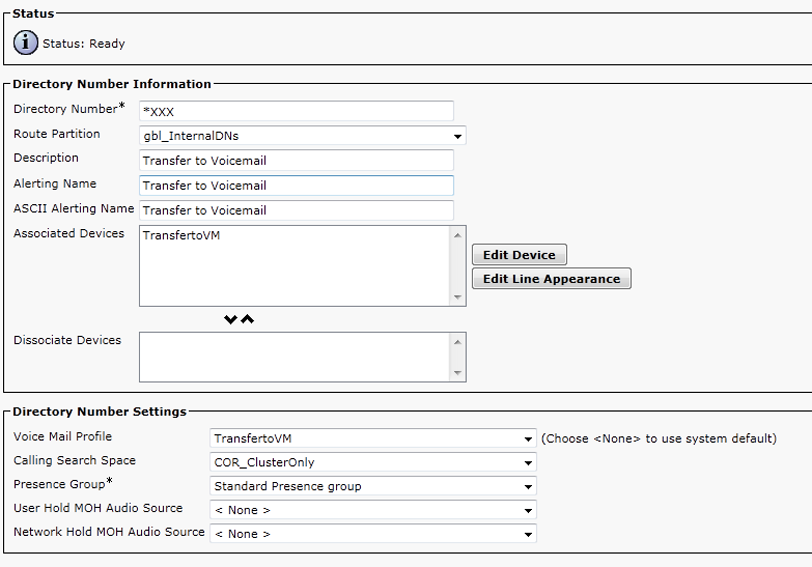
2. Configure the Voice mail Profile.  Ah, the meat of things.  In order to send a call straight to voice mail, you need a new voice mail profile.  Name it something that will make you remember what it does, like “TransferToVM” (my personal favorite).  Just don’t put the word ‘voice mail’ in it.  Unity seems to like to do really screwy things when the name includes the word ‘voice mail’.  Make sure the TransferToVM profile points at your current Voice mail Hunt Pilot.  Also, the voice mail mask needs to match your current extension length.  In my example below, the extension length is 3 digits, so the voice mail mask is “XXX”.

3. Create a CTI Route Point. CTI route points are like the tunnels of the voice world.  They are used to fix a multitude of issues in a pinch.  In this case, we need a device that is going to answer the phone rain or shine, and a CTI route point fits the bill.  I name mine the same as the voice mail profile just to keep everything straight.  Just be sure that it’s in a calling search space that can call your Unity/Unity Connection server.  And mind the naming conventions for CTI route points (they’re kind of picky).

4. Assign a Directory Number. Once you click ‘Save’ on the CTI route point, it’s going to allow you to assign a directory number.  This needs to be a combination of your voicemail transfer access code (from step ) and your voice mail box mask (from step ).  Make sure that it is contained in a partition that is dialable from your internal phones.  The important things to note here are that the voice mail profile for the CTI DN needs to be the profile created above (TransferToVM in this case).  Also, the Forward All settings need to be checked to send the call directly to voice mail when dialed.

And there you have it.  If you followed my example above, whenever you want to send a caller directly to Johnny’s voice mail at extension 101, you just need to dial *101.  Works like a charm.

CSCsb42763, or Why I Hate Hunt Groups Sometimes

Ah, CSCsb42763.  My old nemesis.  Those of you in the voice realm may never have heard of this little jewel.  However, you may have heard of its more common name: “Can you make it so that all the members of a hunt group can pick up a call when it’s ringing (call pickup groups)?”  Fine, you say.  You enable the call pickup group for each phone.  Except being logged into a hunt group negates that particular behavior for calls ringing in the hunt group.  Okay, so I’ll just enable the call pickup group on the hunt pilot…ARGGGGGGGGGGGGGGG!!!!!  IT’S NOT THERE!!!!!!!!!!!!!

My friends, say hello to CSCsb42763.  This particular bug has been around since CallManager 4.0(2a)SR1.  According to the TAC Case Collection identifier (http://www.ciscotaccc.com/kaidara-advisor/voice/showcase?case=K11612191), this behavior caused a memory leak in 4.x versions of CallManager and was disabled by default to keep the calls to TAC down to a minimum.  But wait!  This is 2010?  Why hasn’t this been fixed/patched/enabled?  We’ve moved off of Windows and we’re now on our fourth major generation of appliance *coughcoughLinuxcough* support.  I honestly can’t say why this is still an issue.  If I knew exactly how TAC worked I wouldn’t be doing the job I am doing now.  Or I’d be getting paid a LOT more for it.

How do I fix this little behavior without going crazy?  Well, it’s time to get acquainted with the mysterious “Cisco Support Use 1” parameter:

1.  Log into CallManager and click on System -> Enterprise Parameters.

2.  Scroll down until you find the Cisco Support use section (It’s toward the bottom).  Under there, you’ll find the field “Cisco Support Use 1” (Yeah, real descriptive there, guys.  Why didn’t you just call it “DON’T TOUCH THIS UNLESS WE TELL YOU!!!!!!!!!!!”)

3.  Enter “CSCsb42763” (without quotes) exactly as it appears. Yes, case and spelling are very important.  The system is looking for this exactly string to enable the features that you seek.

4.  Go to the hunt group in question and you should now see the “Call Pickup Group” field.

BTW, if you are still on CallManager 4.2 this field has a different name, naturally.  You’ll find it listed under the more descriptive “Unsupported Pickup” parameter under the CCMAdmin parameters page.  But, really, if you’re still on 4.2 you’re probably using tin cans and string to talk to each other and don’t really need hunt groups, now do you?