Fix The Problem, Not The Blame

Courtesy of Zazzle.com

Ethan Banks is really turning out some good blog posts as of late.  His latest one about failure in particular really got me to thinking.  You should head over and read it before you continue.

After I read through Ethan’s post, I started thinking about why people tend to shift responsibility and fire up the “blamethrower” from time to time.  It reminded me of Rising Sun, a movie based on a Michael Crichton book of the same name.  The movie in particular stands out to me because of a quote from Sean Connery:

“The Japanese have a saying: ‘Fix the problem, not the blame.’ Find out what’s [screwed] up and fix it.  Nobody gets blamed.  We’re always after who [screwed] up.  Their way is better.”

This is the kind of thing that leads to people shirking failure.  People are so worried about getting blamed for things that they won’t admit to them.  Whether it be for something simple like misspelling someone’s name or something major like crashing the core router, people don’t want to get blamed.  Most of the time, I can’t fault them for that.  Think about what happens when something goes wrong.  More often than not someone higher up in the organization starts head hunting.  They stalk the halls asking, “Whose fault is this? I want them in my office now!”  How many times have you seen a situation where yelling at the responsible party took precedence over fixing things?  As a VAR providing support to multiple different types of customers, I can tell you that I’ve witnessed first hand several occasions where my job couldn’t begin until the responsible parties were dealt with.  Precious seconds and minutes can tick by while blame is appropriately assigned.

Personally, I take the opposite approach to things.  When I find myself in a situation of troubleshooting or solving problems, I make sure that blame is the last thing that is discussed.  When the CxO comes stalking through the office looking for someone to yell at, I always make sure to direct attention away from the people doing the work.  In my mind, the key to any successful problem resolution lies not in assigning blame but in fixing the problem.  After the crisis is over and cooler heads are prevalent is the time to begin examining causes discussing resolutions to prevent repeat performances.  The above quote from Rising Sun not only reflects my views about the uselessness of blame in a professional environment but serves to show how useful and refreshing fixing problems can be.  At times, I even assume more blame than necessary if it means moving things along.  My goal as a network engineer is problem resolution, not blame assignment.  That’s not to say that I won’t give someone a stern reprimand if necessary.  I’d just rather not have that happening in the heat of the moment when the network team is trying their best to keep the core from melting into a pile of slag.

To be an effective problem solver, make sure to focus all your efforts on fixing the problems.  By forcing all the stakeholders to expend their efforts on the real source of stress, your reputation will grow into something amazing.  People will talk about your ability to solve any problem.  They’ll comment that you’re cool under pressure and great at motivating people when things are at their worst.  You’ll be known as the person that solves problems quickly and makes sure that your team knows what went wrong to prevent it from happening in the future.  These are all very desired traits for people in a troubleshooting capacity.  They can all be yours provided you spend your time looking at the real issues and not worrying about those that are generated from them.


Minimizing MacGyver

I’m sure at this point everyone is familiar with (Angus) MacGyver.  David Lee Zlotoff created a character expertly played by Richard Dean Anderson that has become beloved by geeks and nerds the world over.  This mulletted genius was able to solve any problem with a simple application of science and whatever materials he had on hand.  Mac used his brains before his brawn and always before resorting to violence of any kind.  He’s a hero to anyone that has ever had to fix an impossible problem with nothing.  My cell phone ringtone is the Season One theme song to the TV show.  It’s been that way ever since I fixed a fiber-to-Ethernet media converter with a paper clip.  So it is with great reluctance that I must insist that it’s time network rock stars move on from my dear friend MacGyver.

Don’t get me wrong.  There’s something satisfying about fixing a routing loop with a deceptively simple access list.  The elegance of connecting two switches back-to-back with a fiber patch cable that has been rigged between three different SC-to-ST connectors is equally impressive.  However, these are simply parlor tricks.  Last ditch efforts of our stubborn engineer-ish brains to refuse to accept failure at any cost.  I can honestly admit that I’ve been known to say out loud, “I will not allow this project to fail because of a missing patch cable!”.  My reflexes kick in, and before I know it I’m working on a switch connected to the rest of the network by a strange combination of bailing wire and dental floss.  But what has this gained me in the end?

Anyone that has worked in IT knows the pain of doing a project with inadequate resources or insufficient time.  It seems to be a trademark of our profession.  We seem like miracle workers because we can do the impossible from less than nothing.  Honestly though, how many times have we put ourselves into these positions because of hubris or short-sightedness?  How many times have we equivocated to ourselves that a layer 2 switch will work in this design?  Or that a firewall will be more than capable of handling the load we place on it even if we find out later that the traffic is more than triple the original design?  Why do we subject ourselves to these kinds of tribulations knowing that we’ll be unhappy unless we can use chewing gum and duct tape to save the day?

Many times, all it takes is a little planning up front to save the day.  Even MacGyver does it. I always wondered why he carried a roll of duct tape wherever he went.  The MacGyver Super Bowl Commercial from 2009 even lampooned his need for proper preparation.  I can’t tell you the number of times I’ve added an extra SFP module or fiber patch cable knowing that I would need it when I arrived on site.  These extra steps have saved me headaches and embarrassment.  And it is this prior proper planning that network engine…rock stars must rely on in order to do our jobs to the fullest possible extent.  We must move away from the bailing wire and embrace the bill of materials.  No longer should we carry extra patch cables.  Instead we should remember to place them in the packages before they ship.  Taking things for granted will end in heartache and despair.  And force us to rely less on our brains and more on our reflexes.

Being a Network MacGyver makes me gleam with pride because I’ve done the impossible.  Never putting myself in the position to be MacGyver makes me even more pleased because I don’t have to break out the duct tape.  It means that I’ve done all my thinking up front.  I’m content because my project should just fall into place without hiccups.  The best projects don’t need MacGyver.  They just need a good plan.  I hope that all of you out there will join me in leaving dear Angus behind and instead following a good plan from the start.  We only make ourselves look like miracle workers when we’ve put ourselves in the position to need a miracle.  Instead, we should dedicate ourselves to doing the job right before we even get started.

Moving to CUCM 8.6 – You’ll Never Upgrade Me Alive COPpers!

Upgrades are a fact of life for network rock stars.  Whether we are patching bugs or adding new features to our systems, the installation of software never seems to end.  If you are a Cisco voice rock star, you all too often find yourself upgrading to newer releases of Cisco Unified Communications Manager (CUCM) to support new devices like the Cius or fix show stopping bugs like the 180-day uptime lockup.  However, if you are a user of CUCM 8.x and you’re trying to move to 8.6, you’ve probably had a couple of head scratching moments so far.

If you’ve popped a freshly burned 8.6(1) ISO into your DVD drive or copied it via SFTP, you kicked off you installation and likely saw the following error message:

09/18/2011 19:31:48 refresh_upgrade|********** Upgrade Failed **********|<LVL::Info>
09/18/2011 19:31:48 refresh_upgrade|*** Please install the Refresh Upgrade COP, and reattempt the upgrade ***|<LVL::Info>
09/18/2011 19:31:48 refresh_upgrade|************************************|<LVL::Info>

Huh? What’s a refresh upgrade?  Why isn’t this ISO file working?  Well, it turns out Cisco needs you to take an additional step first.

CUCM runs on an operating system.  Up until version 5, that was Windows 2000 with some hardening and customizations.  Cisco eventually ported CallManager 4.3 to Windows Server 2003, but in the end the decision was made to move to an appliance-based OS that utilized Linux.  The Telephony OS in CUCM 5.x was new for those used to working in Windows but somewhat familiar to those that have seen Linux before, even if the login shell looked nothing like bash.  Cisco provides patches for the OS with every release of CUCM software and the user never knows what’s going on because of the way the system installs the patches transparently.  However, much like the shift from Windows 2000 to Windows 2003, software eventually reaches the end of its life.  Development stops on the old version and it’s time to move to the new one.  Such is the case in CUCM.  With version 8.6, Cisco has moved away from an OS platform based on Redhat Enterprise Linux (RHEL) 4 and upgraded the underlying OS to RHEL 5.  This is good news that allows the system to stay current and support a larger variety of hardware.  The bad news is that the upgrade of the OS can be a bit destructive.  This is part of the reason for the extra steps in moving to CUCM 8.6

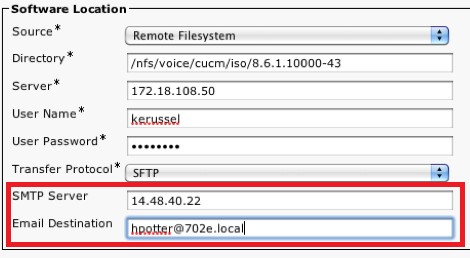
Firstly, Cisco wants you to install a special Cisco Options Package (COP) file on 8.5(1) systems.  This file is ciscocm.refresh_upgrade_v1.0.cop.sgn.  The 8.6 installer checks for the presence of this file and won’t kick off unless it’s present.  It needs to be installed on every server in the cluster.  It’s also going to reboot the server after installation.  As near as I can tell, it makes some changes to the Tomcat service on the server as well as adding two new fields to the Install/Upgrade window:


Notice the new options for email.  This allows the server to send you an email whenever the upgrade is completed.  Probably a long overdue option that comes in handy for those of us that spend more than a few stress-filled moments clicking the Refresh buttons on our web browsers waiting for CUCM to come back to life after an upgrade.  There’s another reason for putting this email field in here now, though.

It turns out that when you upgrade from 8.5 to 8.6, its going to take a while.  Quite a while, in fact.  The system is going to reboot no less than twice, perhaps even three times.  Considering that a CUCM reboot can take 15-20 minutes to complete each time during an upgrade, you’re looking at nearly an hour of rebooting time under certain circumstances.  During the upgrade, CUCM is going to do things in 3 phases:

Phase 1: Export all the pertinent CUCM data to a safe partition

Phase 2: Reboot and install RHEL 5, then reboot and install the CUCM applications

Phase 3: Import all the data from the export partition

On the 7825H3 MCS server, there isn’t enough hard drive space to contain the safe partition during the reformat and installation of CUCM 8.6.  In that case, you’re going to need to plug a 16 GB USB drive into the system to serve as a target for the data export.  If you’re trying to upgrade a CUCM Business Edition system on a 7828H3 server, you better bust out the credit card because you’re going to need a 128 GB USB drive to hold all the CUCMBE data during the upgrade.  The IBM servers aren’t affected by this little caveat, as I’ve done the 8.6 refresh upgrade on a 7825I4 and not had any issues.  Be sure to leave the USB drives plugged in the whole time the system is upgrading.  Also, whatever is on the drive is going to be overwritten without warning, so be sure it’s blank before you start.

After you’ve completed the whole installation with all the reboots, you’re going to have a fresh new system with CUCM 8.6 to support all kinds of wonderful things, like finally being able to use Google Chrome to administer things.

Tom’s Take

I kicked off an upgrade to 8.6 without reading the release notes or documentation.  Thankfully Cisco prevented me from screwing things up big time by halting the installation with the above error message.  The more I dug into things, the more interesting it was.  It also took me two hours to finish things up with many reboots and even more nail biting (Fun fact: I was doing the upgrade during Packet Pushers Show 56, which is one of the reasons why I was quiet – I was trying not to scream at my CUCM server).  However, I think I could have avoided some pain and stress if I’d just read the docs first or even searched for refresh upgrade before I got started.

Unable To Access User-Defined Storage Service

In my VMware vSphere: What’s New [5.0] class this week, I learned why having a lab environment to test things is very important.  I also learned that some bugs are fun to try and fix.

vSphere 5 introduced a lot of new features focused on storage.  One of these is Profile Driven Storage.  This allows users to create tiers for datastores and ensure that those profiles can be attached to VMs at a later date.  This would be very useful for someone that has ultra-fast SSD arrays like those from PureStorage alongside SAS or SATA arrays.  You can define the gold tier as the SSD array for VMs that need fast storage access, silver tier for slightly slower SAS drives and bronze tier for the large-but-slow SATA datastore.  I like this idea of allowing users to define their storage capabilities into easy to assign tiers.  However, we hit a bug when we tried to implement it in the lab.

After we created the tiers in VIClient, we went to assign them to the datastores from the Home -> Datastores and Datastore Clusters section.  When we right clicked on the datastore and chose “Assign User-Defined Storage Capability” we got hit with this error:

Unable To Access User-Defined Storage Service

Huh?  You let me configure the silly thing?  It’s got to be there somewhere!  Let me assign it to something.

Odds are good that if you are seeing this error, you’ve also installed the vSphere Web Client.  Another great option for users that don’t want to install the VMware Infrastructure Client, the Web Client allows you to access VMs from Firefox or Internet Explorer and manage them just like you would from the VIClient.  This would be useful for those out there that are running OS X and currently don’t have a way to manage VMs unless they launch the VIClient from a virtual machine or other emulated environment.  The Web Client software needs to be installed on a Windows (or Linux) machine in order to respond to requests from web browsers.  For many users that run OS X, the logical choice would be to install the Web Client service on the Windows-based vCenter Server and then use Firefox to remotely access the web client afterwards.  That’s what we did in the lab.

The problem lies in that the Web Client service conflicts with the Profile Driven Storage service.  I’m not sure if they use the same port numbers or if they just collide in memory space or something.  As long as the Web Client service is running, the Profile Driven Storage options cannot be configured on a Data Store.  The fix is somewhat simple:

1.  Open the Service console on your vCenter server.

2.  Find the VMware Web Client service.

3.  Stop or disable it.

4.  Restart VIClient.

Simple, huh?  You can now assign the User-Defined Storage profiles to all the datastores you’d like.  When you finish, close out VIClient and restart the Web Client Service so your Mac folks can administer VMs.  Just remember that every time you want to use Profile Driven Storage, you’re going to have to bounce the Web Client service.

One can only hope that this particular bug gets fixed in an upcoming point release of vSphere 5.  Not a show stopper, but I can see how it could cause issues for those that don’t know from the less-than-helpful error message where to look for help.  I’m just glad I found it in a learning lab and not in production.

Crunch Time

Everyone in IT has been there before.  The core switches are melting down.  The servers are formatting themselves.  Packets are being shuffled off to their doom.  Human sacrifce, dogs and cats living together, mass hysteria.  You know, the usual.  What happens next?

Strangely enough, how IT people react to stressful situations such as these has become a rather interesting study habit of mine.  I know how I react when these kinds of things start happening.  I go into my own “panic mode”.  It’s interesting to think about what changes happen when the stress levels get turned up and problems start mounting.  I start becoming short with people.  Not yelling or screaming, per se.  I start using short declarative sentences at an elevated tone of voice to get my point across.  I being looking for solutions to problems, however inelegant they may be.  Quick fixes rule over complicated designs.  I’ve trained myself to eliminate the source of stress or the cause of the problem.  I tend to tune out any other distractions until the issues at hand are sorted out.  Should I find myself in a situation where I can effect a solution to the problem, or if I’m waiting on someone or something to happen outside my directly control, that is the time when the stress starts mounting.  To those that share my “can do” attitude, this makes me look efficient and helpful in times of crisis.  To others, I look like a complete jerk.

I’ve also found that there are others in IT (and elsewhere) that have an entirely different method of dealing with stress: they shut down.  My observations have shown that these people become overwhelmed with the pressure of the situation almost immediately and begin finding ways to cope through indirect action.  Some begin blaming the problem on someone or something else.  Rather than search out the source of the trouble, they try to pin it on someone other than them, maybe in the hopes they won’t have to deal with it.  These people begin to withdraw into their own world.  They sit down and stare off into space.  They become quiet.  Some of them even break down and start to cry (yes, I’ve seen that happen before).  Until the initial shock of the situation has passed, they find themselves incapable of rendering any kind of assistance.

How do we as IT professionals deal with these two disparate types of panic modes?  You need to work out how to do that now so that you don’t have to come up with things on the fly when the core switches are dropping packets and the CxOs are screaming for heads, which is funny that the second category of blamers and inaction people always seem to be in management.

For people like me, the “doers”, we need to be doing something that can impact the problem.  No busy work, no research.  We need to be attacking things head-on.  Any second we aren’t in attack mode compounds the stress we’re under.  Even if we try a hundred things and ninety nine of them fail, we have to try to keep from going crazy.  Think of these “doers” like a wind-up toy: get us working on something and let us go.  You might not want to be around us while we’re working, lest you want some curt answers followed by looks of distaste when we have to stop and explain what we’re doing.  We’ll share…when we’re done.

For the other type of people, those that have a stress-induced Blue Screen of Death (BSoD), I’ve found that you have to do something to get them out of their initial funk.  Sometimes, this involves busy work.  Have them research the problem.  Have them go get coffee.  In most cases, have them do something other than be around you while you’re troubleshooting.  Once you can get them past the blame/sulk/cry state, they can become a useful resource for whatever needs to happen to get the problem solved.  Usually, they come back to me later and thank me for letting them help.  Of course, they also usually tell me I was a bit of an ass and should really be nicer when I’m in panic mode.  Oh well…

Tom’s Take

I don’t count on anyone in a stressful situation that isn’t me.  Most often, I don’t have the luxury of time to figure out how a person is going to react.  If you can help me I’ll get you doing something useful.  If not, I’m going to ignore or marginalize you until the problem is fixed.  Over the last couple of years, though, I’ve found that I really need to start working with every different group to ensure that communications are kept alive during stressful situations and no one’s feelings get hurt (even though I don’t normally care).  By consciously realizing that people generally fall into the “doer” or “BSoD” category, I can better plan for ways to utilize them when the time comes and make sure that the only thing going CRUNCH at crunch time is the problem.  And not someone’s head.

Mobile TFTP – Review

If you work with networking devices, you know a little something about Trivial File Transfer Protocol (TFTP).  TFTP allows network rock stars to transfer files back and forth from switches and routers to central locations, such as a laptop or configuration archive.  TFTP servers are a necessary thing to have for any serious network professional.  I’ve talked about a couple that I use before in this post but I’ve started finding myself using my iDevices more and more for simple configuration tasks.  Needless to say, having my favorite server on my iPad didn’t look like a realistic possibility.

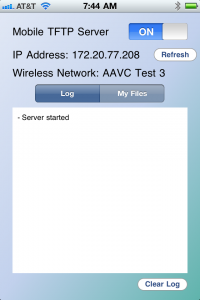
Enter Mobile TFTP.  This is the only app I could find in the App Store for TFTP file transfers.  It’s a fairly simple affair:

You toggle the server on and join your iDevice to a local wireless network.  I didn’t test whether the app would launch on 3G connection, but suffice it to say that wouldn’t be a workable solution for most people.  The IP address of your device is shown so you can start copying files over to it.  The most popular suggested use for this app is to archive configurations to your iDevice.  This is a good idea for those that spend time walking from rack to rack with a console cable trying to capture device configs.  It’s also a great way to have control over your configuration archives, since Mobile TFTP allows you to turn the service on and off as needed rather than keeping a TFTP server running on your network at all times.  As a consultant, this app is wonderful when I need to capture a config without booting my laptop.  Combined with tools like GetConsole or another SSH client, you can access a device and send the config to your mobile TFTP server without the need to boot up your laptop.

I did attempt to copy some larger files up to the device, but those results weren’t as spectacular.  Mobile TFTP Server will support files up to 32MB, so larger IOS files and WLAN controller files are out. The transfer rates from an iPhone or iPad aren’t as spectacular as a hardwired connection, but I think this is more of the platform and less of the software.  The only real complaint that I have is that the files you copy to the device are stuck inside the app.  Sure, you can hook your iDevice up to your laptop at the end of the day and copy the files out of the app inside iTunes (which is also a great way to preload skeleton configs up front), but in today’s world integration is the name of the game.  Giving me the option of linking to a storage service like Dropbox would be amazing.  I tend to keep a lot of things in Dropbox, and being able to throw a troublesome router config in there so it would automagically appear on my laptop would be too sweet.  Still, you can’t argue with the efficiency of this little app.  It does exactly what it says and does it well enough that I don’t find myself cursing at it.

Mobile TFTP Server is $3.99 in the App Store, but as it’s the only dedicated TFTP app I could find, I think it’s worth that to someone who spends a lot of time copying files back and forth and loves the portability of their iDevice.

Disclosure

The creator of Mobile TFTP Server provided me with a promo code for the purposes of reviewing this app.  He did not ask for any consideration in the writing of this review, and none was promised.  The opinions and conclusions reached here are mine and mine alone.

Cisco Phone Cheat Codes

There are many things in this world that are hidden just beneath the surface that make our lives easier.  Whether it be the Secret Menu at In-n-Out Burger or the good old Konami Code, the good stuff that we need is often just out of reach unless you know the code.  This is also the case when dealing with Cisco phones.  There are three key combinations that will help you immensely when configuring these devices, provided you know what they are.

1.  Unlock Settings – *, *, #.  When you check the settings on a Cisco phone, you’ll notice that you can look at the values but you can’t change any of them.  Many of these values are set at the Cisco Unified Communications Manager (CUCM) level.  However, once common issue is the phone not being able to contact the CUCM server or the phone having the wrong address/TFTP server information from DHCP.  While there are a multitude of ways to correct these issues in the network, there is a quick method to unlock the phone to change the settings.

  • Go to the Settings page of the phone
  • While in the settings page, press *, *, # (star, star, pound) about 1/2 second apart
  • The phone will display “Settings Unlocked” and allow you to make changes

It’s that easy.  There won’t be a whole lot to do with the phone Telephony User Interface (TUI), but you can make quick changes to DHCP, IP address, or TFTP server address entries to verify the phone configuration is correct.  By the way, when putting in an IP address via TUI, the “*” key can be used to put a period in an IP address.  That should save you an extra keystroke or two.

2.  Hard Reset – *,*,#,*,*.  Sometimes, you just need to reboot.  There are a variety of things that can cause a phone to need to be reset.  Firmware updates, line changes, or even ring cadence necessitate reboots.  While you can trigger these from the CUCM GUI, there are also times that they may need to be done from the phone itself in the event of a communications issue.  Rebooting is also a handy method for beginning to troubleshoot issues.

But Tom?  Why not just pull the network cable from the back of the phone?  Won’t disconnecting the power reboot?

True, it will.  What if the phone is mounted to the wall?  Or if the phone is running from an external power supply?  Or positioned in such as way that only the keypad is visible?  Better to know a different way to reboot just in case.  Here’s where the reboot cheat code comes in handy.

  • Go to the settings page of the phone
  • Press *,*,#,*,* (star, star, pound, star, star) about 1/2 second apart
  • The phone will display “Resetting” and perform a hard reset

This sequence will cause the phone to reboot as if the power cable had been unplugged and force it to pull a new configuration from CUCM.  Once common issue I find when entering this code is the keypresses not registering with the phone.  Try it a couple of times until you develop a rhythm for entering it about 1/2 second apart.  Much more than that and the phone won’t think you’re entering the code.  Quicker than that and the keys might not all register.

3.  Factory Reset – “1,2,3,4,5,6,7,8,9,*,0,#”.  When all else fails, nuke the phone from orbit.  It’s the only way to be sure.  Some settings are so difficult to change that it’s not worth it.  Or you’ve got a buggy firmware that needs to be erased.  In those cases, there is a way to completely reset a phone back to the shipping configuration.  You’ll need access to unplug the power cable, as well as enough dexterity to press buttons on the front as you plug it back in.

  • Unplug the power from the phone.
  • As you plug it back it, press and hold the “#” key.  If performed correctly, the Headset, Mute, and Speaker buttons in the lower right corner will start to flash in sequence.
  • When those three buttons start flashing in sequence, enter the following code: 1,2,3,4,5,6,7,8,9,*,0,#.  You’ll notice that’s every button on the keypad in sequence from left to right, top to bottom.
  • Phone will display “Upgrading” and erase the configuration.

Don’t worry if you press a key twice on accident.  The phone will still accept the code.  However, you do need to be quick about things.  The phone will only accept the factory reset code for 60 seconds after the Headset, Mute, and Speaker buttons start flashing in sequence.

Tom’s Take

I find myself using these cheat codes all the time.  Whether I’m correcting a bad TFTP server entry or setting a static IP on a subnet, the ability to manipulate a phone without resorting to using CUCM all the time is very useful.  You can also use these codes to impress your friends with your intimate knowledge of the way Cisco phones work.  Just be careful with that reset code.  About every 1 out of 1,000 times it gives you 30 lives instead.

Missing CUCM Configuration Files

Oy.  There’s always one trouble ticket that gives you difficulty and makes you want to throw things around the room.  When you solve it, you yell and dance down the hallway proclaiming how smart you are to have gotten it fixed.  Folks, let me introduce you to that issue.

A Cisco Unified Communications Manager Business Edition (CUCMBE) server started exhibiting strange behavior.  No phones registered and no web GUI.  Not the first time that this has happened, so I’ll just log in via SSH and reboot the server.  When it came back up, nothing.  Same thing.  When I poke around in the CLI, I find out the SSH services are started, but that’s about it.  When I try to start the Tomcat service, which is required for the web GUI, I get an error about the Service Manager not being started.  No problem, I’ll just start that one:

admin:utils service start Service Manager
Aborting servM startup due to invalid configuration files

Oh crap.

Uh, restore from backup?  Hah!  No backup here.  Boot off the recovery CD and check the disk with FSCK (which looks a lot like a curse word I was uttering at this point)?  Fixed a couple of file issues, but still no dice on the services.  No backup partition, as this server had never been upgraded.

Just great.  What now?

Well, if you’re impatient like me when you’re waiting on support engineers to get back with you and you know you’re probably going to have to reload anyway, you can try some crazy things on the off chance they might work.  I mean, what’s the worst that can happen, right?

WARNING!!!!!

The things I’m about to discuss are totally unsupported by Cisco.  I also am not going to support them.  It worked for me this time, but it could have very easily screwed things up.  Don’t come to me and tell me you did this and now you need to reformat and you want me to help you.

Okay, that being said, there are a multitude of ways to gain root access to your CUCM server.  Again, none of them are supported, so don’t do them if you are the least bit squeemish.  The first thing you should read is the great guide at blindhog.net about gaining root access on CUCM 5.x/6.x.  It’s a very handy way to show you that the underlying system in CUCM is actually RedHat Enterprise Linux.  Since I didn’t have a Linux boot disk handy, I instead stumbled across this post which talks about jailbreaking CUCM.  I didn’t have to go all the way through it, but it is a fascinating read nonetheless.

1.  Download PuTTY, PuTTYgen, and PSFTP from HERE.  The instructions at the above link use these files and you should too.

2.  Log into CUCM CLI via SSH as the administrator user.

3.  Type in “file dump sftpdetails ../.ssh/id_dsa” at the CLI.  You’re going to get a dump of the SSH private key for the sftpuser account.  Copy this information to a text file and save it somewhere on your system.

4.  You need to convert this SSH private key from OpenSSH to PuTTY’s SSH format using PuTTYgen.  Import the Private Key file and save it somewhere like c:\temp.  Be sure to save it with the .ppk extension.

5.  Launch PSFTP with this command string:

psftp -2 -i c:\TEMP\id.ppk sftpuser@cucm.example.com

The file location should be where you saved the private key and the user@server should reflect your server’s IP or hostname.  Be sure to type in sftpuser@<your server address here>.

6.  If you’ve logged into the server before and saved the RSA fingerprint, you may get a warning here about the key your using.  Just say “yes” and keep going.

7.  Voila!  You’ve logged into the system as the sftpuser account and you can now download files from the Linux file system or copy files to it.  In the above link, this is where you would jailbreak the system.  For my particular example, we won’t have to go quite that far.

8.  In my troubleshooting case, I changed directories to “/usr/local/platform/conf/” which is where the configuration files live.  I noticed that “server.conf” was missing, but there was a “server.conf.bak” in the same directory.  I typed in “mv server.conf.bak server.conf” since I couldn’t copy the file.  Then I tried to start the Service Manager service again from a SSH CLI session.

SUCCESS!!!

Tom’s Take

I do stupid things all the time.  Like voiding warranties, which is what my little procedure above will do to your CUCM system if you try it.  I was desperate and impatient and it paid off for me this time.  I also have experience on the Linux CLI so I’m not afraid to do things there, even knowing that the outcome for a little slipup could crater my system.  Don’t do what I do unless you know what you’re doing or you aren’t afraid to reload.

That being said, a little Internet searching followed by some practical application can save your bacon in a time of emergency.  Just remember that the Disaster Recovery Tool (DiRT) is there for a reason. Use it wisely and use it often and you shouldn’t find yourself needing to jailbreak your CUCM server anytime soon.

Nerd Tips – Broken Execution Association

Here’s a quick tip for those of you out there that might find yourself fighting off an offending virus or malware program that keeps coming back no matter what you try, such as Win 7 Antivirus 2011.  This particular program does have a little trick that it likes to pull in order to keep itself in memory.  When an executable file (EXE) is launched in the system, usually a set of keys in the registry are consulted to find out what to do with the file.  Most often, the file itself is run with a command string like “%1”, which calls the file.  The malware program inserts itself in front of the execution string, so that every time you try to launch a program to fight off the crapware, like Malwarebyte AntiMalware for instance, the virus just launches instead and reinfects your system.

Should you find yourself in this quandry, unable to launch the programs needed to disinfect yourself, take heart.  An old DOS trick can be used to get yourself right as rain.  In the old days, executable files came in a format other that EXE.  DOS used a file format of COM to execute simple little programs like COMMAND.COM or DOSSHELL.COM.  COM files were orginally simple, with very little code and no metadata in the header.  Likewise, when Windows 3.x was just a program executing on top of DOS, it preserved the executable format of the COM programs.  Fast forward to Windows 7, and you will see that this convention is still honored.  If you find yourself unable to launch REGEDIT.EXE or MBAM.EXE and instead keep launching the virus, do the following:

1.  Launch a command prompt (CMD.EXE or COMMAND.COM if necessary).  You might have to launch it as an administrator to make some changes to system files.

2.  Find the file you need to execute, like REGEDIT.EXE.

3.  Use the follwing command to rename the file: ren REGEDIT.EXE REGEDIT.COM


Sounds simple, eh?  You’ll find that when the file is displayed, it won’t have the neat icon it used to.  Instead, it will look like a generic DOS executable file.  That’s perfectly fine.  When you double-click the file to launch it, it will fire right up.   This is because the COM file association as an executable file format is usually not changed by the malware writers, since very few COM files are still used on modern systems.  Following these steps, you can get Malwarebytes to load and disinfect your system, bypassing the EXE file lockout.  Malwarebytes will even repair the EXE association for you, so when you reboot you’ll be back to normal.  Just remember to go back and rename the file you change to a COM file back to an EXE file.

As a disclaimer, this process doesn’t work 100% of the time, and if the malware writer was smart enough to screw up the COM file association, you’re doubly screwed.  Don’t go mucking around in your system registry changing things unless you know what your doing, since a screwed registry will really kill your system fast.  Use caution, logic, and if all else fails, find a systems rock star to help you out.

Note, I reference Malwarebytes as a removal tool not because of any consideration on their part, but instead because it just works.  I’ve installed the trial on many computers for people that tend to get infected over and over, and it really helps cut down on their infection rates.  Try it out, and don’t forget to buy it if you find it useful.  Every penny they get goes to help cut down on the amount of crap out there trying to infect your system over and over again.

Any Transport over Unicorn (AToU)

I spent most of my Friday assisting a fellow engineer with a curious issue.  Packets were being sent from one network to a default gateway on a totally different subnet.  Efforts to investigate the issue turned out to be mostly futile.  Due to a strange interaction of proxy ARP and a dying router bridging network segments, I was frazzled to the limit of my patience.  Then the customer asked me what was going on.  Rather than admit that this networking problem had me baffled, I came up with something that I hoped explained my consternation:

“Your packets are being ferried to the Internet by unicorns.”

Now, my friend Greg Ferro is fond of saying that certain “magical” technologies must be powered by Unicorn Tears™, so when it came time for me to tell this non-technical person how the packets were jumping from one subnet to a gateway on another, I knew the only explanation that made sense involved those single-horned mythical creatures loading the packets up and carrying them across the network.  It sufficed for the time being until I could actually resolve the problem by shutting down the dying router and tossing it into a river.  Plus, the look of utter shock on my co-worker’s face when I explained the issue was worth the price of admission.

Afterwards, I started thinking that you could use unicorns to transport all kinds of protocols.  IPX/SPX, Appletalk, even SNA.  Once you get the right kind of unicorn trained to ferry IPX, for example, you just point him to the right stable (gateway) and off he goes.  He should be able to carry large payloads quickly and efficiently.  As well, since unicorns are mythical creatures, there’s no need to worry about encryption, since people can’t see them anyway.  If you could build up an entire herd of unicorns, you could be capable of transporting massive amounts of data at once.  I’m not sure what unicorns eat, but being mythical creatures means they shouldn’t eat too much.  Then there’s the issue of having lots of stars and glitter all over the floor of your data center.  But I think that’s a small price to pay for the advantage of such a fabulous transport method.