Invalid Information Element Contents Error Message

Problems with no apparent cause really drive me up the wall.  A customer called me with an issue that had no rhyme or reason for existing.  A group of phones at one site were not able to make outbound calls.  They were receiving calls from the PRI and were able to call other extensions with no problems.  Other phones that were using the same route patterns and gateways were able to call with no issues.  Troubleshooting the route pattern at the phone showed the digits landing on the gateway but a fast busy right after that.  It wasn’t until I drilled into things with my new favorite command debug isdn q931 that I found the real problem.  It looked something like this (numbers obscured):

Calling Party Number i = 0x0081, 'XXXX'
Plan:Unknown, Type:Unknown
Called Party Number i = 0x80, 'XXXXXXXXXXX'
Plan:Unknown, Type:Unknown
Sending Complete
ISDN Se0/0/0:23 Q931: RX <- RELEASE_COMP pd = 8 callref = 0x9F
Cause i = 0x82E404 - Invalid information element contents

Hmmm.  Guess it’s off to Google.  Then I found this post from the Cisco VOIP Mailing list.   And after implementing a quick fix, everything turned out fine.  So what happened?

This particular site was the first time I used this excellent guide on rewriting outbound caller ID with Calling Party Transform Masks as opposed to doing it on the Route Lists or the Route Patterns.  In my haste to import all the phones, I missed a critical group of phones in my transform mask set.  As such, they weren’t sending a full 10-digit number to the PRI and the provider was rejecting the call.  I’ve never had this happen before, as I see customers that only send 4 digits to the PSTN sometimes.  I can see the allure of not allowing less than 10 digits on the PRI as a final check to ensure your station ID is correct for things like emergency services and I like that idea a lot better than the provider just overwriting your station ID without warning.

In the end, all is well and I now know where to track the issue down again.  Hopefully others might find this post enlightening.

“None” Ain’t No Partition I Ever Heard Of

When you setup your first Cisco Unified Communications Manager (CUCM) server, you’ve got a lot of programming to do.  You have to program phones and partitions and calling search spaces.  You have to worry about gateways and route patterns and voice mail.  Many times, the default settings in the setup will be more than sufficient to get you up and running quickly.  However, there is one default that you must avoid no matter what.  The dreaded <none>.

You see, when you configure a directory number (DN) on a phone, the default partition for this number is a special partition labeled <none>. None exists on the system mostly as a placeholder, a catch-all for devices without a home, much in the same way Uncategorized is the default category for posts on my blog.  Normally, <none> isn’t much of a bother.  I ignore it almost entirely.  However, in situations where I’m forced to deal with it, I start wanting to pull my hair out.

<none> interacts with the system in some pretty strange ways.  By rule, when you configure a DN, it can call other DNs in the same partition (provided the calling search spaces match).  As long as all your devices exist in the same partition everything is great.  However, much like creating a large network with only one VLAN, creating a phone system with only one partition can lead to problems down the road.  What if you want your voice mail system segregated from certain phones?  One of my other favorites is the executive that only wants his phone to be dialable from certain extensions on the system.  In order to accomplish these things (and more), you are going to need to create additional partitions. And the second you do, the <none> problem becomes a real hassle.

<none> is actually a null partition.  It doesn’t really exist in the system, so it can’t be assigned or removed from any calling search spaces (CSS).  This means that <none> exists in EVERY CSS.  If a phone or gateway is located in <none>, any partition on the system will be able to dial it.  However, the phones located in <none> won’t be able to dial any other partitions.  You could create a special CSS to allow it to dial other partitions, but you’ll never be able to make the phone non-dialable.  No matter what, every search space created will be able to dial that phone because every CSS has the <none> partition listed as an unlisted member, kind of like the understood “deny” statement at the end of an access list.

The best thing to do is create two different partitions for your internal devices.  One, which I call “InternalDN”, is where all your phone’s directory numbers go.  If you are creating partitions for multiple groups for a multi-tenant cluster, you could give them more specific names like “InternalDN-CoA” and so on.  Then, you create CSS groups that only allow phones in those partitions to call each other, but no one else.  Then, you put your devices that need general access to only the cluster, such as voice mail and gateways, in a partition name “ClusterOnly”.  That way, you can remember to keep your DNs different from your VM ports, and you can restrict access to each as needed.

Tom’s Take

Don’t use <none>! I’ll come and slap you.  Seriously, while it may be quick and easy to set up, if you keep using <none> for everything, it’s like building a house on quicksand.  Sooner or later, you’re going to get sucked into a huge time sink to fix a strange problem that is going to require you to unravel your entire configuration to fix it.  Better to split your phones and cluster resources into separate partitions and build it right the first time.  Just pretend you’ve never even heard of <none> and all will be well.

Tech Field Day – MetaGeek

The first Tech Field Day presenter that we heard from was MetaGeek.  I’ve been a fan of their free InSSIDer product for a while now.  At the time, my needs were fairly simple when it came to wireless spectrum scanning.  I simply looked for the SSID network names and used a little interpolation to help me find access points.  However, the 2.4 GHz spectrum where most client devices now operate has become congested with devices and sources of non-WiFi interference, so little tricks aren’t going to cut it any longer.  You need a serious tool to help you make sense of things.  MetaGeek offers a solution to help you find out a little more about the space around you.

The presentation started out with a quick recap about the founding of the company.  Once nice thing that I saw was that the head geek and founder, Ryan Woodings, saw a need and capitalized on it.  His original device was designed to scan wireless mice for interference.  He expanded it to include more and more sources of wireless transmission.  Much like any geek or nerd I know, he started peeling back the layers and diving deeper into the problem.  A couple of fun pictures about the first MetaGeek offices and their exposure on Engadget leading to their success today had me feeling a little nostalgic.  It’s always nice to see a company come from humble beginnings and enjoy great success.

Once the short and fun history lesson was out of the way, it was time for the real payoff – a demonstration of the flagship Wi-Spy DBx analyzer tool and the associated Chanalyzer Pro analysis software.  The Tech Field Day delegates also recieved a Wi-Spy and copy of Chanalyzer Pro so that we could follow along with the geeks as they laid out their program and it’s capabilities.

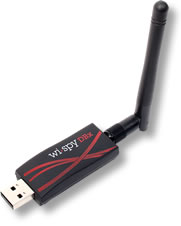
WiSpy DBx (Image courtesy of MetaGeek)

The Wi-Spy DBx is a very unassuming piece of hardware, a USB adapter with an RP-SMA connector on the end.  The small form factor allows it to be plugged in just about anywhere quickly and easily.  The DBx model allows you to scan both the 2.4 GHz spectrum where 802.11b and 802.11g networks operate and the 5 GHz spectrum where 802.11a networks are prevalent.  Note that the Wi-Spy can’t scan both network simultaneously, so if you want to do captures on both at the same time you’ll need two DBx units, or one DBx and one 2.4GHz-only unit like the Wi-Spy 2.4x.  There is also a patch antenna option that allows you to be a little more specific about the direction of the signal detection.

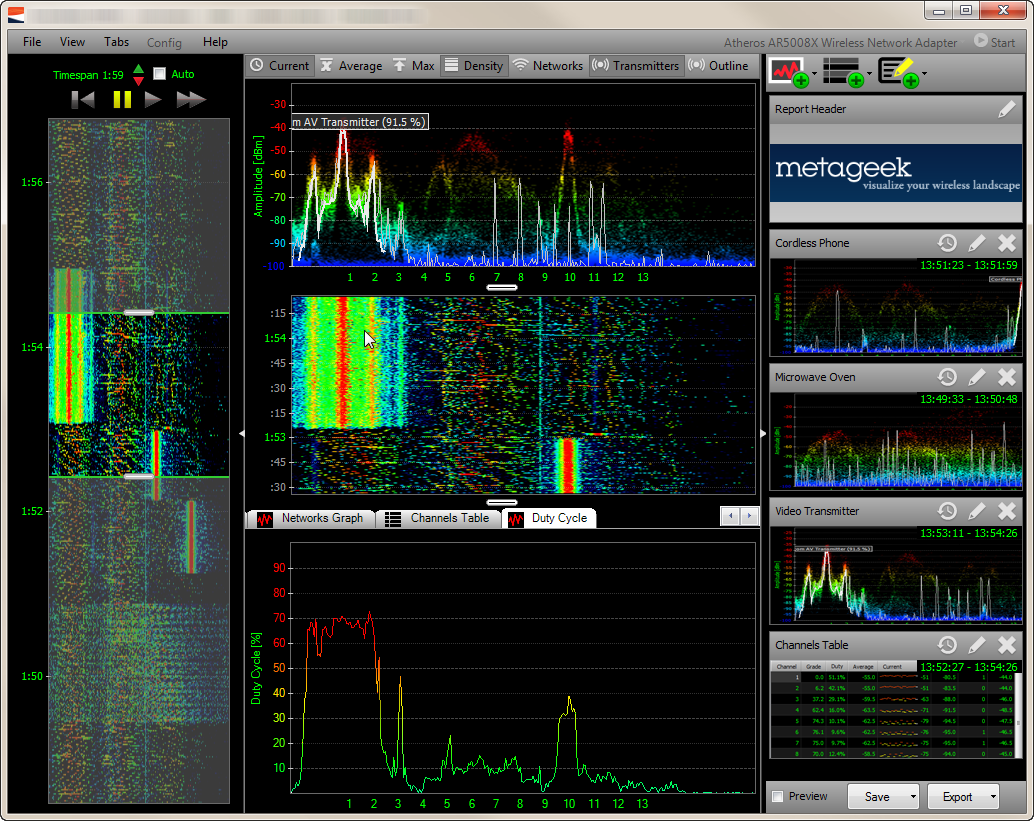
Chanalyzer Pro (Image courtesy of MetaGeek)

The Chanalyzer Pro application is where you are going to spend most of your time.  It gives you a great visual representation of the information the Wi-Spy will be passing along to you.  The application packs a lot of information into a small space.  The line graph at the top center shows you the utilization for the spectrum currently being scanned.  There are options to turn on/off the average and peak utilization, as well as the intensity of signals in color.  This is where you will notice the utilization of a given frequency or channel.  The middle pane show the ‘waterfall’ view, which is the representation of the top pane over time.  This gives you the opportunity to see any sources of interference as they appear and persist.  The bottom pane gives you more specific detail to drill into, such as SSID overlay or duty cycle information.  This is painted in both a specific graph on the bottom and in the case of the SSID, overlaid on the top graph to allow you to see that there are too many access points (APs) on the same channel in your vicinity.  The large graph on the left side of the window extends the waterfall view over time, but also allows you to move the graph to any point during the time of the packet capture.  This is a great feature for sources of interference that are transient.  You can rewind and fast forward much like a DVR.  This is great if you were preoccupied when the interference happened or you need to review it again to profile the specifics for later classification.

During our great demo, Ryan and Trent Cutler were showing us some of the more interesting interference sources they have seen and classified.  Much like any good investigator, they can recognize things like the difference between 802.11b and 802.11g APs on sight, as well as being able to tell you the difference between a microwave and a cordless phone.  For those of us not as gifted in the art of interference profiling, the Chanalyzer application includes preset waveforms that allow you to overlay them on the graph to tell you the difference between your cordless phone and a wireless video camera.  Very handy for nerds like me that need a little more time in the saddle before we can spot the trouble from the line graph itself.  You can also take captures of interference sources and send them to Trent and he’ll help identify them if it’s something that hasn’t been seen before.  He keeps a collection of the odd and interesting captures he’s gotten, like a fun version of a stamp collection.  I think my favorite was the ceiling fan mounted audio system.

Tom’s Take

The MetaGeeks really knocked it out of the park for the first batter up at the plate.  They looked a little nervous at first, but once into their element, they really shined at showing the delegates what their tool was capable of doing.  I was very impressed by the power of their software along with the ease of use.  So much so that after I returned from Tech Field Day, I spent a whole evening running around my house with my Wi-Spy turning on microwaves and cordless phones and being amazed at what I saw.  The other spectrum analyzers I’ve seen run in the thousands of dollars, which makes the Wi-Spy an incredible value for those wanting to jump into the spectrum analysis arena without needed to sacrifice a kidney in the process.  I plan on giving the Wi-Spy a real run for it’s money in the near future to see how well I can integrate it into what I do every day.  I even plan on getting some interesting spectrum captures to see if I can stump Ryan and Trent.

If you’d like to learn more about MetaGeek and their product lines, you can check them out at http://www.metageek.net.  You can also follow them on twitter as @metageek.

Disclaimer

MetaGeek was a sponsor of Tech Field Day, and as such they were responsible for paying a portion of my travel costs and hotel expenses.  In addition, they provided a package to the delegates containing a Wi-Spy DBx with Chanalyzer Pro as well as Chanalyzer Lab and a Device Finder patch antenna option.  There was also a WiFi Interference Detection Kit (a bag of microwave popcorn) included in the black lunchbox that housed the rest of the equipment.  This package was provided to the delegates for evaluation purposes and was in no way intended to curry favor.  They did not ask for, nor were they promised any consideration in any review.  Any and all opinions and conclusions in this review were provided freely and clearly and reflect my own thoughts on the product.

Hooray for Bruno!

Twenty-four hours after Cisco ‘tweaked’ the CCIE lab troubleshooing section a little, we finally get a little bit of feedback about what they have wrought on the weary CCIE candidates.  This thread over on the Cisco Learning Network serves as the official announcement.  Further down the list is a response to some questions from concerned folks about what this could mean from Bruno van de Werve, who appears to be part of the CCIE program inside Cisco.  Bruno was also responsible for the excellent CCIE lab web interface video.  So, what did Bruno share with us?

1.  This is a virtual switch based on a router image, so the ports will be shutdown and not configured as switchports up front.  This about having a switch module in a router in Dynamips/GNS3 and I’m sure this is what the L2IOU is like.

2.  The image appears to be based more toward the 3550 rather than the 3560.  This comes from comments about the port being in dynamic desirable instead of the 3560 method.

3.  All interfaces are Ethernet, not FastEthernet or GigabitEthernet.  They are also arranged in groups of 4, e.g. e 0/0, e 0/1 and so on.  Due to the software limitations, you can only do interface range commands across the 4 ports of the module, so for instance setting up more than 4 trunks at once would require multiple interface range commands.  As an aside here, Bruno says that they are most likely not going to have more than 4 trunks per switch right now.

4.  These switches are based off of 12.2 mainline IOS with some L2 switching features added in.  They also lack any of the hardware ASICs necessary to do advanced features.  So, no Cat-QoS for instance (His words, not mine.  Cat-QoS, really???)

5.  There are only two switches at present in the TS section, and they are in the same IGP domain.  Bruno elaborates that they might add more switches later as features are added to the L2IOU image.

6.  There will still only be 10 questions in the TS section (his words).  So, at best you can probably expect 1-2 L2 questions for now.  He did say that there is a possibility that the questions could influence other tickets, so be on guard if you have a L2 question up front that it might affect an OSPF question later.

7.  There are no planned changes to the configuration section of the lab at this time.  No, they aren’t going to remove MPLS.  They aren’t screwing your config section totally.  Also, in a reply to one of the first commenters, Bruno said,

“At the moment, there won’t be any changes to the configuration section of the lab, so the two L2 troubleshooting questions will still be there.”

Ahem.  As my old econ professor in college used to say during test reviews…”Hint, hint, hint, oh hint.  You might see this on the exam.”  Guess what folks? Bruno just gave you a big hint.  You are still going to see L2 troubleshooting on the config section.  And if the historical trend is true, it’s going to be the first part of your lab.  “There are XXX faults in your initial lab configuration.  Correct these faults for 1 point each.  Be aware that these faults could impact configuration in other sections of the lab, and if they are not resolved and impact another working solution, you will not receive points for the non-working solution.”  So put your thinking caps on.

My Take

L2IOU was introduced to the troubleshooting section to crack down on the braindumpers.  Cisco knew they needed to add it to keep the cheaters off-balance, but the feature set of the IOU emulator wasn’t ready when the TS section went live.  I’m sure a team has been working on it night and day trying to get enough features built into it to make it a usable tool for the TS section.  It would be virtually impossible to have a physical setup for troubleshooting.  30+ routers would be a large rack, and now that you start adding physical switches in on top of it, it become unmanageable.  IOU made the most sense for the L3 section, but L2 is just as important for testing a candidate’s knowledge.  However, there wasn’t an emulator capable of perfectly virtualizing a switch.   And there still isn’t.  The fact that L2IOU got pushed out the door in the state that Bruno describes it in means that someone had to be done to stop the braindump hemmorage.  That’s the only reason I can think of to introduce a totally foreign software-emulated L2 device that by all accounts doesen’t resemble the feature set of the devices in the lab that you are already forced to troubleshoot a mere two hours after the beginning of the lab.  So why not put the additional troubleshooting questions in the config section where they can be done on real hardware?  Especially since there are only two L2IOU devices currently?

Because Cisco has never nailed down the exact nature of the TS section, it gives them more latitude in changing it quickly.  Adding ten new TS questions takes a lot less time than re-engineering a whole lab set.  Just like the OEQs before, the TS section is designed to weed out the weak candidates relying on someone else’s leaked materials rather than the tried-and-true studying methods that should be employed.

I still don’t like the change.  Not enough lead time.  A ham-handed attempt to fend off what appears to me to be a growing portion of lab candidates.  Seeing as how they appear to be phasing things in slowly and not increasing the impact of L2 until more features get baked in, I guess I can live with being a guinea pig for now.  But I sincerely hope that I pass my lab on this attempt so I don’t have to beta test new TS section features again.

I’s and T’s and Crosses and Dots

My name is Tom, and I’m careless.

Yep, I admit it freely.  I’m the kind of person that rushes through things and gets the majority of the work done.  Often I leave a few things undone with the hope that I’ll go back later and fix them.  For me, the result is the key.  Sometimes it works out in my favor, sometimes it doesn’t.  More often than not, I find myself cursing out loud about this unfinished job or task months down the road and threatening to find the person responsible, only to later determine that I should be kicking my own butt for it.

One place where this particular habit of mine has caused me endless grief in inside the unforgiving walls of Cisco’s Building C lab in San Jose.  Yep, I can honestly say that at least one lab attempt was foiled due to my propensity to miss the little things.  I’ve previously written about some of the details of the lab, but I wanted to take some time in this post to talk about the details themselves.  As in, the details in the questions that will kill you if you give them the chance.

Let’s get it out there right now: there is NO partial credit in the CCIE lab.  None. Zilch.  If you fail to answer every portion of the question with completeness, you get zero points for that question.  Unlike the old days in elementary school, you don’t get points for trying.  This shouldn’t really come as a shock to anyone that’s taken a multiple choice test any time in their life.  On those tests, there is exactly one set of answer(s) for a particular question, and if you don’t select the proper repsonse(s), you don’t get the points.  The same thing goes for the questions you find in the CCIE lab exam.  Just because the questions may or may not have multiple parts doesn’t excuse your need to answer them fully.  Old Mr. Hollingsworth used to tell me regularly, “Son, close only counts in horseshoes and hand grenades.”  Since I don’t play horseshoes and my hand grenade supplier mysteriously dried up, I guess close just won’t cut it any more.

You might end up getting a question in the lab that says something along the lines of “Configure OSPF on R1, R3, and R6 according to the diagram.  Do not change router IDs.  Rename R1 to ‘SnugglesR1’.”  You could build the most perfect OSPF lab in history.  You could spend an hour optimizing things.  If you forget to rename Snuggles the Router, you will receive no credit for the question.  All that hard work will get flushed down the toilet.  You’ll get your score report at the end of the day and wonder why you didn’t get any points for all that time you spend making OSPF sing like a soprano.

In order to prevent this from happening to you, start training yourself now to read carefully and consider every facet of the questions you’ll see.  Remember that the questions in the lab are carefully constructed by a team that spends a ton of time evaluating every part.  There are no unnecessary words.  Candidates have pestered proctors over the meaning of single words on a question.  The questions are written as they are to make sure you take into account a number of factors.  They are also designed to slip in changes to tasks and additional configuration with a word or two.  And if you are careless, you’ll miss those phrases that signal changes and negations.

Surely, everyone has taken a test that has a question that says “Which of the following was NOT a <something> <something>”  Your job is to evaluate the choices and pick the one that is not something.  That single word changes the whole meaning of the question.  And for those that are careless or the kind the skim questions, the NOT might be missed and cause them to answer incorrectly.  Questions in the lab are the same way.  Skimming over them without reading critically can cause nuances to be missed and lead to incorrect solutions.  After 5 hours of staring at words on a monitor, things might start blurring a little, but attention must be paid to the last few questions, as those might be enough points to buoy over the passing mark.

I’ll be the first to admit that the pressure to get everything done in the allotted time may cause the candidate to want to rush, but you must resist that pressure.  Many CCIE lab prep courses and instructors will tell you to carefully read the questions before you ever start configuring.  I agree, with some additions.  I always take my scratch paper and write the task numbers down the side.  After I’ve accounted for Task 1.1, 1.2, 2.1, and so on, I then go back to the questions and make marks next to my list for any questions that may have multiple parts or tricky solutions.  That way, if I find myself rushing through after lunch the marks I made early in the day force me to pay attention to the question and ensure that I don’t miss something that might cause me to tank three or four points.  Those points add up over the course of the day, and more than a few careless mistakes can cost you a nice expensive soda can.

If you are serious about the CCIE lab, it’s worth your time to start working on ensuring that you pay close attention to each question and don’t make any careless mistakes due to reading too fast or missing important configuration requirements.  Your day is going to be stressful enough without the added pressure of fixing mistakes later in the lab as a result of forgetting to enable OSPF authentication or a typo on a VLAN interface.  You want to remember to dot every “i” and cross every “t” for each and every question.  That way, you can walk out of the lab and use that freshly-dotted “i” when you spell you new title as a CCIE.

Nerds on Film

I’m a visual learner.  I’ve known this for quite a while now.  While I can find a location with printed directions from Google or Mapquest, once I’ve been to a place and seen how to get there I won’t get lost again.  Network diagrams convey information much more clearly to me than spreadsheets.  Even the act of my watching the information being written on a whiteboard is enough visual stimulation for it to stick with me.  I think in pictures.  And, for the majority of my career this has served me well.

That is, until I started doing site walkthroughs.  Part of my job as a consultant requires me to walk around customer sites and observe things.  I need to figure out what kind of electrical power is available.  I need to know if the racks in the location will support a small UPS or a large rack-mount server.  I need to know how many patch panels are installed.  In short, I need to build a picture of your equipment and network so I can start figuring out what you need.  In the past, I’ve always taken notes in my handy notepad.  I jot down what I’m thinking at the time and what I’m seeing.  Which works great as long as I can provide some context.  Some notes, like “needs power” make sense if you remember to tag which rack you are talking about.  Or you can remember which order you went through if you forgot to provide locations.  Other notes, like “messy” or “I don’t want to ever come back here” tend to get lost in the shuffle.  And so I found myself looking at my notebook days after my walkthrough wondering exactly what I was thinking when I jotted down a particular entry.  That is, after I combed through the the 5 notebooks and legal pads I keep on my desk and in my car where notes may or may not be written down.  Even moving to an electronic device for taking notes didn’t alleviate all my note-taking challenges.  All that changed last year thanks in part to Cisco.

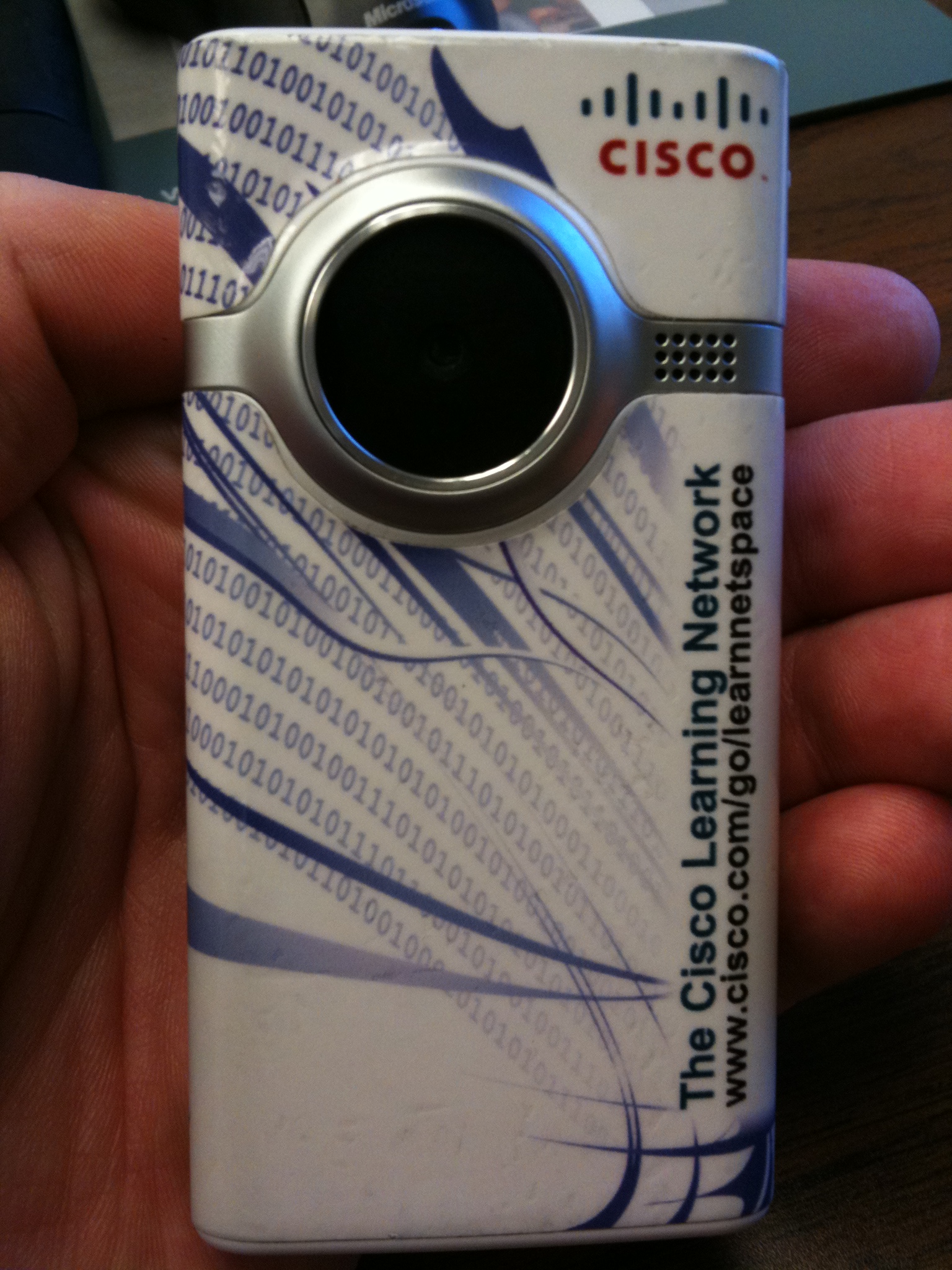
When I was at Cisco Live Networkers 2009 in San Francisco, I was fortunate enough to win one of these:

For those of you not familiar, this is the Flip Video camera that Cisco now offers after their purchase of Pure Digital in 2009.  This particular one was won by playing the Mind Share game at the Cisco Learning Lounge.  When I won it, I first thought “Great!” Then I realized that I never really take pictures of anything, let alone video.  When John Chambers was sitting on stage during the keynote talking about the revolution of video and how it was going to become a real game-changer, it didn’t really sink in.

Not until I was back home and working on the drudgery of my regular, non-nerdy non-convention life did the reality of video truly hit me.  All of the problems I had experienced with notes could be solved with video!  No longer did I have to remember to write down some key piece of information before it was forgotten.  No longer would I have to make several trips to a site to answer a question about port counts or rack types.  I could be free to conduct site surveys in a much more informal and meaningful manner.

Now, instead of flipping out my notebook or iPad or papyrus and quill, I take my Flip camera out of my backpack and just turn it on.  Then I talk.  I describe what I’m seeing.  I talk about rack types and punch downs.  I sweep the camera all around the area, noting anything of interest I might find.  And when I’m done with my video note, I save it to my computer for future reference.  In six months when an account manager asks me what kind of power is available in the room, I don’t have to make another trip to the site or spend half a day pouring over notebooks.  I simply fire up my video record of my walkthrough and give them the answer they’re looking for.

It also helps to jog my memory when I look at a map of the building or I’m asked about a specific closet.  I can go back and relive my time there to get the answers I need.  And others can watch my videos and see the same things I’ve seen.  That way, I can provide as much info as possible for as many people as I can in the shortest amount of time.  That, in essence is the power of video.  And for visual learners like me, it’s a really powerful way to demonstrate what I’ve seen to myself and to others.

And, thankfully, since I’m the producer I never have to be in front of the camera.  I let the visuals speak for themselves.  Because the last thing my customers and co-workers need to see is another nerd on film.

Now put that thing back where it came from or so help me…

When troubleshooting problems, we often find ourselves mired in a sea of options.  Google searches, technical documentation, tricks from our magical networking bag, and so on.  And more often that not, it takes more than one solution to actually fix a problem.  Magic bullets are very hard to come by in Information Technology.  So, when Google search option #1 fails, it’s time to move down the list to option #2…

WAIT! STOP RIGHT THERE!!!

Yes, you heard me.  Before you move on to option #2, you’ve got something to do first.  Before you get that big head of steam built up troubleshooting, you’ve got to clean up after yourself.  Yes, it’s time to undo option #1.  Now, I know what you might be asking yourself right now: “Huh?  What?  Undo something?” That’s absolutely correct.  If you try something that doesn’t work, you need to back out that change before you move on.  Why???

1.  If you end up trying 15 things to fix this particular issue, and one of them finally works, which one actually fixed the issue? Your first reaction is to say “Well, duh.  The last thing I did is what fixed it.” Usually that’s a good answer.  Unless Thing #9 needed 5 minutes to fix the problem in the background while you tried #10-#15.  Or, worse, #9 did something that allowed #13 to fix the issue.  The idea is that by backing out the changes if they don’t work, you can pinpoint what works more quickly.  Or, in some cases, narrow down a list of things that need to be done in concert to resolve the issue.  More than once I’ve asked someone how they fixed a problem only to be met with a shrug of the shoulders.  As a consultant or a technical resource for your company it’s vital to remember that if you can’t explain to a customer or your boss what you did to fix the problem, you didn’t actually fix anything.

2.  You don’t want to introduce any extra issues into the mix. If you don’t back out your changes before trying something new, there’s a very good chance that you’ll introduce an unexpected variable into the situation that could make your life miserable later on.  Or, in a worse case scenario, one of your previous ‘fixes’ causes a totally different issue after you’ve finished troubleshooting the original problem.  If you always take the time to back out irrelevant changes as you eliminate them as solutions, you don’t have to worry about them causing unforeseen interactions with your ultimate solution.  You don’t want to end up not being able to fix a routing issue because the routers won’t form neighbor relationships because you configured an access list that drops all multicast packets in a previous attempt.

As long as you remember to clean up as you go and back out any non-useful or non-functional changes, your troubleshooting life will be much easier.  You’ll find that you can more confidently explain solutions to customers and coworkers, as well as not introducing unforeseen consequences into your efforts.  You’ll look like a hero, money will fall from the skies, and the meek will worship the ground that your superior troubleshooting skill occupies.  At least, I think that is what’s supposed to happen if I just change this one other setting…

Misadventures of a Inbound Helpdesk Agent

People are always asking me what I do.  And I lie and say I’m a mortician.  Because invariably the next question involves me figuring out how to cut down on their webmail spam.  Or how to fix their computer.  But there was a time in my life when I didn’t have the option of lying my way out of questions like that.  Yes, in the beginning it wasn’t all the wine and roses of network engineering.  I was an agent on the help desk of a major computer company.  I’ve always said that everyone should spend a month on the help desk just so they can have the same low opinion of humanity that I do.  In the six months I was there, I learned that you can never assume what people will ask.  Ever.  I could spend days talking about all the things I’ve seen and heard.  Instead, I think I’ll share my three favorite stories from my tour of duty.


Unshiny Happy People

I received a call one night from a nice sounding old lady that can’t seem to get CDs to play on her laptop. I start to troubleshoot the issue, and nothing seems to be working. At about 15 minutes into the call, the following exchange occurs:

Her: Now, I have a question. Does the shiny side of the CD go up or down?
Me: The shiny side goes down, ma’am.
Shuffling goes on in the background…
Her: Oh, your fixed it! You are a miracle worker!

Here’s my vote for the return of the 8-track.


We, The (Ignorant) People…

A teenager calls me and wants me to help him copy a DVD. Like a movie DVD. Like a illegal-to-copy movie DVD. Informing him of this leads to this informative back-and-forth:

Me: I can’t help you, sir. It’s illegal to copy a DVD, just like it’s illegal to copy a tape or CD.
Him: You can copy a tape! It’s protected under the 3rd Amendment!

Catching me off guard with that one, I rattle off some garbage about the DMCA not allowing you to make copies of copyrighted material.  Yes, it’s the law, but I still think it’s garbage. It got rid of him well enough. But it stuck with me. After the call, we looked up the 3rd Amendment. It protects you against quartering soldiers in your home, and was written in 1789.

Damn British. First they comandeer your house. Then they make copies of Men in Black. Will they never learn?


To have and to hold…or your money back.

As usually happens on late night calls, I get a drunk customer. So drunk you can almost smell beer through the phone. I ask him to verify his computer serial number. He can’t find it. I ask him for a phone number. He can’t remember. I try to search for his last name. He slurs it so badly I though he sneezed. At this point, I tell him I can’t help him without any info. He then tells me he wants me to help him break his computer.

Me: Sir, I can’t help you do that. Even if I could, I wouldn’t. I fix computers, I don’t break them.
Him: You don’t understand. My wife chats with men on it while I’m at work all day. If I break it, she can’t talk to them.

Even with the impassioned plea of a man whose keyboard it getting more action that he is, I had to decline. He wants to speak to my supervisor. I tell him my supervisor can’t do any more that I have. He insists. My supervisor takes the call while I listen in on another line (and yes, we can hear you). He goes through the same song-and-dance, and gets the same reply. He then reveals this particularly juicy bit of info:

Him: She talks to these men on the computer and then brings them home! She’s already brought three of them home and slept with them while I’m at work!
Rolling laughter from those of us out of earshot
Him: She also downloads pictures off the Internet of naked men and hangs them up in our bedroom!
Hideous laughter from us that interrupts phone calls for other technicians
Him: She even buys dildos! She has one that is this long!
We assumed this to be a length of about 12 inches, and began howling laughter that made the callers think we were watching Clerks or something.

The man then begins to complain about his life in general, as well as his marriage. He even counseled my supervisor to avoid marriage at all costs. At this point comes the greatest line every uttered on a call:

Supervisor: I’m sorry sir, but our company does not warranty your marriage.

Not only did I gain so much respect for my supervisor, but in the multiple retellings of the story over the next few days, we both became heroes. And for the life of us, we couldn’t figure out why he didn’t just hit it with a hammer. Maybe he was too drunk to remember how to use one.

Boxing with Problems

In our last episode, we found out that we had a problem.  Hopefully, a specific one.  Now, we can move toward fixing the problem.  But first we have to determine with some specifics what it is we’re dealing with.  This particular post dovetails in with the end of my previous post and leads to the solutions section.  But it’s very critical that we narrow our focus to the specific problem at hand first.

If anyone has ever dealt with a situation where you are troubleshooting an issue for someone without specific knowledge of the subject matter, you’ve no doubt encountered the Chicken Little Problem Determination Method.  For those not familiar with the story, Chicken Little believes that the sky is falling around him.  Consequently, CLPDM involves the non-educated party making an overly large or non-specific problem determination.   For instance, a user that can’t get to a specific website might determine “The Internet is broken.” or maybe “The network is down.”  These diagnoses do nothing to help us as troubleshooting professionals fix the issue.  In fact, it is usually at this point where we have to start applying our critical thinking skills to narrow the problem down to something specific.

I usually take the overly-broad problem determination and start narrowing my focus in steps.  Most people will see this as the heart of the troubleshooting process.  The way I envision this process is by drawing “boxes” around the problem.  If you’ve ever played the game Jezzball (http://en.wikipedia.org/wiki/JezzBall), you know the key to winning is to draw smaller and smaller boxes, eliminating unnecessary area until there is nothing left.  In much the same way, we start troubleshooting by drawing boxes around our problem and eliminating irrelevant causes or solutions.

Now, you might say to yourself “That sounds pretty simple.  There’s got to be more to it than that.”  And you would be right.  But in truth, for most non-logical, non-step-oriented people, this is the hardest part to get.  Too often, we fall back on past experience too early in the process without investigating all the issues.  I myself am guilty of this on many an occasion.  When we start boxing in our problem, we use our skills and knowledge to eliminate impossible or even highly improbable causes or solutions until all we are left with is the real problem.

In order to illustrate this, we can step through a specific problem to highlight the process of narrowing our focus.  Take the aforementioned user that can’t get to a specific website.  As the network engineer/admin, we start by verifying the most basic of things.

1.  Is the system powered on and plugged into the network?  Yes, feel free to scoff at troubleshooting layer 1, but in truth there have been occasions where a “network outage” was caused by someone carelessly unplugging a network cable or power cord.

Assuming that there is layer 1 connectivity, we have already drawn our first box around the problem and eliminated several possible causes.  We know the system is getting power.  We know the network cable is plugged into the system.  However, we still don’t know if it’s working or not.

2.  Next, we pull up the system and check the network address.  In this step, we verify several things.  If the system has an address, that must mean the network cable is connected end-to-end, since adapters won’t show up in most mainstream OSes unless they are connected end to end.  In most user-facing cases, an address signifies that the computer has connectivity to some sort of addressing server, whether it be DHCP or stateless auto-configuration of some kind.

We’ve now drawn our next box.  The cabling must be good, since we have end-to-end connectivity.  We must also be reaching at least one server on the network if we have a DHCP or stateless address, so the networking stack on the system is working properly.

3.  If we have an address, we should try using ICMP pings to check connectivity to other systems.  In this particular case, the user is trying to reach a server off the network, so the best candidate is to ping the user’s default gateway, as it is responsible for routing packets off the local network.  In this particular example, the pings all succeed with no issues.

We’ve now drawn an even smaller box around this problem.  If the user is saying that the problem is getting to a website not on our network, we needn’t bother testing connectivity to the printer down the hall.  Narrowing your focus to the parts and pieces necessary to the problem is a skill that sometimes takes experience or specific knowledge.  But after a while you start to get a feel for what’s needed and what’s not.

4.  If we have connectivity to the gateway, the next step is to try and ping the site the user is going to.  We know the network connection is good all the way to the gateway, so this step will tell us about the state of things beyond our reach.  In this example, pinging the address http://www.fakedomainname.com failed.

Now we’ve got a nice narrow box around our problem.  And our first glimpse of a failure in our troubleshooting method.  Here’s where the rubber meets the road.  We have to figure out from our steps which direction to take the troubleshooting based on what we see.  We know that the network connection is good to the gateway and that ICMP pings work to that point.  What failed in the test?  In this example, the system returned the message

“Ping request could not find host http://www.fakedomainname.com. Please check the name and try again.”

Anyone familiar with troubleshooting will realize that this message means that the name could not be resolved using DNS.  The next step is to try a test that is similar to the problem in order to verify that this possible root cause is indeed the issue.

5.  Try pinging http://www.google.com.  I tend to use google.com as a static example as it’s servers are typically up and the name resolves on most systems.  In this particular example, the message returned is

“Ping request could not find host http://www.google.com. Please check the name and try again.”

Ah ha!  We’re on to something here!  We appear to be having issues resolving DNS…

6.  In this case, check to see what is assigned as the system’s DNS resolver.  For this example, it’s a local server on the network.

We’ve now got a nice small box around the problem and we’re investigating issues at a very granular level.  We’ve already come very far in the troubleshooting process and we’re almost there.

7.  Can we ping the DNS server that is supposed to be resolving the DNS requests?  In this case, the answer is ‘no’.  The server appears to be offline at this time.

Bingo!  We’ve successfully narrowed the problem from “The Internet is down.” to “The DNS server is offline.”

Now, you may be looking at this example and saying to yourself, “Duh!”  If you are, congratulations.  You’ve figured out how to troubleshoot.  But, did you jump to this conclusion at the beginning without taking all the steps?  If you assumed from the start that DNS was the root cause, you missed out on many other possible problems.  And if your guess didn’t pan out, where would you be left?  That’s right, back at the beginning again.  The key to structured troubleshooting is to take things one step at a time and narrow the problem down.  Jumping to conclusions usually leads you to a cliff sooner or later.  If you continually narrow the box in a structured manner, you’ll always find the problem.  Now what to do about it?

In our next post, we’ll examine methods for fixing problems.  And why’s it’s always a bad idea to not clean up after yourself.

Houston, It’s Making a Funny Noise

I’ve always said that when I finally get tired of doing networking stuff, I’m going to write a book about teaching people structured troubleshooting.  This would be useful for not only computer work, but a large variety of things like figuring out when your sink is backing up or how to change the serpentine belt on your car.  The key to structured troubleshooting is thinking logically and taking it step by step.  For the record, I’m going to call my book “Did You Plug the Damn Thing In?”

So, I figured I’d share some of my troubleshooting steps just to give people an idea about how I go about figuring out what’s wrong with something.  Starting with how to know you’ve got a problem.

Step 1:  Find out (specifically) what’s wrong.

Yes, that sounds simplistic and little condescending.  And you’d be surprised at the number of people that can’t tell you what is wrong with something.  Want to piss off your mechanic?  Tell him your car is “making a funny noise”.  Want to raise the ire of your network admin?  Tell her the problem must be because “the network is slow”.  Problems are specific.  It’s not making a funny noise, it sounds like dragging a drawer full of silverware across a washboard.  The network isn’t slow, it takes forever for me to open up http://www.google.com.  Giving a problem a specific diagnosis means you can narrow your focus on what to start investigating.  As the troubleshooter, you have to remember to ask probing questions.  Don’t settle for ‘yes’ or ‘no’.  Make the other person describe, in excruciating detail if necessary, what exactly is wrong.  And take lots of notes.  As the blog title suggests, the Apollo 13 astronauts didn’t tell Houston that their problem was a funny noise.  It was a very specific diagnosis.

Step 2: Repeat the problem, if possible

Most problems are repeatable.  There’s nothing worse that hearing that you’ve got a problem, only to be told “Well, it’s not happening right now.  It’s pretty random.”  No problem should be totally random, especially in the computer/technology realm.  You should always know what steps it takes to make the problem happen.  Granted, lots of catastrophic failures are sudden, such as power outages, blown fuses/power supplies, or outright parts failures.  But, for the most part, things like routing loops or broadcast storms can be traced down to a specific event.  Remember the old joke about the patient that tells the doctor, “Every time I move my arm like this it hurts”?  All joking aside, that’s a great problem diagnosis.  Because you can make it happen over and over again.

Step 3:  Take LOTS of notes

I hate writing things down.  My desk if filled with half-scribbled sticky notes with information that will be useless the next time I look at it.  But when you start troubleshooting something, be sure to write down every detail.  Why?  Because you may often find yourself referring to your notes and find out that some minor detail at the start is the cause/solution to your problem.  Such as, “We were cleaning the other day in the server room.”  Not really important at the beginning, but after you determine there is a network outage to the e-mail server and find out someone unplugged the cord to make it look pretty under the desk, that little nugget of information could be very handy.

At this point, you should know exactly what you are facing and how to repeat it as necessary.  You should also have a head start on documenting everything so you know when you’ve fixed the problem.  Next time, we’ll explore how to get info about how to fix what ails you.