
Xangati VDI Dashboard – Review

A few weeks back, I got a sneak peak at the new VDI Dashboard product from Xangati.  They had given us a very quick overview of it at Tech Field Day 5 but I got a special one-on-one opportunity to get a product demo.  What follows is information about what I saw.

With virtualization become such a hot topic in today’s IT environments, it’s only natural that people want to extend the benefits of centralized management and reduced hardware expenditure costs to the desktop level as well.  VMware is accomplishing this through the Virtual Desktop Infrastructure (VDI), which allows end user desktops to be virtualized and loaded on less powerful hardware.  The main processing is done on the back end by the vSphere for Desktops servers and presented to the users via PC over IP (PCoIP).  This allows the user to experience the same desktop they would normally have, but make it portable across a variety of devices.  This kind of reminds me of the ultimate extension of a roaming profile, only in this case the profile is your whole computer.

This process isn’t without issues, though.  Before, the network was merely a transport medium for data moving from PC to server or PC to the Internet.  However, when you abstract the operation of a PC to the point where it requires the network to operate, there can be an entirely new set of variables introduced into the troubleshooting process.  Even things that we might normally take for granted, like watching a video, become bigger issues when the network is introduced as a medium for transporting all the data to a user endpoint.  Factor in that the virtual team is usually not integrated with the network team, and you end up with a situation that often results in finger-pointing and harsh words.  What’s needed in the ability to gather information quickly and easily and display it in an easy-to-read format for the team that might be troubleshooting the issue.  Enter Xangati and their VDI Dashboard:
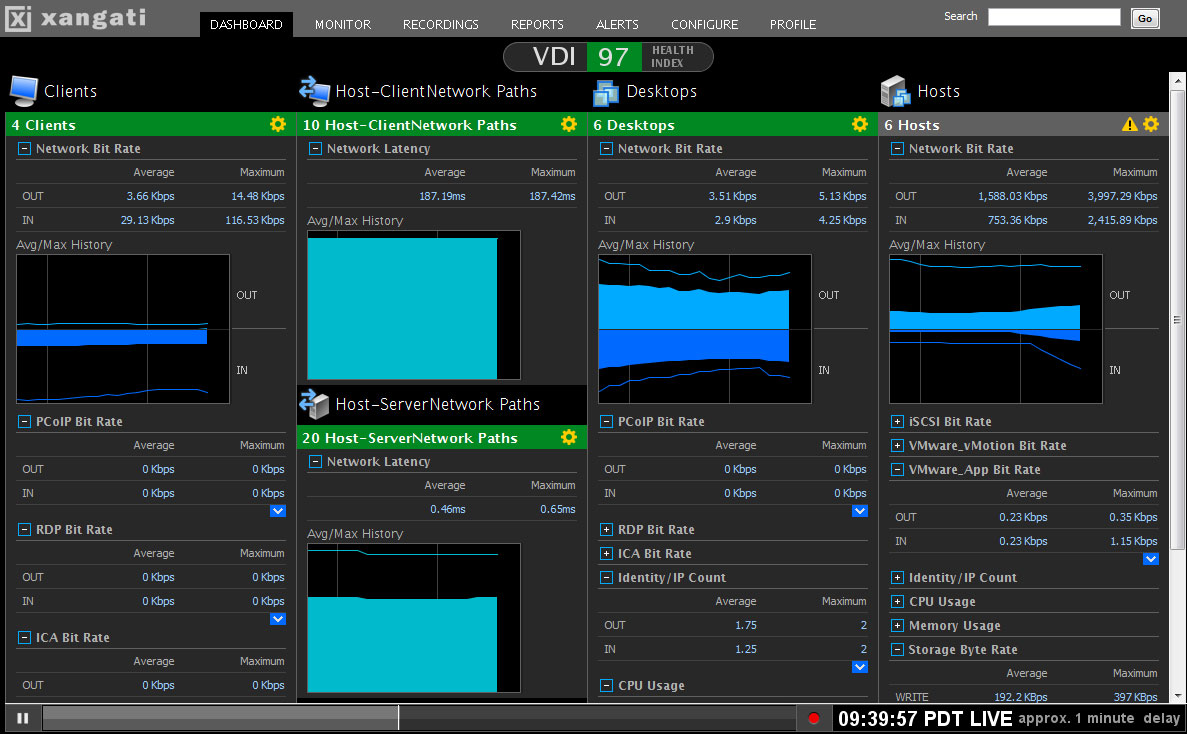
This product gathers information from various different points in your VDI as well as your network and displays it in easy to decipher graphs and tables.  For those in more of a hurry, the health index at the top allows at-a-glance digestion of the overall health of the VDI system.  When everything is working as it should, this number will be nice and green.  once problems occur and monitoring thresholds are triggered, the color will go from worrisome yellow all the way to problematic red.  This all occurs in real time, so you can keep up with what goes on as it happens.  This is useful if you have a group of people that all come to work at the same time and spool up 10 or 20 new VDI systems as they log on for the day.  You can view the impact this has on your VDI and network from the dashboard.  You can also see when a user may have an adverse impact on the system from doing something they consider innocuous, such as watching an HD video and consuming much more PCoIP bandwidth than their non-video neighbors.

In addition, the DVR-like functionality present in Xangati’s other products is extended here as well.  You can “rewind” the view to a point where the problems started occurring and begin troubleshooting from ground zero.  This is a decided advantage because as busy network rock stars, we aren’t always staring at our Single Pane of Glass (SPoG) when a problem happens.  The ability to backtrack and see all the events leading up to the problem gives us the ability to take decisive corrective action quickly and efficiently.

Tom’s Take

I don’t have a large VDI setup to manage, but if I did I would consider the VDI Dashboard closely.  It’s got a great view for all the things that could cause your deployment to go haywire.  Easy to read with tons of great information about all the individual components that comprise the total VDI, this tool makes it very simple to diagnose issues and take corrective steps quickly to limit impact on your users.  I haven’t played with it myself, but what I’ve seen makes me happy to know that when my users reach the point where I need to virtualize their Facebook Interface Terminals and LOLCat Creation Devices, I can count on Xangati and their VDI Dashboard to give me up-to-the-minute information.

If you’d like to learn more about Xangati, you can check out their website at http://xangati.com.  You can also follow them on Twitter as @XangatiPress.

Disclaimer

Xangati gave me a one-on-one presentation prior to the release of their product and provided me with a press kit containing the image above.  I was under no requirement to write an article describing my briefing.  The opinions and views expressed in this review are mine and mine alone.

Tips for Virtualizing Cisco Unified Communications Manager

I’ve seen a lot of chatter lately about virtualizing Cisco Unified Communications Manager (CUCM) and other applications on Twitter.  It seems that installing CUCM in a VM for the purposes of study or replicating a customer environment is a popular option, since the CUCM software can be powered up at will and doesn’t require a rack full of application servers.  However, when attempting to install CUCM in a VM, there are some things that need to be taken into consideration.  This isn’t necessarily going to be a step-by-step guide to the installation of a virtual CUCM system.  If you’re looking for that, I suggest you head over to http://www.blindhog.net and check out some of their excellent resources.  They even have some play-by-play videos that you can follow along with.  That being said, here are some things to keep in mind when virtualizing your CUCM cluster.

1.  Make sure your VM specs match the requirements. The biggest roadblock to the installation of CUCM in VMware is matching your server specs to the requirements.  For the installation of CUCM or Unity Connection, you are going to need to reserve a minimum of 2GB of RAM and a 72 GB hard disk.  Note that the RAM requirement is in addition to the RAM requirement of your workstation if you are installing your VM in VMware Workstation.  If the CUCM installer can’t see 2GB of RAM when it checks your hardware specs, it will quit and notify you that you don’t appear to be installing on a supported system.  Once you have completed the installation of CUCM, you can reduce the RAM of the VM to 1GB with no serious effects besides things running a little bit slower inside your CUCM environment.  If your laptop only has 2GB of RAM, it’s probably time for an upgrade if you want to try and run CUCM in VMware Workstation.  The hard disk requirements are just as strict.  72GB is the minimum needed for installation.  I’ve never really had any luck with using thin provisioning on the volume, so I always pre-allocate the space when I create the VM in order to be sure to not have any errors during installation.  For the record, if you are trying to install a CUCM Business Edition (CUCMBE) system in a VM, the minimum specs required are 6GB of RAM and 147GB of disk space.  Anything less will cause the installer to think you are installing on something other than a 7828 server and only offer you the choice of CUCM or Unity Connection, not the combined CUCMBE.  For the purposes of VM labbing and learning, it’s actually slightly more efficient to run CUCM and Connection in two separate VMs and integrate them together rather than using CUCMBE.

2.  Know the licensing caveats. Ever since CUCM 5.x was released, the reality of licensing has been present with us.  As I previously talked about, there are three types of licensing on a CUCM server.  Each of these licenses are tied to a MAC address.  In the versions of CUCM from 5.x all the way up to 7.0, this MAC address was the physical MAC address of the first NIC in the CUCM server.  If you wanted to install new licenses on the system, you had to ensure they were tied to the MAC of the first node, usually the publisher.  Once people started installing CUCM in a VM, which wasn’t officially supported in the 7.x train but was possible, it became apparent that a simple MAC licensing scheme wasn’t going to cut it any more, since a VM can be programmed with a specific MAC address fairly easily.  Around the time 7.1(2) was released, Cisco changed their licensing structure to use something called a “License MAC address”.  To prevent unscrupulous users from simple changing the MAC address of their VM and moving the system to new hardware, the License MAC performs a hash calculation of the following user-defined settings at install time:

  • Time zone
  • NTP server 1 (or “none”)
  • NIC speed (or “auto”)
  • Hostname
  • IP Address (or “dhcp”)
  • IP Mask (or “dhcp”)
  • Gateway Address (or “dhcp”)
  • Primary DNS (or “dhcp”)
  • SMTP server (or “none”)
  • Certificate Information (Organization, Unit, Location, State, Country)

Once these values are determined, a 12-character MAC-like address is kicked out and used for the MAC in the license files.  If you want to see what address is generated after installation time, you can run the show status command from the server CLI.  You can also use this handy answer file generator on Cisco’s website ahead of time.  That way, you can have your license MAC ready ahead of time in case you need to move your hardware.  In a lab scenario, however, you’re probably best to either do with the demo license files that are installed with the basic CUCM system or have some other licenses rehosted on the new CUCM VM.  The demo license includes one node license and 150 Device License Units (DLUs) for phone registration, so they should cover most small deployments.  The only side effect is the presence of red text on the home page alerting you to the fact you are running your cluster on demo licensing.  If you want to implement a customer’s environment in a VM for testing, I’m not sure how you would do that if they have more than one CUCM node or more than 150 DLUs.  I’ve been asking Cisco about this for quite some time, but I haven’t found any answers yet.

3.  Be ready for the support issues. If you are trying to virtualize CUCM on any version prior to 8.x, you are going to find support hard to come by.  When the VM boots up, you need to agree to a notice telling you that this is not a supported scenario and no TAC assistance is available.  The SNMP service doesn’t work properly on the pre-8.x versions in VMware, so that function will be unavailable.  Most of the hardware related issues or strange error messages are hard to decode, and since most people doing this are learning CUCM for the first time, it can be mystifying to figure out if this message is something normal or something caused by VMware.   The best resource I’ve found is at the aforementioned http://www.blindhog.net website.  The comments on their virtualizing CUCM posts are almost like a set of forums for some of the error messages you might see.

As long as you keep these things in mind when going through your installation, you shouldn’t run into any premature issues.  Those can be saved for all the fun you’re going to run into once you get the server installed and are trying to figure out calling search spaces and media resource group lists.  If you have any questions about virtualizing CUCM, don’t hesitate to leave a comment.  I’m going to work on more scenarios for virtualizing CUCM, so hopefully I’ll have some more posts on this in the future.

Why Virtualize Communications Manager (CallManager)?

With version 8.x of Cisco’s Communications Manager (CallManager or CUCM) software, the capability to virtualize the OS in VMware is the most touted feature.  Many people that I talk to are happy for this option, as VMware is quickly becoming an indispensable tool in the modern datacenter.  The ability to put CUCM on a VM gives the server admins a lot more flexibility in supporting the software.  However, some people I talk to about virtual CUCM say “So what?”.  They’re arguments talk about the fact that it’s only supported on Cisco hardware at the moment, or that it only supports ESXi, or even that they don’t see the utility of putting an appliance server on a VM.  I’ve been thinking about the tangible reasons for virtualizing CUCM beyond the marketing stuff I keep seeing floating around that involves words like flexibility, application agility, and so on.

1.  Platform Independence – A key feature of putting CUCM in a VM is the ability to divorce the OS/Application from a specific hardware platform.  Anyone who has tried to install CUCM on a non-MCS knows the pain of figuring out the supported HP/IBM hardware.  Cisco certified only certain server models to run CUCM.  This means that if the processor in your IBM-purchased server is 200Mhz faster than the one quoted on the specs, your CUCM installation will fail.  This means that Cisco has a hard time buying servers when they OEM them from IBM or HP.  Cisco has to buy a LOT of servers of the exactly same specifications.  Same processor, same RAM, same hard disk configurations.  This means moving to new technology when it’s available become difficult, as the hardware must be certified for use with the software, then it must be moved into the supply chain.  Look at how long it has taken to get an upgraded version of the 7835 and 7845 servers.  Those are the workhorses of large CUCM deployments, and they have only been revised 3 times since their introduction years ago.

Now, think about virtualization.  Since you’ll be using the same OVA/OVF templates every time to create your virtual machines, you don’t need to worry about ensuring the same processor and RAM in each batch of hardware purchases.  You get that from the VM itself.  All you need to do is define what virtual hardware you are going to need.  Now, all you really need to do is worry about certifying the underlying VM hardware.  Luckily, VMware has taken care of that for you.  They certify hardware to run their ESX/ESXi software, so all you need to do as a vendor like Cisco is tell the users what their minimum supported specs are supposed to be.  For those of you that claim that this is garbage since vCUCM is only supported on Cisco hardware right now, think about the support scenario from Cisco’s perspective.  Would you rather have your TAC people troubleshooting software issues on a small set of mostly-similar hardware while they work out the virtualization bugs?  Or do you want to slam your TAC people with every conceivable MacGyver-esque config slapped together for a lab setup?  Amusingly, one of those sounds a whole lot more like Apple’s hardware approach, and the other sounds a lot like Microsoft’s approach.  Which support system do you like better?  I have no doubts that the ability to virtualize CUCM on non-Cisco hardware will be coming sooner rather than later.  And when it does, it will give Cisco a great opportunity to position CUCM to quickly adapt to changing infrastructures and eliminate some of the supply chain and ordering issues that have plagued the platform for the last year or so.  It also makes it much easier to redeploy your assets quickly in case of strategic alliance dissolution.

2.  Failover / Fault Tolerance – Firstly, vMotion is NOT supported on vCUCM installation today.  Part of the reason is that the call quality of a cluster can’t be confirmed to be 100% reliable when a CUCM server has 100 calls going out of an MGCP gateway and suddenly vMotions to a cluster on the other side of a datacenter WAN link.  My own informal lab testing says that you CAN vMotion a CUCM VM.  It’s just not supported or recommended.  Now, once the bugs have been worked out of that particular piece of technology, think about the ramifications.  I’ve heard some people tell me they would really like to use CUCM in their environments, but because the Publisher / Subscriber model doesn’t support 100% uptime in a failover scenario, they just can’t do it.  With vMotion and HA handling the VMs, hardware failures are no longer an issue.  If there is a scenario where an ESXi server is about to go down for maintenance or a faulty hard disk, the publisher can be moved without triggering a subscriber failover.  Likewise, if the ESXi system housing the publisher gets hosed, the publisher can be failed over to another system with no impact.  I don’t see a change to the Pub/Sub model coming any time soon, but the impact of having an offline publisher is greatly reduced when you can rely on other mechanisms to ensure that the system is up.  Another thing to think about is the fault tolerance of the hardware itself.  Normally, we have an MCS server with two power supplies and a RAID 1 setup, along with one or two NICs. Now, think about the typical server used in virtualization in a datacenter.  Multiple power supplies, multiple NICs, and if there is onboard storage, it’s usually RAID 5 or better.  In many cases, the VMs are stored on a very fault-tolerant SAN.  Those hardware specs are worlds better than any you’re every going to be able to achieve with MCS hardware.  I’d feel more comfortable having my CUCM servers virtualized on that kind of hardware even without vMotion and HA.

3.  True appliance behavior – A long time ago, CallManager used to be a set of software services running on top of an operating system.  Of course, that OS was Windows 2000, and it was CallManager version 3.x and 4.x.  Eventually, Cisco moved away from the Services-on-OS model and went to an appliance solution.  Around the 6.x release time frame, I heard some strong rumors that said Cisco was going to look at abstracting the services portion of CUCM from the OS and allow that package to run on just about anything.  Alas, that plan never really came to fruition.  The appliance model works well for things like CUCM and Unity Connection, so the hassle of porting all those services to run on Windows and Solaris and MacOS was not really worth it.  Now, flash forward to the present day.  By allowing CUCM to run in a VM, we’ve essentially created a service platform divorced from a customer’s OS preference.  In CUCM, the OS really acts as a hardware controller and a way to access the database.  In the terms of server admins and voice people, the OS might as well not exist.  All we’re concerned about is the web interface to configure our phones and gateways.  Now, there has been grousing in the past from the server people when the VoIP guys want to walk in a drop a new server down that consumes powers and generates heat in their perfectly designed datacenter.  Now that CUCM can be entirely virtualized, the only cost is creating a new VM from an OVF template and letting the VoIP people load their software.  After that, it simply serves as an application running in the VMware cloud.  This is what Cisco was really going after when they said they wanted to make CUCM run as a service.  Little to no impact, and able to be deployed quickly.

Those are my thoughts about CUCM virtualization.  I think this a bold step forward for Cisco, and once they get up to speed by allowing us to do the things we take for granted with virtualization, like running on any supported hardware and vMotion/HA, the power of a virtualized CUCM model will allow us to do some interesting things going forward.  No longer will we be bound by old hardware or application loading limitations.  Instead, we can concentrate on the applications themselves and all the things they can do for us.