
My Thoughts on the Macbook Pro with Retina Display

At their annual World Wide Developer’s Conference (WWDC), Apple unveiled a new line of laptops based on the latest Intel Ivy Bridge chipset. The Macbook Air and Macbook Pro lines received some upgrade love, but the most excitement came from the announcement of the new Macbook Pro with Retina Display. Don’t let the unweildy moniker fool you, this is the new king of the hill when it comes to beastly laptops. Based on the 15.4″ Macbook Pro, Apple has gone to task to slim down as much as possible. It’s just a wee bit thicker than the widest part of a Macbook Air (MBA) and weighs less than the Macbook Pro (MBP) it’s based on. It is missing the usual Ethernet and Firewire ports in favor of two Thunderbolt ports on the left side and USB3 ports on either side. There’s also an HDMI-out port and an SXHD card reader on the right side. Gone as well is the optical drive, mirroring its removal in the MBA. Instead, you gain a very high resolution display that is “Retina Class”, meaning it is a 2880×1800 display in a 15.4″ screen, gaining enough pixels per inch at the average viewing angle to garner the resolutionary Retina designation. You also gain a laptop devoid of any spinning hard disks, as the only storage options in the Macbook Pro with Retina Display (RMBP) are of the solid state disk (SSD) variety. the base model includes a 256 GB disk, but the top end model can be upgraded to an unheard of 768 GB swath of storage. The RAM options are also impressing, starting at 8 GB and topping out at 16 GB. All in all, from the reviews that have been floating around so far, this thing cooks. So, why are so many people hesitant to run out to the Apple Store and shower the geniuses with cash or other valuable items (such as kidneys)?

The first thing that springs to mind is the iFixit article that has been circulating since day 1 that describes the RMBP as “the most unhackable, untenable, and unfixable laptop ever”. They cite that the RAM and SSD are soldered to the main system board just like in the little MBA brother. They also note the the resolutionary Retina Display is glued to the surrounding case, making removal by anyone but a trained professional impossible. Given the smaller size and construction, it’s entirely possible that there will be very few (if any) aftermarket parts available for repairs or upgrades. That begs the question in my case:

Who Cares?

Yep, I said it. I really don’t give a crap if the RMBP is repairable. I’ve currently got a 13″ MBA that I use mostly for travel and typing blog posts. I know that in the event that anything breaks, I’m going to have to rely on AppleCare to fix it for me. I have a screwdriver that can crack the case on it, but I shudder to think what might happen if I really do get in there. I’m treating the MBA just like an iPad – a disposable device that is covered under AppleCare. In contrast, my old laptop was a Lenovo w701. This behemoth was purchased with upgradability in mind. I installed a ton of RAM at the time, and ripped out the included hard disk to install a whopping 80 GB SSD and run the 500 GB HDD beside it. Beyond that, do you know how many upgrades I have performed in the last two years? Zero. I haven’t added anything. Laptops aren’t like desktops. There’s no graphics card upgrades or PCI cards to slide in. There’s no breakout boxes or 75-in-1 card readers to install. What you get with a laptop is what you get, unless you want to use USB or Thunderbolt attachments. In all honesty, I don’t care that the RMBP is static as far as upgradability. If and when I get one, I’m going to order it with the full amount of RAM, as the 4 GB on my MBA has been plenty so far and I’ve had to work my tail off to push the 12 GB in my Lenovo, even owing to the hungry nature of Windows. The SSD might give some buyers a momentary pause, but this is a way for Apple to push two agendas at the same time. The first is that they want you to use iCloud as much as possible for storage. By giving you online storage in place of acres of local disk, Apple is hoping that some will take them up on the offer of moving documents and pictures to the cloud. A local disk is a one time price or upgrade purchase. iCloud is a recurring sunk cost to Apple. Every month you have your data stored on their servers is a month they can make money to eventually buy more disks to fill up with more iCloud customers. This makes the Apple investors happy. The other reason to jettison the large spinning rust disks in favor of svelt SSD sexiness is the Thunderbolt ports on the left side. Apple upgraded the RMBP to two of them for a reason. So far, the most successful Thunderbolt peripheral has been the 27″ Thunderbolt display. Why? Well, more screen real estate is always good. But is also doubles as a docking station. I can hang extra things off the back of the monitor. I can even daisy chain other Thunderbolt peripherals off the back. With two Thunderbolt ports, I no longer have to worry about chaining the devices. I can use a Thunderbolt display along with a Thunderbolt drive array. I can even utilize the newer, faster USB3 drive arrays. So having less local storage isn’t exactly a demerit in my case.

Tom’s Take

When the new Macbook Pro with Retina Display was announced, I kept saying that I was looking for a buyer for my kidney so I could rush out and buy one. I was only mostly joking. The new RMBP covers all the issues that I’ve had with my excellent MBA so far. I don’t care that it’s a bit bigger. I care about the extra RAM and SSD space. I like the high resolution and the fact that I can adjust it to be Retina-like or really crank it up to something like 1680×1050 or 1920×1200. I couldn’t really care less about the supposed lack of upgradability. When you think about it, most laptops are designed to be disposable devices. If it’s not the battery life going caput, it’s the screen or the logic boards the eventually burn out. We demand a lot from our portable devices, and the stress that manufactures are under to make them faster and smaller forces compromises. Apple has decided that giving users easy access to upgrade RAM or SSD space is one of those compromises. Instead, they offer alternatives in add-on devices. When you think about it, most of the people who are walking into the Apple store are never going to crack the case open on their laptop. Heck, I’m an IBM certified laptop repair technician and even I get squeamish doing that. I’d rather rely on the build quality that I can be sure that I’ll get out of the Cupertino Fruit and Computer Company and let AppleCare take care of the rest.

Start Menus and NAT – An Experiment

Fresh off my recent fame from my NAT66 articles (older and newer), I decided first thing Monday morning that a little experiment was in order.  I wanted to express my displeasure for sullying something like IPv6 with something I consider to be at best a bad idea.  The only thing I could come up with was this:

The response was interesting to say the least.  Questions were raised.  Some asked if I was playing a late April Fools joke.  Others rounded up the pitchforks and torches and threatened to burn down my house if I didn’t recant on the spot.  Mostly though, people made sure to express their displeasure by educating me to the fact that I should use something else to do what I wanted rather than rely on the tried-and-true metaphor of a Start Menu.

Now do you see what I’m talking about with NAT66?  Some people think that NAT is needed not because it’s a technological necessity.  Not because it’s solving fifteen problems that IPv6 has right now.  They want NAT because they really don’t understand how things work in IPv6.  It’s the same as bolting a Start Menu on to OS X.  When I started using my new MacBook a few months ago, I took the time to figure out how to use things like Spotlight and Alfred.  They weren’t my Start Menu, but they worked almost the same way (in many cases better).  I didn’t protest the lack of a metaphor I clearly didn’t need.  I adapted and overcame.  And in the end I found myself happier because I found something that worked better than I had hoped.

In much the same way, people that crave NAT on IPv6 are just looking for familiar metaphors for addressing.  I’m going to cast aside the multihoming argument right now because we’ve done that one to death.  Yes, it exists.  Yes, it needs to be addressed.  Yes, NPT is the best solution we’ve got right now.  However, when I started going through all the comments on my NAT66 blog post after the link from the Register article, I noticed that some of the commenters weren’t entirely sure how IPv6 worked.  They did understand that the addresses being assigned to the adapters were globally routable.  But some seemed to believe that a globally routable address meant that every device was going to need a firewall along with DDoS protection and ruleset monitoring.  Besides the fact that every OS has had a firewall since 2002, let me ask one question.  Are you tearing out your WAN firewall when you move to IPv6?  Because as far as I know, you still one have one (maybe two) WAN connections that are terminated on some device.  That could be a router or a firewall.  In the IPv4 world, that device is doing NAT in addition to controlling which devices on the outside can talk to the inside.  Configuring a service to traverse the firewall is generally a two-stage process today.  You must configure a static NAT entry for the device in question and then allow one or more ports to pass through the firewall.  It’s not too difficult, but it is time consuming.  In IPv6, with the same firewall and no NAT, there isn’t a need to create a static NAT entry.  You just permit the ports to access the devices on the inside.  No NAT required.  If you don’t want anyone to talk to the devices on the inside, you don’t configure any inbound rules.  Simple as that.  When you need to poke holes in the firewall for things like web servers, email servers, and so on, all you need to do is poke the hole and be done.

Perhaps what we really need to end this NAT issue is wildcard masking for IPv6 addresses in firewalls.  I have no doubt that eventually any simple home network device that support DHCPv4 today will eventually support DHCPv6 or SLAAC in the near future.  As fast as new chipsets are created to increase the processing power we install into small office/home office devices, it’s inevitable that support will come.  But to support the “easy” argument, what we likely need to do is create a field in the firewall that says “Network Address”.  That would be the higher ordered 48 bits of the IPv6 address.  Once it’s plugged in, the hosts will use DHCPv6 or SLAAC to address themselves.  Then, we select the devices from a list based on DNS name and click a couple of checkboxes to allow ports to open for inbound and outbound traffic.  If a customer is forced to change their address allocation, all they need to do is change the “Network Address” field.  Then, software on the backend would script changes to DHCPv6/SLAAC and all the firewall rules.  DNS would update automatically and all would work again.  Perhaps this idea is too far fetched right now and the scripting necessary would be difficult to write at the present time.  But if it answers the “easy” outcry about IPv6 addressing without the need to add NAT to the protocol, I’m all for it.  Who knows?  Maybe Apple will come up with something just this easy.


Tom’s Take

For the record, I really don’t think there needs to be a Start Menu in OS X.  I think Spotlight is a perfectly fine way to launch programs not located on the dock and find files on your computer.  Even alternatives like Alfred and Quicksilver are fine for me.  The point of my tweet and subsequent replies wasn’t meant to advocate for screwing up the UI of OS X.  It was meant to show that while some people think that my distaste for NAT is silly, all it takes is the right combination of silliness to get people up in arms.  To all of you that were quick to jump and offer alternatives and education for my apparent lack of vision, I say that we need to focus effort like that into educating people about how IPv6 works or spend our time figuring out how to remove the roadblocks standing in the way of adoption.  If that means time writing scripting for low-end devices or figuring out easy UI options, so be it.  After all, someone else has already figured out how to create a Start Menu on a Mac:

DST Configuration – Just In the Nick of Time

Today is the dreaded day in the US (and other places) when we must sacrifice an hour of our precious time to the sun deity so that he might rise again in the morning.  While this is great for being outdoors and enjoying the sunshine all the way into the late evening hours, it does wreak havoc on our networking equipment that relies on precise timing to let us know when a core dump happened or when that last PRI call came in when running debug isdn q931.  However, getting the right time running on our devices can be a challenge.  In this post, I will cover configuring Daylight Savings Time on Cisco, HP, and Juniper network equipment for the most pervasive OS deployments.  Note that some configurations are more complicated than others.  Also, I will be using Central Time (CST/CDT) for my examples, which is GMT -6 (-5 in DST).  Adjust as necessary for your neck of the woods.  I’m also going to assume that you’ve configured NTP/SNTP on your devices.  If not, read my blog post about it and go do that first.  Don’t worry, I’ll still be here when you get back.  I have free time.

Cisco

I’ve covered the basics of setting DST config on Cisco IOS before, but I’ll put it here for the sake of completeness.  In IOS (and IOS XR), you must first set the time zone for your device:

R1(config)# clock timezone <name> <GMT offset>
R1(config)# clock timezone CST -6

Easy, right?  Now for the fun part.  Cisco has always required manual configuration of DST on their IOS devices.  This is likely due to them being shipped all around the world and various countries observing DST (or not) and even different regions observing it differently.  At any rate, you must the clock summer-time command to configure your IOS clock to jump when needed.  Note that in the US, DST begins at 2:00 a.m. local time on the second Sunday in March and ends a 2:00 a.m. local time on the first Sunday in November.  That will help you decode this code string:

R1(config)# clock summer-time <name> recurring <week number start> <day> <month> <time to start> <week number end> <day> <month> <time to end>
R1(config)# clock summer-time CDT recurring 2 Sun Mar 2:00 1 Sun Nov 2:00

Now your clock will jump when necessary on the correct day.  Note that this was a really handy configuration requirement to have in 2007, when the US government decided to change DST from the previous requirement of the first Sunday in April at the start and the last Sunday in October to end.  With Cisco, manual reconfiguration was required, but no OS updates were needed.

HP (Procurve/E-Series and H3C/A-Series)

As near as I can tell, all HP Networking devices derive their DST settings from the OS.  That’s great…unless you’re working on an old device or one that hasn’t been updated since the last presidential administration.  It turns out that many old HP Procurve network devices still have the pre-2007 US DST rules hard-coded in the OS.  In order to fix them, you’re going to need to plug in a config change:

ProCurve(config)# time daylight-time-rule user-defined begin-date 3/8 end-date 11/1

I know what you’re thinking.  Isn’t that going to be a pain to change every year if the dates are hard-coded?  Turns out the HP guys were ahead of us on that one too.  The system is smart enough to know that DST always happens on a Sunday.  By configuring the rule to occur on March 8th (the earliest possible second Sunday in March) and November 1st (the earliest possible first Sunday in November), the system will wait until the Sunday that matches or follows that date to enact the DST for the device.  Hooray for logic!  Note that if you upgrade the OS of your device to a release that supports the correct post-2007 DST configuration, you won’t need to remove the above configuration.  It will work correctly.

Juniper

Juniper configures DST based on the information found in the IANA Timezone Database, often just called tz.  First, you want to get your device configured for NTP.  I’m going to refer you to Rich Lowton’s excellent blog post about that.  After you’ve configured your timezone in Junos, the system will automatically correct your local clock to reflect DST when appropriate.  Very handy, and it makes sense when you consider that Junos is based heavily on BSD for basic OS operation.  One thing that did give me pause about this has nothing to do with Junos itself, but with the fact that there have been issues with the tz database, even as late as last October.  Thankfully, that little petty lawsuit was sidestepped thanks to the IANA taking control of the tz database.  Should you find yourself in need of making major changes to the Junos tz database without the need to do a complete system update, check out these handy instructions for setting a custom timezone over at Juniper’s website.  Just don’t be afraid to get your hands dirty with some BSD commands.


Tom’s Take

Daylight Savings Time is one of my least favorite things.  I can’t see the advantage of having that extra hour of daylight to push the sunlight well past bedtime for my kids.  Likewise, I think waking up to sunrise is overrated.  As a networking professional, DST changes give me heartburn even when everything runs correctly.  And I’m not even going to bring up the issues with phone systems like CallManager 4.x and the “never going to be patched” DST issues with Windows 2000.  Or the Java issues with 79xx phones that still creep up to this day and make DST and confusing couple of weeks for those that won’t upgrade technology. Or even the bugs in the iPhone with DST that cause clocks to spring the wrong way or alarms to fail to fire at the proper time.  In the end though, network enginee…rock stars are required to pull out our magical bags and make everything “just work”.  Thanks to some foresight by major networking vendors, it’s fairly easy to figure out DST changes and have them applied automagically.  It’s also easy to change things when someone decides they want their kids to have an extra hour of daylight to go trick-or-treating at Halloween (I really wish I was kidding).  If you make sure you’ve taken care of everything ahead of time, you won’t have to worry about losing more than just one hour of sleep on the second Sunday in March.

Why Not OS X Cougar?

Apple announced today that the new version of OS X (10.8) will be called Mountain Lion.  This makes sense considering the last version was called Lion and this is more of an evolutionary upgrade than a total redesign.  But I wondered why the didn’t pick something more catchy.  Like Cougar.  I realize the connotations that the word “cougar” carries in the world today.  You can read some of them on Urban Dictionary, but be warned it’s a very Not-Safe-For-Work page.  The more I thought about it, the more it made sense that it should be called Cougar.  After all, OS X 10.8…:

– is very mature at this point

– is trying to stay attractive and good looking despite its advancing age

– is trying hard to attract a younger crowd

– unsure of what it wants to be (OS X or iOS)

– has expensive tastes (10.8 will only work well on newer Intel i-series processors)

For the record, OS X 10.1 Puma and 10.3 Panther are the same animal as 10.8 Mountain Lion.  Maybe they’ll save Cougar until 10.9.

HP – Wireless Field Day 2

The penultimate presentation at Wireless Field Day 2 was from HP.  Their wireless unit had presented at Wireless Field Day 1 and had a 2-hour slot at WFD2.  We arrived at the soon-to-be demolished HP Executive Briefing center in Cupertino and paid our final respects to the Dirty Chai Machine:

First off, I want you to read their presentation from WFD1.  Go ahead, I’ll wait.  Back?  Good.  For starters, the wireless in the EBC wasn’t working for everyone.  Normally, I’d have just plugged in the provided 15-foot Ethernet cord, but as I was running on my new Macbook Air, I was sans-Ethernet for the first time.  We finally got the Internet going by foregoing the redirect to the captive portal and just going there ourselves, so I wasn’t overly concerned.  Rob Haviland then got us started with an overview of HP’s wireless product line:

With all due respect to Rob, I think he kind of missed the mark here.  I’ve been told by many people that Rob is a very bright guy from the 3Com/H3C acquisition and did a great job getting technical at Interop.  However, I think the presentation here for HP Wireless was aimed at the CxO level and not for the wireless nerds.  As you watch the video, you’ll hear Rocky Gregory chime in just a bit into the presentation that talking to us about the importance of a wireless site survey is a bit like preaching to the choir.  We do this stuff all day every day in our own jobs.  We not only know the importance of things like this, we evangelize it to people as well.  It reminded me a bit of the WFD1 Cisco presentation over CleanAir that Jennifer Huber had given several time to her customers.  In fact, I even asked during the presentation if these “new” access points Rob was talking about were different from the ones we saw previously.  With one exception, they weren’t.  The new AP is the 466-R, an outdoor version of the MSM466.  It’s a ruggedized AP designed to be hung almost anywhere, and it even includes a heater!  Of course, if you want the heater to work, you need to be sure to provide 802.3at power or an external power supply.  Unlike the Cisco Aironet bridges that I’m familiar with implementing, the MSM466-R uses an RJ-45 connection to hook it into the network as opposed to the coax-to-power-injector method.  I’m not entirely sure I’m comfortable running at Cat-5 cable out of my building and plugging it directly into the AP.  I’d much rather see some kind of midspan device sitting inline to provide a handoff.  That’s just me, though.  The MSM466-R also weighs about a third of what comparable outdoor APs weigh, according to Jennifer, who has put some of these in for her customers.  We also spent some time talking about advanced features like band steering your clients away from 2.4 GHz to 5 GHz and the impact that can have on latency in voice calls.  It appears to take 200 msec for a client to be steered toward the 5 GHz radio on an AP according to HP, which can cause hiccups and delay in the voice call.  Sam Clements wondered if the values for those timers were configurable at all, but according to HP they are not.  This could be a huge impact for clients on VoIP calls on a laptop that is roaming across a wireless campus.  I think I’m going to have to spend a little more time digging into this.

After a 10 minute break, we jumped into the new controller that HP is offering, the MSM720 mobility controller.  This unit is marketed toward the lower end of the product line and is targeted to the market of less that 40 APs.  In fact, 40 is the most it will hold.  There is a premium version of the MSM720 that doesn’t hold any more APs but does turn on some additional capabilities like high availability and real-time location services.  This generated a big discussion about licensing models and the desire for customers to absorb additional costs to find out they gained significant features.  I work in a vertical where people are very price-sensitive.  But I also understand that many of the features that we use to market products to people evaporate when you start reducing the “licensed features”.  I’d rather see the most commonly requested features bundled into a single “base” license and they negotiate price points after we’ve agreed on features.  That is a much easier sell that demonstrating all the cool things a product can do, only to have to explain to the customer after the fact, “Well, there is this other license you need…”.  All companies are guilty of this kind of transgression, so I’m not just singling out HP here.  They just happened to be at the watershed moment for our outpouring of distaste over licensing.  The MSM720 is a fine product for the small to medium business that wants the centralized control capability of a controller without breaking the bank.  I’m just not sure how many of them I would end up selling in the long run.

HP’s Oprah Moment was a 2.4 GHz wireless mouse with micro receiver and a pen and paper set.

If you’d like to learn more about HP Wireless, you can check out their website at http://www.hp.com/united-states/wireless/index.html.  You can also follow along with all of their network updates on Twitter as @HP_Networking.

Tom’s Take

This may have been the hardest Tech Field Day review I’ve written.  I feel that HP missed an opportunity here to help show us what makes them so different in wireless.  We got a short overview of technologies we’re already familiar with and two new products targeted at very specific market segments.  The most technical part of our discussion was a block diagram of the AP layout.  There wasn’t any new technology from HP apart from a ruggedized AP.  No talk of Hotspot 2.0 or 802.11ac Gigabit wireless.  In retrospect, after getting to hear from people like Matthew Gast and Victor Shtrom, it was a bit of let down.  I feel like this was a canned presentation designed to be pitched to decision makers and not technical people.  We want nerd knobs and excruciating detail.  From what I’ve heard of Rob Haviland, he can give that kind of presentation.  So, was this a case of of being ill prepared?  Or missing the target audience?  I’m also wondering if the recent upper level concerns inside of HP have caused distraction for the various business units.  The networking people shouldn’t have really been affected by the PSG and Autonomy dealings but who knows at this point.  Is the Mark Hurd R&D decision finally starting to trickle in?  Maybe HP believes that their current AP lineup is rock solid and will keep on trucking for the foreseeable future?  Right now, I don’t have answers to these questions and I don’t know where to find them.  Until I do find those answers though, I’m going to keep a wary eye on HP Wireless.  They’ve shown in the past that they have the capability to impress and innovate.  Now they have to prove it to me again.

Wireless Field Day 2 Disclaimer

HP was a sponsor of Wireless Field Day 2.  As such, they were responsible for covering a portion of my travel and lodging expenses while attending Wireless Field Day 2. In addition, they provided me with a 2.4 GHz wireless mouse with micro receiver and a pen and paper set.  They did not ask for, nor where they promised any kind of consideration in the writing of this review/analysis.  The opinions and analysis provided within are my own and any errors or omissions are mine and mine alone.

2011 in Review, 2012 in Preview

2011 was a busy year for me.  I set myself some rather modest goals exactly one year ago as a way to keep my priorities focused for the coming 365 days.  How’d I do?

1. CCIE R&S: Been There. Done That. Got the Polo Shirt.

2. Upgrade to VCP4: Funny thing.  VMware went and released VMware 5 before I could get my VCP upgraded.  So I skipped straight over 4 and went right to 5.  I even got to go to class..

3. Go for CCIE: Voice: Ha! Yeah, I was starting to have my doubts when I put that one down on the list.  Thankfully, I cleared my R&S lab.  However, the thought of a second track is starting to sound compelling…

4. Wikify my documentation: Missed the mark on this one.  Spent way to much time doing things and not enough time writing them all down.  I’ll carry this one over for 2012.

5. Spend More Time Teaching: Never got around to this one.  Seems my time was otherwise occupied for the majority of the year.

Forty percent isn’t bad, right?  Instead, I found myself spending time becoming a regular guest on the Packet Pushers podcast and attending three Tech Field Day Events: Tech Field Day 5, Wireless Field Day 1, and Network Field Day 2.  I’ve gotten to meet a lot of great people from social media and made a lot of new friends.  I even managed to keep making blog posts the whole year.  That, in and of itself, is an accomplishment.

What now?  I try to put a couple of things out there as a way to hold myself to the fire and be accountable for my aspirations.  That way, I can look back in 2013 and hopefully hit at least 50% next time.  Looking forward to the next 366 days (356 if the Mayans were right):

1. Juniper – I think it’s time to broaden my horizons.  I’ve talked to the Juniper folks quite a bit in 2011.  They’ve given me a great overview of how their technology works and there is some great potential in it.  Juniper isn’t something I run into every day, but I think it would be in my best interest to start learning how to get around in the curly CLI.  After all, if they can convert Ivan, they must really have some good stuff.

2. Data Center – Another growth area that I feel I have a lot of catching up to do is in the data center.  I feel comfortable working on NX-OS somewhat, but the lack of time I get to configure it every day makes the rust a little thick some times.  If it wasn’t for guys like Tony Mattke and Jeff Fry, I’d have a lot more catching up to do.  When you look at how UCS is being positioned by Cisco and where Juniper wants to take QFabric, I think I need to spend some time picking up more data center technology.  Just in case I find myself stranded in there for an extended period of time.  Can’t have this turning into the Lord of the CLIs.

3. Advanced Virtualization – Since I finally upgraded my VCP to version 5, I can start looking at some of the more advanced certifications that didn’t exist back when I was a VCP3.  Namely the VCAP.  I’m a design junkie, so the DCD track would be a great way for me to add some of the above data center skills while picking up some best practices.  The DCA troubleshooting training would be ideal for my current role, since anything beyond a simple check of vCenter is all I can muster in the troubleshooting arena.  I’d rather spend some time learning how the ESXi CLI works than fighting with a mouse to admin my virtual infrastructure.

4. Head to The Cloud – No, not quite what you’re thinking.  I suffered an SSD failure this year and if it hadn’t been for me having two hard drives in my laptop, I’d probably have lost a good portion of my files as well.  I keep a lot of notes on my laptop and not all of them are saved elsewhere.  Last year I tried to wikify everything and failed miserably.   This year I think I’m going to take some baby steps and get my important documents and notes saved elsewhere and off my local drives.  I’m looking to replace my OneNote archive with Evernote and keep my important documents in Google Docs as opposed to local Microsoft Word.  By keeping my important documents in the cloud, I don’t have to sweat the next drive death quite as much.

The free time that I seem to have acquired now that I’ve conquered the lab seems to have been filled with a whole lot of nothing.  In this industry, you can’t sit still for very long or you’ll find yourself getting passed by almost everyone and everything.  I need to sharpen my focus back to these things to keep moving forward and spend less time sitting on my laurels.  I hope to spend even more time debating technology with the Packet Pushers and engaging with vendors at Tech Field Day.  Given how amazing and humbling 2011 was, I can’t wait to see what 2012 has in store for me.

Software I Use Every Day – OS X Edition

For those that have been keeping up, I am now the proud owner of a MacBook Air.  I originally purchased it to use as a learning aid to get better at working on OS X Snow Leopard and Lion.  I also decided to see if I could use it to replace carrying my behemoth Lenovo w701 around to do simple things like console connections.  I’ve done my best to spend time in the last month working with it every day and trying out new software to duplicate my current job functions.  Now that I’ve got a handle on things, I figured I’d share what I’ve learned with you in a manner similar to my last software blog post.


Terminal Access – iTerm2

This was the first program I downloaded after I logged into my MacBook.  If you are a network rock star, it should be your first download as well.  This program is the terminal on steroids.  Tabs, split window panes, search-in-window, and profile support top the list of the most needed features for someone that spends most of their day staring at a CLI window.  I don’t even open the Terminal.App program any more.  I just use iTerm2.  This program replaced PuTTY for me and did a great job of replacing TeraTerm as well.  The only thing that it lacks is the ability to use a serial console connection.  I think that’s more of a single-purpose use case for the iTerm2 folks, so I doubt it will ever be rolled into the program.  All things being equal, this will probably be the most useful program you’ll download for your Mac.


Serial Console Access – ZTerm

The console is where I live.  I spend more time staring at CLI screens that I do my own kids.  The inability for me to access the familiar confines of a serial connection is a deal breaker.  I was a little apprehensive about serial console access on the Mac after hearing about some troubles that people were having after upgrading to OS X Lion.  I pulled out my trust Prolific PL-2303 serial adapter and plugged it in to test the driver support.  I had no issues on Lion 10.7.2, but I’ve been told that some may need to go to the Prolific site and download the newest drivers.  As a side note here, I had the exact same issues when I upgraded to Windows 7 64-bit on my laptop, so I think the problems with the adapter are based on the 64-bit drivers and not necessarily on your particular OS.  Once I had the adapter working in the OS, it was time to find a program to access that console connection.  ZTerm kept coming up as the best program to do that very thing.  Some of the other serial connection programs (like CoolTerm) are focused on batch serial connections, like sending commands to a serial device in programming.  ZTerm allows you to have interactive access to the console.  You can also do captures of the serial output, which is a feature I love from TeraTerm.  That way, I can just type show run and not have to worry about copying and pasting the input into a new Notepad window.  A quick note – when launching ZTerm for the first time, the baud rate of the connection is set to 38400.  Since networking equipment only plays nice at 9600, be sure to change that and save your settings so it comes up correctly after that.

Note that ZTerm is shareware and costs $20 to register.  It’s worth every penny for those that need to access equipment through old fashioned serial links.


TFTP Server – TFTPServer for Mac

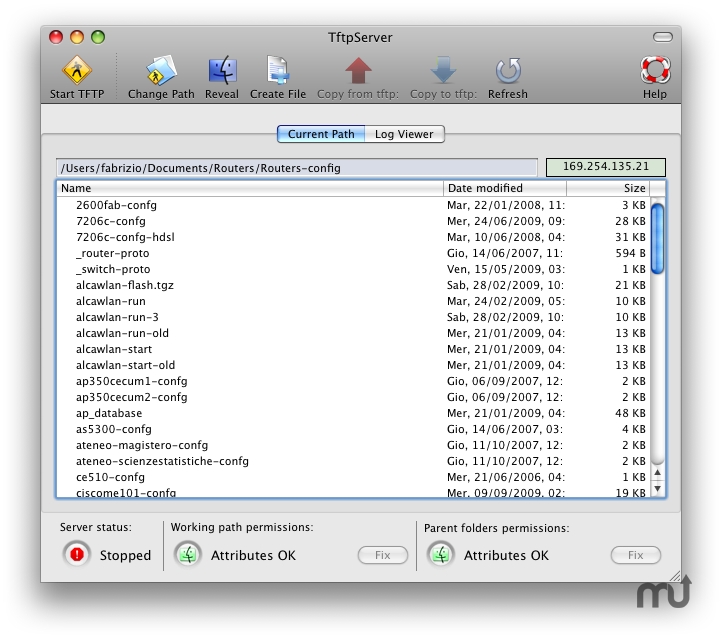
OS X has its own built-in TFTP server.  However, I’ve watched competent network rock stars struggle with permissions issues and the archaic CLI needed to get it running.  In the comments of my original software blog post, Simon Naughton (@norgsy) pointed me toward Fabrizio La Rosa’s TFTPServer GUI configuration tool.  This little jewel helps you get the right permissions setup on your TFTP service as well as letting you point the TFTP service to a specific directory for serving files.  I love this because I can keep the remote machine from needed to sift through large numbers of files and keep only the necessary files located in my TFTP directory.  I can also enable and disable the program in a flash without needing to remember the five argument CLI command or forgetting to sudo and get a failed error message.  Do yourself a favor and download this program.  Even if you only ever use TFTP once, you’ll be glad you have this little tool to help and won’t have to spend hours sifting through documentation and forum posts.


SFTP – Built In

This was one of my first “Ah ha!” moments with OS X.  Working with voice requires access to FTP services for COP file uploads and DiRT backups.  I have used FTP forever on my Windows machines because SFTP was such a pain to setup.  I wanted to duplicate that functionality on the MacBook Air, but a few searches found that Apple has removed the ability to configure the FTP service from the GUI.  I knew I was going to need to use FTP at some point, so I kept looking and found an article on OSXDaily about enabling FTP with a command line string.  However, buried in the article is a gem that took me by surprise.  By enabling remote login in the sharing page under System Preferences, you automatically enable SSH and SFTP!  Just like that.  After all the fits and starts I had with SFTP on Windows, OS X enables it with a simple radio button.  Who knew?  Now that I have a simple SFTP server running on my MacBook, I don’t think I’ll ever use FTP again unless I have to.  Should you find yourself in a predicament where you can’t use SFTP though, there’s the CLI command to enable the Lion FTP server:

sudo -s launchctl load -w /System/Library/LaunchDaemons/ftp.plist

And here’s the command to turn it off once you’re done with it:

sudo -s launchctl unload -w /System/Library/LaunchDaemons/ftp.plist

RSS Feeds – Reeder

My favorite RSS reader for the iDevices, Reeder allows me to digest my RSS feeds from Google Reader in a quick and clean manner.  No ads, no fluff, just the info that I need to take in.  Thankfully, Silvio Rizzi also put out a version for OS X as well.  I keep this one up and running at all times in a separate screen so I can flip over and see what my friends are posting.  It’s a great tool that allows me to be in the know about what’s going on.  It’s $5 on the Mac App Store, but once again worth every penny you pay for it.


Tom’s Take

There are a ton of other apps that I use frequently on my MacBook Air, but the ones I’ve listed shine above all others.  Those get a workout and some of the reasons why my little adventure with OS X is staring to grow on me.  Yes, there are apps that don’t really have an equivalent right now.  I’ve managed to avoid the need for modeling/graphics software so far, so I can’t compare the alternatives to Microsoft Visio.  I spend a lot of my time using Netformx DesignXpert, which I can’t use natively in OS X.  Beyond that, it’s just a matter of deciding what I want to do and finding a program that will do it for me.  There are a lot of options available, both in the Mac App Store and out on the web.  The trick with a Mac isn’t so much about worrying how you’re going to do something, but rather what you want to do.  The rest just seems to take care of itself.

MacBook Air – My First Week

As many of you know, I am now a convert to the Cult of Mac.  I finally broke down and bought a MacBook Air this past week.  I’ve spent some time using it and I think I’m about ready to give my first impressions based on what I’ve learned so far.

My primary reason for getting a MacBook was to spend some time learning the OS.  I’ve taken the OS X Snow Leopard Administration exam already thanks to my Hackintosh and the time I’ve spent troubleshooting some of my friends’ MacBooks.  If I’m going to seriously start to work on deploying them and working on them, I figured it was time to eat a bit of my own dogfood.  Thanks to Best Buy running a nice sale on the entry-level MacBook Air, I leaped at the chance while I could.  I knew I wanted something portable rather than having a 21″ iMac on my desk.  I did spend a lot of time going back and forth about whether I wanted a MacBook Pro or MacBook Air.  The Pro does have a lot more expandability and horsepower under the hood.  I would feel a lot more comfortable running virtual machines with the Pro.  However, the Air is an ultraportable that would come in very handy for me on my many recent travels with things like Tech Field Day.  The SSD option in the basic Air was also a lure, as my SSD in my Thinkpad was the best investment I have made.  Add in the $1000 (US) price difference, and the Air won this round.

I’ve used OS X quite a bit in the last 6 months, but most of my experience has been on Snow Leopard.  Lion wasn’t much different on the surface, but it did take some time for me to relearn things at first.  I spent the majority of my time the first couple of days finding things to replicate the tasks that I spend most of my time doing each day.  I installed VMware Fusion as my OS virtualization program thanks to my status as a VMware partner, and I installed MS Office thanks to my Microsoft Gold Partner status.  Afterwards, I looked back over the lists I had compiled for Mac software, such as those found in the comments of my Software I Use Every Day post.  I settled on OmniGraffle for my drawing program and TextWrangler for my basic text editor.  After installing the drivers for my USB-to-serial adapter, I figured I was ready to strike out on my adventure of using a Mac day-to-day.

I’ve already encountered some interesting issues.  I knew Outlook at my office would be broken for me thanks to some strange interactions between Outlook 2011, Exchange 2007, and Exchange Web Services (EWS).  Outlook 2011 might as well be called Outlook 1.0 right now due to the large amount of issues that have cropped up since the switch from Entourage.  Most people I know have either switched back to using Entourage or have started using the native Mail.app.  I have decided Mail.app is the way to go for me until Outlook 201x comes out and actually works.  I also have to remember to use the Command (⌘) key for my CTRL-based shortcuts when I’m in OS X proper.  The CTRL-key commands still work in my terminal sessions and Windows RDP sessions, so the shift in thinking goes back and forth a lot.  I’m also still trying to get used to missing my familiar old Trackpoint.  I like the feel of the MacBook trackpad, and the gesture support is quickly becoming second nature.  However, the ability to navigate without taking my hands off the keyboard is missed some times.  I also miss my Page Up and Page Down keys when navigating long PDFs.  I know that the scrolling is very smooth with the trackpad, but putting a PDF into page mode and tapping a key is a quick way to go back and forth quickly.  The other fun thing that cropped up was a ground hum from the power supply when recording Packet Pushers show 78.  Thankfully, Ivan Pepelnjak was able to help me out quickly since he recently got his own MacBook.  If you’d like to read his thoughts on his new MacBook, you can go here.  I can definitely identify with his pains.


Tom’s Take

When I announced that I had finally fallen to the Dark Side and bought a Mac, the majority of the responses boiled down to “about time, dude”.  I can’t help but chuckle at that.  Yes, years ago I actively resisted the idea of using a Mac.  I’ve started to come around in the past few months due to the fact that most of the software that I use has an equivalent on the Mac.  Given the fact that I’ve already had to start running some of my software on a Windows XP VM instead of natively on Windows 7 64-bit, the idea of switching wasn’t that abhorrent after all.  I don’t know if the Air is ever going to replace my every day Windows computing needs.  I know that carrying it around on trips is going to be a lot easier than lugging the 8-pound Lenovo behemoth through the TSA gauntlet.  Maybe after I spend a little more time with OS X Lion I’ll finally get my processes and procedures to the point where I can say goodbye to the Redmond Home Improvement Corporation and settle down with the Cupertino Fruit Company.

BYO(a)D

I’ve talked about the whole Bring Your Own Device (BYOD) movement before and how it reminded me a lot of social circles in high school.  Now, a few months later, it appears that this movement has gained a lot of steam and is now in the phase of “If you aren’t dealing with it, you need to be” phase for enterprise and corporate IT departments.  I also know that it must be gaining more acceptance when my mom started asking me about that whole “Bring Your Own Computer to Work Day” stuff.  To give you an idea of where my mom falls on the tech adoption curve:

Yeah, it’s going to be popular if my mom has heard of it.  It also hit home last week when the new guy came into the office for his first day of work toting a MacBook and wondering what information he needed to setup in Mail to connect to Exchange.  Being a rather small company, the presence of a MacBook sent hushed whispers through the office along with anguished cries of fear at such a shiny thing.  We shackled him with a ThinkPad and took care of the immediate issue, but it did get my brain pondering something about BYOD and what represents it.

When I talk to people about BYOD and how I must now start supporting new devices and rewriting applications to support various platforms, the response I get is overwhelming in its unity: Will this work on my Mac/iPad/iPhone?  I hardly ever get asked about Ubuntu or Fedora or Froyo or Blackberry.  No one ever worries about using Ice Cream Sandwich to access the corporate Citrix farm, and not just because it isn’t out yet.  I find that far and away the largest number of people driving the idea of platform-agnostic service and application access tend to be fans of the Cupertino Fruit Company.  In fact, I am almost to the point where I’m going to start referring to it as BYOAD (Bring Your Own Apple Device).  Why is the representation so skewed?

At first I thought it might be a technical thing.  Linux users, after all, tend to be a little more technical than Mac users.  Linux folks aren’t afraid to get their hands dirty with file permissions or kernel recompiles.  They also seem to understand that while it would be nice to have certain things, other ideas are so difficult or impossible that it’s not worth trying.  Such as Exchange access in Evolution Mail.  Access to an Exchange server would make a Linux mail client an instant killer app.  The need to incorporate non-free code, however, is very much at odds with the “free as in freedom” mantra of many Linux stalwarts.  So we accept that we can’t access Exchange from anything other than a virtualized or emulated Outlook client and we move on.  Fix what you can, accept and work around what you can’t.  In a way, I tend to believe that kind of tinkering mentality filters down to many of the Android users out there.  Cyanogenmod is a perfect example of this, as is the ability with which users can root their devices to install things like VPN clients.  Android and Linux users like to see all the gory details of their systems.

I was lucky enough to attend a panel at the Oklahoma City Innotech conference that dealt with the new realities behind BYOD.  The panel fielded a lot of questions about software to ease transitions and security matters.  I did ask a question about Apple vs. Android/BlackBerry/Linux BYOD adoption and the panel said more or less that OS X/iOS access comprised up to 85% of their requests in many cases.  However, Eric Hileman was on the panel and said something that gave me pause in my thinking.  He told me that in his view, it wasn’t so much the device that was driving the BYOD movement as it was the culture behind each device.  As soon as he said it, I realized that I had been going down that road already and just hadn’t made it to the turn yet.

I had unconsciously put the Linux/Android users into a culture of tinkerers.  Curious engineers and kernel hackers that want to know how something works.  Nothing is magical for them.  They know every module loaded in their system and can modprobe for drivers like second nature.  Apple fans, on the other hand, are more artistic from what I’ve seen.  They don’t necessarily like to get under the hood of their aluminium marvels any more than they have to (if they even can).  To them, magic is important.  Applications should install with effort and just work.  Systems should never crash and kernels are pieces of popcorn, not parts of the operating system.  Their mantra is “It just works”.

Note that I didn’t say anything about intelligence levels.  Many of the smartest people I know use Macs daily.  I’ve also known some pretty inept Linux users that ran the OS simply because it couldn’t get as screwed up as Windows.  Intelligence is a non issue.  It comes down to cultures.  Mac people want the same access they’d have if they were running a PC.  After all, the hardware is all the same now with Intel chips instead of PowerPC.  Why should I get access to all my apps?  Apple is free to create interfaces into non-free software like Microsoft Office since they don’t have the “free as in freedom” battle cry to stand next to as much as the Debian fans out there.  For the Mac users, it doesn’t matter how something gets done.  It just needs to happen.  Software that doesn’t work isn’t looked at as a curiosity to be dissected and fixed.  Instead, it is discarded and other options are explored.


Tom’s Take

Thanks to Steve’s Cupertino Fruit Company, we have a revolution on our hands that is enabling people to concentrate more on creating content and less on having all the right tools on the right OS to get started.  Many of my peers have settled on using MacBooks so they can have a machine that never breaks and “just works”.  It’s kind of funny to think even just 3 or 4 years ago how impossible the idea of having OS-agnostic applications was.  Now I can go out and buy pretty much whatever I want and be assured that 85% of my applications will run on it.  As long as I’ve dabbled with Linux I’ve never felt that was a possibility.  To me, it seems that the artists and designers with an eye to form needed to cry out over the engineers and tinkerers that hold function in higher esteem.  We may yet one day get to the point where OS is an afterthought, but it’s going to take a lot more people bringing their own fruit to work.

Juniper – Network Field Day 2

Day 2 of Network Field Day started out with a super-sized session at the Juniper headquarters.  We arrived a bit hungover from the night before at Murphy’s Law and sat down to a wonderful breakfast with Abner Germanow.  He brought coffee and oatmeal and all manner of delicious items, as well as Red Bull and Vitamin Water to help flush the evil of Guiness and Bailey’s Irish Cream from our systems.  Once we were settled, Abner gave us a brief overview of Juniper as a company.  He also talked about Juniper’s support of Network Field Day last year and this year and how much they enjoy having the delegates because we ask public questions and wish to obtain knowledge to make the world a better place for networkers despite any ridicule we might suffer at each other’s hands.

Dan Backman was next up to start things off with an overview of Junos.  Rather than digging into the gory details of the underlying operating system like Mike Bushong did last year, Dan instead wanted to focus on the extensibility of Junos via things like XML and API calls.  Because Junos was designed from the ground up as a transactional operating system, it has the ability to do some very interesting things in the area of scripting and automation.  Because changes made to a device running Junos aren’t actually made until they are committed to the running config, you can have things like error checking scripts running in the background monitoring for things like OSPF processes and BGP neighbor relationships.  If I stupidly try to turn off BGP for some reason, the script can stop me from committing my changes.  This would be a great way to keep the junior admins from dropping your BGP sessions or OSPF neighbors without thinking.  As we kept moving through the CLI of Junos, the delegates were becoming more and more impressed with the capabilities inherent therein.  Many times, someone would exclaim that Junos did something that would be very handy for them, such as taking down a branch router link if a keepalive script determined that the remote side had been brought down.  By the end of Dan’s presentation, he revealed that he was in fact not running this demo on a live router, but instead had configured everything in a virtual instance running in Junosphere.  I’ve written a little about Junosphere before and I think the concept of having a virtual instantiation of Junos that is easily configurable for many different types of network design.  Juniper is using Junosphere not just for education, but for customer proof-of-concept as well.  For large customers that need to ensure that network changes won’t cause major issues, they can copy the configuration from their existing devices and recreate everything in the cloud to break as they see fit.  Only when confirmed configs are generated from the topology will the customer then decide to put that config on their live devices.  All this lists for about $5/router per day from any Juniper partner.  However, Dan hit us with our Network Field Day “Oprah Moment”.  Dan would give us access to Junosphere!  All we have to do is email him and he’ll get everything setup.  Needless to say, I’m going to be giving him a shout in the near future.

Next up was Dave Ward, Juniper’s CTO of the Platform Divison.  A curious fact about Dave: he likes to present sans shoes.  This might be disconcerting to some, but having been through business communications class in college, I can honestly say it’s not the weirdest quirk I’ve ever seen.  Dave’s presentation focused around programmable network, which is Juniper’s approach to OpenFlow.  Dave has the credentials to really delve into the weeds of programmable networking, and to be honest some of what he had to say went right by me.  It’s like listening to Ivan turn the nerd meter up to 9 or 10.  I recommend you watch part one of the Juniper video and start about halfway through to see what Dave has to say about things.  His ideas behind using our new found knowledge of programmable networking to better engineer things like link utilization and steering traffic to specific locations is rather interesting.

Next up was Kevin with a discussion about vGW, which came for Altor Networks, and using Juniper devices to secure virtual flows between switches.  This is quickly become a point of contention with customers, especially in the compliance area.  If I can’t see the flows going between VMs, how can I certify my network for things like Payment Card Industry (PCI) compliance?  Worse yet, if someone nefarious compromises my virtual infrastructure and begins attacking VMs in the same vSwitch, if I can’t see the traffic I’ll never know what’s happening.  Juniper is using vGW to address all of these issues in an easy-to-use manner.  vGW allows you to do things like attach different security policies to each virtual NIC on a VM and then let the policy follow the VM around the network as it vMotions from here to eternity.  vGW can also reroute traffic to a number of different IDS devices to snoop on traffic flows and determine whether or not you’ve got someone in your network that isn’t supposed to be there.  There’s even a new antivirus module in the new 5.0 release that can provide AV services to VMs without the need to install a heavy AV client on the host OS and worry about things like updates and scanning.  I hope that this becomes the new model for AV security for VMs going forward, as I realize the need to run AV on systems but detest the fact that so many software licenses are required when there is a better solution out there that is quick and easy and lightweight.

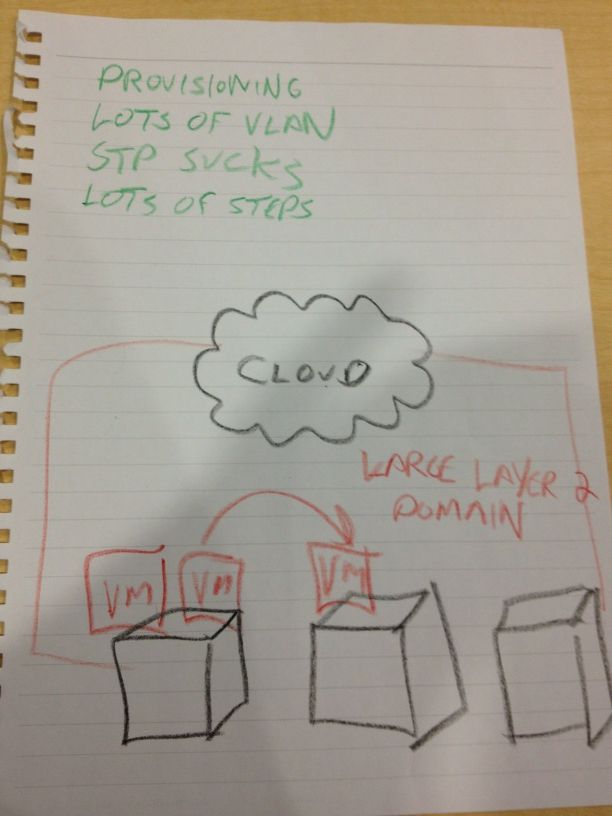
The last presentation was over QFabric.  This new technology represents Juniper’s foray in the the fabric switching technology sweeping across the data center like wildfire right now.  I’ve discussed at length my thoughts on QFabric before.  I still see it as a proprietary solution that works really well for switching packets quickly among end nodes.  Of course, to me the real irony is that HP/Procurve spent many years focusing on their Edge-centric network view of the world and eventually bought 3COM/Huawei to compete in the data center core.  Juniper instead went to the edge-centric model and seems to be ready to bring it to the masses.  Irony indeed.  I do have to call out Juniper here for their expected slide about “The Problem”:

The Problem

The Problem - courtesy of Tony Bourke

To Juniper’s credit, once I pointed out that we may or may not have seen this slide before, the presenter quickly acknowledged it and moved on quickly to get to the good stuff about QFabric.  I didn’t necessarily learn any more about QFabric that I already knew from my own research, but it was a good talk overall.  If you want to delve more into QFabric, head over to Ivan’s site and read through his QFabric posts.

Our last treat from the super session was a tour of the Proof-of-Concept labs at the Juniper EBC.  They’ve got a lot of equipment in there and boy is it loud!  I did get to see how Juniper equipment plays well with others, though, as they had a traded-in CRS-1 floating around with a big “I Wish This Ran Junos” sticker.  Tony Mattke was even kind enough to take a picture of it.

Here are the videos: Part 1 – Introduction to Junos

Part 2 – Open Flow Deep Dive

Part 3 – A Dive Into Security

Part 4 – Network Design with QFabric


Tom’s Take

I’m coming around to Juniper.  The transaction-based model allows me to fat-finger things and catch them before I screw up royally.  Their equipment runs really well from what I’ve been told and their market share seems to be growing in the enterprise from all accounts.  I’ve pretty much consigned myself at this point to learning Junos as my second CLI language, and the access that Dan Backman is going to provide to Junosphere will help in that regard.  I can’t say how long it will take me to be a convert to the cause of Juniper, but if they ever introduce a phone system into the lineup, watch out!  I also consider the fine presentations that were put on in this four hour session to be the benchmark for all future Tech Field Day presenters.  Very little fluff, packed with good info and demonstrations is the way to go when you present to delegates at Tech Field Day.  Otherwise, the water bottles will start flying.


Tech Field Day Disclaimer

Juniper was a sponsor of Network Field Day 2, as as such was responsible for paying a portion of my travel and lodging fees. They also provided us with breakfast and a USB drive containing the Day One Juniper guides and markting collateral. At no time did Juniper ask for, nor where they promised any kind of consideration in the drafting of this review. The analysis and opinions herein are mine and mine alone.