Fast Tracks and Shiny Plaques

HP has announced a new certification program called ExpertONE (http://h10120.www1.hp.com/certification/expert_one-networking.html).  This appears to be the culmination of the acquisition of 3COM/Huawei and the rebranding of Procurve as “HP Networking”.  In this new program, they have consolidated their existing tracks and certifications to fall into the familiar 3-tiered system of associate (Advanced Integration Specialist or AIS), Professional (Advanced System Engineer or ASE) and Expert (Master Advanced Systems Engineer or Master ASE).  The current tracks include networking, wireless, security, and voice.

What is of particular interest is the “Fast Track” program.  This program allows an individual certified in a competitor’s certification system to use these certifications to achieve an equivalent HP certification level.  For instance, if you hold a valid CCNA, you can take the HP2-Z04 Building HP Procurve Campus LANs exam and achieve the HP AIS: Networking certification.  Taking the same test and submitting a valid CCIE: R&S gives you the Master ASE: Networking certification.  While I can say that I like the approach that HP has taken by allowing existing vendor certifications to count towards their certification track, I do have a couple of problems with it.

1.  It’s a major modification from the existing track. My reasoning for this?  In the previous track, you could take one test that covered the convergence aspect of Procurve switches (basically multicast routing and QoS) and you could achieve the ASE: Convergence certification.  In order to become a Master ASE: Convergence all you needed to do was submit a valid CCVP certificate. (http://h10147.www1.hp.com/training/certifications/technical/convergence.htm)  That’s what I did.  And for the next 11 days, I am still a Master ASE: Convergence.  I even have the shirt to prove it.  But as of November 1st, that track will expire and there is no current projected replacement for it.  In an effort to realign their business tracks, HP has expired all previous certifications in favor of the new ExpertONE program.  No option to recertify in a track.  In fact, it appears the ONLY way to become a Master ASE is to hold a CCIE (or perhaps JNCIE) and take this one online test.  No other major vendor has ever expired all of their certification tracks at once, to my knowledge.  When Novell moved from Netware 5 to Netware 6, if you were certified on Netware 5 you could still claim to be a CNE, but Novell would inform those that asked that you were not certified on the current OS.  I’m still a MCNE on Netware 6.  I’m an MCSE on Windows 2000.  All expired tracks, yet the certification is still valid.  But with HP?  Nope.  No ASE for you unless you have the current certification.  But that’s not the most concerning thing about this.

2.  HP seems to be trying to attract Cisco talent out of spite. It’s no real secret that HP and Cisco in the last year have gone from friendly rivals to outright war with each other.  From the Cisco “California” UCS product line to the acquisition of 3COM/Huawei, the pitched battles keep getting fought over and over.  In fact, the announcement of the ExpertONE certification track was released at the same time Cisco announced changes to the CCIE Service Provider, CCNP: Voice, and CCNP: Security tracks.  HP has done everything in its power to pick as many fights with Cisco as it can.  And this new certification track is no different in my mind.  By claiming that anyone with a valid Cisco certification can now hold an equivalent HP Networking certification, HP is telling networking professionals they value the learning that those professionals have accomplished, even if they don’t care much for the logo on the certificate.  One test could certify me in 3 or 4 different tracks for HP due to my Cisco certifications.

This appears to me to be an effort by HP to win over a large portion of the networking professional community by giving them a head start in the HP certification program.  I can say that the idea of being able to gain some nice HP certifications because of my standing with Cisco is a nice idea.  But at the same time, I wonder what is going to happen in the future.  The Fast Track program won’t last forever.  HP is already prepping new tests and tracks for the November – January timeframe.  In my mind, that says that if you want to take advantage of the Fast Track program, you’d best do it now.  It may not be long before HP decides to ‘expire’ the Fast Track option in favor of new, developed coursework.  I’m also curious how long the CCIE will be a prerequisite for the Master ASE.  While you could be very certain that you are getting the cream of the crop by requiring a CCIE as a prerequisite for any certification, given HP’s previous actions of excising any trace of Cisco they can find makes me wonder how long it will last.  Perhaps until HP can implement their own lab program similar to the CCIE or JNCIE.  But those programs take time to develop and properly implement.  Until that time, I think HP is viewing the CCIE as a necessary evil.  And, quite possibly, HP will use the numbers of CCIEs gaining Master ASEs as a marketing tool to justify how advanced their certification program is becoming.

In the end, I think that HP has got the right idea.  While the prospect of losing my Master ASE due to reorganization does chafe somewhat, I think the program realignment was necessary to make the certification program have some prestige and level the playing field.  However, I’m couching my opinion until I see exactly how long the Fast Track program lasts.  And I hope that this isn’t just another example of the networking professional community being dragged into a vendor war.

I Got a +5 Tunnel of SSH!

I had an opportunity this week to record an episode of the PacketPushers Podcast.  It was a great outing that dealt with a lot of listener questions.  One of the questions that we didn’t get time to get to, however, involved online gaming and SSH tunneling.  I figured I’d do a little more research into it and see what exactly it is that makes this service work.

Background

The game in question here is World of Warcraft (WoW), easily the #1 Massively-Multiplayer Online Role Playing Game (MMORPG) in the world.  At any one time, millions of players are logged on to any of the almost 250 servers that comprise the game.  Consequently, these servers are located in datacenters housed all over the world in an effort to provide close support and (hopefully) low latency connections.  In the MMORPG world, the lower your latency to the server, the smoother things appear in game.  When latency increases strange things start happening as the player’s client attempts to update the server as to the location of the player’s character, and the server attempts to update the player’s client as to the location of objects in the realm.  When this starts happening, player’s experience the dreaded lag.  Lag causes objects to appear out of nowhere, or objects to warp around the screen, or in the worst cases the player’s client freezes waiting for an update from the server.  As you can see, having a fast connection is very important for the enjoyment and playability of the game.

SSH Port Forwarding – The Beginning

Originally, the idea of using SSH to forward WoW traffic came about because of firewalls.  WoW communicates with the realm servers on TCP port 3724.  Many firewalls, especially those found in enterprise networks, allow known traffic such as HTTP or DNS while blocking all unknown protocols.  In other cases, firewall admins have specifically blocked traffic known to be associated with peer-to-peer (P2P) protocols, such as Bittorrent or Limewire.  At any rate, players found that being behind these firewalls rendered them unable to play WoW.  Some enterprising players found that if they encapsulated the packets in SSH and forwarded them to an SSH server that had port forwarding enabled, they were able to connect and play.  Essentially, this involves taking the traffic on port 3724 and forcing through an SSH client (like PuTTY) and forwarding it on to an SSH server.  The server would then act as a proxy and forward the traffic on to the WoW datacenter.  Since SSH is a well-known and quite useful protocol, it is very likely to be passed along without a second thought.  Also, as SSH is an encrypted protocol, the firewall isn’t able to break the packet apart and inspect it to determine what kind of traffic it contains.  So, through the use of SSH and a proxy server, users were able to play from just about anywhere

Now, how to get people to pay for it

One of the side effects of using SSH forwarding to circumvent firewalls was that some users were seeing their latency drop as a result.  Especially for players located in more remote areas of the world, tunneling the traffic to a location with a faster connection caused the somewhat-high ping times to drop to more acceptable levels.  A few companies, such as SmoothPING or WoWTunnels have taken this idea to its logical extreme and started charging users for the ability to lower their latency.  For a small fee each month, you pay for the use of a client, which automates the whole process of modifying your system to encapsulate the WoW packets in SSH.  You also get access to a proxy server that then forwards these encapsulated packets on to the WoW datacenters.  The WoWTunnels website claims that the latency is decreased because the packets take a “different path” to your particular WoW server.

This “different path” claim is the reason behind the question to PacketPushers.  The listener wondered if these services were just moving the packets on to a faster connection or if they indeed had a secret backdoor into the WoW datacenters.  The answer to this question is actually quite easy and requires no real magic.  Yes, the packets are taking a different path to the data center.  The packets are being pushed through an SSH tunnel to a server that forwards them on to the WoW servers.  In essence, this forwarding server is acting as a proxy.  If the proxy server has a fast enough connection to the destination it should decrease your latency.  As well, by tunneling the traffic as it exits your network, you avoid having it be scanned by firewalls or packet shapers, thereby avoiding these devices dropping your packet priority or increasing latency.

In the end, tunneling your WoW traffic in SSH can decrease your latency for several reasons related to firewalls and faster connections.  When you pay someone to automate the process for you, you are essentially paying for them to keep upgrading the pipe they have from their servers to the WoW datacenter.  As long as they keep their user traffic segregated and avoid filling up the proxy connection you should see a good connection.  But remember that you don’t necessarily need to pay for this service.  If you have access to a server that can port forward SSH and aren’t afraid to get your hands a little dirty, give this link a try.  But remember your mileage may vary.

Now put that thing back where it came from or so help me…

When troubleshooting problems, we often find ourselves mired in a sea of options.  Google searches, technical documentation, tricks from our magical networking bag, and so on.  And more often that not, it takes more than one solution to actually fix a problem.  Magic bullets are very hard to come by in Information Technology.  So, when Google search option #1 fails, it’s time to move down the list to option #2…

WAIT! STOP RIGHT THERE!!!

Yes, you heard me.  Before you move on to option #2, you’ve got something to do first.  Before you get that big head of steam built up troubleshooting, you’ve got to clean up after yourself.  Yes, it’s time to undo option #1.  Now, I know what you might be asking yourself right now: “Huh?  What?  Undo something?” That’s absolutely correct.  If you try something that doesn’t work, you need to back out that change before you move on.  Why???

1.  If you end up trying 15 things to fix this particular issue, and one of them finally works, which one actually fixed the issue? Your first reaction is to say “Well, duh.  The last thing I did is what fixed it.” Usually that’s a good answer.  Unless Thing #9 needed 5 minutes to fix the problem in the background while you tried #10-#15.  Or, worse, #9 did something that allowed #13 to fix the issue.  The idea is that by backing out the changes if they don’t work, you can pinpoint what works more quickly.  Or, in some cases, narrow down a list of things that need to be done in concert to resolve the issue.  More than once I’ve asked someone how they fixed a problem only to be met with a shrug of the shoulders.  As a consultant or a technical resource for your company it’s vital to remember that if you can’t explain to a customer or your boss what you did to fix the problem, you didn’t actually fix anything.

2.  You don’t want to introduce any extra issues into the mix. If you don’t back out your changes before trying something new, there’s a very good chance that you’ll introduce an unexpected variable into the situation that could make your life miserable later on.  Or, in a worse case scenario, one of your previous ‘fixes’ causes a totally different issue after you’ve finished troubleshooting the original problem.  If you always take the time to back out irrelevant changes as you eliminate them as solutions, you don’t have to worry about them causing unforeseen interactions with your ultimate solution.  You don’t want to end up not being able to fix a routing issue because the routers won’t form neighbor relationships because you configured an access list that drops all multicast packets in a previous attempt.

As long as you remember to clean up as you go and back out any non-useful or non-functional changes, your troubleshooting life will be much easier.  You’ll find that you can more confidently explain solutions to customers and coworkers, as well as not introducing unforeseen consequences into your efforts.  You’ll look like a hero, money will fall from the skies, and the meek will worship the ground that your superior troubleshooting skill occupies.  At least, I think that is what’s supposed to happen if I just change this one other setting…

Misadventures of a Inbound Helpdesk Agent

People are always asking me what I do.  And I lie and say I’m a mortician.  Because invariably the next question involves me figuring out how to cut down on their webmail spam.  Or how to fix their computer.  But there was a time in my life when I didn’t have the option of lying my way out of questions like that.  Yes, in the beginning it wasn’t all the wine and roses of network engineering.  I was an agent on the help desk of a major computer company.  I’ve always said that everyone should spend a month on the help desk just so they can have the same low opinion of humanity that I do.  In the six months I was there, I learned that you can never assume what people will ask.  Ever.  I could spend days talking about all the things I’ve seen and heard.  Instead, I think I’ll share my three favorite stories from my tour of duty.


Unshiny Happy People

I received a call one night from a nice sounding old lady that can’t seem to get CDs to play on her laptop. I start to troubleshoot the issue, and nothing seems to be working. At about 15 minutes into the call, the following exchange occurs:

Her: Now, I have a question. Does the shiny side of the CD go up or down?
Me: The shiny side goes down, ma’am.
Shuffling goes on in the background…
Her: Oh, your fixed it! You are a miracle worker!

Here’s my vote for the return of the 8-track.


We, The (Ignorant) People…

A teenager calls me and wants me to help him copy a DVD. Like a movie DVD. Like a illegal-to-copy movie DVD. Informing him of this leads to this informative back-and-forth:

Me: I can’t help you, sir. It’s illegal to copy a DVD, just like it’s illegal to copy a tape or CD.
Him: You can copy a tape! It’s protected under the 3rd Amendment!

Catching me off guard with that one, I rattle off some garbage about the DMCA not allowing you to make copies of copyrighted material.  Yes, it’s the law, but I still think it’s garbage. It got rid of him well enough. But it stuck with me. After the call, we looked up the 3rd Amendment. It protects you against quartering soldiers in your home, and was written in 1789.

Damn British. First they comandeer your house. Then they make copies of Men in Black. Will they never learn?


To have and to hold…or your money back.

As usually happens on late night calls, I get a drunk customer. So drunk you can almost smell beer through the phone. I ask him to verify his computer serial number. He can’t find it. I ask him for a phone number. He can’t remember. I try to search for his last name. He slurs it so badly I though he sneezed. At this point, I tell him I can’t help him without any info. He then tells me he wants me to help him break his computer.

Me: Sir, I can’t help you do that. Even if I could, I wouldn’t. I fix computers, I don’t break them.
Him: You don’t understand. My wife chats with men on it while I’m at work all day. If I break it, she can’t talk to them.

Even with the impassioned plea of a man whose keyboard it getting more action that he is, I had to decline. He wants to speak to my supervisor. I tell him my supervisor can’t do any more that I have. He insists. My supervisor takes the call while I listen in on another line (and yes, we can hear you). He goes through the same song-and-dance, and gets the same reply. He then reveals this particularly juicy bit of info:

Him: She talks to these men on the computer and then brings them home! She’s already brought three of them home and slept with them while I’m at work!
Rolling laughter from those of us out of earshot
Him: She also downloads pictures off the Internet of naked men and hangs them up in our bedroom!
Hideous laughter from us that interrupts phone calls for other technicians
Him: She even buys dildos! She has one that is this long!
We assumed this to be a length of about 12 inches, and began howling laughter that made the callers think we were watching Clerks or something.

The man then begins to complain about his life in general, as well as his marriage. He even counseled my supervisor to avoid marriage at all costs. At this point comes the greatest line every uttered on a call:

Supervisor: I’m sorry sir, but our company does not warranty your marriage.

Not only did I gain so much respect for my supervisor, but in the multiple retellings of the story over the next few days, we both became heroes. And for the life of us, we couldn’t figure out why he didn’t just hit it with a hammer. Maybe he was too drunk to remember how to use one.

CCIE Lab – The Devil’s in the Details

Fresh off another lab experience in San Jose.  And while I didn’t get what I came after, I got a lot of valuable experience.  And I learned a lot about details.  And I don’t mean the ones that get you points on the lab.

What I reference is the “lab experience”.  There was a guy that was in my group that was just trying the lab for the first time.  He was nervous, and as we walked out from our butt-kicking, he remarked that it was definitely an experience.  And it got me to thinking about some things.  Things that you don’t get from workbooks or bootcamps.  From instructors (most of the time) or from catchy videos on Cisco’s website.  Yes, the little details.  The sometimes-stressful parts of lab day that can add up to a pressure cooker if you aren’t careful.  I find these questions asked a lot among candidates on message boards and in person.  Most of what I’m going to say applies equally in San Jose as well as RTP, and I think they’ll take some things off your mind so you can concentrate on the tasks at hand.

1.  The Early Bird – It goes without saying, but you probably don’t want to be late.  In San Jose, the proctor comes out to get you at 8:15 a.m.  At RTP, it’s 7:15.  I’d say be there 15 minutes early, accounting for traffic.  Just today, 3 of the candidates came in late.  Well past the actual 8:30 start time for the lab.  When you do that, you’re just costing yourself time.  Better to stare at the walls for 5 extra minutes than need 5 more minutes to fix BGP.

2.  Pens and Pencils and Papers, OH MY! – I probably see this question get asked more than any other.  Yes, you get a whole cup of pencils at your desk.  Pencils, pens, markers.  Red, black, brown, green, blue, and periwinkle if you want it.  You also get two pieces of paper to take notes on.  You can have as much paper as you want, but only two sheets at a time.  The paper also has your ID printed on it, so they know who you are.  And they have to account for EVERY scrap, so don’t tear off a piece to wad up your gum.  Rather than worry about the writing utensils and scratch paper, you can concentrate on making diagrams and checklists as necessary.

3.  Gimme a break! – There is a break room available in all lab locations just down the hall.  Back in the old days (circa 2008), the refreshments were open to all for free.  Then…(ta da!)…This Economy(TM).  Now, the refreshments are only free if you want water or coffee.  If you are a caffeine junkie like me, you better bring along some change or dollar bills for the soda machine.  My last attempt in 2009 caught me unaware of the new rules for caffeinated release.  Fortunately, I was able to break a $20 bill at the cafeteria so I could get my fix.  Just make sure to have some change handy and it’ll be one less stressful thing to worry about.

4.  There’s Such A Thing As A (sort of ) Free Lunch – In RTP, you take your lunch break in a conference room just off the lab.  You eat what they bring in.  The RTP site cafeteria is too far away in order to get you over there and back in a reasonable amount of time.  For some people, it’s acceptable to stuff your face and get back to configuring.  Others find it off-putting that you can’t get away from the damned lab for any small break.  In San Jose, 10 minutes before lunch the proctor passes out a $12 voucher for lunch at the building D cafeteria.  When it’s lunch time, you all get up as a group and head over.  You have ~45 minutes to eat and not think about icky IGP stuff.  You also get to breath fresh air and see sunshine, which rates pretty high in my book.  The cafeteria lunch is one of the reasons why I keep coming back to San Jose for my lab attempts.  I figure after 10, they’ll upgrade my lunch voucher to at least $15…

Just some things to throw out there that I never see answered in one form or another.  The key is that details of no importance are of no importance.  When it comes down to making sure that your QoS class maps are in the right order, not worrying about what’s for lunch makes sense.  But when you’re sitting in your hotel room the night before the test and your mind starts dwelling on all the little things and blowing them out of proportion, it’s important to realize that things like the above items aren’t really worth mulling about.  It’s better to refocus your efforts into your studies and crush the lab.  So you don’t have to keep coming back to the land of $12 lunches and colored pencils.  And the devil that is the CCIE lab.

The Abomination!

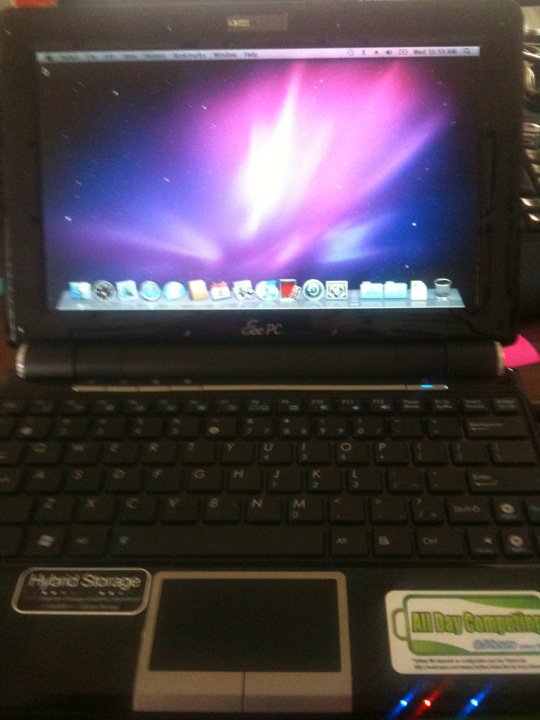
Sometimes I get bored.  Everybody does.  But when I get bored, strange things start happening.  I get restless.  I get devious.  And, this week, I got bored enough to get creative.  As such, I created The Abomination:

Yes, that is OS X Snow Leopard running on an ASUS EeePC 1000HE.  Who needs stinkin Macs, right???

Actually, this was a fascinating exploration into the way that operating systems are built.  I’ve been a closet Linux fan for years.  I can still remember working with Red Hat 6 when I interned at IBM.  And my backup machines around the house have always had some flavor of Linux on them.  I’ve emerged Gentoo and built Slackware.  I’ve dropped in Fedora and Ubuntu.  I’ve even used Debian.  Once.  So I’ve gotten a lot of practice installing OSes on systems.

Now, Mac has always fascinated me to a certain degree.  As much as Linux people are evangelistic, Mac people are downright zealous.  Up until my iPhone, I’d never really had the time or inclination to deal with Apple hardware or software.  But my opinion has always been that Mac software is significantly less buggy due to the fact that Apple has historically been a great hardware company.  Windows, for what it is, can install on lots of different hardware.  Net time you are in Best Buy, look at ALL the hardware you can buy for a PC.  And realize that all of it has to work with several different versions of Windows.  Now look at the Mac section (if there is one).  Probably a few white boxes.  Accessories.  No video cards.  No RAID controllers.  Everything you need comes in your Mac.  So, the OS only has to be written to encompass a small number of devices.  Most of the problems with Windows stem from misbehaving drives.  As such, if you only have to write drivers for a smaller subset of hardware, it’s a lot easier to stabilize your OS.  It’s also a lot easier to write to it’s fullest specifications, such as cute graphics like your icons bouncing on a toolbar.  So, it goes without saying that OS X is stable and flashy.  But it really only installs on Apple hardware.  Or so I thought…

Enter the guys over at Insanely Mac.  Those guys have installed OS X on everything that they could, including a toaster.  And so I started researching the forums, initially intending on installing OS X on my backup Lenovo/IBM Thinkpad T60.  Lo and behold, I find out that most of the hardware in the T60 will work, but my particular wireless card is a no-go.  But, the netbook that’s been lying on my desk collecting dust for the last six months is fully supported.  The camera, the wireless card, everything!  So off I set to complete my evil scheme.

I procured an OS X install disc.  Legally, of course.  The I read THIS THREAD. REPEATEDLY. I borrowed one of the Mac Guy’s systems.  I didn’t really tell him what I was doing.  I first tried to use an 8 GB USB drive to perform an install, but I could never get the OS to install correctly.  So I formulated Plan B and just pulled the drive out of the netbook and did a complete install.  I blew away the partitions and created a single OS X partition.  And an hour later, I have a complete OS X install on my netbook drive.  After reading the thread again, I downloaded the software to make the installation bootable.  I copied over the KEXT files (which are basically drivers for OS X).  And after all of that was completed, I disconnected the drive and reconnected it to my netbook.  And I rebooted.

This was possibly the most nerve wracking part.  I knew the installation was good, as the drive booted on an iMac.  But would it work on the netbook?  As the gray Apple boot screen spun and spun, I sat transfixed.  I waited for a crash or a kernel panic.  I was no stranger to kernel panics, so I knew if I could get a diagnostic message I’d be good.  But, that was not to be.  A frozen gray screen stayed up for about five minutes before I rebooted.  I checked my BIOS settings to make sure the settings listed in the forum guide were disabled.  This time on the reboot, things came up a little faster.  It turns out that OS X was building some system files in the background and I just needed to have a little more patience.  But finally, I was greeted with a desktop!

The camera worked.  Bluetooth worked (but I couldn’t turn it off).  But no connectivity.  Wired Ethernet was not there.  No WLAN card detected.  I figured that the networking would be the hardest part to configure, but I’m not The Networking Nerd for nothing!  As it turns out, the Ethernet driver was linked in the post.  After I copied it over to the netbook and did the convoluted driver install procedure for OS X, wired Ethernet worked after a reboot.  As the system came back up, I checked the BIOS once again for issues and found that the dreaded “Boot Booster” was still enabled.  According to the Interwebs, Boot Booster caches BIOS settings from the last boot and uses them to speed boot times by about a second or two.  It also seems to freak out the WLAN card in OS X.  After I disabled the Boot Booster, the wireless card miraculously started working!

I updated the installation to 10.6.1 using a combo update and reapplied settings as outlined in the last page of the above thread.  I stopped there as Apple removed support for the Atom processor as of 10.6.2, requiring some nifty kernel patching to put the support back in.  I decided that 10.6.1 was acceptable enough for me right now for testing.  And so I’ve been using my little MacNetBook on and off for the last few days.  Based on the recoils of horror from some of my Twitter followers, I’ve even made the hostname ‘abomination’.

How do I like it?  So far, to me it doesn’t really feel much different than Linux.  There’s a bit of a learning curve (better than my Windows-to-Linux curve), and the software installation routine is much, much better than RPMs.  But all in all, I think I’m going to need to use it a little more to get a good opinion.  And I’m probably going to need to install it on a full-sized machine to use it more often than I do now.

In the end though, it was nice to prove that I could do something not entirely supported by anyone other than the community.  It brought back my Gentoo days, and all my original Linux fun from the Red Hat 6 days.  And it proved that no OS is locked down too tight given enough bored people out there.

Tunnels, tunnels everywhere

In my attempts to drill IPv6 into my skull in time for my next CCIE lab attempt, I started playing around with some of the multicasting aspects of it on my GNS3 lab.  When I typed in “ipv6 multicast-routing”, imagine my surprise when I saw a tunnel interface pop up.  I tried to get rid of it, only to be told by IOS, “%Tunnel0 used by PIM for Registering, configuration no allowed.”

Now, thanks to Greg Ferro, I know that tunnels are an evil, evil thing used to duct tape the Internet together.  So I started researching why the router suddenly started spewing tunnels all over my finely constructed lab.  It took tons and tons of digging before I was finally able to come up with the answer, buried in a PDF.  I’m reprinting the explanation here so as to hopefully get it indexed by Google to aid whomever else may need to find it in a hurry.


Registering

The PIM-SM Draft suggests that source registering be accomplished using a virtual tunnel interface. This use of virtual tunnel interfaces permits consistent PIM state handling for the registration process. During the registration process, the tunnel interface appears like any other interface in the Outgoing Interface List for the multicast data source (S,G) state with all the rules valid for the state management. In Cisco IOS Software implementations, an automatic tunnel is created as soon as an RP is known; one virtual tunnel for each active RP in the network. While the PIM-SM Draft suggests that the tunnel should be deleted after each process of registering, Cisco IOS Software keeps each tunnel as long as the RP is known. The additional implementation-specific advantage of these tunnel interfaces is simplification of the register data encapsulation—it does not have to be handled specifically in the PIM part of the code. Instead, generic IP code can be used to perform the encapsulation such that the PIM Register packet is just forwarded into the tunnel for encapsulation. Use of generic tunnelling code in Cisco IOS Software enables the possible handling of PIM Register packets in fast (not process-switched) path if available.
These virtual tunnels are always unidirectional (transmit only) and automatic—the tunnel interface status immediately goes to up when it is created. However, the line protocol stays in down status until the there is a valid RPF interface to the RP (for example, unicast connectivity through unicast BGP in the default configuration is not enough, as BGP is not used for RPF check) and also a unicast route exists in the unicast RIB to the RP. Sources can successfully register only when the tunnel interface is fully up.
It is important to note that while all PIM Register messages from the registering routers (first-hop routers) are sent to the RP via these virtual tunnels, all PIM Register-Stop messages are sent directly from the RP to the registering router and do not use virtual tunnels.
The handling of dynamic changes of RP information is not fully resolved in the first IPv6 Multicast implementation—it is a generic Cisco IOS Software issue, which can not handle properly deleting of interfaces (the register tunnels in this case) and reusing of the same interface number by a newly created tunnel. This can cause problems when BSR and embedded RP are used to distribute RP information (when the RP information dynamically changes).

(Copied from THIS PDF)

So, it appears that these tunnels are here to stay.  They are used for PIM registrations and appear to be unidirectional and pointed toward whatever RP is setup.  So, if you find yourself configuring IPv6 multicast and you suddenly become inundated with a swarm of tunnels, just relax.  You don’t need to break out the duct tape just yet.

One Switch to Rule Them All, One ACL to Bind Them

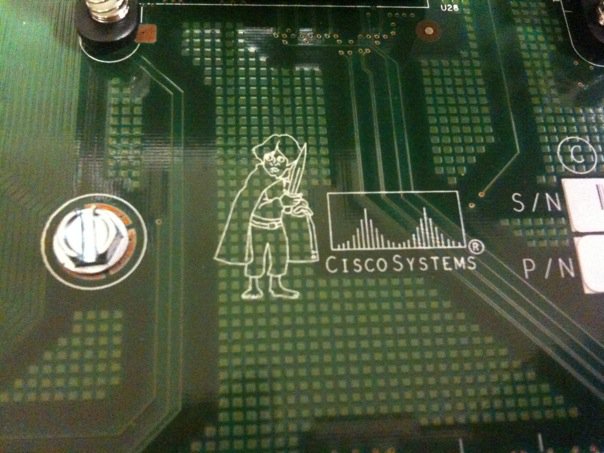
A couple of weeks ago, Dan Hughes (http://blog.olorin.co.uk/ and http://www.twitter.com/rovingengineer) opened a Catalyst 3750 switch and found something curious:

3570 Switch featuring Frodo

Soon, the questions and speculation started pouring in.  What could it be?  Was it a black market motherboard?  A prank gone wrong? Was Dan trying his hand at art college?

After some research, I found a good explanation.  Just like any major manufacturer out there, Cisco gives each project a code name while under internal development.  It makes it easier to refer to instead of typing a project number out each time, plus if any information about it leaks out before it’s ready, the competition is scratching their heads wondering why you might be working on a new Shire-friendly device.

In this particular case, the 3750 switch was the first in Cisco’s portfolio to use Stackwise technology.  According to the very detailed whitepaper found here:

(http://www.cisco.com/en/US/prod/collateral/switches/ps5718/ps5023/prod_white_paper09186a00801b096a.html)

the switch uses a combination of hardware and software to create a ring between all members of the stack in order to emulate the backplane of a chassis switch.  During internal testing, this new technology get tagged with the code name Lord of the Rings, which is why you’ll find our little Hobbit friend of the motherboard of your 3750 if you open it up.

And since I can’t get enough of trivia like that, I did some additional digging and came up with some interesting and not-so-interesting code names for other Cisco products:

Cisco GSR 12000 series -> Cisco BFR (Big F***ing Router, or Big Fast Router if you’re in marketing) Supposedly named after the Big F***ing Gun (BFG) from the video game Doom.  You can see a picture of the BFR logo on a 12000 linecard here: http://www.kumari.net/gallery2/main.php?g2_itemId=331

Cisco CRS-1 -> HFR (Huge Fast Router, or Huge F***ing Router depending on who you ask).  Named after the Cisco GSR 12000 from above.  And yet it needed to be changed to a less specific and more PC acronym.  HFR lives on if you look at the software loads for the CRS-1, though.  They all start with “hfr”.

Cisco UCS -> “California”.  This one is interesting.  All during development, the UCS project was code named California.  In fact, all of the Cisco entries in the product line are named after places in California:

Los Angeles – 2RU UCS C250

San Diego – C210 and C200

Palo – Cisco virtualized networking/storage adapter

Catalina – Memory controller chip inside the UCS servers that allow extra memory sockets to be connected to the memory bus

So the next time you find yourself staring at a fictional character on a motherboard, don’t automatically assume that it’s something sinister.  It might just be an homage that only gets seen by 10 or 15 people.  Who then post it on the Internet and ruin the surprise for everyone.

By the way, if anyone out there knows any other cool Cisco product code names (for released products), post a comment and let me know.  These kinds of things are the stuff I expect to win on Jeopardy! with at some point in my lifetime.

Boxing with Problems

In our last episode, we found out that we had a problem.  Hopefully, a specific one.  Now, we can move toward fixing the problem.  But first we have to determine with some specifics what it is we’re dealing with.  This particular post dovetails in with the end of my previous post and leads to the solutions section.  But it’s very critical that we narrow our focus to the specific problem at hand first.

If anyone has ever dealt with a situation where you are troubleshooting an issue for someone without specific knowledge of the subject matter, you’ve no doubt encountered the Chicken Little Problem Determination Method.  For those not familiar with the story, Chicken Little believes that the sky is falling around him.  Consequently, CLPDM involves the non-educated party making an overly large or non-specific problem determination.   For instance, a user that can’t get to a specific website might determine “The Internet is broken.” or maybe “The network is down.”  These diagnoses do nothing to help us as troubleshooting professionals fix the issue.  In fact, it is usually at this point where we have to start applying our critical thinking skills to narrow the problem down to something specific.

I usually take the overly-broad problem determination and start narrowing my focus in steps.  Most people will see this as the heart of the troubleshooting process.  The way I envision this process is by drawing “boxes” around the problem.  If you’ve ever played the game Jezzball (http://en.wikipedia.org/wiki/JezzBall), you know the key to winning is to draw smaller and smaller boxes, eliminating unnecessary area until there is nothing left.  In much the same way, we start troubleshooting by drawing boxes around our problem and eliminating irrelevant causes or solutions.

Now, you might say to yourself “That sounds pretty simple.  There’s got to be more to it than that.”  And you would be right.  But in truth, for most non-logical, non-step-oriented people, this is the hardest part to get.  Too often, we fall back on past experience too early in the process without investigating all the issues.  I myself am guilty of this on many an occasion.  When we start boxing in our problem, we use our skills and knowledge to eliminate impossible or even highly improbable causes or solutions until all we are left with is the real problem.

In order to illustrate this, we can step through a specific problem to highlight the process of narrowing our focus.  Take the aforementioned user that can’t get to a specific website.  As the network engineer/admin, we start by verifying the most basic of things.

1.  Is the system powered on and plugged into the network?  Yes, feel free to scoff at troubleshooting layer 1, but in truth there have been occasions where a “network outage” was caused by someone carelessly unplugging a network cable or power cord.

Assuming that there is layer 1 connectivity, we have already drawn our first box around the problem and eliminated several possible causes.  We know the system is getting power.  We know the network cable is plugged into the system.  However, we still don’t know if it’s working or not.

2.  Next, we pull up the system and check the network address.  In this step, we verify several things.  If the system has an address, that must mean the network cable is connected end-to-end, since adapters won’t show up in most mainstream OSes unless they are connected end to end.  In most user-facing cases, an address signifies that the computer has connectivity to some sort of addressing server, whether it be DHCP or stateless auto-configuration of some kind.

We’ve now drawn our next box.  The cabling must be good, since we have end-to-end connectivity.  We must also be reaching at least one server on the network if we have a DHCP or stateless address, so the networking stack on the system is working properly.

3.  If we have an address, we should try using ICMP pings to check connectivity to other systems.  In this particular case, the user is trying to reach a server off the network, so the best candidate is to ping the user’s default gateway, as it is responsible for routing packets off the local network.  In this particular example, the pings all succeed with no issues.

We’ve now drawn an even smaller box around this problem.  If the user is saying that the problem is getting to a website not on our network, we needn’t bother testing connectivity to the printer down the hall.  Narrowing your focus to the parts and pieces necessary to the problem is a skill that sometimes takes experience or specific knowledge.  But after a while you start to get a feel for what’s needed and what’s not.

4.  If we have connectivity to the gateway, the next step is to try and ping the site the user is going to.  We know the network connection is good all the way to the gateway, so this step will tell us about the state of things beyond our reach.  In this example, pinging the address http://www.fakedomainname.com failed.

Now we’ve got a nice narrow box around our problem.  And our first glimpse of a failure in our troubleshooting method.  Here’s where the rubber meets the road.  We have to figure out from our steps which direction to take the troubleshooting based on what we see.  We know that the network connection is good to the gateway and that ICMP pings work to that point.  What failed in the test?  In this example, the system returned the message

“Ping request could not find host http://www.fakedomainname.com. Please check the name and try again.”

Anyone familiar with troubleshooting will realize that this message means that the name could not be resolved using DNS.  The next step is to try a test that is similar to the problem in order to verify that this possible root cause is indeed the issue.

5.  Try pinging http://www.google.com.  I tend to use google.com as a static example as it’s servers are typically up and the name resolves on most systems.  In this particular example, the message returned is

“Ping request could not find host http://www.google.com. Please check the name and try again.”

Ah ha!  We’re on to something here!  We appear to be having issues resolving DNS…

6.  In this case, check to see what is assigned as the system’s DNS resolver.  For this example, it’s a local server on the network.

We’ve now got a nice small box around the problem and we’re investigating issues at a very granular level.  We’ve already come very far in the troubleshooting process and we’re almost there.

7.  Can we ping the DNS server that is supposed to be resolving the DNS requests?  In this case, the answer is ‘no’.  The server appears to be offline at this time.

Bingo!  We’ve successfully narrowed the problem from “The Internet is down.” to “The DNS server is offline.”

Now, you may be looking at this example and saying to yourself, “Duh!”  If you are, congratulations.  You’ve figured out how to troubleshoot.  But, did you jump to this conclusion at the beginning without taking all the steps?  If you assumed from the start that DNS was the root cause, you missed out on many other possible problems.  And if your guess didn’t pan out, where would you be left?  That’s right, back at the beginning again.  The key to structured troubleshooting is to take things one step at a time and narrow the problem down.  Jumping to conclusions usually leads you to a cliff sooner or later.  If you continually narrow the box in a structured manner, you’ll always find the problem.  Now what to do about it?

In our next post, we’ll examine methods for fixing problems.  And why’s it’s always a bad idea to not clean up after yourself.

CSCsb42763, or Why I Hate Hunt Groups Sometimes

Ah, CSCsb42763.  My old nemesis.  Those of you in the voice realm may never have heard of this little jewel.  However, you may have heard of its more common name: “Can you make it so that all the members of a hunt group can pick up a call when it’s ringing (call pickup groups)?”  Fine, you say.  You enable the call pickup group for each phone.  Except being logged into a hunt group negates that particular behavior for calls ringing in the hunt group.  Okay, so I’ll just enable the call pickup group on the hunt pilot…ARGGGGGGGGGGGGGGG!!!!!  IT’S NOT THERE!!!!!!!!!!!!!

My friends, say hello to CSCsb42763.  This particular bug has been around since CallManager 4.0(2a)SR1.  According to the TAC Case Collection identifier (http://www.ciscotaccc.com/kaidara-advisor/voice/showcase?case=K11612191), this behavior caused a memory leak in 4.x versions of CallManager and was disabled by default to keep the calls to TAC down to a minimum.  But wait!  This is 2010?  Why hasn’t this been fixed/patched/enabled?  We’ve moved off of Windows and we’re now on our fourth major generation of appliance *coughcoughLinuxcough* support.  I honestly can’t say why this is still an issue.  If I knew exactly how TAC worked I wouldn’t be doing the job I am doing now.  Or I’d be getting paid a LOT more for it.

How do I fix this little behavior without going crazy?  Well, it’s time to get acquainted with the mysterious “Cisco Support Use 1” parameter:

1.  Log into CallManager and click on System -> Enterprise Parameters.

2.  Scroll down until you find the Cisco Support use section (It’s toward the bottom).  Under there, you’ll find the field “Cisco Support Use 1” (Yeah, real descriptive there, guys.  Why didn’t you just call it “DON’T TOUCH THIS UNLESS WE TELL YOU!!!!!!!!!!!”)

3.  Enter “CSCsb42763” (without quotes) exactly as it appears. Yes, case and spelling are very important.  The system is looking for this exactly string to enable the features that you seek.

4.  Go to the hunt group in question and you should now see the “Call Pickup Group” field.

BTW, if you are still on CallManager 4.2 this field has a different name, naturally.  You’ll find it listed under the more descriptive “Unsupported Pickup” parameter under the CCMAdmin parameters page.  But, really, if you’re still on 4.2 you’re probably using tin cans and string to talk to each other and don’t really need hunt groups, now do you?