Janetter – The Twitter Client That Tweetdeck Needs To Be

Once I became a regular Twitter user, I abandoned the web interface and instead started using a client.  For a long while, the de facto client for Windows was Tweetdeck.  The ability to manage lists and segregate users into classifications was very useful for those that follow a very eclectic group of Twitterers.  Also very useful to me was the multiple column layout, which allowed me to keep track of my timeline, mentions, and hashtag searches.  This last feature was the most attractive to me when attending Tech Field Day events, as I tend to monitor the event hashtag closely for questions and comments.  So it was that I became a regular user of Tweetdeck.  It was the only reason I installed Adobe Air on my desktop and laptop.  It was the first application I launched in the morning and the last I closed at night.

That was before the dark times.  Before…Twitter.

Last May, Twitter purchased Tweetdeck for about $40 million.  I was quite excited at first.  The last time this happened, Twitter turned the Tweetie client for iPhone and Mac into the official client for those platforms.  I liked the interface in the iPhone and hoped that Twitter would pour some development into Tweetdeck and turn it into the official cross-platform client for power users.  Twitter took their time consolidating the development team and updating Tweetdeck as they saw fit.  About six months later, Twitter released Tweetdeck 1.0, and increase from Tweetdeck’s last version of 0.38.2.  Gone was the dependency on Adobe Air, instead using HTML5.  That was probably the only good thing about it.  The interface was rearranged.  Pieces of critical information, like date and time of tweets was gone.  The interface defaulted to using “real” names instead of Twitter handles.  The multiple column layout was broken.  All in all, it took me about a day to delete the 1.0 app from my computer and go back to the version 0.38 Air app.  I’d rather have an old client that works than a newer broken client.

As the weeks passed, I realized that Tweetdeck Air was having a few issues.  People would randomly be unfollowed.  Tweets would have issues being posted.  Plus, I knew that I would eventually be forced to upgrade if Twitter released a killer new feature.  I wanted a new client but I wanted it to be like the old Tweetdeck.  I was about to give up hope when Matthew Norwood (@MatthewNorwood) mentioned that he’d been using a new client.  Behold – Janetter:

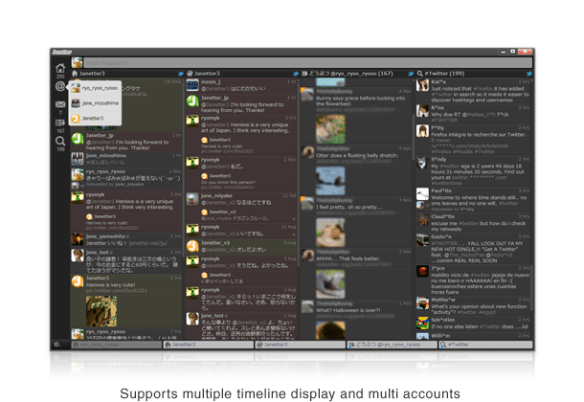
It even looks like the old Tweetdeck!  It uses the Chromium rendering engine (Webkit on Mac) to display tweets.  This also means that the interface is fully skinnable with HTML5 and CSS.  Support for multiple accounts, multiple columns, lists, and filtering/muting make it just as useful as the old Tweetdeck.  Throw in in-line image previews and the ability to translate highlighted phrases and you see that there’s a lot here to utilize.  I started using it as my Windows client full time and I use the Mac version when I need to monitor hashtags.  I find it very easy to navigate and use.

That’s not to say there aren’t a couple of caveats.  Keeping up with a large volume of tweets can be cumbersome if you step away from the keyboard.  The auto scrolling is a bit buggy sometimes.  As well, sometimes I get random tweets that were read being marked as unread.  The default user interface is a bit of a trainwreck (I recommend the Deep Sea theme).  Despite these little issues, I find Janetter to be a great replacement overall for the Client Formerly Known As Tweetdeck for those of you that miss the old version but can’t bring yourself to install what Twitter released a very “1.0 product”.  Perhaps with a little time and some proper feedback, Twitter will remake their version of Tweetdeck into what it used to be with some polish and new features.

Head over to http://janetter.net to see more features or download a copy for your particular flavor of operating system.  You can also download Janetter through the Mac App Store.

Say Backpack! – Cisco Live Conference Bags

One of the highlights of Cisco Live attendance is the conference backpack.  Geeks are always proud to carry around things with logos on them, especially if they are useful.  The backpacks at Cisco Live allow networking rock stars to carry all manner of dark magic with them and impress the unwashed masses with the skills of a real engineer.  Sometimes the bag is an instant hit and generates lots of good press.  Other times it’s a lightning rod for controversy and catcalls.  Given that many have only been to one or two Cisco Live events or may not be familiar with the backpacks of yore, I thought I might dig into my stash of carrying cases and have a nostalgic trip down memory lane.  Note that with one exception I’ll only be talking about bags that I have gotten from Cisco Live personally.  I know that there have been some cool ones before 2006, but since I don’t have them I can’t really do them justice.  Here you go:

2005

The 2005 Cisco Live bag was amazing, simply put.  So amazing that I didn’t even go to the conference and I still had to have one.  The reference design for this bag is the APC TravelPower Backpack.  This venerable design was APC’s foray into the market and was an attempt to provide not only a quality case for carrying your things but a way to charge them as well.  The backpack could be used with the APC TravelPower system, which placed a battery unit in one of the many pockets along with cables that could be routed throughout to provide power to laptops, cell phones, PDAs, and much more.  Then, a single power cable could be snaked out of the bottom and the whole backpack plugged into the wall.  Cisco must have just purchased a bunch of them from APC and had them branded with Cisco Live 2005, because they conference bag is identical (without the expensive TravelPower electrical stuff).  This bag is the mark of a seasoned Cisco Live Veteran.  I bought the APC backpack version right before APC stopped making them and I still carry it to this day.  I love all the extra pockets and places to hide my cables/adapters/junk.  My only real gripe is that it won’t hold a 17″ laptop (other than a MacBook), so I’m force to use a different pack for my behemoth Lenovo w701.  I love this backpack and will carry it until it frays away to nothing.  A note: if you want to make a backpack that will sell like hotcakes, you might consider copying this design and putting it back out on the market.

2006
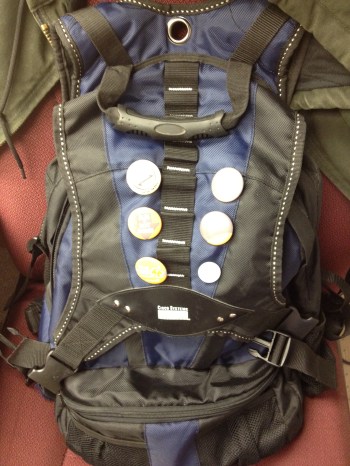
The 2006 Cisco Live bag was my first.  I had been carrying a messenger bag for many years before and was considering changing over to something more comfortable.  This bag tipped the scales for me.  It’s a rugged design that it still sold today, notably on Newegg by MobileEdge.  It’s a big pack that has enough room to store a huge laptop as well as power supplies, cables, and assorted gadgets.  It also has a folding flap on the front that can be used as a shield or a place to carry a folded jacket.  I use this backpack today to carry my large laptop and it’s held up quite well for all the use it gets.  I am noticing that after 5 years the zipper pulls are starting to break off but I think that can be expected through normal wear and tear.  There aren’t quite as many pockets as I would like to carry all my gear, but that may be more a commentary on the amount of junk I carry around.

2007

Oh boy.  2007 was, quite simply, the mistake.  I heard about this bag on the bus headed to the registration desk.  People were complaining about it all week.  I have never heard so much vitrol about something so simple.  I think the idea that Cisco had was that there were so many backpacks already, maybe a change of pace was in order.  Instead, they got a revolt.  The bag itself isn’t necessarily bad.  It is well padded and has pockets for whatever you can think to carry.  The flap secures tightly and it’s comfortable to carry.  The real problem is that it was a major step down from the backpacks of the past years.  Many people commented that Cisco must have gotten them at a great price.  The addition of a bright red color scheme seemed to scare some because network rock stars seem to be allergic to colors other than black.  Overall a notable disappointment.  I use mine at home to store computer parts and will probably end up giving it to my son sooner or later.  At least until he’s big enough to carry a bigger backpack.

2008

Cisco live 2008 backpack - photo from Jim Fenton

Cisco got the message in 2008.  They gave us our backpacks again.  This one was grey and devoid of any electric colors and it suited the attendees just fine.  The standout feature to me was the reinforced cable handle.  This thing could be yanked around and you never had to worry about the handle coming loose or breaking off.  The carrying straps could also be rearranged in case you wanted to use it as a large messenger bag.  I never really warmed up to this bag, but I think that’s because I didn’t get the chance to.  As soon as I got back from Cisco Live, an officemate told me that he wanted to give the bag to his teenage son.  I figured it would probably get more use from him than it would from me, so I let him have it.  It’s another popular backpack to spot at Cisco Live, as many people still carry it due to the rugged construction.

2009
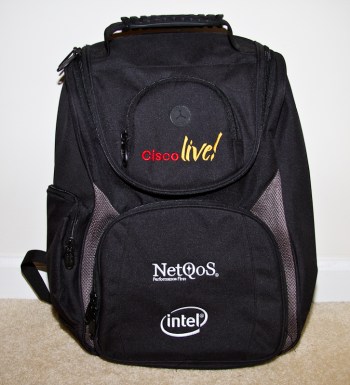
Cisco Live 2009 Backpack - many thanks to John Herbert (@MrTugs)

San Francisco was cold!  I never expected that I might freeze in the middle of the summer, but San Fran proved me wrong.  The 2009 backpack was a solid choice.  It didn’t have the reinforced carrying handle from 2008, but the padding on the straps and the back was very comfortable.  I have never really understood the need for the CD/media player pouch with headphone port on a “work” backpack, but that might be an alluring option for some.  The cords on the zipper pulls are also a very welcome change from the molded plastic of other years.  I used this bag for a bit up to the point where I started carrying my w701 which wouldn’t fit inside the laptop pocket.  I ended up giving this one to another coworker that work it with pride for quite a while.  I still see many people carrying this pack at Cisco Live events, most remarking on the comfort.

2010
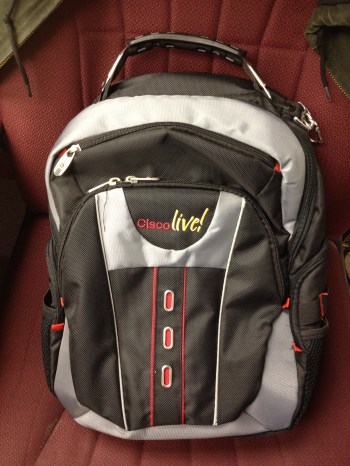
Every convention comes back to Vegas sooner or later.  So it is with Cisco Live.  2010 was my first time back in Vegas since 2006, and I was greeted by this bag.  It seems to be based around the Wenger Pegasus backpack.  It’s a very solid pack and would probably be great for a large number of users.  I saw quite a few of them at Cisco Live 2011 which is always a good indicator of the longevity and popularity of a backpack.  However, nothing about this particular bag stood out to me as far as usability in my range of carrying cases. It has lots of neat extras like adjustable straps, music player pouches, and even a tab to hold your sunglasses.  Nice additions for sure, but not high on my list of “must haves” for a network rock star backpack.  This one is a good candidate for loaners or backup laptops in my opinion.

2011

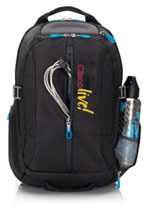
Las Vegas still had more to give Cisco Live, and so we found ourselves back again in 2011.  This conference bag was the first in a while to have the bright colors again, this time orange to match all the orange draped in the Mandalay Bay Convention Center.  This bag is based off a reference design from Ogio, which coincidentally was the most popular backpack at Cisco Live 2007 (they flew off the shelves after the red messenger bag fiasco).  This bag has lots of space for all manner of books and laptops as well as a few catch pockets.  The big feature for this one, though, is that it meets the new TSA guidelines for travel bags.  The butterfly-style fold out allows you to send your bag through the x-ray with a minimum of shuffling.  The quality of this bag isn’t bad, but the Ogio bag it’s based on seems to have a bit better build.  I’ve heard that some people were having issues with straps and handles coming off after a few months of use.  Mine is still in almost pristine condition, but I haven’t really been using it because it won’t fit the behemoth.  If I had to start using something other than my APC or Live 2006 bag, it would probably be this one.

2012
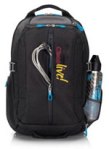
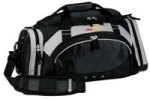
This year for Cisco Live, we get to choose our bag!  We have the options of a backpack, a nice messenger bag, or even a gym bag.  I really do appreciate allowing the attendees to choose our favorite.  Some want a messenger bag because of the ease of carrying or the more professional look.  Others want the backpack to upgrade from whatever they might be carrying.  Still others want something a little different and think the gym bag would be a welcome change from the norm (as well as a great way to haul back the Cisco Live swag).  You can head over to the Cisco Live conference site and vote for your favorite.  Be sure your voice is heard.


Tom’s Take

Putting this post together was a trip down memory lane.  I can remember picking up each of these bags from the registration desk and trying my best to cram the contents of my current backpack inside.  Each of them is a reminder of fun times and lots of learning opportunities.  I hope that others can look back and see what kinds of backpacks we’ve gotten before and use them as a comparison to the future conference bags.  Those that forget the backpacks of the past are doomed to repeat them.  Although, for many of the backpacks on this list, a repeat wouldn’t be a bad thing…

Thanks to John Herbert (@MrTugs) and Jeff Fry (@FryGuy_PA) for their help in compiling this post.

Software I Use Every Day – OS X Edition

For those that have been keeping up, I am now the proud owner of a MacBook Air.  I originally purchased it to use as a learning aid to get better at working on OS X Snow Leopard and Lion.  I also decided to see if I could use it to replace carrying my behemoth Lenovo w701 around to do simple things like console connections.  I’ve done my best to spend time in the last month working with it every day and trying out new software to duplicate my current job functions.  Now that I’ve got a handle on things, I figured I’d share what I’ve learned with you in a manner similar to my last software blog post.


Terminal Access – iTerm2

This was the first program I downloaded after I logged into my MacBook.  If you are a network rock star, it should be your first download as well.  This program is the terminal on steroids.  Tabs, split window panes, search-in-window, and profile support top the list of the most needed features for someone that spends most of their day staring at a CLI window.  I don’t even open the Terminal.App program any more.  I just use iTerm2.  This program replaced PuTTY for me and did a great job of replacing TeraTerm as well.  The only thing that it lacks is the ability to use a serial console connection.  I think that’s more of a single-purpose use case for the iTerm2 folks, so I doubt it will ever be rolled into the program.  All things being equal, this will probably be the most useful program you’ll download for your Mac.


Serial Console Access – ZTerm

The console is where I live.  I spend more time staring at CLI screens that I do my own kids.  The inability for me to access the familiar confines of a serial connection is a deal breaker.  I was a little apprehensive about serial console access on the Mac after hearing about some troubles that people were having after upgrading to OS X Lion.  I pulled out my trust Prolific PL-2303 serial adapter and plugged it in to test the driver support.  I had no issues on Lion 10.7.2, but I’ve been told that some may need to go to the Prolific site and download the newest drivers.  As a side note here, I had the exact same issues when I upgraded to Windows 7 64-bit on my laptop, so I think the problems with the adapter are based on the 64-bit drivers and not necessarily on your particular OS.  Once I had the adapter working in the OS, it was time to find a program to access that console connection.  ZTerm kept coming up as the best program to do that very thing.  Some of the other serial connection programs (like CoolTerm) are focused on batch serial connections, like sending commands to a serial device in programming.  ZTerm allows you to have interactive access to the console.  You can also do captures of the serial output, which is a feature I love from TeraTerm.  That way, I can just type show run and not have to worry about copying and pasting the input into a new Notepad window.  A quick note – when launching ZTerm for the first time, the baud rate of the connection is set to 38400.  Since networking equipment only plays nice at 9600, be sure to change that and save your settings so it comes up correctly after that.

Note that ZTerm is shareware and costs $20 to register.  It’s worth every penny for those that need to access equipment through old fashioned serial links.


TFTP Server – TFTPServer for Mac

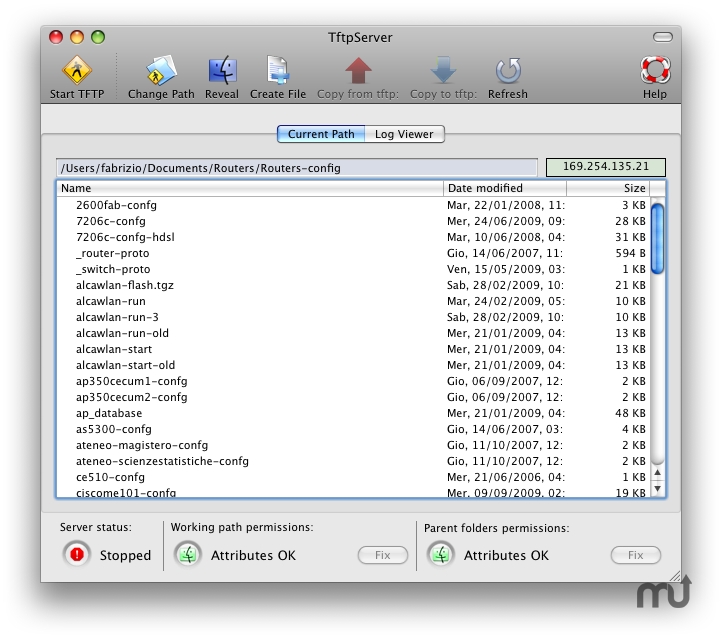
OS X has its own built-in TFTP server.  However, I’ve watched competent network rock stars struggle with permissions issues and the archaic CLI needed to get it running.  In the comments of my original software blog post, Simon Naughton (@norgsy) pointed me toward Fabrizio La Rosa’s TFTPServer GUI configuration tool.  This little jewel helps you get the right permissions setup on your TFTP service as well as letting you point the TFTP service to a specific directory for serving files.  I love this because I can keep the remote machine from needed to sift through large numbers of files and keep only the necessary files located in my TFTP directory.  I can also enable and disable the program in a flash without needing to remember the five argument CLI command or forgetting to sudo and get a failed error message.  Do yourself a favor and download this program.  Even if you only ever use TFTP once, you’ll be glad you have this little tool to help and won’t have to spend hours sifting through documentation and forum posts.


SFTP – Built In

This was one of my first “Ah ha!” moments with OS X.  Working with voice requires access to FTP services for COP file uploads and DiRT backups.  I have used FTP forever on my Windows machines because SFTP was such a pain to setup.  I wanted to duplicate that functionality on the MacBook Air, but a few searches found that Apple has removed the ability to configure the FTP service from the GUI.  I knew I was going to need to use FTP at some point, so I kept looking and found an article on OSXDaily about enabling FTP with a command line string.  However, buried in the article is a gem that took me by surprise.  By enabling remote login in the sharing page under System Preferences, you automatically enable SSH and SFTP!  Just like that.  After all the fits and starts I had with SFTP on Windows, OS X enables it with a simple radio button.  Who knew?  Now that I have a simple SFTP server running on my MacBook, I don’t think I’ll ever use FTP again unless I have to.  Should you find yourself in a predicament where you can’t use SFTP though, there’s the CLI command to enable the Lion FTP server:

sudo -s launchctl load -w /System/Library/LaunchDaemons/ftp.plist

And here’s the command to turn it off once you’re done with it:

sudo -s launchctl unload -w /System/Library/LaunchDaemons/ftp.plist

RSS Feeds – Reeder

My favorite RSS reader for the iDevices, Reeder allows me to digest my RSS feeds from Google Reader in a quick and clean manner.  No ads, no fluff, just the info that I need to take in.  Thankfully, Silvio Rizzi also put out a version for OS X as well.  I keep this one up and running at all times in a separate screen so I can flip over and see what my friends are posting.  It’s a great tool that allows me to be in the know about what’s going on.  It’s $5 on the Mac App Store, but once again worth every penny you pay for it.


Tom’s Take

There are a ton of other apps that I use frequently on my MacBook Air, but the ones I’ve listed shine above all others.  Those get a workout and some of the reasons why my little adventure with OS X is staring to grow on me.  Yes, there are apps that don’t really have an equivalent right now.  I’ve managed to avoid the need for modeling/graphics software so far, so I can’t compare the alternatives to Microsoft Visio.  I spend a lot of my time using Netformx DesignXpert, which I can’t use natively in OS X.  Beyond that, it’s just a matter of deciding what I want to do and finding a program that will do it for me.  There are a lot of options available, both in the Mac App Store and out on the web.  The trick with a Mac isn’t so much about worrying how you’re going to do something, but rather what you want to do.  The rest just seems to take care of itself.

Cisco Cius – My Long Overdue Review


Cisco has introduced a new unified communications endpoint into its portfolio of devices that it hopes will bring a new user experience to customers wanting to unify video and voice in the palms of their hands.  The Cisco Cius represents a large investment into the intersection of mobility, voice, and video.

I won a Cisco Cius at Cisco Live this year.  I was excited to get it into my hands and start playing with it.  I wanted to put it on my desktop and utilize every function I could.  It’s been four months since I won the device, and I’ve spent time on and off putting it through it’s paces.  Some of the things I found were good.  Others, no so much.

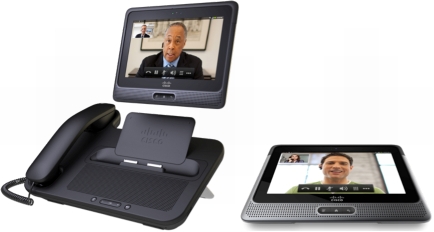
The Cius is an Android-based (Froyo 2.2.2) tablet.  It has a 7″ screen (1024×600) with an Atom Z615 processor and 1GB of RAM.  It has an 802.11 a/b/g/n radio and a 4G LTE radio in an upcoming model as well as front and rear cameras, the latter capable of capturing 720p video.  It is also capable of being docked with a port replicator and handset that allows for speakerphone as well as USB ports to drive a keyboard and mouse.  Why?  Because the Cius also includes a Virtual Infrastructure Experience (VXI) client for running a virtual desktop as a replacement for your desktop PC.


When I got the unit, I first had to cool my jets for a bit.  The unit had pre-production software that wasn’t quite up to specs yet.  One of the things that didn’t work was application installation.  The Cius provides its own app store, AppHQ, which can be controlled via corporate policy to restrict downloads to this store.  You can also sideload apps from the regular Android market, but if your admin overlords decree that you shant be able to do that, you’ll be locked into AppHQ.  I took my time poking around the interface and noting how different it was from my iPad.  This was my first attempt at using a Google tablet, so it did take a bit of getting used to, layout wise. As well, the construction was a little different and the unit felt more ‘solid’.  Not to say that Apple’s iPad feels cheap, but the Cius is a little more dense than the aluminum used on my gen 1 iPad.  However, due to the software difficulties I was unable to do much with the Cius.  I did use it to record my Ultimate Cisco Live Attendee video right before I packed it away for the trip home.  Here you can get a feel for the video quality from the front VGA camera:

After I got it home, I had many stops and starts trying to get the right firmware to update it to a point where I could install things.  Thanks to some help from my friend Jon Nelson, I was at least able to get the right software to register it with my CallManager server, which I finally had to upgrade to 8.5 to get everything working correctly.  When I got the new firmware load installed, I was able to browse to the Android Market and start installing apps.  The process was pretty straightforward, and every app was available for installation.  The 7″ screen did seem a little cramped from my 10″ iPad, but it was very usable for simple browsing tasks.  I also noticed that the media dock didn’t secure the unit when docked.  Normally, I expect to hear a click or a snap as the locks engage on something like that, but there was nothing here.  In fact, if you don’t pay attention when docking the unit, it will slip and slide right off into the floor.

After playing with the Cius for a few days, I hit my first show stopping bug.  In the current firmware load there is a problem with dialing calls that require Forced Authorization Codes (FACs).  The dialpad for the unit disappears when the dial string is completed and won’t show up again until the call is connected.  The problem for me is that all my long distance calls (which represent the majority of my office calls) require me to enter an access code when I dial.  Without a dialpad, I can’t enter the code to complete the call.  For this reason, the 9971 I normally use has stayed on my desk and the Cius has been relegated to the side desk where it gets tested on occasion.  I’m sure that Cisco has seen the oversight in not allowing me to have a dialpad during ring out and will be releasing a firmware to fix that in no time.  Oh, wait…

In order to expedite my firmware update desires, I signed up for the Cius developer program and gained access to the firmware update service for testing.  Never one to shy away from putting beta code on my devices, I followed the developer directions and waited patiently for my Cius to update.  It took a couple of hours to pull the new code and reboot.  Where it promptly locked up.  Every time I tried to install new code, it rebooted and hung on the restart, the Cisco logo taunting me for hours on end until I performed a hard reset.  Which of course reset the firmware back to the old version.  And erased anything I might have installed.  Oh, bother.

Figuring that beta firmware may be just a little too advanced, I decided to head over to Cisco’s website and pull down a new production firmware for CUCM so that I can update it like that.  Which is where I finally encountered the “You do not have a valid contract” error that has bitten so many people as of late, especially Ethan Banks.  Of course, I don’t have a SmartNet contract for this device since I didn’t buy it in the first place.  I figure I need to order one if I want to figure out why it keeps locking up or why I can’t get the dialpad to show up to make long distance calls.  I know the firmware I managed to load did fix some other transient issues, like the unit losing connection to CUCM every night and requiring a reboot to establish a connection again.  However, I’m going to need a lot of support to bring this device up to the point were I consider it a replacement for my 9971 deskphone.


Tom’s Take

If I had to use one word to describe the Cius, it would be potential.  Cisco has obviously invested a lot of money into this unit and sees it as a big step going forward to unify all of their cutting edge technology into a single portable unit.  It makes for a really nice demo and you can argue that it makes a statement sitting on the desk.  The hardware seems to be acceptable for use as a business communications endpoint.  However, software quirks show it to be an early 1.0 product release.  Difficulties in getting my unit into a usable condition hampered me from replacing my current desk phone.  Inability to get software to load without causing reboot loops has forced me to reformat more times than I care to count.  And short-sightedness at allowing me to download production firmware updates means that it will likely sit on the side of my desk until such time as someone decides that, as a Cisco partner, I am not a stinking filthy pirate and only want to get my Cius running so that I can show it off to coworkers and customers in the hopes that they buy a truckload of them.  However, until that day comes, my Cius will be relegated to little more than a curious desk ornament, right next to the Buckyballs and my stressball collection.  Let’s hope I can fix that sooner rather than later.


Disclaimer

The Cisco Cius I have was won in a contest at Cisco Live 2011.  I recieved a Cius and a media dock, as well as a Cisco-branded Jawbone Icon headset.  At no time did Cisco ask me to write a review of the device, nor did they place any restrictions on the content of any reviews written by me.  They did not ask for any consideration nor were they promised any by me in the crafting of this post.  The opinions and conclusions reached are mine and mine alone.

MacBook Air – My First Week

As many of you know, I am now a convert to the Cult of Mac.  I finally broke down and bought a MacBook Air this past week.  I’ve spent some time using it and I think I’m about ready to give my first impressions based on what I’ve learned so far.

My primary reason for getting a MacBook was to spend some time learning the OS.  I’ve taken the OS X Snow Leopard Administration exam already thanks to my Hackintosh and the time I’ve spent troubleshooting some of my friends’ MacBooks.  If I’m going to seriously start to work on deploying them and working on them, I figured it was time to eat a bit of my own dogfood.  Thanks to Best Buy running a nice sale on the entry-level MacBook Air, I leaped at the chance while I could.  I knew I wanted something portable rather than having a 21″ iMac on my desk.  I did spend a lot of time going back and forth about whether I wanted a MacBook Pro or MacBook Air.  The Pro does have a lot more expandability and horsepower under the hood.  I would feel a lot more comfortable running virtual machines with the Pro.  However, the Air is an ultraportable that would come in very handy for me on my many recent travels with things like Tech Field Day.  The SSD option in the basic Air was also a lure, as my SSD in my Thinkpad was the best investment I have made.  Add in the $1000 (US) price difference, and the Air won this round.

I’ve used OS X quite a bit in the last 6 months, but most of my experience has been on Snow Leopard.  Lion wasn’t much different on the surface, but it did take some time for me to relearn things at first.  I spent the majority of my time the first couple of days finding things to replicate the tasks that I spend most of my time doing each day.  I installed VMware Fusion as my OS virtualization program thanks to my status as a VMware partner, and I installed MS Office thanks to my Microsoft Gold Partner status.  Afterwards, I looked back over the lists I had compiled for Mac software, such as those found in the comments of my Software I Use Every Day post.  I settled on OmniGraffle for my drawing program and TextWrangler for my basic text editor.  After installing the drivers for my USB-to-serial adapter, I figured I was ready to strike out on my adventure of using a Mac day-to-day.

I’ve already encountered some interesting issues.  I knew Outlook at my office would be broken for me thanks to some strange interactions between Outlook 2011, Exchange 2007, and Exchange Web Services (EWS).  Outlook 2011 might as well be called Outlook 1.0 right now due to the large amount of issues that have cropped up since the switch from Entourage.  Most people I know have either switched back to using Entourage or have started using the native Mail.app.  I have decided Mail.app is the way to go for me until Outlook 201x comes out and actually works.  I also have to remember to use the Command (⌘) key for my CTRL-based shortcuts when I’m in OS X proper.  The CTRL-key commands still work in my terminal sessions and Windows RDP sessions, so the shift in thinking goes back and forth a lot.  I’m also still trying to get used to missing my familiar old Trackpoint.  I like the feel of the MacBook trackpad, and the gesture support is quickly becoming second nature.  However, the ability to navigate without taking my hands off the keyboard is missed some times.  I also miss my Page Up and Page Down keys when navigating long PDFs.  I know that the scrolling is very smooth with the trackpad, but putting a PDF into page mode and tapping a key is a quick way to go back and forth quickly.  The other fun thing that cropped up was a ground hum from the power supply when recording Packet Pushers show 78.  Thankfully, Ivan Pepelnjak was able to help me out quickly since he recently got his own MacBook.  If you’d like to read his thoughts on his new MacBook, you can go here.  I can definitely identify with his pains.


Tom’s Take

When I announced that I had finally fallen to the Dark Side and bought a Mac, the majority of the responses boiled down to “about time, dude”.  I can’t help but chuckle at that.  Yes, years ago I actively resisted the idea of using a Mac.  I’ve started to come around in the past few months due to the fact that most of the software that I use has an equivalent on the Mac.  Given the fact that I’ve already had to start running some of my software on a Windows XP VM instead of natively on Windows 7 64-bit, the idea of switching wasn’t that abhorrent after all.  I don’t know if the Air is ever going to replace my every day Windows computing needs.  I know that carrying it around on trips is going to be a lot easier than lugging the 8-pound Lenovo behemoth through the TSA gauntlet.  Maybe after I spend a little more time with OS X Lion I’ll finally get my processes and procedures to the point where I can say goodbye to the Redmond Home Improvement Corporation and settle down with the Cupertino Fruit Company.

VMware vSphere: What’s New [5.0] – Review

As I spend a lot of my time in training and learning about new technologies, I thought it might be a good idea to start reviewing the classes that I attend to help my readers figure out how to get the best out of their training dollars.  Recently, I had the opportunity to attend the 2-day VMware vSphere: What’s New [5.0] class.

If you are thinking about becoming a VMware Certified Professional (VCP), you’re going to need to go to class.  It’s a requirement for certification.  I don’t necessarily agree with this though.  No other certification I hold requires me to go to class.  The CISSP requires a certain level of experience, and when I looked at the Certified Ethical Hacker (CEH) requirements, they said that their required class could be waived with demonstrable experience.  So the fact that VMware is making me go to class is kind of irritating.  That’s even taking into account that my employer sees the usefulness of staying certified and lets me attend a large number of classes.  I really feel for the independent contractors that need to be VCPs to get into the field but can’t afford to either pay for the class or take the time off for 2-4 days to attend one.  There should be some kind of waiver for people that can demonstrate experience with VMware.  Yes, I know that if you are a 1-step removed VCP (VCP4 in this case) you don’t have to go to class.  Yes, I know that there are very good reasons to make people attend class, such as keeping current with new technology and ensuring your certified user base is up on all the new features.  Yes, I know that the costs of the class are necessary for things like facilities rental and materials.  Just because I understand why it’s required and why it’s so expensive doesn’t mean I have to like it.  But, I digress…

I chose to take the 2-day What’s New class because it was a quicker way to go through the requirements as well as being valid for upgrading my VCP3 to a VCP5 until February.  The 2-day What’s New class is a condensed version of the 4-day Install, Configure, and Manage (ICM) class that introduces VMware to those that are new to virtualization.  Being condensed, the prerequisites for the course state you must be familiar with VMware.  While you don’t need to be intimately familiar with every aspect of the hypervisor and it’s settings, you had better at least be comfortable logging into vCenter and doing some basic tasks.  There won’t be much time for hand-holding in the What’s New class.

The materials for the 2-day class are a 270-page student manual with the slide deck from the class printed in note-taking format and an 80-page lab guide.  The student guide has ample annotations of the slide deck as well as space for taking notes in class.  The lab guide has places to record the information for your student lab pods so you aren’t constantly flipping back and forth to remember what your vCenter or ESXi servers are named.  The lab guide went into good detail about each task, making sure that you knew where to go to enable features or perform tasks.  The lab guide is great for those that want to do a little more practice after leaving the class in a personal lab environment.

The material covered in the class focused on the new features in vSphere 5 and how it’s different from vSphere 4.  Special attention is paid to the new storage features and the new deployment options for ESXi servers, like stateless Auto Deploy.  Thanks to the ample amount of lab time, you have a great opportunity to reinforce the topics with actual examples rather than just staring at static screens on slides.  If you get a really good instructor (like we had), you can even see live configurations of these topics on their lab machines.  Rick, our instructor, made sure to show us live examples every chance he had rather than just relying on stuffy slides.  He also did a great job going into depth on topics that deserved it, like VMware HA changes and elections.  By the way, for anyone that has ever complained about HSRP elections or STP root bridge selection, you should really check out http://www.yellow-bricks.com and get Ducan Epping’s vSphere Clustering Deep Dive book.  Therein, you will learn in vSphere 5, 99 is greater than 100 when performing HA elections.  I’ll give you hint: lexical numbers don’t follow normal rules…


Tom’s Take

Overall, I found the condensed version of class to be a much better value than the 4-day ICM course.  On the other hand, I’ve also been working with VMware for the last 3 years, so I had a good grasp on the basics.  For someone that isn’t familiar with the way virtualization works, the 4-day ICM class will give you a much more measured understanding and more time to play with the basics.  For those that have already gotten their feet wet with VMware and are just looking for a tune up or need to go take the VCP5 exam, you can’t go wrong with the 2-day short, short version of the class.  It’s going to save you a good deal of time and money that you can use to buy more licenses for vRAM.

If you’d like to see more details on the VMware education offerings or sign up for a VMware class, head over to the VMware Education Website at http://mylearn.vmware.com/portals/www/

Network Consumer Reports

I’m a huge fan of Consumer Reports magazine.  They do a great job of reviewing all manner of products from household appliances to SUVs.  They provide unbiased reviews for all products because they do not accept any outside advertising from companies nor do they accept any free samples from manufactures, instead choosing to purchase all of the items they review outright.  This gives them a substantial amount of credibility in the industry and their opinion has been known to influence the direction of many manufacturers, especially in the automotive arena.

Why is it that reviews in the networking space don’t have the same reputation?  Networking manufacturers are quick to refer to Gartner numbers or Tolly reports that back their equipment as being superior to their competitors.  For the most part, mention of either of these two names around network rock stars brings groans and cat calls.  The general consensus that I get from people I’ve talked to is that many of these reports are simply bought and paid for.  Joe Onisick has a great blog post about talking with the founder of Tolly about this very subject.  Many reports that are sponsored by a company are (suprisingly) critical of the sponsor’s competitors and give favorable reviews to said sponsors.  Not all that shocking when you think about it.  Even discounting the idea that the report could be massaged in favor of the sponsoring company, the odds are good that an unfavorable review would just be buried and never see the light of day.

This pattern of sponsored reports tends to leave the average network rock star jaded and distrustful of any testing that they haven’t done themselves.  Alas, when moving into a new field or testing equipment outside of the comfort zone it becomes quite easy to get lost and being making mistakes or missing key features or options.  Why can’t we do something about that?  Maybe we can…

I’d like to see a Consumer Reports type of service for networking.  It would have to adhere to the same rules that the Consumer’s Union uses for Consumer Reports.  No advertising, which also means that the reports can’t be used by the vendors for the purposes of selling their product.  That means no touting of the latest scores of the newest switches from Network Consumer Reports (NCR).  Also, all the equipment would need to be purchased outright from the vendors or through distributors or value added resellers (VARs).  This would also introduce some difficulties, as many vendors require complex designs before equipment will be sold or require the interaction of a VAR in order ensure the equipment will be installed correctly.  In order to ensure they fairness and impartiality of the tests, these people must be excluded from the configuration process and only be around for purchasing and delivery.  Only members of NCR would be allowed to install and configure the equipment.  Naturally, it’s going to take some skilled people to do that.

When the equipment for a given test or scenario arrives, it will be configured based on best practice guidelines for the vendor/manufacturer.  These practices should be found on the vendor’s website and be easily available.  No shortcuts or undocumented configurations would be allowed at first.  This is to ensure fairness as well as making the vendors responsible for the documentation that is provided to customers.  For a given test, traffic generators would be used to simulate all kinds of traffic patterns in a real world environment.  That would be similar to things that the real Consumer Reports does, like measuring fuel economy themselves rather than relying on the manufacturer’s EPA fuel economy numbers.  I’d rather see numbers I can believe with strict definitions of traffic rather than seeing tests that provide advantages, such as using different packet sizes for throughput versus latency.  Numbers you can trust are very important.

Once the tests are run and the reports have been generated, each vendor will be contacted with the reports and offered a small window of time to “tweak” things.  You have to offer this chance because invariably vendors begin grousing about not having a chance to fix the broken things.  Let’s say they are given 24 hours to modify the base configurations to increase throughput or reduce latency with the same traffic types used in the first test.  After the 24 hours, the tests will be readministered and the results recorded. However, any changes from the best practices will be documented.  If the new, “tweaked” configuration provides additional advantages, the report should then ask why those tweaks are not included in the best practices.  Each vendor will only be able to work on their own equipment and will not be informed of the results of any other vendor’s test.  In fact, they won’t even be informed which other vendors are being tested.  This is to ensure that no one has the opportunity to spread fear, uncertainty, or doubt (FUD) about a different competing solution.  Facts only here, folks.

After all of this, the reports will be published for all to see.  Perhaps there would be some kind of subscription service to reduce the astronomical cost associated with the acquisition and setup of the equipment.  This would only be necessary to avoid the need to rely on angel investors or the independently wealthy to capitalize such a large project.  Once the reports are published, the subscribers can trust in the content and use it however they see fit to begin to plan new projects or purchase equipment.


Tom’s Take

Why is it so hard to find a voice to trust when it comes to network reviews?  Why do I have to constantly ask myself “Who is behind this report?” I never worry about that when I read Consumer Reports.  I can trust the information they provide because I know it isn’t bought and paid for.  It would be wonderful to have something like that in the networking/storage/server space.  I’m sure the people out there right now do decent jobs of reviewing equipment, but none of them are the go-to type of publication like Consumer Reports.  Of course, bringing that kind of reporting to the IT world has a lot of huge challenges. Between getting capitalized and trying to find a way to buy large amounts of gear without raising any fuss from vendors, it would be a large undertaking.  However, if you can provide credibility with your reports and aid people in making good decisions for their businesses, I think you could make a go of it.  Let’s hope that this isn’t a pipe dream sometime down the road.

*Note: Consumer Reports is a trademark of Consumer’s Union and my use of their publications for examples in this post should not infer any kind of endorsement.

Aerohive Branch on Demand – Bring Your Own Office

Bring Your Own Device (BYOD) is enabling people to provide their own equipment for work.  But what happens when people aren’t just satisfied bringing their own Macbook to the party?  What happens if they want to bring their office to your office as well?  With the large surge in teleworkers and contractors being brought on inside companies and their ability to do the majority of their jobs without having to step foot into the corporate office, the need to provide connectivity and security for a home workspace is now becoming paramount if the Bring Your Own Office (BYOO) movement is going to take off.

The current solutions to this problem either involve using some off-the-shelf consumer product to address the issue or buying an enterprise grade solution to implement.  Both have their strengths and weaknesses.  Consumer-grade devices are dirt cheap and get the job done.  However, there is very little in the way of scalability and configuration management.  Unless your remote worker is good at configuring Linksys or D-Link, you could be in for a fight.  Also, consumer grade equipment doesn’t have the service and support necessary to run an enterprise on a regular basis.  On the flip side, enterprise equipment does have a great degree of manageability and support to provide robust service for your teleworkers.  Provided, that is, you are willing to invest the large amount of money that it takes to get it setup.  In fact, the investment is usually so high that reclaiming the equipment is top priority in the event that the teleworker leaves the company or completes the contract.  How then do we as network rock stars balance our need for cheap remote connectivity with our desire to have manageability and security?

Enter Aerohive.  I saw Aerohive at Wireless Field Day back in March of this year and was pretty impressed by their HiveManager product that they use to provide configuration and management for their controller-less access points.  They’ve also given me a briefing about the 4.0 release of their HiveOS firmware.  They were kind enough to give me a sneak peak at their Branch on Demand product that was announced November 15th.

Aerohive Branch on Demand utilizes Aerohive’s experience with creating cloud based management for devices and couples it with a new branch router device that can provide simple connectivity for your branch/remote offices or teleworkers.  All of the provisioning for these devices is done in HiveManager, so the only instructions your remote workers need is “plug the yellow cable into the yellow slot and plug the other end into the Internet”.  I think even my mom could do that.  Afterwards, the router checks in with HiveManager and pulls down the configuration so your teleworker can connect back to the home office.  Your user connects via SSL IPSec VPN to allow any device to access corporate resources, whether it be a desktop, laptop, tablet, or smartphone (EDIT – Stephen Phillip was kind enough to notice that I mixed up SSL and IPSec in my notes on this.  The BR series use IPSec to connect back to the central site due to the increased performance for special traffic like voice).   The same polices that you have in place in your corporate office are extended to the remote worker as well.  You can either choose to tunnel all traffic back to the home office to be scanner and permitted, or you can split tunnel the traffic so that non-corporate packets exit locally.  There is a bit of apprehension on the part of most network rock stars for a setup like this, as splitting the traffic does introduce the capability for nasty things to infect the remote machine and then be introduced back into the corporate network.  Aerohive thought of this too and uses a cloud proxy to redirect the split tunneled traffic to a filtering service such as Websense or Barracuda to ensure that all those packets are “cloud washed” before they are permitted back into the network.  That alleviates the stress of not knowing where your branch users are going as well as preventing large amounts of traffic from being needlessly tunneled back to the corporate sites just to go out to the Internet.

All of these features come with HiveOS 5.0, which means that current users of the AP 330 and AP 350 gain the ability for those devices to function as routers.  You can even connect a 3G/4G USB modem to the USB port on the device and turn it into a backup interface for connectivity in the event the primary WAN link goes down for some reason.  At launch, the branch routers will support a small list of USB modems such as the AT&T Shockwave or Momentum, but as the software matures and drivers become available a wider variety of these devices will be supported.  This would be a great idea for those that live in areas where solid Internet connectivity isn’t always a given or for a user that spends a lot of time on the road and needs corporate VPN capabilities where they aren’t always available, such as in the middle of an oilfield or a parking lot.  No need to setup a cumbersome VPN client or worry about usernames and passwords and tokens.  Just give them an Aerohive branch router and let them go.

There are two models of branch routers available.  The BR100 is a 10/100 5-port device that includes a 2.4GHz 802.11n radio and a USB port for 3G/4G backhaul.  It retails for $99, or if you’d like to use the Network-as-a-Service subscription, you can get the device for the same $99 price point, only it includes software updates as well as tech refreshes for two years, so when a new update to the BR100 comes out, you’ll get that device for nothing.  There is also a BR200 that will have 5 GigE ports and dual 2.4/5GHz 3×3:3 802.11n radios as well as two PoE ports and crypto acceleration.  The BR200 will be out sometime next year.


Tom’s Take

I think Aerohive has finally found a good use case for the cloud.  Having your hardware managed by a cloud-based application means that you can always find it no matter where it might be.  If you are already an Aerohive customer that finds yourself in need of a branch router solution, this is a no-brainer.  The same management platform now allows you to control your access points as well as your branch users.  The ability to push the same policies from desktop to Destin, FL is very powerful and cuts down on a lot of stress.  If you aren’t a current Aerohive customer but know that you are going to need to add some teleworking capacity in the future, you can’t go wrong looking at this solution.  For $99 a device (and $999 for the VPN termination software) the solution is very inexpensive and gives you a lot of flexibility to build out instead of needing to worry about scaling straight up.  After all, letting your users bring their own office should cost you yours.

If you’d like to learn more about Aerohive’s new solutions, head over to http://www.aerohive.com.  There’s also a nice short introduction to the product over at the Packet Pushers site.


Disclaimer

Aerohive provided me with an advanced briefing on the Branch on Demand product for the purposes of preparing this blog post.  The did not ask for nor were they promised any consideration in the creation of this article.  Any and all opinions expresses within are mine and mine alone.

Mobile TFTP – Review

If you work with networking devices, you know a little something about Trivial File Transfer Protocol (TFTP).  TFTP allows network rock stars to transfer files back and forth from switches and routers to central locations, such as a laptop or configuration archive.  TFTP servers are a necessary thing to have for any serious network professional.  I’ve talked about a couple that I use before in this post but I’ve started finding myself using my iDevices more and more for simple configuration tasks.  Needless to say, having my favorite server on my iPad didn’t look like a realistic possibility.

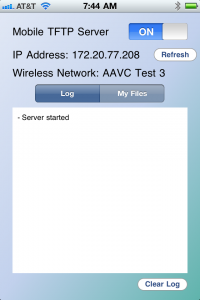
Enter Mobile TFTP.  This is the only app I could find in the App Store for TFTP file transfers.  It’s a fairly simple affair:

You toggle the server on and join your iDevice to a local wireless network.  I didn’t test whether the app would launch on 3G connection, but suffice it to say that wouldn’t be a workable solution for most people.  The IP address of your device is shown so you can start copying files over to it.  The most popular suggested use for this app is to archive configurations to your iDevice.  This is a good idea for those that spend time walking from rack to rack with a console cable trying to capture device configs.  It’s also a great way to have control over your configuration archives, since Mobile TFTP allows you to turn the service on and off as needed rather than keeping a TFTP server running on your network at all times.  As a consultant, this app is wonderful when I need to capture a config without booting my laptop.  Combined with tools like GetConsole or another SSH client, you can access a device and send the config to your mobile TFTP server without the need to boot up your laptop.

I did attempt to copy some larger files up to the device, but those results weren’t as spectacular.  Mobile TFTP Server will support files up to 32MB, so larger IOS files and WLAN controller files are out. The transfer rates from an iPhone or iPad aren’t as spectacular as a hardwired connection, but I think this is more of the platform and less of the software.  The only real complaint that I have is that the files you copy to the device are stuck inside the app.  Sure, you can hook your iDevice up to your laptop at the end of the day and copy the files out of the app inside iTunes (which is also a great way to preload skeleton configs up front), but in today’s world integration is the name of the game.  Giving me the option of linking to a storage service like Dropbox would be amazing.  I tend to keep a lot of things in Dropbox, and being able to throw a troublesome router config in there so it would automagically appear on my laptop would be too sweet.  Still, you can’t argue with the efficiency of this little app.  It does exactly what it says and does it well enough that I don’t find myself cursing at it.

Mobile TFTP Server is $3.99 in the App Store, but as it’s the only dedicated TFTP app I could find, I think it’s worth that to someone who spends a lot of time copying files back and forth and loves the portability of their iDevice.

Disclosure

The creator of Mobile TFTP Server provided me with a promo code for the purposes of reviewing this app.  He did not ask for any consideration in the writing of this review, and none was promised.  The opinions and conclusions reached here are mine and mine alone.

The Last Cable Tool You’ll Ever Need

We all have our own tools that we carry around in our toolkits when we need to get down and dirty with our hands.  Screwdrivers, wire cutters, wire strippers, crimping tools, knives, duct tape, and even velcro are common sights.  You can see what Tony Matke has in his bag and contrast it with the contents of Jeff Fry’s bag.  However, a co-worker of mine recently purchased a tool that I think might trump all of them:

The Gerber Cable Dawg

Say hello to the Gerber Cable Dawg.  This little jewel represents the high-end for cable crimpers/strippers/destroyers.  It was designed by Gerber to be used by U.S. military personnel in Forward Operating Bases (FOBs) for cabling projects.  It is constructed from high-grade steel while the handles are made from glass-filled nylon.  This means that while the length of the tool is 7.5 inches, the weight is a svelt 14 ounces.  As you might expect, it is a hardy little device with a veritable toolbox attached to it.

The Cable Dawg includes anything you might find yourself needing to work with cabling.  There is a wire cutter and Category 5 (CAT 5) cable stripper in the spring-loaded nose.  An RJ-45 crimper rests behind the pivot point along with a stripping block that can handle a lot of different gauges of wire.  The handles also contain a great number of additions.  One hand includes a set of driver bits for slotted and Phillips screws as well as a punch-down bit for terminating wires.  There is also a lanyard attachment if you don’t want to carry the tool in the included tactical pouch.

The other handle is the greatest part of the tool, in my opinion.  It contains the driver attachment for the above driver bits as well as a knife blade with a partially serrated edge and “jacket cutter” which is the little hook on the end that is capable of slicing a CAT 5 wire jacket or skinning the intern that may dare try to do their job incorrectly.  While driver handles and knife blades are fairly standard fare on a multitool, the genius in the Cable Dawg is that the knife/driver handle detaches from the tool itself to feel more like a screwdriver or pocket knife in your hand.  No longer do you have to fumble around with an overly-large multitool when all you need to do is drive a screw or slice a tomato.  Pop off the handle and go to town!

The Cable Dawg is available from Gerber’s Military Tool website here.  You can also scout around and find it on a variety of different military gear websites.  That might be a good idea, since this thing appears to be out of stock frequently.  That’s all the more impressive when you consider the retail price for the Cable Dawg clocks in at $300.  It does come with a lifetime warranty for the price, but if you can come close to wearing this puppy out you are a more vicious cabler than I can imagine.

Tom’s Take

I’m a Gerber fan.  I own three of their multitools and equally as many folding knives.  They are very high quality and have never let me down.  When my friend told me that he ordered a cable tool from Gerber, I couldn’t wait to see what they had done with it.  The Cable Dawg is a little on the pricy side for most IT personnel, but if you find yourself in need of a rugged tool that will take loads of punishment and keep crimping and stripping no matter what, this is worth the price, especially if you are in the military.  Besides, it’s better than a $600 hammer, right?

I’d like to say thanks to Scott Baird for loaning me his Cable Dawg for the purposes of writing this review and for a little testing.  I promise to return it to you…soon.