Problems with no apparent cause really drive me up the wall. A customer called me with an issue that had no rhyme or reason for existing. A group of phones at one site were not able to make outbound calls. They were receiving calls from the PRI and were able to call other extensions with no problems. Other phones that were using the same route patterns and gateways were able to call with no issues. Troubleshooting the route pattern at the phone showed the digits landing on the gateway but a fast busy right after that. It wasn’t until I drilled into things with my new favorite command debug isdn q931 that I found the real problem. It looked something like this (numbers obscured):
Calling Party Number i = 0x0081, 'XXXX'
Plan:Unknown, Type:Unknown
Called Party Number i = 0x80, 'XXXXXXXXXXX'
Plan:Unknown, Type:Unknown
Sending Complete
ISDN Se0/0/0:23 Q931: RX <- RELEASE_COMP pd = 8 callref = 0x9F
Cause i = 0x82E404 - Invalidinformationelementcontents
Hmmm. Guess it’s off to Google. Then I found this post from the Cisco VOIP Mailing list. And after implementing a quick fix, everything turned out fine. So what happened?
This particular site was the first time I used this excellent guide on rewriting outbound caller ID with Calling Party Transform Masks as opposed to doing it on the Route Lists or the Route Patterns. In my haste to import all the phones, I missed a critical group of phones in my transform mask set. As such, they weren’t sending a full 10-digit number to the PRI and the provider was rejecting the call. I’ve never had this happen before, as I see customers that only send 4 digits to the PSTN sometimes. I can see the allure of not allowing less than 10 digits on the PRI as a final check to ensure your station ID is correct for things like emergency services and I like that idea a lot better than the provider just overwriting your station ID without warning.
In the end, all is well and I now know where to track the issue down again. Hopefully others might find this post enlightening.
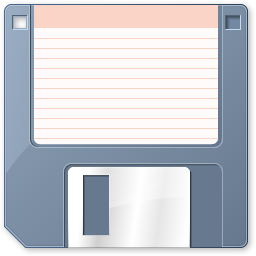
If I asked you to click on the following icon, what would you expect it to do?
Odds are good that you said “Save whatever I’m working on”. A thought struck me a few months ago when I was working in an unfamiliar GUI and needed to save my config before I went to lunch. I didn’t know what the keyboard shortcut was, and the buttons didn’t have text labels. Instinctively, I looked for the ubiquitous floppy disk icon, and sure enough it saved the config.
If you’ve been in technology for a while, you know what that picture is. More importantly, you recognize the metaphor that it represents. When we click on that icon, whether it be in MS Office or any other GUI toolbar, we expect that icon to save our document or our configuration or whatever the focus of our efforts might be. It’s a metaphor that has been drilled into our heads ever since we first started “saving” documents to a 3.5″ floppy disk back in DOS (or other older OSes). For grins, why don’t you see if you can still buy a 3.5″ floppy disk. Go ahead, I’ll wait…
Back so soon? Couldn’t find one, could you? Floppy disks have gone the way of their larger 8″ and 5.25″ cousins. They are practically impossible to find. I still carry a couple in my backpack for strange emergencies, but they are starting to get old and unreadable. I still have a 3.5″ drive on my desktop PC, but it’s more for legacy reasons that anything else. The last thing I even used it for was a BIOS update, but since those are done in the OS now, I don’t even need it for that. I remember the uproar a few years ago when PC manufacturers started removing them from systems. Now, finding a drive is next to impossible.
Now extend that idea further. I have a young son who has never seen a floppy disk. How am I supposed to explain to him what that little icon means? He’s going to grow up saving documents to USB drives or network shares, or even…the cloud. He’ll know what that button does because he will be taught to save his documents with it. He won’t understand why that icon means “save” though. He won’t remember the sound of the drive head skittering across as it reads and writes data. He won’t hear the anguished sound of a drive that is reading a bad disk screeching over and over as it tries to find data that isn’t there. He won’t shout in anger as he finds out the file he needs to save is 1.6MB and he can’t save it to the disk.
So, for the upcoming generation, do we need to change our save metaphor? Should we change the icon in the next version of Office something that newer users can relate to? Maybe a safe icon? In most applications I’ve used, as safe icon is used to denote a backup option. Or how about a cloud? I don’t know about you, but teaching my users that preserving their data involves launching it into the Great Unknown Cloud doesn’t necessarily sit well with me. Maybe a USB drive, which has now become the de facto portable storage device? My issue with that is the icon wouldn’t be distinctive at smaller resolutions. Add in the fact that USB drives don’t come in one universal size or shape, and you might just end up confusing your users.
Tom’s Take
Maybe we don’t need to change our metaphor for saving documents. Most people today understand what happens when they push the little blue square with the little white square inside it. I’m afraid that we will eventually reach a point where the context behind the icon will be long gone and people will just be pushing it because they know that if they do, the term paper they’ve been writing doesn’t go KABOOM! Most of the menus have already done away with the floppy disk metaphor, and power users know that CTRL+S will accomplish the same thing. Until we can find something universal that speaks to everyone and says “Click me to save your document”, I suppose we’ll have to carry on with our little floppy disk. Just remind me to put one in a museum somewhere so I can show my son what Daddy used to keep his WordPerfect for DOS documents on.
One of the many wonderful things I get to do at $employer is work on voice systems and convincing my customers to move from old clusters of analog trunks to new, shiny Primary Rate Interface (PRI) trunks to carry their calls. PRIs are wonderful things, capable of taking up to 23 calls at a time, providing calling party and called party information, and dispensing with the need to have kludgy “rollover” analog trunks. However, in my experience with turning these circuits on, the worksheet the telco provider sends out tends to look like speaking Greek to most network enginee…rock stars. It took a while for me to figure out what all the obscure acronyms meant, since the telco just assumed that I knew what they all stood for. In an effort to provide help to my readers that may not be telco people, or might be getting forced into working on a PRI worksheet, I thought it might be helpful to provide some translations.
PIC/LPIC – Probably the most confusing acronym out of the bunch. PIC stands for Primary Interexchange Carrier. This is your long distance carrier. This is a code that is kept in a database and when you need to make a long distance call, the telco consults this database to know whose network to send the call along. A great explanation of long distance calls can be found HERE. Conversely, the LPIC is the Local Primary Interexchange Carrier. In other words, they are the company that handles your local calls that aren’t long distance. These two providers can be different, and in many cases they are. In rural areas, the LPIC is the local telco, and the PIC is a larger carrier like AT&T or Verizon. I’ve found that many companies will give you a deal if you specify them for both PIC and LPIC. Most of the time, the PIC/LPIC choice will be whomever is installing the PRI for you, such as AT&T or Cox Communications.
DID – Another one that confuses people. In this case, DID stands for Direct Inward Dial. This is a huge change from the way an analog circuit works. With an analog circuit (like my house), when you call my number it sends an electrical signal along the wire telling the device at the other end to ring. When we hook this circuit up to a CUCM/CCME system, we usually have to configure Private Line Automatic Ringdown (PLAR) in order to be sure something gets trigger when the electrical signal arrives. A PRI doesn’t use electric signals to trigger ringing. Instead, they are configured with two different fields, the Calling Party and the Called Party. In this example, the Calling Party is what is most often referred to as “Caller ID”. The Called Party on a PRI is the DID. This is a number that is delivered to the PRI and sent to the PBX equipment on the other end. The name comes from the fact that these numbers are most often used to directly reach internal extensions without the need to reach a PBX operator or automated attendant. The DID can be configured to ring a phone, a group of phones, or even a recording. The numbers that used to belong to your analog circuits will usually be moved over to a group of DIDs and pointed at the PRI.
Outpulsed Digits – This one sounds straight forward. Digits are being sent somewhere, right? Remember that this worksheet is from the perspective of the service provider, so the outpulsed digits are what the provider is sending to your equipment. You have tons of options, but most providers will usually limit your options to 4, 7, or 10 digits. This is the number of digits that you get from the PRI to determine where your calls get sent. Since I’m a big fan of using translation patterns on my systems to send the digits around, I tend to pick 7 or 10 digits. In areas like Dallas, you may be forced to take 10 digits, as most metro areas are now mandatory 10-digit dialing. This also helps me avoid dial plan collisions when a phone number for a site is the same as a 4 digit extension internally. If I get 7 digits coming from the PRI, I can be pretty sure that none of my extensions will have the same number. If you don’t want to configure translation patterns and have a lot of DID numbers that correspond to phone extensions, you may want to consider a 4-digit outpulse setup from the telco.
NFAS – This one I don’t use very often, but it might come up. NFAS stands for Non-Facility Associated Signaling. This is used when you have more than one PRI configured in your environment. With a 24-channel PRI, 23 of those channels are used to provided data/calls. These are bearer channels or B-channels. The 24th channel is used to send control and signalling data. This is the Data Channel or the D-channel. When you configure your environment with multiple PRIs, you have multiple D-channels to provide signalling. However, you can pay a premium for each of those D-channels. In an effort to save some money, the idea of NFAS allows one D-channel to provide the signalling for up to 20 PRI lines. The catch is that if the D-channel goes down for any reason, so does the signalling for all the PRIs participating in the NFAS setup. Usually, if you designate NFAS on your worksheet, the telco will make you choose whether or not to have a backup D-channel. This is a good idea just in case, because you can never go wrong with a backup.
Station Caller ID – I include this one because of more than one issue I’ve gotten into with a telco over it. Like, a full-on yelling match. If you are given the option of using the station ID as the outbound caller ID, use it. You have much more control over how the caller ID is represented inside of CUCM than you do if you the telco takes over for you. If you don’t use the station ID as the caller ID, they will usually use the first DID number in your list, or set it to the billing number of the main telephone line. As most PRIs I setup are usually for multi-site deployments, this creates issues. People see the caller ID of the headquarters or the administration building instead of the individual unit number. They call that number back expecting to get their child’s school (for instance), but instead get the board of education building. Some telcos will go to war with you about the inherent danger in letting the user specify their station ID for use with emergency services like 911 or 999. I usually tell the telco rep to get stuffed, since my route lists will get the Caller ID more correct that their ham-handed attempts to just slap a useless billing ID number on the PRI and call it good. If they pick a DID number that doesn’t appear in the phone book or in the PS/ALI database for the local emergency service provider, then you can get into a liability issue. Better to just check the “station ID” box and build your system right.
Tom’s Take
These were the most confusing parts of the PRI worksheets that I’ve filled out from multiple providers. I hope that my explanations help if and when you need to fill out your own sheet. If it saves time having to Google what LPIC and NFAS mean, then I’ll sleep happy knowing that you were able to conserve some of your Google-fu.
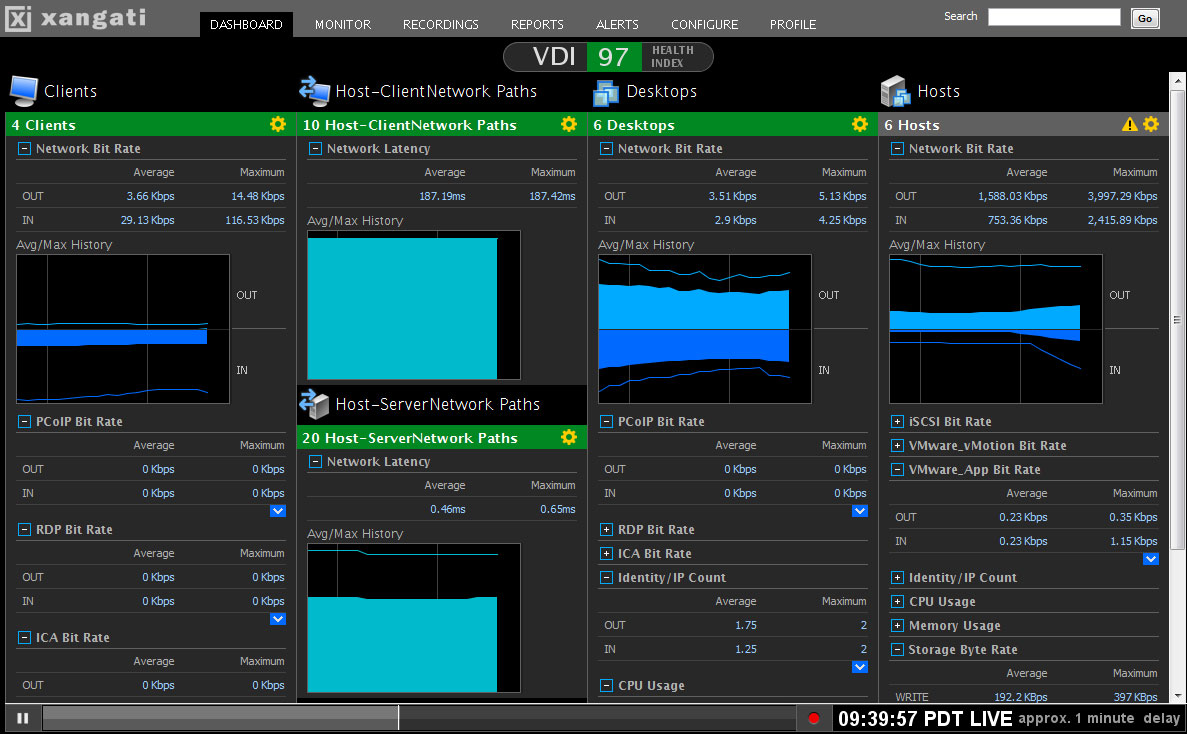
A few weeks back, I got a sneak peak at the new VDI Dashboard product from Xangati. They had given us a very quick overview of it at Tech Field Day 5 but I got a special one-on-one opportunity to get a product demo. What follows is information about what I saw.
With virtualization become such a hot topic in today’s IT environments, it’s only natural that people want to extend the benefits of centralized management and reduced hardware expenditure costs to the desktop level as well. VMware is accomplishing this through the Virtual Desktop Infrastructure (VDI), which allows end user desktops to be virtualized and loaded on less powerful hardware. The main processing is done on the back end by the vSphere for Desktops servers and presented to the users via PC over IP (PCoIP). This allows the user to experience the same desktop they would normally have, but make it portable across a variety of devices. This kind of reminds me of the ultimate extension of a roaming profile, only in this case the profile is your whole computer.
This process isn’t without issues, though. Before, the network was merely a transport medium for data moving from PC to server or PC to the Internet. However, when you abstract the operation of a PC to the point where it requires the network to operate, there can be an entirely new set of variables introduced into the troubleshooting process. Even things that we might normally take for granted, like watching a video, become bigger issues when the network is introduced as a medium for transporting all the data to a user endpoint. Factor in that the virtual team is usually not integrated with the network team, and you end up with a situation that often results in finger-pointing and harsh words. What’s needed in the ability to gather information quickly and easily and display it in an easy-to-read format for the team that might be troubleshooting the issue. Enter Xangati and their VDI Dashboard:
This product gathers information from various different points in your VDI as well as your network and displays it in easy to decipher graphs and tables. For those in more of a hurry, the health index at the top allows at-a-glance digestion of the overall health of the VDI system. When everything is working as it should, this number will be nice and green. once problems occur and monitoring thresholds are triggered, the color will go from worrisome yellow all the way to problematic red. This all occurs in real time, so you can keep up with what goes on as it happens. This is useful if you have a group of people that all come to work at the same time and spool up 10 or 20 new VDI systems as they log on for the day. You can view the impact this has on your VDI and network from the dashboard. You can also see when a user may have an adverse impact on the system from doing something they consider innocuous, such as watching an HD video and consuming much more PCoIP bandwidth than their non-video neighbors.
In addition, the DVR-like functionality present in Xangati’s other products is extended here as well. You can “rewind” the view to a point where the problems started occurring and begin troubleshooting from ground zero. This is a decided advantage because as busy network rock stars, we aren’t always staring at our Single Pane of Glass (SPoG) when a problem happens. The ability to backtrack and see all the events leading up to the problem gives us the ability to take decisive corrective action quickly and efficiently.
Tom’s Take
I don’t have a large VDI setup to manage, but if I did I would consider the VDI Dashboard closely. It’s got a great view for all the things that could cause your deployment to go haywire. Easy to read with tons of great information about all the individual components that comprise the total VDI, this tool makes it very simple to diagnose issues and take corrective steps quickly to limit impact on your users. I haven’t played with it myself, but what I’ve seen makes me happy to know that when my users reach the point where I need to virtualize their Facebook Interface Terminals and LOLCat Creation Devices, I can count on Xangati and their VDI Dashboard to give me up-to-the-minute information.
If you’d like to learn more about Xangati, you can check out their website at http://xangati.com. You can also follow them on Twitter as @XangatiPress.
Disclaimer
Xangati gave me a one-on-one presentation prior to the release of their product and provided me with a press kit containing the image above. I was under no requirement to write an article describing my briefing. The opinions and views expressed in this review are mine and mine alone.
When you setup your first Cisco Unified Communications Manager (CUCM) server, you’ve got a lot of programming to do. You have to program phones and partitions and calling search spaces. You have to worry about gateways and route patterns and voice mail. Many times, the default settings in the setup will be more than sufficient to get you up and running quickly. However, there is one default that you must avoid no matter what. The dreaded <none>.
You see, when you configure a directory number (DN) on a phone, the default partition for this number is a special partition labeled <none>. None exists on the system mostly as a placeholder, a catch-all for devices without a home, much in the same way Uncategorized is the default category for posts on my blog. Normally, <none> isn’t much of a bother. I ignore it almost entirely. However, in situations where I’m forced to deal with it, I start wanting to pull my hair out.
<none> interacts with the system in some pretty strange ways. By rule, when you configure a DN, it can call other DNs in the same partition (provided the calling search spaces match). As long as all your devices exist in the same partition everything is great. However, much like creating a large network with only one VLAN, creating a phone system with only one partition can lead to problems down the road. What if you want your voice mail system segregated from certain phones? One of my other favorites is the executive that only wants his phone to be dialable from certain extensions on the system. In order to accomplish these things (and more), you are going to need to create additional partitions. And the second you do, the <none> problem becomes a real hassle.
<none> is actually a null partition. It doesn’t really exist in the system, so it can’t be assigned or removed from any calling search spaces (CSS). This means that <none> exists in EVERY CSS. If a phone or gateway is located in <none>, any partition on the system will be able to dial it. However, the phones located in <none> won’t be able to dial any other partitions. You could create a special CSS to allow it to dial other partitions, but you’ll never be able to make the phone non-dialable. No matter what, every search space created will be able to dial that phone because every CSS has the <none> partition listed as an unlisted member, kind of like the understood “deny” statement at the end of an access list.
The best thing to do is create two different partitions for your internal devices. One, which I call “InternalDN”, is where all your phone’s directory numbers go. If you are creating partitions for multiple groups for a multi-tenant cluster, you could give them more specific names like “InternalDN-CoA” and so on. Then, you create CSS groups that only allow phones in those partitions to call each other, but no one else. Then, you put your devices that need general access to only the cluster, such as voice mail and gateways, in a partition name “ClusterOnly”. That way, you can remember to keep your DNs different from your VM ports, and you can restrict access to each as needed.
Tom’s Take
Don’t use <none>! I’ll come and slap you. Seriously, while it may be quick and easy to set up, if you keep using <none> for everything, it’s like building a house on quicksand. Sooner or later, you’re going to get sucked into a huge time sink to fix a strange problem that is going to require you to unravel your entire configuration to fix it. Better to split your phones and cluster resources into separate partitions and build it right the first time. Just pretend you’ve never even heard of <none> and all will be well.
The final Wirless Tech Field Day presenter was Fluke Networks. Fluke recently purchased AirMagnet, so I was curious about what they had to offer that was different from the AirMagnet presentation. I’ve used some tools from Fluke in the past and found them to be very handy, but since they shifted to a more hardware-oriented approach I hadn’t really kept up with things.
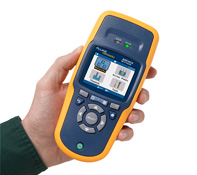
The presentation kicked off with Carolyn Carter, Product Manager for the Portable Network Tools division. She gave us an overview of Fluke and some of the tools that they offer. Owing to the fact that this was a wireless-focused event, she delved right into the AirCheck, a handheld wireless scanner. This product is designed to be used by a first level technician that would be sent to a site to do some preliminary investigation in order to get enough information to see if a site visit would be warranted. It’s a rugged little device, the trademark blue and gold coloring making it stand out anywhere you might accidentally leave it. As we dove deeper into the AirCheck, Carolyn handed the presentation over to Paul Hittel, Principal Engineer. Paul seemed a little nervous as he started into his presentation, probably owing to the fact that he is more of an engineer than a speaker. He fumbled with his notes a bit in the beginning and told a product story that went a bit longer than it should before it found the point. As an aside, I know exactly how Paul feels. I’m sure some of my co-workers are still waiting for my stories to get to the point.
Paul described how Fluke came up with the idea of a handheld scanner. Since wireless is such a tricky medium to work in and can be affected by any number of environmental factors, a site visit is often necessary to uncover additional details, such as a recently installed wireless video camera or a testy microwave that’s only on for 10 minutes a day. The wireless engineering staff is usually equipped to handle these kinds of spectrum challenges, whether they be armed with a Wi-Spy DBx or an AirMagnet Spectrum XT. However, these products are not usually deployed to the first level technical support staff, usually due to cost or unfamiliarity with their complexity. And since sending your top engineer on site to diagnose what could be a simple issue is an inefficient use of their time, Fluke decided to wrap the spectrum analyzer in an easy-to-understand handheld package.
The unit powers on in about 2-3 seconds and starts scanning the airwaves right away. It can detect access points (APs) and wireless networks. It displays the network type with easy-to-decypher symbols, denoting a/b/g/n and even 40MHz n networks. You can view which access points are broadcasting the networks, along with how many APs are detected for a given channel, which is very critical in the 2.4GHz space. There is even a simple location application available that plays a tone from an integrated speaker that increases in pitch the closer you are to a specific AP. It’s not exactly a bullseye, but it’ll help you find an AP that may be hidden under a desk or in a ceiling.
Rather than just telling us about how great this unit was, the Fluke team brought us each one to demo and play with. We walked around the room playing with the different options. Several of the delegates said they would be perfect for first tier support personnel in remote offices. One even remarked that what he thought was a little tinker toy in fact was a great tool for the segment at which it was targeted. This kind of hands-on demo is great for tools such as this because the “try it before you buy it” mentality is paramount to me in a hardware-based unit. By giving us the opportunity to walk around and put it through it’s paces at our leisure, I think the delegates were endeared to the tool a bit more than if they had only watched screenshots on a slide.
Alas, all good things must come to an end, and Carolyn needed all of the units turned back in, since they were merely loaners. However, she did say that she had one that she could give away. We each filled out a card and dropped it into the hat, and when Paul drew the name, mine came up! Yes folks, I am now the possessor of an AirCheck. I plan on letting my other engineers and technicians evaluate it to its fullest, and if nothing else I hope it gives me the opportunity to sit at my desk and write a few more blog posts rather than needing to drive out on site to find a fussy microwave.
Tom’s Take
Fluke makes great tools, there’s no denying that. I have a full wiring kit and telephone lineman’s set in my bag. I can now add an AirCheck to that same lineup. The rugged nature of their products means I don’t have to worry about dropping it. The AirCheck impressed me by not attempting to cram a wireless engineer into a plastic box. Instead, it’s a focused tool designed to lay some groundwork and assist the tier 1 helpdesk in determining if they need to get someone else involved in an issue. While Fluke can never be said to have the cheapest toys in the toy box, I think that the amount you invest in them can give you and excellent return in the time savings from unnecessary site visits for simple issues.
Disclaimer
Fluke Networks was a sponsor of Wireless Tech Field Day, and as such they were responsible for a portion of my travel expenses and hotel accommodations. In addition, I personally won an AirCheck evaluation unit from them in a raffle. At no time did they ask for nor were they assured any kind of consideration in the writing of this review. The thoughts and analysis herein are mine and mine alone. The thoughts are given freely and without reservation whatsoever.
The second presenter at Wireless Tech Field Day day 2 was AirMagnet. I’ve heard of them before in reference to their spectrum analysis products, and based on what I’d seen the day before from MetaGeek, I was interested to see how the Airmagnet product compared to them. I knew that the list price for the AirMagnet products was higher than that of MetaGeek, but I was sure that the differences in the two justify the price difference.
The presentation was kicked off by Bruce Hubbert, the Principle Systems Engineer for AirMagnet. He gave us a great overview of the AirMagnet product line. I never realized that AirMagnet had such a plethora of products dedicated to wireless scanning and design. These include AirMagnet Survey Pro, which is a very good tool used to design wireless networks quickly and easily. The tool looked quite detailed, with the ability to lay out your particular building or site maps and define what types of material it was constructed from, then tell the program to automatically lay out the access points based on frequency and coverage patterns. This would be a great tool for those that spend a great deal of time designing wireless networks for large sites. While it can’t replace a good old fashioned site survey, it can give the wireless engineer a great starting point for placement patterns.
Another program that AirMagnet is known for is AirMagnet WiFi Analyzer Pro. This tool allows an engineer to walk around with a PC Card adapter and perform in-depth site surveys. The tool can generate packets and measure the data rates on APs. The idea is that the engineer mounts the AP in a particular location or has it attached to a mobile cart and then generates packets and measures what kind of radiation pattern and data rates result. This is probably one of the most important tools to have for a wireless engineer to have in their toolbox for performing a thorough site survey.
The tool that we got the most interaction with was AirMagnet Spectrum XT. This is a full-featured spectrum analyzer designed to detect sources of wireless interference and and classify them to aid in troubleshooting wireless issues. It is quite similar to the MetaGeek Wi-Spy and Chanalyzer that we looked at the previous day, and the Spectrum XT software appears to have a similar feature set. What makes the difference in Spectrum XT is the integration that you get with the rest of the suite of AirMagnet tools above. You can use the spectrum analysis from XT to feed into the survey and design tools and give you a good picture of how to design your network to avoid interference sources such as microwaves, cordless phones, and unshielded audio systems. The delegates were provided with a copy of Spectrum XT along with a USB spectrum scanner to evaluate. Once curiosity that I asked Bruce about was the fact that all the spectrum analyzers I had seen required Windows as the operating system. Given that most of the delegates were packing MacBooks, I found it curious that more development wasn’t done for OSX. Bruce explained that this was due to the need for deep interaction with the wireless network card drivers to perform packet captures and analysis. He did say that many were working toward finding ways to integrate with OSX that didn’t involve the use of virtual machines inside Boot Camp/Parallels or VMware Fusion.
The final part of the AirMagnet presentation focused on their wireless intrusion prevention system (WIPS) products. The AirMagnet solution is designed to integrate with an existing deployment of APs and deliver independent intrustion protection as well as spectrum analysis from a dedicated platform. As the threats to wireless networks grow and their critical nature becomes more and more integrated into areas such as healthcare, the need to have a WIPS solution is very real. By augmenting your existing infrastructure with the AirMagnet solution, you can increase the coverage of any existing setups as well as providing a different detection vector to avoid being blinded by targeted exploits designed to eliminate a specific vendor’s equipment. The security mantra of “defense in depth” applies equally to both wired and wireless networks. I didn’t get a chance to really test the AirMagnet solution in great detail, but I will be sure to keep it in mind in the future in the event that a dedicated WIPS solution is called for.
Tom’s Take
I think AirMagnet has earned their reputation by making some great tools that provide wireless engineers and architects with the ability to design and troubleshoot wireless networks at a very high level. Some might argue that the pricing of their solutions is on the high side, but the counter to that is proved by the amount of detail that you get from their integration. The suite of AirMagnet tools isn’t for everyone, and may indeed be overkill for smaller deployments, but if you are beginning to design and deploy enterprise-grade networks, you can’t go wrong by looking at their products. The returns you gain with the expertise put in by years of research and development at AirMagnet will easily pay for the investment in short order.
AirMagent was a sponsor for Wireless Tech Field Day, and as such they were responsible for paying a portion of my travel expenses and hotel accommodations. In addition, they provided the delegates a package including an AirMagnet polo shirt and a copy of Spectrum XT with USB adapter for evaluation. At no time did they ask for nor were they promised any kind of consideration in this review. The analysis and opinions here are mine and mine alone. They are given freely and without reservation.
Day two of Wireless Tech Field Day started off with HP giving us a presentation at their Executive Briefing Center in Cupertino, CA. As always, we arrived at the location and then immediately went to the Mighty Dirty Chai Machine to pay our respects. There were even a few new converts to the the Dirty Chai goodness, and after we had all been properly caffeinated, we jumped into the HP briefing.
The first presenter was Rich Horsley, the Wireless Products and Solutions Manager for HP Networking. He spoke a bit about HP and their move into the current generation of controller-based 802.11n wireless networks through the acquisition of Colubris Networks back in 2008. They talked at length about some of the new technology they released that I talked about a couple of weeks ago over here. Rather than have a large slide deck, they instead whiteboarded a good portion of their technology discussion, fielding a number of questions from the assembled delegates about the capabilities of their solutions. Chris Rubyal, a Wireless Solutions Architect, helped fill in some of the more technical details.
HP has moved to a model where some of the functions previously handled exclusively by the controller have been moved back into the APs themselves. While not as “big boned” as a solution from Aerohive, this does give the HP access points the ability to segment traffic, such as the case where you want local user traffic to hop off at the AP level to reach a local server, but you want the guest network traffic to flow back to the controller to be sent to a guest access VLAN. HP has managed to do this by really increasing the processor power in the new APs. They also have increased antenna coverage on both the send and receive side for much better reception. However, HP was able to keep the power budget under 15.4 watts to allow for the use of 802.3af standard power over Ethernet (PoE). I wonder if they might begin to enable features on the APs at a later date that might require the use of 802.3at PoE+ in order to fully utilize everything. Another curious fact was that if you want to enable layer 3 roaming on the HP controller, you need to purchase an additional license. Given the number of times I’ve been asked about the ability to roam across networks, I would think this would be an included feature across all models. I suppose the thinking is that the customer will mention their desire to have the feature up front, so the license can be included in the initial costs, or the customer will bring it up later and the license can be purchased for a small additional cost after the fact. Either way, this is an issue that probably needs some more visiting down the road as HP begins to get deeper into the wireless market.
After some more discussion about vertical markets and positioning, it was time for a demo from Andres Chavez, a Wireless Solutions Tester. Andres spends most of his time in the lab, setting up APs and pushing traffic across them. He did the same for us, using an HP E-MSM460 and iPerf. The setup worked rather well at first, pushing 300Mbits of data across the AP while playing a trailer for the Star Wars movie on Blu-Ray at full screen in the background. However, as he increased the stream to 450Mbits per second, Mr. Murphy reared his ugly head and the demo went less smooth at that point. There were a few chuckles in the audience about this, but you can’t fault HP for showing us in real time what kinds of things their APs are capable of, especially when the demo person wasn’t used to being in front of a live video stream. One thing that did make me pause was the fact that the 300Mbit video stream pushed the AP’s processor to 99% utilization. That worried me from the aspect that we were only pushing traffic across one SSID and had no real policies turned on at the AP level. I wonder what might happen if we enable QoS and some other software things when the AP is already taxed from a processor perspective, not to mention putting 4-clients on at the same time. When I questioned them about this, they said that there were actually two processor cores in the AP, but one was disabled right now and would be enabled in future updates. Why disable one processor core instead of letting it kick in and offload some of the traffic? I guess that’s something that we’ll have to see in the future.
After a break, the guys from HP sat down with the delegates and had a round table discussion about challenges in wireless networking today and future directions. It was nice to sit down for once and have a discussion with the vendors about these kinds of topics. Normally, we would have a round table like this if a session ended early, but having it scheduled into our regular briefing time really gave us a chance to explore some topics in greater depth than we might have been able to with only a 5-10 minute window. Andrew vonNagy brought up an interesting topic about needed better management of user end-node devices. The idea that we could restrict what a user could access based on their client device is intriguing. I’d love to be able to set a policy that restricted my iPhone and iPad users to specific applications such as the web or internal web apps. I could also ensure that my laptop clients had full access even with the same credentials.
Tom’s Take
HP is getting much better with their Field Day presentations. I felt this one was a lot better than the previous one, both from a content perspective and from the interaction level. Live demos are always welcome, even if they don’t work 100%. Add to that the ability to sit down and brainstorm about the future of wireless and you have a great morning. I think HP’s direction in the wireless space is going to be interesting to watch in the coming months. They seem to be attempting to push more and more of the functions of the APs back into the APs themselves. This will allow for more decisions to be made at the edge of the network and keep traffic from needing to traverse all the way to the core. I think that HP’s transition to the “fatter” AP at the edge will take some time, both from a technology deployment perspective and to ensure that they don’t alienate any of their current customers by reducing the effectiveness of their currently deployed equipment. I’m going to be paying attention in the near future to see how these things proceed.
HP was a sponsor of Wireless Tech Field Day, and as such they were responsible for a portion of my travel expenses and hotel accommodations. In addition, they provided lunch for the delegates, as well as a pen and notepad set and a travel cooler with integrated speakers. At no time did they ask for nor where they promised any kind of consideration in the writing of this review. The analysis and opinions presented here are given freely and represent my own thoughts.
Our third presentation at Wireless Tech Field Day was from Aerohive. We arrived at their office in the afternoon to round out day one. Once at the front door, we were greeted by Devin Akin. He warmly greeted everyone and shook our hands as we walked in. Once inside our meeting room, we were presented with a package containing an Aerohive polo shirt, notebook, chocolate bar, and a plastic shamrock necklace to wear in honor of St. Patrick’s Day. As soon as we all were seated and settled, Devin jumped right into a special presentation before we got started properly. In honor of Andrew von Nagy’s recent success on the CCIE Wireless lab exam, Devin and the Aerohive crew presented him with a sash in Aerohive gold bearing his CCIE number in glitter. Andrew was a great sport and accepted his special gift proudly.
After the very special presentation, we dove headlong into Aerohive. I’d like to mention a few words about Devin. His energy during our visit was off the charts. He seems to enjoy the world of wireless networking, and based on conversations I’ve had with the other delegates, his name carries quite a bit of weight in the wireless world. I read some of his blog posts before I left for Tech Field Day, and he strikes me as a person who isn’t afraid to put his opinion out there for the world to see. He also “gets” Tech Field Day. When we walked into the room, he had the Twitter stream for the #TechFieldDay hashtag projected on the wall of the room for everyone to see. That way, the presenters could glance over and get instant feedback about how things were going. They could also get immediate feedback from the audience not directly in front of them. These kinds of little touches go a long way toward making a successful presentation at Tech Field Day.
We got to hear from Bob O’Hara, who is a legend in the wireless area. He is the founder of Airespace, which was snatched up by Cisco and he is generally credited with creating the whole movement behind controller-based access points (APs). Bob talked for a few minutes about some of the history he helped create, as well as why he has worked with Aerohive to move away from the controller-based AP model and into something different.
After Bob, Mr. Energy Devin Akin jumped in and sped through the perfunctory intro/framing slides. He talked about the market position of Aerohive and what differentiates them from the competition in the market. While the other vendors in the market are using relatively “dumb” radios that send traffic back toward the controller for processing, Aerohive has taken a very different approach. Using merchant silicon, they have made their APs much smarter while keeping their price reasonable. This means that there is no need for a controller to direct the APs. Instead, the management software can be loaded on a small appliance, a virtual machine (VM) or even…the cloud. The APs themselves have a great feature set to allow things like mesh operation, fast layer 3 roaming across subnets, and even some layer 2 MAC routing. The management software for the APs allows for some additional interesting features, such as private pre-shared keys (PPSK) which give you the ability to issue a PSK per user that has an expiration date and allows a certain number of devices per AP. That way, your laptop, iPhone, and iPad can all join from a single key. There is also support for a teacher based view that allows instructors to lock out all or a portion of access to network and Internet resources. This is a great feature for the K-12 education environment, as it ensures the teacher determines exactly where the students can go, and due to the granularity of the controls, even allowing students a reward of some additional Internet surfing after their work is completed.
One of the more impressive features involved a full setup demo. All of the APs were set back to defaults and removed from the manager. Then, in front of the delegates, a new highly secure network was built in about 15 minutes. It was very straight forward, and once the details of the network were provisioned the configurations were pushed out the members of the “hive”, which is the Aerohive term for the collection of APs in the network.
After the demos were over, it was time for a delegate demo. Devin informed us that there was an AP somewhere in the building broadcasting an SSID of “Find Me” at 1 mW, which made it practically invisible. Under that AP was an “Oprah Moment” for the delegates. Devin suggested we use our newly-acquired MetaGeek Wi-Spy scanners to see if we could find the AP. This again was a great touch. Devin had been paying attention and knew what we were now capable of doing, so he decided to build on it and make us work for it. Having only brought lightweight devices like my ChromeOS CR-48 and my iPad, I couldn’t participate in this little Easter egg hunt, but after a few minutes the delegates located the prize – an Aerohive HiveAP110 and 3 years of access to the cloud-based Hive Manager software to provision it.
Tom’s Take
I was quite impressed with Aerohive. They have a great product and a wonderful staff developing it. While it appears that their primary vertical right now is in the education space, I have no doubt that their feature set has appeal to medical and other verticals as well. I think they with the industry focusing right now on the controller-based architecture, Aerohive can carve itself a very comfortable niche for the controller-less technology they have created. Other information that I’ve encountered leads me to believe that some vendors are beginning to look at locating more intelligence in the AP/edge once again, which means that when they finally move back toward that strategy they will no doubt find Aerohive staring back at them as a leader in that particular space. I’m going to spend some more time evaluating the HiveAP capabilities thanks to Devin and his team. I hope to have more to write about it in the near future.
If you would like to learn more about Aerohive, you can check out their website at http://www.aerohive.com. You can also follow them on Twitter as @Aerohive
Disclaimer
Aerohive was a sponsor of Wireless Tech Field Day, and as such they were responsible for paying a portion of my travel expenses and hotel accommodations. In addition, they provided the delegates a package including an Aerohive polo shirt, note book, candy bar (which was consumed during the writing of this review and was delicious), and St. Patrick’s Day themed button and necklace. The delegates were also provided with an Aerohive HiveAP 110 and 3 years access to the cloud-based Hive Manager software for evaluation. At the conclusion of the session, Aerohive provided all attendees a selection of beers with Irish themes, such as Guinness, Harp, and Smithwick’s. At no time did they ask for nor were they granted any kind of consideration in this review. The analysis and conclusions outlined here are mine and mine alone. They are offered freely and willingly.
The second company to present at Tech Field Day was Cisco. This is the company that I’ve had the most experience with in my wireless career, so getting to hear from them in this setting held some wonderful appeal. While I was fairly familiar with the product line, I hoped that Cisco would give me some insight into things.
Upon arrival at the Cisco campus on Tasman Drive, we started walking through the building to our meeting room. The wireless people were taking pictures of all the antennas in the area and geeking out about all the equipment around the building. After we reached our briefing room, we got seated and started listening to our first presenter, Jim Florwick, who was remote and presenting over Webex. As he went over the basic outline of Cisco wireless strategy and philosophy, it started to dawn on me that I’d seen much of this material before. I followed along as we talked about the congestion in the 2.4 GHz spectrum and the need to start moving clients into the 5GHz range for additional throughput gains. We got a quick overview of Cisco’s CleanAir technology, which is the technology acquired from the Cognio purchase embedded into the 3502 access point (AP) line. This overview felt a little more like marketing, which is not necessarily the thing to bring to a Field Day.
Around about the time the first presenter started wrapping up, there were murmurs amongst the wireless delegates. I asked Jennifer Huber what all the fuss was about, and she told me, “Do you know where we are? This is THE Building 14!” The importance of our location was quickly apparent when someone pulled up a screenshot of the Wireless Control Server from Cisco’s website and just as plain as day, there was the third floor of the building we were currently occupying. Since building 14 is where the bulk of the wireless development and testing occurs, it makes total sense the the majority of the example screenshots on Cisco’s website would be of that building. For the wireless nerds, I suppose it was really like returning home.
The next presentation was from David Stiff, who is the Senior Product Manager for the Wireless Networking Business Unit for Cisco. He went over a lot of the same material that we had just discussed, only more in depth. He talked about technologies such as Client Link and CleanAir. The only problem with this type of presentation is that it loses the delegates attention. Compared to the MetaGeek or Aerohive presentations, this one felt more like a lecture. I don’t doubt the that the information was great and wonderful to know, but since it was a lot of the same as what I’ve seen before, it didn’t hold as much appeal as the MetaGeek demo or the Aerohive show-and-tell. In some ways, it felt more like a presentation that would be given to people less familiar with the ins and outs of wireless networking. As Jennifer remarked to me later, “Not only have I heard that presentation before several times, I’ve given it several times as well.”
After lunch, we got to hear about the in-building cellular technology that Cisco is partnering to bring to the market. This presentation felt a little out of place for this crowd. A couple of the delegates mentioned that they had looked at it before, but the need for it was spotty at best and the market was pretty thin. To me, this is the explanation for why Cisco is partnering to bring it to the market rather than developing it in house or buying the developer outright. The idea behind in-building cellular is using the existing category 5/6 cabling in the building to help amplify cellular signals in areas where there is severe signal degradation. I’m betting that this technology is designed to be marketed to healthcare, where the wireless spectrum is congested and cell phones barely work as it is. Another possible option is a rural areas where cell coverage is spotty at best, like the second floor of my house only on a larger scale. All in all, I think in-building cellular is a little too much of a niche product to be useful to me in the near future.
Next up was David Stephenson talking about next generation hotspots. David was one of the people responsible for the 802.11u amendment, and it was apparent that he knew his stuff. 802.11u deals with scenarios where the user isn’t necessarily authorized for access to a given wireless network. Think about being at the airport and seeing that there are tons of wireless networks to join, but you don’t know any of the keys to join them. This is where the free hotspot idea comes in. But since free hotspots are not necessarily available everywhere, a different idea must be considered. 802.11u addresses this by creating what looks to me like a hotspot federation or roaming agreement. Similar to the agreements that allow cellular coverage across different provider towers, 802.11u would allow users to log in using credentials for the networks they are authorized for, and in return gain the ability to access certain services on a given network. For instance, a user authorized to use AT&T hotspots may be able to use some internet services on a Boingo network. For those that wish to restrict things much more, you can limit access to very basic things like emergency services. One of the use cases that David talked about was using this next generation hotspot to allow users to log into wireless networks in a retail environment and receive coupons on their smartphones based on their login credentials. Exciting stuff to hear about, and lots to look forward in the future.
The last presenter was Jameson Blandford, a Cisco TME who is somewhat famous for a competitive analysis video on Youtube:
Jameson’s portion of the presentation was NDA’d due to a lot of restricted competitive analysis. Based on what he said and things that I observed later during Tech Field Day, I’ve got a lot of thinking and analysis to do about the current state of the arms race amongst the various wireless vendors.
Tom’s Take
As a Cisco partner engineer, I get to hear from Cisco quite a bit. Their presentation methodology is polished and crisp. However, in the case of Tech Field Day I think they were just a bit off the mark. As I’ve said before , Tech Field Day delegates aren’t your usual group of decision makers and slightly technical people. We’re nerds and geeks. We like seeing how things work and hearing about the gory details. Cisco has always presented good opportunities in the past to get into the nuts and bolts of how things work. Maybe a demo of CleanAir healing a network, similar to the video above. Or perhaps an opportunity for us to see even a canned demo of a next generation hotspot. Something to keep our attention rather than the endless parade of Powerpoint slides. I never want presenters at Tech Field Day to have a bad outing, so I’m hoping that my words here will help encourage Cisco to step up next time and hit one out of the park. Most of the info was great, but knowing how to reach your captive Tech Field Day audience is just as key.
If you’d like to learn more about Cisco and their wireless technology, head on over to http://www.cisco.com/go/wireless. In addition, you can follow their wireless information on Twitter at @cisco_mobility
Disclaimer
Cisco was a sponsor of Tech Field Day, and as such was responsible for a portion of my travel expenses and hotel accommodations. In addition, they provided lunch for the delegates on Thursday afternoon. They were not promised, nor were they offered any consideration in the writing of this review. All of the opinions and analysis offered here are mine and mine alone and are given freely and without reservation.