iOS 7 and Labels

wwdc-13-apple-reveals-ios-7

Apple is prepping the release of iOS 7 to their users sometime in the next couple of months. The developers are already testing it out to find bugs and polish their apps in anticipation of the user base adopting Jonathan Ive‘s vision for a mobile operating system. In many ways, it’s still the same core software we’ve been using for many years now with a few radical changes to the look and feel. The icons and lack of skeumorphism are getting the most press. But I found something that I think has the ability to be even bigger than that.

The user interface (UI) elements in the previous iOS builds all look very similar. This is no doubt due to the influence of Scott Forestall, the now departed manager of iOS. The dearth of glossy buttons and switches looked gorgeous back in 2007 when the iPhone was first released. But all UI evolves over time. Some evolve faster than others. Apple hit a roadblock because of those very same buttons. They were all baked into the core UI. Changing them was like trying to correct a misspelled word in a stone carving.  It takes months of planning to make even the smallest of changes.  And those changes have to be looked at on a massive scale to avoid causing issues in the rest of the OS.

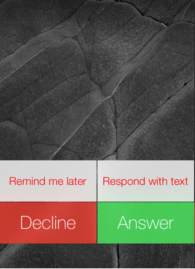
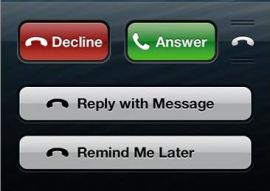
iOS 7 is different to me.  Look at this pic of an incoming call and compare it with the same screen in iOS 6:

iOS 7

iOS 7

iOS 6

iOS 6

The iOS 6 picture has buttons.  The iOS 7 picture is different.  Instead of have chiseled buttons, it looks like the Answer and Decline buttons have been stuck to the screen with labels.  That’s not the only place in the UI that has a label-like appearance.  Sending a new  iMessage or text to someone in the Messages app looks like applying a stamp to a piece of paper.  Taking all that into consideration, I think I finally understand what Ive is trying to do with this UI shift in iOS 7

Labels are easy to reapply.  You just peel them off and stick them back on.  Unlike the chiseled-in-stone button UI, a label can quickly and easily be reconfigured or replaced if it starts to look dated.  Apple made mention of this in Ive’s iOS 7 video where he talked about creating “hierarchical layers (to) establish order“.  Ive commented that this approach gives depth to the OS.  I think he’s holding back on us.

Jonathan Ive created UI layers in the OS so he can change them out more quickly.  Think about it.  If you only have to change a label in an app or change the way they are presented on screen, it allows you to make more rapid changes to the way the OS looks.  If the layers are consistent and draw from the same pool of resources, it allows you to skin the OS however you want with minimal effort.  Ive wasn’t just trying to scrub away the accumulation of Scott Forrestal’s ideas about the UI.  He wanted to change them and make the UI so flexible that the look can be updated in the blink of an eye.  That gives him the ability to change elements at will without the need to overhaul the system.  That kind of rapid configurability gives Apple the chance to keep things looking fresh and accommodate changing tastes.


Tom’s Take

I can almost hear people now saying that making future iOS releases able to be skinned is just another rip off of Android’s feature set.  In some ways, you are very right.  However, consider that Android was always designed with modularity in mind from the beginning.  Google wanted to give manufacturers and carriers the ability to install their own UI.  Think about how newsworthy the announcement of a TouchWiz-free Galaxy S4 was.  Apple has always considered the UI inviolate in all their products.  You don’t have much freedom to change things in iOS or in OS X.  Jonathan Ive is trying to set things up so that changes can be made more frequently in iOS.  Modders will likely find ways to insert their own UI elements and take these ideas in an ever more radical direction.  And all because Apple wanted to be able to peel off their UI pieces as easily as a label.

Software Defined Cars

CarLights

I think everything in the IT world has been tagged as “software defined” by this point. There’s software defined networking, software defined storage, the software defined data center, and so on. Given that the definitions of the things I just enumerated are very hard to nail down, it’s no surprise that many in the greater IT community just roll their eyes when they start hearing someone talk about SD.

I try to find ways to discuss advanced topics like this with people that may not understand what a hypervisor is or what a forwarding engine is really supposed to be doing. The analogies that I come up usually relate to everyday objects that are familiar to my readers. If I can frame the Internet as a highway and help people “get it,” then I’ve succeeded.

During one particularly interesting discussion, I started trying to relate SDN to the automobile. The car is a fairly stable platform that has been iterated upon many times in the 150 years that it has been around. We’ve seen steam-powered single seat models give way to 8+ passenger units capable of hauling tons of freight. It is a platform that is very much defined by the hardware. Engines and seating are the first things that spring to mind, but also wheels and cargo areas. The difference between a sports car and an SUV is very apparent due to hardware, much in the same way that a workgroup access switch only resembles a core data center switch in the most basic terms.

This got me to thinking: what would it take to software define a car? How could I radically change the thinking behind an automobile with software. At first, I thought about software programs running in the engine that assist the driver with things like fuel consumption or perhaps an on-demand traction and ride handling system. Those are great additional features for sure but they don’t really add anything to the base performance of a car beyond a few extra tweaks. Even the most advanced “programming” tools that are offered for performance specialists that allow for the careful optimization of transmission shifting patterns and fuel injector mixture recalibration don’t really fall into the software defined category. While those programs offer a way to configure the car in a manner different from the original intent they are difficult to operate and require a great deal of special knowledge to configure in the first place.

That’s when it hit me like a bolt out of the blue. We already have a software defined car. Google has been testing it for years. Only they call it a Driverless Car. Think about it in terms of our favorite topic of SDN. Google has taken the hardware that we are used to (the car) and replaced the control plane with a software construct (the robot steering mechanism). The software is capable of directing the forwarding of the hardware with no user intervention, as illustrated in this video:

That’s a pretty amazing feat when you think about it. Of course, programming a car to drive itself isn’t easy. There’s a ton of extra data that is generated as a car learns to drive itself that must be taken into account. In much the same way, the network is going to generate mountains of additional data that needs to be captured by some kind of sensor or management platform. That extra data represents the network feedback that allows you to do things like steer around obstacles, whether they be a deer in the road or a saturated uplink to a cloud provider.

In addition, the idea of a driverless software defined car is exciting because of the disruption that it represents. Once we don’t need a cockpit with a steering mechanism or access to propulsion mechanisms directly at our fingertips (or feet), we can go about breaking about the historical construction of a car and make it a more friendly concept. Why do I need to look forward when my car does all the work? Why can’t I twist the seats 90 degrees and facilitate conversation among passengers while the automation is occuring? Why can’t I put in an uplink to allow me to get work done or a phone to make calls now that my attention doesn’t need to be focused on the road? When the car is doing all the driving, there are a multitude of ideas that need to be reconsidered for how we design the automobile.

When I started bouncing this idea off of some people, Stephen Foskett (@SFoskett) mentioned to me that some people would take issue with my idea of a software defined car because it’s a self-contained, closed ecosystem. What about a software defined network that collects data and provides for greater visibility to the management layer? Doesn’t it need to be a larger system in order to really take advantage of software definition? That’s the beauty of the software defined piece. Once we have a vehicle generating large amounts of actionable data, we can now collect that and do something with it. Google has traffic data in their Maps application. What if that data was being fed in real time by the cars themselves? What if the car could automatically recognize traffic congestion and reroute on the fly instead of merely suggesting that the driver take an alternate path? What if we could load balance our highway system efficiently because the car is getting real time data about conditions. Now Google has the capability to use their software defined endpoints to reconfigure as needed.

What if that same car could automatically sense that you were driving to the airport and check you into your flight based on arrival time without the need to intervene? How about inputting a destination, such as a restaurant or a sporting event and having the car instantly reserve a parking spot near the venue based on reports from cars already in the lot or from sensors that report the number of empty spots in a parking garage nearby? The possibilities are really limitless even in this first or second stage. The key is that we capture the generated data from the software pieces that we install on top of existing hardware. We never knew we could do this because the interface into the data never existed prior to creating a software layer that we could interact with.  When you look at what Google has already done with their recent acquisition of Waze, the social GPS and map application it does look like Google is starting down this path.  Why rely on drivers to update the Waze database when the cars can do it for you?


Tom’s Take

I have spent a very large portion of my IT career driving to and from customer sites. The idea of a driverless car is appealing, but it doesn’t really help me to just sit over in the passenger seat and watch a computer program do my old job. I still like driving long distances to a certain extent. I don’t want to lose that. It’s when I can start using the software layer to enable things that I never thought possible that I start realizing the potential. Rather than just looking as the driverless software defined car as a replacement for drivers, the key is to look at the potential that it unlocks to be more efficient and make me more productive on the road. That’s the key take away for us all. Those lessons can also be applied to the world of software defined networking/storage/data center as well. We just have to remember to look past the hype and marketing and realize what the future holds in store.

The Microsoft Office Tablet

OfficeTabletI’ve really tried to stay out of the Tablet Wars.  I have a first generation iPad that I barely use any more.  My kids have co-opted it from me for watching on-demand TV shows and playing Angry Birds.  Since I spend most of my time typing blog posts or doing research, I use my laptop more than anything else.  When the Surface RT and Surface Pro escaped from the wilds of Redmond I waited and watched.  I wanted to see what people were going to say about these new Microsoft tablets.  It’s been about 4 months since the release of the Surface Pro and simliar machines from vendors like Dell and Asus.  I’ve been slowly asking questions and collecting information about these devices.  And I think I’ve finally come to a realization.

The primary reason people want to buy a Surface tablet is to run Microsoft Office.

Here’s the setup.  Everyone that expressed an interest in the Pro version of the Surface (or the Latitude 10 from Dell) was asked a question by me: What is the most compelling feature for the Surface Pro for you?  The responses that I got back were overwhelming in their similarity.

1.  I want to use Microsoft Office on my tablet.

2.  I want to run full Windows apps on my tablet.

I never heard anything about portability, power, user interface, or application support (beyond full Windows apps).  I specifically excluded the RT model of the Surface from my questions because of the ARM processor and the reliance of software from the Windows App Store.  The RT functions more like Apple/Android tablets in that regard.

This made me curious.  The primary goal of Surface users is to be able to run Office?  These people have basically told me that the only reason they want to buy a tablet is to use an office suite.  One that isn’t currently available anywhere else for mobile devices.  One that has been rumored to be released on other platforms down the road.  While it may be a logical fallacy, it appears that Microsoft risks invalidating a whole hardware platform because of a single application suite.  If they end up releasing Office for iOS/Android, people would flee from the Surface to the other platforms according to the info above.  Ergo, the only purpose of the Surface appears to be to run one application.  Which I why I’ve started calling it the Microsoft Office Tablet.  Then I started wondering about the second most popular answer in my poll.

Making Your Flow Work

As much as I’ve tried not to use the word “workflow” before, I find that it fits in this particular conversation.  Your workflow is more than just the applications you utilize.  It’s how you use them.  My workflow looks totally different from everyone else even though I use simliar applications.  I use email and word processing for my own purposes.  I write a lot, so a keyboard of some kind is important to my workflow.  I don’t do a lot of graphics design, so a pen input tablet isn’t really a big deal to me.  The list goes on and on, but you see that my needs are my own and not those of someone else.  Workflows may be simliar, but not identical.  That’s where the dichotomy comes into play for me.

When people start looking at using a different device for their workflow, they have to make adjustments of some kind.  Especially if that device is radically different from one they’ve been using before.  Your phone is different from a tablet, and a tablet is different from a laptop.  Even a laptop is different from a desktop, but these two are more simliar than most.  When the time comes to adjust your workflow to a new device, there are generally two categories of people:

1.  People who adjust their workflow to the new device.

2.  People who expect the device to conform to their existing workflow.

For users of the Apple and Android tablets, option 1 is pretty much the only option you’ve got.  That’s because the workflow you’ve created likely can’t be easily replicated between devices.  Desktop apps don’t run on these tablets.  When you pick up an iPad or a Galaxy Tab you have to spend time finding apps to replicate what you’ve been doing previously.  Note taking apps, web browsing apps, and even more specialized apps like banking or ebook readers are very commonly installed.  Your workflow becomes constrained to the device you’re using.  Things like on-screen keyboards or lack of USB ports become bullet points in workflow compatibility.  On occasion, you find that a new workflow is possible with the device.  The prime example I can think of is using the camera on a phone in conjunction with a banking app to deposit checks without needing to take them into the bank.  That workflow would have been impossible just a couple of years ago.  With the increase in camera phone resolution, high speed data transfer, and secure transmission of sensitive data made possible by device advancements we can now picture this new workflow and easily adapt it because a device made it possible.

The other category is where the majority of Surface Pro users come in.  These are the people that think their workflow must work on any device they use.  Rather than modify what they’re doing, they want the perfect device to do their stuff.  These are the people that use a tablet for about a week and then move on to something different because “it just didn’t feel right.”  When they finally do find that magical device that does everything they want, they tend to abandon all other devices and use it exclusively.  That is, until they have a new workflow or a substantial modification to their existing workflow.  Then they go on the hunt for a new device that’s perfect for this workflow.

So long as your workflow is the immutable object in the equation, you are never going to be happy with any device you pick.  My workflows change depending on my device.  I browse Twitter and read email from my phone but rarely read books.  I read books and do light web surfing from a tablet but almost never create content.  I spend a lot of time creating content on my laptop buy hate reading on it.  I’ve adjusted my workflows to suit the devices I’m using.

If the single workflow you need to replicate on your table revolves around content creation, I think it’s time to examine exactly what you’re using a tablet for.  Is it portability beyond what a laptop can offer?  Do you prefer to hunt and peck around a touch screen instead of a keyboard?  Are you looking for better battery life or some other function of the difference in hardware?  Or are you just wanting to look cool with a tablet in the “post PC world?”  That’s the primary reason I don’t use a tablet that much any more.  My workflows conform to my phone and my laptop.  I don’t find use in a tablet.  Some people love them.  Some people swear by them.  Just make sure you aren’t dropping $800-$1000 on a one-application device.

At the end of the day, work needs to get done.  People are going to use whatever device they want to use to get their stuff done.  Some want to do stuff and move on.  Others want to look awesome doing stuff or want to do their stuff everywhere no matter what.  Use what works best for you.  Just don’t be surprised if complaining about how this device doesn’t run my favorite data entry program gets a sideways glance from IT.

Disclaimer:  I own a first generation iPad.  I’ve tested a Dell Latitude 10.  I currently use an iPhone 4S.  I also use a MacBook Air.  I’ve used a Lenovo Thinkpad in the past as my primary workstation.  I’m not a hater of Microsoft or a lover of Apple.  I’ve found a setup that lets me get my job done.

Juniper Networks Warrior – Review

Documentation is the driest form of communication there is. Whether it be router release notes or stereo instructions I never seem to be able to find a way to read more than a paragraph before tossing things aside. You’d think by now that someone would come up with a better way to educate without driving someone to drinking.

O’Reilly Media has always done a good job of creating technical content that didn’t make me pass out from boredom. They’ve figured out how to strike a balance between what needs to be said and the more effective and entertaining way to say it. Once I started reading the books with the funny animals on the covers I started learning a lot more about the things I was working on. One book in particular caught my eye – Network Warrior by Gary Donahue. Billed as “everything you need to know that wasn’t on the CCNA,” it is a great introduction to more advanced topics that are encountered in day-to-day network operations like spanning tree or the Catalyst series of switches. Network Warrior is heavily influenced by Cisco equipment. While the concepts are pretty straight forward the bias does lean toward the building on Tasman Drive. Thankfully, O’Reilly enlisted an author to bring the Warrior series to Sunnyvale as well:

Screen Shot 2013-05-13 at 2.53.13 PM

Peter Southwick was enlisted to write a Warrior book from the perspective of Juniper engineer. I picked up a copy of this book the last time I was at Juniper’s headquarters and have spent the past few weeks digesting the info inside.

What Worked

Documentation is boring. It’s a dry description of how to do everything. How-to guides are a bit better written, but they still have to cover the basics. I am a much bigger fan of the cookbook, which is a how-to that takes basic building blocks and turns them into a recipe that accomplishes something. That’s what Juniper Networks Warrior is really about. It’s a cookbook with some context. Each of the vignettes tells a story about a specific deployment or project. By providing a back story to everything you get a feel for how real implementations tend to flow back and forth between planning and execution. Also, the solutions provided really do a great job of cutting past the boring rote documentation and into things you’ll use more than once. Couple that with the vignettes being based on something other than technology-focused chapters and it becomes apparent that this is a very holistic view for technology implementation.

What Didn’t Work

There were a couple of things that didn’t work well in the narrative to me. The first was the “tribe” theme. Southwick continually refers to the teams that he worked with in his projects as “tribes.” While I understand that this does fit somewhat with the whole idea behind the Warrior books, it felt a bit out of place. Especially since Donahue didn’t use it in either Network Warrior or Arista Warrior (another entry in the series). I really did try to look past it and not imagine groups of network engineers carrying spears and slings around the data center, but it was mentioned so often in place of “team” or “group” that it became jarring after a while.

The other piece that bothered me a bit was in Chapter 3: Data Center Security Design. The author went out of the way to mention that the solution that his “tribe” came up with was in direct competition with a competing one that utilized Cisco gear. He also mentioned that the Juniper solution was going to displace the Cisco solution to a certain degree. I get that. Vendor displacement happens all the time in the VAR world. What bothered me was the few occasional mentions of a competitor’s gear with words like “forced” or casting something in a negative light simply due to the sticker on the front. I’ve covered that before in my negative marketing post. Why I bring it up here is because it wasn’t present in either Network or Arista Warrior, even though the latter is a vendor-sponsored manual like this one. In particular, an anecdote in the Arista chapter on VRRP mentions that Cisco wanted to shut down the RFC for VRRP due to similarity with HSRP. No negativity, no poking with a sharp stick. Just a statement of fact and the readers are left to draw their own conclusions.

I realize the books of this nature often require input from the technical resources of a vendor. I also realize that sometimes the regard that these books are held in sometimes looks to be a very appealing platform to launch marketing campaigns or to use a factually based volume to mention some opinion-based verbiage. I sincerely hope that future volumes tone down the rhetoric just a bit for the sake of providing a good reference volume. Engineers will keep going back to a book if it gives them a healthy dose of the information they need to do their jobs. They won’t go back nearly as often to a book that spends too much time discussing the pros and cons of a particular vendor’s solution. I’d rather see pages of facts and configs that get the job done.

Review Disclaimer

The copy of Juniper Networks Warrior that I reviewed was provided to me by Juniper Networks. I received it as part of a group of items during Network Field Day 5. At no time did Juniper ask for nor were they promised any consideration in the writing of this review. All of the analysis and conclusions contained herein are mine and mine alone.

Incremental Awesomeness – Boiling Frogs

Frog on a Saucepan - courtesy of Wikipedia

Frog on a Saucepan – courtesy of Wikipedia

Unless you’ve been living under a big rock for the last couple of weeks, you’ve no doubt heard about the plunge that Apple stock took shortly after releasing their numbers for the previous quarter.  Apple sold $54 billion dollars worth of laptops, desktops, and mobile devices.  They made $13 billion dollars in profit.  They sold 47 million iPhones and almost 23 million iPads.  For all of these record-setting numbers, the investors rewarded Apple by driving the stock down below $500 dollars a share, shaving off a full 10% of Apple’s value in after-hours trading after the release of these numbers.  A lot of people were asking why a fickle group of investors would punish a company making as much quarterly profit as the gross domestic product of a small country.  What has it come to that a company can be successful beyond anyone’s wildest dreams and still be labeled a failure?

The world has become accustomed to incremental awesomeness.

Apple is as much to blame as anyone else in this matter, but almost every company is guilty of this in some form or another.  We’ve reached the point in our lives where we are subjected to a stream of minor improvements on things rather than huge, revolutionary changes.  This steady diet of non-life changing features has soured us on the whole idea of being amazed by things.  If you had told me even 5 years ago that I would possess a device in my pocket that had a camera, GPS, always-on Internet connection, appointment book, tape recorder, and video camera, I would have either been astounded or thought you crazy.  Today, these devices are passé.  We even call phones without these features “dumb phones” as if to demonize them and those that elect to use them.  We can no longer discern between the truly amazing and the depressingly commonplace.

When I was younger, I heard someone ask about boiling a frog alive.  I was curious as to what lesson may lie in such a practice.  If you place a frog into a pot of boiling water, it will hop right back out as a form of self-preservation.  However, if you place a frog in a pot of tepid water and slowly raise the temperature a few degrees every minute, you will eventually boil the frog alive without any resistance.  Why is that?  Well, by slowly raising the temperature of the water, the frog becomes accustomed to the change.  A few degrees one way or the other doesn’t matter to the frog.  However, those few degrees eventually add up to the boiling point.

We find ourselves in the same predicament.  Look at some of the things that users are quibbling over on the latest round of phones and other devices.  The Nexus 4 phone is a failure because it doesn’t have LTE.  The iPad Mini is useless because it doesn’t have a Retina screen.  The iPhone 5 is far from perfect because it’s missing NFC or it’s not a 5-inch phone.  The Nexus 7 needs more storage and shouldn’t be Wi-Fi only.  Look at any device out there and you will find that they are missing features that would keep them from being “perfect”.  Those features might as well be things like inability to read your mind or project information directly onto the cornea.  I’ve complained before that Google is setting up Google Glass to be a mundane gadget because they aren’t thinking outside their little box.  This kind of incremental improvement is what we’ve become accustomed to.  Think about the driverless car that Google is supposedly working on.  It’s an exciting idea, right? Now, think about that invention in 5 years time when it becomes ubiquitous.  When version 6 or 7 of the driverless car is out, we’re going to be complaining about how it doesn’t anticipate traffic conditions or isn’t able to fly.  We will have become totally unimpressed with how awesome the idea of a driverless car is because we’re concentrating on the things that it doesn’t have.

We want to be impressed and surprised by things.  Even when we are confronted with groundbreaking technology, we reject it at first out of spite.  Remember how the iPad was going to be a disaster because people don’t want to use a big iPhone?  Now look at how many are being used.  People want to walk away from a product announcement with a sense of awe and wonder, not a list of features and the same case as last year.  We’ve stopped looking at each new object with a sense of wonder and amazement and instead we focus on the difference from last year’s model.  Every new software or hardware release raises the temperature a few more degrees.  Before long, we’re going to be boiling in our own contempt and discontent.  And the next generation is going to have it even worse.  Even now, I find my kids are spoiled by the ability to watch TV shows on a tablet in any room in the house on their schedule instead of waiting for an episode to air.  They no longer even need to remember to record their favorite show on the DVR.  They just launch the app on their table and watch the show whenever they want.  Something that seems amazing and life-changing to me is commonplace to them.  All of this has happened before.  All of this will happen again.

Instead of judging on incremental advancements, we should start looking at things on the grand scale.  Yes, I know that some companies are going to constant underwhelm the buying public by delivering products that are slightly more advanced than the previous iteration for an increased cost.  However, when you step back and take a look at everything on a long enough time line, you’ll find that we are truly living in an age when technology is amazing and getting better every day.  Sure, I’m waiting for user interfaces like the ones from Minority Report or the Avengers.  I want a driverless car and a thought interface for my computer/phone/widget.  But after seeing what happens to companies that are successful beyond their wildest imaginations I’ll be doing a much better job of looking at things with the proper perspective.  After all, that’s the best way to keep from getting boiled.

Mountain Lion PL-2303 Driver Crash Fix

Now that I’ve switched to using my Mac full time for everything, I’ve been pretty happy with the results.  I even managed to find time to upgrade to Mountain Lion in the summer.  Everything went smoothly with that except for one little hitch with a piece of hardware that I use almost daily.

If you are a CLI jockey like me, you have a USB-to-Serial adapter in your kit.  Even though the newer Cisco devices are starting to use USB-to-mini USB cables for console connections, I find these to be fiddly and problematic at times.  Add in the amount of old, non-USB Cisco gear that I work on regularly and you can seem my need for a good old fashioned RJ-45-to-serial rollover cable.  My first laptop was the last that IBM made with a built-in serial port.  Since then, I’ve found myself dependent on a USB adapter.  The one that I have is some no-name brand, but like most of those cables it has the Prolific PL-2303 chipset.  This little bugger seems to be the basis for almost all serial-to-USB connectivity except for Keyspan adapters.  While the PL-2303 is effective and cheap, it’s given me no end of problems over the past couple of years.  When I upgraded my Lenovo to Windows 7 64-bit, the drivers available at the time caused random BSOD crashes when consoled into a switch.  I could never nail down the exact cause, but a driver point release fixed it for the time being.  When I got my Macbook Air, it came preinstalled with Lion.  There were lots of warnings that I needed to make sure to upgrade the PL-2303 drivers to the latest available on the Prolific support site in order to avoid problems with the Lion kernel.  I dutifully followed the directions and had no troubles with my USB adapter.  Until I upgraded to Mountain Lion.

After I upgraded to 10.8, I started seeing some random behaviors I couldn’t quite explain.  Normally, after I’m done consoling into a switch or a router, I just close my laptop and throw it back in my bag.  I usually remember after I closed it and put it to sleep that I need to pull out the USB adapter.  After Mountain Lion, I was finding that I would open my laptop back up and see that it had rebooted at some point.  All my apps were still open and had the data preserved, but I found it odd that things would spontaneously reboot for no reason.  I found the culprit one day when I yanked the USB adapter out while my terminal program (ZTerm) was still open.  Almost instantly, I got a kernel panic followed by a reboot.  I had finally narrowed down my problem.  I tried closing ZTerm before unplugging the cable and everything behaved as it should.  It appeared the the issue stemmed from having the terminal program actively accessing the port then unplugging it.  I searched around and found that there were a few people reporting the same issue.  I even complained about it a bit on Twitter.

Santino Rizzo (@santinorizzo) heard my pleas for sanity and told me about a couple of projects that created open source versions of the PL-2303 driver.  Thankfully, someone else had noticed that Prolific was taking their sweet time updating things and took matters into their own hands.  The best set of directions to go along with the KEXT that I can find are here:

http://www.xbsd.nl/2011/07/pl2303-serial-usb-on-osx-lion.html

For those not familiar with OS X, a KEXT is basically a driver or DLL file.  Copying it to System/Library/Extensions places in in the folder where OS X looks for device drivers.  Make sure you get rid of the old Prolific driver if you have it installed before you install the OS PL-2303 driver.  Once you’ve run the commands list on the site above, you should be able to plug in your adapter and then unplug it without any nasty crashes.  One other note – the port used to connect in ZTerm changed when I used the new drivers.  Instead of it being /dev/USBSerial or something of that nature, it’s now PL2303-<random digits>.  It also changed the <random digits> when I moved it from one USB port to another.  Thankfully for me, ZTerm remembers the USB ports and will try them all when I launch it until it find the right adapter.  There is some discussion in the comments of the post above about creating a symlink for a more consistent pointer.


Tom’s Take

Writing drivers is hard.  I’ve seen stats that say up to 90% of all Windows crashes are caused by buggy drivers.  Even when drivers appear to work just fine, things can be a little funny.  Thankfully, in the world of *NIX, people that get fed up with the way things work can just pull out their handy IDE and write their own driver.  Not exactly the easiest thing in the world to do but the results speak for themselves.  When the time comes that vendors either can’t or won’t support their hardware in a timely fashion, I take comfort in knowing that the open source community is ready to pick up the torch and make things work for us.

Juniper MX Series – Review

A year ago I told myself I needed to start learning Junos.  While I did sign up for the Fast Track program and have spent a lot of time trying to get the basics of the JNCIA down, I still haven’t gotten around to taking the test.  In the meantime, I’ve had a lot more interaction with Juniper users and Juniper employees.  One of those was Doug Hanks.  I met him at Network Field Day 4 this year.  He told me about a book that he had recently authored that I might want to check out if I wanted to learn more about Junos and specifically the MX router platform.  Doug was kind enough to send me an autographed copy:

MX Series Cover

The covers on O’Reilly books are always the best.  It’s like a zoo with awesome content inside.

This is not a book for the beginner.  Frankly, most O’Reilly press books are written for people that have a good idea about what they’re doing.  If you want to get your feet wet with Junos, you probably need to look at the Day One guides that Juniper provides free of charge.  When you’ve gone through those and want to step up to a more in-depth volume you should pick up this book.  It’s the most extensive, exhaustive guide to a platform that I’ve ever seen in a very long time.  This isn’t just an overview of the MX or a simple configuration guide.  This book should be shipped with every MX router that leaves Sunnyvale.  This is a manual for the TRIO chipset and all the tricks you can do on it.

The MX Series book does a great job of not only explaining what makes the MX and TRIO chipset different, but also how to make it perform at the top of its game.  The chapter on Class of Service (CoS) alone is worth its weight in gold.  That topic has worried me in the past because of other vendor’s simplified command line interfaces for Quality of Service (QoS).  This book spells everything out in a nice orderly fashion and makes it all make more sense than I’ve seen before.  I’m pretty sure those pages are going to get reused a lot as I start my journey down the path of Junos.  But just because the book make things easy to understand doesn’t mean that it’s shallow on technical knowledge or depth.  The config snippet for DDoS mitigation is fifteen pages long!  That’s a lot of info that you aren’t going to find in a day one guide.  And all of those chapters are backed up with case studies.  It’s not enough that you know how to configure some obscure command.  Instead, you need to see where to use it and what context makes the most sense.  That’s where these things hit home for me.  I was always a fan of word problems in math.  Simple formulas didn’t really hit home for me.  I needed an example to reinforce the topic.  This book does an outstanding job of giving me those case studies.


Tom’s Take

The Juniper MX Series book is now my reference point for what an deep dive tome on a platform should look like.  It covers the technology to a very exhaustive depth without ever really getting bogged down in the details.  If you sit down and read this cover to cover, you will come away with a better understanding of the MX platform that anyone else on the planet except perhaps the developers.  That being said, don’t sit down and read it all at once.  Take the time to go into the case studies and implement them on your test lab to see how the various features interact together.  Use this book as an encyclopedia, not as a piece of fireside reading material.  You’ll thank yourself much later when you’re not having dreams of CoS policies and tri-color policers.

Disclaimer

This copy of Juniper MX Series was provided to me at no charge by Doug Hanks for the purpose of review.  I agreed with Doug to provide an unbiased review of his book based on my reading of it.  There was no consideration given to him on the basis of providing the book and he never asked for any when providing it.  The opinions and analysis provided in this review reflect my views and mine alone.

Juniper – Land of Unicorns and Broccoli

The final Network Field Day 4 (NFD4) presentation was from Juniper. Juniper has been a big supporter of Tech Field Day so getting to see some of their newest technology and advances was just another step in the the wonderful partnership. We arrived Friday afternoon to a very delicious lunch before settling in for the four hour session.

We were introduced to one of our own, Derick Winkworth (@cloudtoad). Derick was a delegate and NFD2 and has recently come to Juniper as the PM of Automation. It’s always nice to see someone from Tech Field Day in front of us for the vendor. Some have said that the vendors are stealing away members of the Field Day community, but I see it more as the vendors realizing the unique opportunity to bring someone on board the “gets it.” However, I couldn’t let Derick off the hook quite that easily. At Cisco Live, Derick proved his love for Dave Ward of Cisco by jumping up during Dave’s OnePK panel and throwing a pair of men’s briefs at him with “I ❤ Dave” written on the back. Lots of laughs were had by all, and Dave seemed appreciative of his gift. Once I learned the Derick was presenting first for NFD4, I hatched my own fan boy plot. When Derick walked up front to face the NFD delegates as “the enemy,” I too proved my love for the Cloud Toad by jumping up and tossing him a pair of underwear as well. These were adorned with “I ❤ @cloudtoad” to show Derick that he too has groupies out there.

Derick then proceeded to give us a small overview of the decision he made to join Juniper and the things that he wanted to improve to make everyone’s life a bit better. I can tell the Derick is genuinely pumped about his job and really wants to make a difference. If someone is that excited about going to work every day, it really doesn’t matter if it’s for a vendor or a VAR or even a garbageman. I only wish that half the people I work with had the same passion for their jobs as Derick.

Our first presentation was a bit of a surprise. We got a first hand look at storage from Simon Gordon. Yes, Juniper shook things up by making their first peek all about hard drives. Okay, so maybe it was more about showing how technologies like QFabric can help accelerate data transfers back and forth across your network. The two storage people in the room seemed fascinated by the peek into how Juniper handled these kinds of things. I was a bit lost with all the terminology and tried to keep up as best I could, but that’s what the recorded video archive is for, right?  It’s no surprise that Juniper is pitching QFabric as a solution for the converged data center, just like their competitors are pitching their own fabric solutions.  It just reminds me that I need to spend some more time studying these fabric systems.  Also, you can see here where the demo gremlins bit the Juniper folks.  It seemed to happen to everyone this time around.  The discussion, especially from Colin McNamara (@colinmcnamara) did a great job of filling the time where the demo gremlins were having their fun.

The second presentation was over Virtual Chassis, Juniper’s method of stacking switches together to unify control planes and create managment simplicity. The idea is to take a group of switches and interconnect the backplanes to create high throughput while maintaining the ability to program them quickly. The technology is kind of interesting, especially when you extend it toward something like QFabric to create a miniature version of the large fabric deployment. However, here is where I get to the bad guy a bit… Juniper, while this technology is quite compelling, the presentation fell a bit flat. I know that Tech Field Day has a reputation for chewing up presenters. I know that some sponsors are afraid that if they don’t have someone technical in front of the group that bedlam and chaos will erupt. That being said, make sure that the presenter is engaging as well as technical. I have nothing but respect for the presenter and I’m sure he’s doing amazing things with the technology. I just don’t think he felt all the comfortable in front of our group talking about it. I know how nervous you can be during a presentation. Little things like demo failures can throw you off your game. But in the end, a bad presentation can be saved by a good presenter. A good presentation can take a hit from a less-than-ideal presenter.  Virtual chassis is a huge talking point for me.  Not only because it’s the way that the majority of my customers will interconnect their devices.  Not because it’s a non-proprietary connector way to interconnect switches.  It’s because Virtual Chassis is the foundation for some exciting things (that may or may not be public knowledge) around fabrics that I can’t wait to see.

Up next was Kyle Adams with Mykonos. They are a new acquistion by Juniper in the security arena. They have developed a software platform that provides a solution to the problem of web application security. Mykonos acts like a reverse proxy in front of your web servers. When it’s installed, it intercepts all of the traffic traveling to your Internet-facing servers and injects a bit of forbidden fruit to catch hackers. Things like fake debug codes, hidden text fields, and even phantom configuration files. Mykonos calls these “tar pits” and they are designed to fool the bad guys into a trail of red herrings. Becauase all of the tar pit data is generated on the fly and injected into the HTTP session, no modification of the existing servers is necessary. That is the piece that had eluded my understanding up until this point. I always thought Mykonos integrated into your infrastructure and sprayed fake data all over your web servers in the hope of catching people trying to footprint your network. Realizing now that it does this instead from the network level, it interesting to see the approaches that Mykonos can take. The tar pit data is practically invisible to the end user. Only those that are snooping for less-than-honorable intentions may even notice it. But once they take the bait and start digging a bit deeper, that’s when Mykonos has them. The software then creates a “super cookie” on the system as a method of identifying the attacker. These super coookes are suprisingly resilient, using combinations of Java and Flash and other stuff to stay persistent even if the original cookie is deleted. Services like Hulu and Netflix use them to better identify customers. Mykonos uses them to tie attacker sessions together and collect data. There are some privacy concerns naturally, but that is a discussion for a different day. Once Mykonos has tagged you, that’s when the countermeasures can start getting implemented.

I loved watching this in demo form. Mykonos randomly selects a response based on threat level and deploys it in an effort to prevent the attacker from compromising things. Using methods such as escalting network latency back to the attacker or creating fake .htacess files with convincingly encrypted usernames and passwords, Mykonos sets the hook to reel in the big fish. While the attacker is churning through data and trying to compromise what he thinks is a legitimate security hole, Mykonos is collecting data the whole time to later identify the user. That way, they can either be blocked from accessing your site or perhaps even prosecuted if desired. I loved the peek at Mykonos. I can see why Christofer Hoff (@beaker) was so excited to bring them on board. This refreshing approach to web application firewalls is just crazy enough to work well. As I said on the video, Mykonos is the ultimate way to troll attackers.

The final presentation at Juniper once again starred Derick Winkworth along with Dan Backman. Dan had presented over workflow automation at NFD2. Today, they wanted to talk about the same topic from a slightly different perspective. Derick took the helm this time and started off with a hilarious description of the land of milk and honey and unicorns, which according to him was representitive of what happens when you can have a comfortable level of workflow automation. It’s also where the title of this post came from.  As you can tell from the video, this was the best part of having a former delegate presenting to us.  He knew just how to keep us in stitches with all his whiteboarding and descriptions.  After I was done almost spitting my refreshments all over my laptop, he moved on to his only “slide”, which was actually a Visio diagram. I suppose this means that Derick has entered the Hall Of Slideless TFD Presenters. His approach to workflow automation actually got me a bit excited. He talked less about scripting commands or automating configuration tasks and instead talked about all the disparate systems out there and how the lack of communication between them can cause the silo effect present in many organizations to amplify.  I like Derick’s approach to using Junos to pull information in from various different sources to help expedite things like troubleshooting or process execution.  Leveraging other utilities like curl helps standardize the whole shooing match without reinventing the wheel.  If I can use the same utilities that I’ve always used, all my existing knowledge doesn’t become invalidated or replaced.  That really speaks to me.  Don’t make me unlearn everything.  Give me the ability to take your product and use additional tools to do amazing things.  That, to me, is the essence of SDN.

If you’d like to learn more about the various Juniper products listed above, be sure to visit their website at http://www.juniper.net.  You can also follow their main Twitter account as @JuniperNetworks.


Tom’s Take

Juniper’s doing some neat things from what they showed us at NFD4.  They appear to be focusing on fabric technology, both from the QFabric converged networking overview and even the Virtual Chassis discussion.  Of course, protecting things is of the utmost importance, so Mykonos can prevent the bad guys from getting the goods in a very novel way.  Uniting all of this is Junos, the single OS that has all kinds of capabilities around SDN and now OpenFlow 1.3.  Sure, the demo gremlins hit them a couple of times, but they were able to keep the conversation going for the most part and present some really compelling use cases for their plans.  The key for Juniper is to get the word out about all their technology and quit putting up walls that try and “hide” the inner workings of things.  Geeks really like seeing all the parts and pieces work.  Geeks feel a lot more comfortable knowing the ins and outs of a process.  That will end up winning more converts in the long run than anything else.

Tech Field Day Disclaimer

Juniper was a sponsor of Network Field Day 4.  As such, they were responsible for covering a portion of my travel and lodging expenses while attending Network Field Day 4.  In addition, Juniper provided me with a hooded sweatshirt with the Juniper logo and some “I Wish This Ran Junos” stickers. They did not ask for, nor where they promised any kind of consideration in the writing of this review.  The opinions and analysis provided within are my own and any errors or omissions are mine and mine alone.

Why Won’t AirPlay Work On My Macbook?

One of the major reasons why I decided to upgrade to OS X 10.8 Mountain Lion was for AirPlay mirroring.  AirPlay has been a nice function to have for people with an AirPlay receiver (basically an AppleTV) and an AirPlay source, like an iDevice.  I know of many people that like to watch a movie from iTunes on their iPad to start, then switch over to the big TV in the living room via AirPlay to the AppleTV.  That’s all well and good for those that want to stream movies or music.  However, my streaming needs are a little more advanced.  I’d rather be able to mirror my desktop to the AirPlay receiver instead, for things like presentations or demonstrations.  That functionality has only be available with software applications like AirParrot up until the release of Mountain Lion, which now has support for AirPlay mirroring on Macs.  Once the GM release of Mountain Lion came out, people started noticing that AirPlay was only supported on relatively new Apple hardware.  Even in cases where the CPU was almost identical to a later hardware release.  It seems a bit mind-boggling that Apple has a very limited specification list for AirPlay Mirroring.  The official site doesn’t even list it, as a matter of fact.  Essentially, any Mac made in 2011 or newer should be capable of supporting AirPlay.  So why did the 2010 Macs get left out?  They’re almost as good as their one-year-newer cousins.

The real answer comes down to the chipset.  Apple started shipping Macs with Intel’s Sandy Bridge chipset in 2011.  This enabled all kinds of interesting things, like Thunderbolt for instance.  There was one little feature down at the bottom of the list of Sandy Bridge spec sheets that didn’t mean much at the time – Intel QuickSync.  QuickSync is an application-specific integrated circuit (ASIC) that has been placed in the Sandy Bridge line of processors to allow high-speed video encoding and decoding.  This allows the Sandy Bridge i-series processors to offload video encoding to the ASIC to reduce the amount of CPU power consumed by performing video tasks.  Rather than tying up the CPU or the GPU of a machine, Sandy Bridge can use this ASIC to do very high speed encoding.  Why would this be a boon?  Well, for most people the idea was that QuickSync could reduce the amount of time that it took to do video production work on mid-range machines.  The problem was that QuickSync turned out lower quality video in favor of optimization for speed?  Where would you find an application that prioritized speed over quality?  If you guessed video streaming, you’d be spot on.  QuickSync supports high-speed encoding of H.264 video streams, which is the preferred format for Apple.  Mountain Lion can now access the QuickSync ASIC to mirror your desktop over to an AppleTV with almost no video lag.  The quality may not be the same as a Pixar rendering farm, but for 1080p video on a TV it’s close enough.

Any Mac made before the introduction of Sandy Bridge isn’t capable of running AirPlay mirroring, at least according to Apple.  Since they are missing the QuickSync ASIC, they aren’t capable of video encoding at the rate that Apple wants to in order to preserve the AirPlay experience.  While on the surface it looks like the same i-series processors are present in 2010 and 2011 machines, the older Macs are using the Clarksdale chipset, which does have a high-speed video decoder, but not an encoder.  Since the Mac is doing all the heavy lifting for the AppleTV in an AirPlay mirroring setup, having the onboard encoding ASIC is critical.  This isn’t the first time that Apple has locked out use of AirPlay.  If you want to AirPlay mirror from your favorite iDevice, you have to ensure that you’re running an iPhone 4S or an iPad 2 or iPad 3.  What’s different about them?  They’re all running the A5 dual-core chip.  Supposedly, the A5 helps with video-intensive tasks.  That says to me that Apple is big on using hardware to help accelerate video mirroring.  That’s not to say that you can’t do AirPlay mirroring with a pre-2011 Mac.  You’re just going to have to rely on a third party program to do it, like the aforementioned AirParrot.  Take note, though, that AirParrot is going to use your CPU to do all the encoding work for AirPlay.  While that isn’t going to be a big issue for simple presentations or showing your desktop, you should take care if you’re going to do any kind of processor-intensive activity, like firing up a bunch of virtual machines or compiling code.

Tom’s Take

Yes, it’s very irritating that Apple drew the line for AirPlay mirroring support at Sandy Bridge.  As it is with all technology refreshes, being on the opposite side of that line sucks big time.  You’ve got a machine that’s more than capable, yet some design guy said that you can’t hack it any more.  Sadly, these are the kinds of decisions that aren’t made lightly by vendors.  Rather than risk offering incomplete support of producing the kind of dodgy results that make for bad Youtube comparison videos, Apple took a hard line and leaned heavily on QuickSync for AirPlay mirroring support.  In another year it won’t matter much as people will have either upgraded their machines to support it if it’s a crucial need for them, or they’ll let it lie fallow and unused like FaceTime.  If you find yourself asking whether or not your machine can support AirPlay mirroring, just look for a Thunderbolt port.  If you’ve got one, you’re good to go.  Otherwise, you should look into a software solution.  There are lots of good ones out there that will help you out.  Based on Apple’s track record with the iDevices, I wouldn’t hold out hope that they’re going to enable AirPlay mirroring on pre-2011 Macs any time soon.  So, if AirPlay mirroring is something important to you, you’re either going to need to spring for a new Mac or get to work installing some software.

OS X 10.8 Mountain Lion – Review

Today appears to be the day that the world at large gets their hands on OS X 10.8, otherwise known as Mountain Lion. The latest major update in the OS X cat family, Mountain Lion isn’t so much a revolutionary upgrade (like moving from Snow Leopard to Lion) as opposed to an evolutionary one (like moving from Leopard to Snow Leopard). I’ve had a chance to use Mountain Lion since early July when the golden master (GM) build was released to the developer community. What follows are my impressions about the OS from a relatively new Mac user.

When you start your Mountain Lion machine for the first time, you won’t notice a lot that’s different from Lion. That’s one of the nicer things about OS X. I don’t have to worry that Apple is going to come out with some strange AOL-esque GUI update just around the corner. Instead, the same principles that I learned in Lion continue here as well. In lieu of a total window manager overhaul, a heavy coat of polish has been applied everywhere. Most of the features that are listed on the Mountain Lion website are included and likely not to be used by me that much. Instead, there are a few little quality of life (QoL) things that I’ve noticed. Firstly, Lion originally came with the dock indicator for open programs disabled. Instead of a little light telling you that Safari and Mail were open, you saw nothing. This spoke more to the capability introduced that reopened the windows that were open when you closed the program. Apple would rather you think less about a program being open or closed and instead on what programs you wanted to use to accomplish things. In Mountain Lion, the little light that indicates an open program has shrunk to a small lighted notch on the very bottom of the dock below an open program. It’s now rather difficult to determine which programs are open with a quick glance. Being one of those people that is meticulous about which programs I have open at any one time, this is a bit of step in the wrong direction. I don’t mind that Apple has changed the default indicator. Just give me an option to put the old one back.

My Mountain Lion Dock with the new open program indicators

Safari

Safari also got an overhaul. One of the things I like the most about Chrome is the Omnibox. The ability to type my searches directly into the address bar saves me a step, and since my job sometimes feels like the Chief Google Search Engineer, saving an extra step can be a big help. Another feature is the iCloud button. iCloud can now sync open tabs on your iPhone/iPad/iPod/Mountain Lion system. This could be handy for someone that opens a website on their mobile device but would like to look at it on a full-sized screen when they get to the office. Not a groundbreaking feature, but a very nice one to have. The Reading List feature is still there as well from the last update, but being a huge fan of Instapaper, I haven’t really tested it yet.

Dictation

Another new feature is dictation. Mountain lion has included a Siri like dictation feature in the operating system that allows you to say what you want rather than typing it out. Make no mistake though. This isn’t Siri. This is more like the dictation feature from the new iPad. Right now, it won’t do much more than regurgitate what you say. I’m not sure how much I’ll use this feature going forward, as I prefer to write with the keyboard as opposed to thinking out loud. Using the dictation feature does make it much more accurate, as the system learns your accent and idiosyncrasies to become much more adapt over time. If you’d like to get a feel for how well the dictation feature works, (the paragraph)

You’ve been reading was done completely by the dictation feature. I’ve left any spelling and grammar mistakes intact to give you a realistic picture. Seriously though, the word paragraph seems to make the dictation feature make a new paragraph.

Gatekeeper

I did have my first run-in with Gatekeeper about a week after I upgraded, but not for the reasons that I thought I would.  Apple’s new program security mechanism is designed to prevent drive-by downloads and program installations like the ones that embarrassed Apple as of late.  Gatekeeper can be set to allow only signed applications from the App Store to be installed or run on the system.  This gives Apple the ability to not only protect the non-IT savvy populace at large from malicious programs, but also gives Apple the ability to program a remote kill switch in the event that something nasty slips past the reviewers and starts wreaking havoc.  Yes, there have been more nefarious and sinister prognostications that Apple will begin to limit apps to only being able to be installed through the App Store or that Apple might flip the kill switch on software they deem “unworthy”, but I’m not going to talk about that here.  Instead, I wanted to point out the issue that I had with Gatekeeper.  I use a networking monitoring system called N-Able at work that gives me the ability to remote into systems on my customer’s networks.  N-Able uses a Java client to establish this remote connection, whether it be telnet, SSH, or RDP.  However, after my upgrade to Mountain Lion, my first attempt to log into a remote machine was met with a Java failure.  I couldn’t bypass the security warning and launch the app from a web browser to bring up my RDP client.  I checked all the Java security settings that got mucked with after the Flashback fiasco, but they all looked clean.  After a Google Glance, I found the culprit was Gatekeeper.  The default permission model allows Mac App Store apps to run as well as those from registered developers.  However, the server that I have running N-Able uses a self-signed certificate.  That evidently violates the Gatekeeper rules for program execution.  I changed Gatekeeper’s permission model to allow all apps to run, regardless of where the app was downloaded from.  This was probably something that would have needed to be done anyway at some point, but the lack of specific error messages pointing me toward Gatekeeper worried me.  I can foresee a lot of support calls in the future from unsuspecting users not understanding that their real problem isn’t with the program they are trying to open, but with the underlying security subsystem of their Mac instead.

Twitter Integration

Mountain Lion has also followed the same path as it’s mobile counterpart and allowed Twitter integration into the OS itself. This, to me, is a mixed bag. I’m a huge fan of Twitter clients on the desktop. Since Tapbots released the Tweetbot Alpha the same day that I upgraded to Mountain Lion, I’ve been using it as my primary communication method with Twitter. The OS still pops up an update when I have a new Twitter notification or DM, so I see that window before I check my client. The sharing ability in the OS to tweet links and pictures is a nice time saver, but it merely saves me a step of copying and pasting. I doubt I’m any more likely to share things with the new shortcuts as I was before. The forthcoming Facebook integration may be more to my liking. Not because I use Facebook more than I use Twitter. Instead, by having access to Facebook without having to open their website in a browser, I might be more motivated to update every once in a while.

AirPlay

I had a limited opportunity to play with AirPlay in Mountain Lion.  AirPlay, for those not familiar, is the ability to wirelessly stream video or audio from some device to receiver.  As of right now, the only out-of-the box receiver is the Apple TV.  The iPad 2 and 3 as well as the iPhone 4S have the capability to stream audio and video to this device.  Older Macs and mobile devices can only stream audio files, ala iTunes.  In Mountain Lion, however, any newer Mac running an i-Series processor can mirror their screen to an Apple TV (or other AirPlay receiver, provided you have the right software installed).  I tested it, and everything worked flawlessly.  Mountain Lion uses Bonjour to detect that a suitable AirPlay receiver is on the network, and the AirPlay icon appears in the notification area to let you know you can mirror your desktop over there.  The software takes care of sizing your desktop to an HD-friendly resolution and away you go.  There was a bit of video lag on the receiver, but not on the Mountain Lion system itself, so you could probably play games if you wanted, provided your weren’t relying on the AirPlay receiver as your primary screen.  For regular things, like presentations, everything went smooth.  The only part of this system that I didn’t care much for is the mirroring setup.  While I understand the idea behind AirPlay is to allow things like movies to be streamed over to an Apple TV, I would have liked the ability to attach an Apple TV as a second monitor input.  That would let me do all kinds of interesting things.  First and foremost, I could use the multi-screen features in Powerpoint and Keynote as they were intended to be used.  Or I could use AirPlay with a second HDMI-capable monitor to finally have a dual monitor setup for my MacBook Air.  But, as a first generation desktop product, AirPlay on Mountain Lion does some good things.  While I had to borrow the Apple TV that I used to test this feature, I’m likely to go pick one up just to throw in my bag for things like presentations.


Tom’s Take

Is Mountain Lion worth the $20 upgrade price? I would say “yes” with some reservations. Having a newer kernel and device drivers is never a bad thing. Software will soon require Mountain Lion to function, as in the case of the OS X version of Tweetbot when it’s finally released. The feature set is tempting for those that spend time sharing on Twitter or want to use iCloud to sync things back and forth. Notification Center is a plus for those that don’t want popup windows cluttering everything. If you are a heavy user of presentation software and own an AppleTV, the Airplay mirroring may be the tipping point for you. Overall, compared to those that paid much more for more minor upgrades, or paid for upgrades that broke their system beyond belief (I’m looking at you, Windows ME), upgrading to Mountain Lion is painless and offers some distinct advantages. For the price of a nice steak, you can keep the same performance you’ve had with your system running Lion and get some new features to boot. Maybe this old cougar can keep running a little while longer.