Double NAT – NAT$$$

Welcome to my first NAT post of 2012.  After spending some time during the holidays unwrapping new tech toys and trying to get them to work on my home network, I’m full of enough vitriol that I need to direct it somewhere.  Based on the number of searches for “double NAT” that end up on my blog, I thought it was only fitting that I direct some hate toward NAT444, also called carrier-grade NAT or large-scale NAT.

Carrier-grade NAT is the brainchild of the ISP world.  It turns out that we may be running out of IP addresses.  Shocking, right?  We’ve all known for at least a year that we were on the verge of running out of IPv4 addresses.  I even said as much last February.  The ISPs seem to have decided that IPv4 is still a very important business model for them and the need to continue using it over IPv6 is equally important.  My best guess is that many consumer-oriented ISPs looked at their traffic patterns and found that the majority of them were dominated by outbound connections.  This isn’t shocking when you consider that the majority of devices in the home aren’t focused around serving content.  In fact, many residential ISPs (like mine) tend to block connections on well-known server ports like 25 and 80.  This serves to discourage consumer users from firing up their own mail and web servers and forces them to use those of the ISP.  It also makes the traffic patterns outflow dominant.

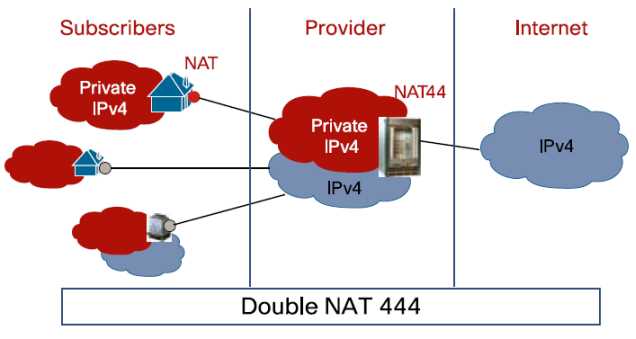
With the lack of availability of IPv4 addresses, the ISP need to find a way to condense their existing and new traffic onto an ever-dwindling pool of available resources.  Hence, NAT444.  Rather than handing the customer an global IPv4 address for use, the ISP NATs all traffic between their exit points and the customer premise equipment (CPE):

In this example, the subscribers may have an address space on their devices in the 192.168.x.x/24 space.  The ISP would then assign an address to the CPE device in the 172.16.x.x./16 space or the 10.x.x.x/8 space.  That traffic would then bent sent through some kind of NAT gateway device or cluster of devices.  Those devices would function in the same way that your home DSL/Cable router functions when translating addresses, only on a much larger scale.  The amount of addresses the ISP current has in their pool would not need to be significantly increased to compensate for a larger number of subscribers, just as if buying a new XBox doesn’t require you to get a new IP address from your ISP.

NAT444 has its appealing points.  It’s helpful in staving off the final depletion of the IPv4 address space from the provider side of things.  It will help keep IPv4 up and running until IPv6 can be implemented and reduce the pressure on the address space.  Yeah, that’s about it…

NAT444 has drawbacks.  Lots of them.  First, you are adding a whole new layer of complexity onto your ISP’s network.  Keeping track of all those state tables and translations for things like lawful intercept is going to be a pain.  Not to mention that the NAT gateway devices are going to need to be huge, or at the very least clustered well.  Think about how many translations are going through your CPE device at home.  Now multiply that by the number of people on your ISP’s network.  Each of those connections now has to have a corresponding translation in the NAT table.  That means RAM and CPU power.  Stupidly big boxes for that purpose.  What about applications?  We’ve already seen that things like VoIP don’t like NAT, especially when SIP hardcodes the IP address of the endpoint into all of its messages.  Lucky for me, a group already did some testing and published their results as a draft RFC.  Their findings?  Not so great if you like using SIP or seeding files with BitTorrent (hey, it has legitmate uses…).  They also tested things like XBox Live and Netflix.  Those appear to have been bad as late as last year, but may have gotten better as of the last test.  Although, I don’t think testing Netflix streaming for 15 minutes was a fair assessment.  You can also forget about hosting anything from your own network.  No web, no email, no peer-to-peer gaming sessions over a NAT444 setup.  I’m sure your ISP will be more than happy to provide you with a non-NAT444 setup provided you want to upgrade to “premium” service or move to a business account with all the associated fees.

I leave you with a this small reminder…


Tom’s Take

I had one of those funny epiphanies when writing this post.  I kept holding down the shift key when typing, so NAT444 kept turning into NAT$$$.  That’s when it hit me.  NAT444 isn’t about providing better service for the customers.  It’s about keeping the whole mess running just a little while longer with the same old equipment.  If the ISPs can put off upgrading to IPv6 for another year or two, that’s one more year they don’t have to spend their budgets on new stuff.  Who cares if it’s a little harder to troubleshoot things?

In the end, I think NAT444 will be dead on arrival, or at the most shortly thereafter.  Why?  Because too many things that end users depend on today will be horribly broken.  Sure, I can grouse about how NAT444 breaks the Internet and is horrible from a design perspective.  I am the I Hate NAT Guy, after all.  But try telling the average suburban household that they won’t be able to watch a streaming Netflix movie or play Call of Duty over XBox live anymore because we didn’t plan to keep the Internet running with a new set of addresses.  Those people won’t wax intellectual about their existential quandary on a blog.  They’ll vote with their dollars and go to an ISP that doesn’t use NAT444 so all their shiny new technology works the way they want it to.  In the end, NAT444 will end up costing the ISPs big $$$.

2011 in Review, 2012 in Preview

2011 was a busy year for me.  I set myself some rather modest goals exactly one year ago as a way to keep my priorities focused for the coming 365 days.  How’d I do?

1. CCIE R&S: Been There. Done That. Got the Polo Shirt.

2. Upgrade to VCP4: Funny thing.  VMware went and released VMware 5 before I could get my VCP upgraded.  So I skipped straight over 4 and went right to 5.  I even got to go to class..

3. Go for CCIE: Voice: Ha! Yeah, I was starting to have my doubts when I put that one down on the list.  Thankfully, I cleared my R&S lab.  However, the thought of a second track is starting to sound compelling…

4. Wikify my documentation: Missed the mark on this one.  Spent way to much time doing things and not enough time writing them all down.  I’ll carry this one over for 2012.

5. Spend More Time Teaching: Never got around to this one.  Seems my time was otherwise occupied for the majority of the year.

Forty percent isn’t bad, right?  Instead, I found myself spending time becoming a regular guest on the Packet Pushers podcast and attending three Tech Field Day Events: Tech Field Day 5, Wireless Field Day 1, and Network Field Day 2.  I’ve gotten to meet a lot of great people from social media and made a lot of new friends.  I even managed to keep making blog posts the whole year.  That, in and of itself, is an accomplishment.

What now?  I try to put a couple of things out there as a way to hold myself to the fire and be accountable for my aspirations.  That way, I can look back in 2013 and hopefully hit at least 50% next time.  Looking forward to the next 366 days (356 if the Mayans were right):

1. Juniper – I think it’s time to broaden my horizons.  I’ve talked to the Juniper folks quite a bit in 2011.  They’ve given me a great overview of how their technology works and there is some great potential in it.  Juniper isn’t something I run into every day, but I think it would be in my best interest to start learning how to get around in the curly CLI.  After all, if they can convert Ivan, they must really have some good stuff.

2. Data Center – Another growth area that I feel I have a lot of catching up to do is in the data center.  I feel comfortable working on NX-OS somewhat, but the lack of time I get to configure it every day makes the rust a little thick some times.  If it wasn’t for guys like Tony Mattke and Jeff Fry, I’d have a lot more catching up to do.  When you look at how UCS is being positioned by Cisco and where Juniper wants to take QFabric, I think I need to spend some time picking up more data center technology.  Just in case I find myself stranded in there for an extended period of time.  Can’t have this turning into the Lord of the CLIs.

3. Advanced Virtualization – Since I finally upgraded my VCP to version 5, I can start looking at some of the more advanced certifications that didn’t exist back when I was a VCP3.  Namely the VCAP.  I’m a design junkie, so the DCD track would be a great way for me to add some of the above data center skills while picking up some best practices.  The DCA troubleshooting training would be ideal for my current role, since anything beyond a simple check of vCenter is all I can muster in the troubleshooting arena.  I’d rather spend some time learning how the ESXi CLI works than fighting with a mouse to admin my virtual infrastructure.

4. Head to The Cloud – No, not quite what you’re thinking.  I suffered an SSD failure this year and if it hadn’t been for me having two hard drives in my laptop, I’d probably have lost a good portion of my files as well.  I keep a lot of notes on my laptop and not all of them are saved elsewhere.  Last year I tried to wikify everything and failed miserably.   This year I think I’m going to take some baby steps and get my important documents and notes saved elsewhere and off my local drives.  I’m looking to replace my OneNote archive with Evernote and keep my important documents in Google Docs as opposed to local Microsoft Word.  By keeping my important documents in the cloud, I don’t have to sweat the next drive death quite as much.

The free time that I seem to have acquired now that I’ve conquered the lab seems to have been filled with a whole lot of nothing.  In this industry, you can’t sit still for very long or you’ll find yourself getting passed by almost everyone and everything.  I need to sharpen my focus back to these things to keep moving forward and spend less time sitting on my laurels.  I hope to spend even more time debating technology with the Packet Pushers and engaging with vendors at Tech Field Day.  Given how amazing and humbling 2011 was, I can’t wait to see what 2012 has in store for me.

Say Backpack! – Cisco Live Conference Bags

One of the highlights of Cisco Live attendance is the conference backpack.  Geeks are always proud to carry around things with logos on them, especially if they are useful.  The backpacks at Cisco Live allow networking rock stars to carry all manner of dark magic with them and impress the unwashed masses with the skills of a real engineer.  Sometimes the bag is an instant hit and generates lots of good press.  Other times it’s a lightning rod for controversy and catcalls.  Given that many have only been to one or two Cisco Live events or may not be familiar with the backpacks of yore, I thought I might dig into my stash of carrying cases and have a nostalgic trip down memory lane.  Note that with one exception I’ll only be talking about bags that I have gotten from Cisco Live personally.  I know that there have been some cool ones before 2006, but since I don’t have them I can’t really do them justice.  Here you go:

2005

The 2005 Cisco Live bag was amazing, simply put.  So amazing that I didn’t even go to the conference and I still had to have one.  The reference design for this bag is the APC TravelPower Backpack.  This venerable design was APC’s foray into the market and was an attempt to provide not only a quality case for carrying your things but a way to charge them as well.  The backpack could be used with the APC TravelPower system, which placed a battery unit in one of the many pockets along with cables that could be routed throughout to provide power to laptops, cell phones, PDAs, and much more.  Then, a single power cable could be snaked out of the bottom and the whole backpack plugged into the wall.  Cisco must have just purchased a bunch of them from APC and had them branded with Cisco Live 2005, because they conference bag is identical (without the expensive TravelPower electrical stuff).  This bag is the mark of a seasoned Cisco Live Veteran.  I bought the APC backpack version right before APC stopped making them and I still carry it to this day.  I love all the extra pockets and places to hide my cables/adapters/junk.  My only real gripe is that it won’t hold a 17″ laptop (other than a MacBook), so I’m force to use a different pack for my behemoth Lenovo w701.  I love this backpack and will carry it until it frays away to nothing.  A note: if you want to make a backpack that will sell like hotcakes, you might consider copying this design and putting it back out on the market.

2006

The 2006 Cisco Live bag was my first.  I had been carrying a messenger bag for many years before and was considering changing over to something more comfortable.  This bag tipped the scales for me.  It’s a rugged design that it still sold today, notably on Newegg by MobileEdge.  It’s a big pack that has enough room to store a huge laptop as well as power supplies, cables, and assorted gadgets.  It also has a folding flap on the front that can be used as a shield or a place to carry a folded jacket.  I use this backpack today to carry my large laptop and it’s held up quite well for all the use it gets.  I am noticing that after 5 years the zipper pulls are starting to break off but I think that can be expected through normal wear and tear.  There aren’t quite as many pockets as I would like to carry all my gear, but that may be more a commentary on the amount of junk I carry around.

2007

Oh boy.  2007 was, quite simply, the mistake.  I heard about this bag on the bus headed to the registration desk.  People were complaining about it all week.  I have never heard so much vitrol about something so simple.  I think the idea that Cisco had was that there were so many backpacks already, maybe a change of pace was in order.  Instead, they got a revolt.  The bag itself isn’t necessarily bad.  It is well padded and has pockets for whatever you can think to carry.  The flap secures tightly and it’s comfortable to carry.  The real problem is that it was a major step down from the backpacks of the past years.  Many people commented that Cisco must have gotten them at a great price.  The addition of a bright red color scheme seemed to scare some because network rock stars seem to be allergic to colors other than black.  Overall a notable disappointment.  I use mine at home to store computer parts and will probably end up giving it to my son sooner or later.  At least until he’s big enough to carry a bigger backpack.

2008

Cisco live 2008 backpack - photo from Jim Fenton

Cisco got the message in 2008.  They gave us our backpacks again.  This one was grey and devoid of any electric colors and it suited the attendees just fine.  The standout feature to me was the reinforced cable handle.  This thing could be yanked around and you never had to worry about the handle coming loose or breaking off.  The carrying straps could also be rearranged in case you wanted to use it as a large messenger bag.  I never really warmed up to this bag, but I think that’s because I didn’t get the chance to.  As soon as I got back from Cisco Live, an officemate told me that he wanted to give the bag to his teenage son.  I figured it would probably get more use from him than it would from me, so I let him have it.  It’s another popular backpack to spot at Cisco Live, as many people still carry it due to the rugged construction.

2009

Cisco Live 2009 Backpack - many thanks to John Herbert (@MrTugs)

San Francisco was cold!  I never expected that I might freeze in the middle of the summer, but San Fran proved me wrong.  The 2009 backpack was a solid choice.  It didn’t have the reinforced carrying handle from 2008, but the padding on the straps and the back was very comfortable.  I have never really understood the need for the CD/media player pouch with headphone port on a “work” backpack, but that might be an alluring option for some.  The cords on the zipper pulls are also a very welcome change from the molded plastic of other years.  I used this bag for a bit up to the point where I started carrying my w701 which wouldn’t fit inside the laptop pocket.  I ended up giving this one to another coworker that work it with pride for quite a while.  I still see many people carrying this pack at Cisco Live events, most remarking on the comfort.

2010

Every convention comes back to Vegas sooner or later.  So it is with Cisco Live.  2010 was my first time back in Vegas since 2006, and I was greeted by this bag.  It seems to be based around the Wenger Pegasus backpack.  It’s a very solid pack and would probably be great for a large number of users.  I saw quite a few of them at Cisco Live 2011 which is always a good indicator of the longevity and popularity of a backpack.  However, nothing about this particular bag stood out to me as far as usability in my range of carrying cases. It has lots of neat extras like adjustable straps, music player pouches, and even a tab to hold your sunglasses.  Nice additions for sure, but not high on my list of “must haves” for a network rock star backpack.  This one is a good candidate for loaners or backup laptops in my opinion.

2011

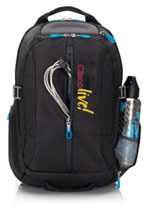
Las Vegas still had more to give Cisco Live, and so we found ourselves back again in 2011.  This conference bag was the first in a while to have the bright colors again, this time orange to match all the orange draped in the Mandalay Bay Convention Center.  This bag is based off a reference design from Ogio, which coincidentally was the most popular backpack at Cisco Live 2007 (they flew off the shelves after the red messenger bag fiasco).  This bag has lots of space for all manner of books and laptops as well as a few catch pockets.  The big feature for this one, though, is that it meets the new TSA guidelines for travel bags.  The butterfly-style fold out allows you to send your bag through the x-ray with a minimum of shuffling.  The quality of this bag isn’t bad, but the Ogio bag it’s based on seems to have a bit better build.  I’ve heard that some people were having issues with straps and handles coming off after a few months of use.  Mine is still in almost pristine condition, but I haven’t really been using it because it won’t fit the behemoth.  If I had to start using something other than my APC or Live 2006 bag, it would probably be this one.

2012

This year for Cisco Live, we get to choose our bag!  We have the options of a backpack, a nice messenger bag, or even a gym bag.  I really do appreciate allowing the attendees to choose our favorite.  Some want a messenger bag because of the ease of carrying or the more professional look.  Others want the backpack to upgrade from whatever they might be carrying.  Still others want something a little different and think the gym bag would be a welcome change from the norm (as well as a great way to haul back the Cisco Live swag).  You can head over to the Cisco Live conference site and vote for your favorite.  Be sure your voice is heard.


Tom’s Take

Putting this post together was a trip down memory lane.  I can remember picking up each of these bags from the registration desk and trying my best to cram the contents of my current backpack inside.  Each of them is a reminder of fun times and lots of learning opportunities.  I hope that others can look back and see what kinds of backpacks we’ve gotten before and use them as a comparison to the future conference bags.  Those that forget the backpacks of the past are doomed to repeat them.  Although, for many of the backpacks on this list, a repeat wouldn’t be a bad thing…

Thanks to John Herbert (@MrTugs) and Jeff Fry (@FryGuy_PA) for their help in compiling this post.

I Have The Power! – Common Electrical Connectors

I’m no electrician.  In fact, the last time I tried to do some electrical work ended up with a minor electrocution and me not being able to taste for an hour.  However, in the IT world electricity is a key to our jobs.  The mightiest Nexus 7k or QFabric deployment can be brought to its knees by inadequate power.  The need to understand power and the the connectors that go along with it are vital.

Fabulous secrets were revealed to me the day I pulled up the Internet and started looking up the various codes for connectors that are used in electrical work.  I figured out pretty quickly that electricians had a language all their own and that I needed to learn how to speak some of it in order to get things accomplished.  After all, describing a connector as “one goes like this, the other goes like that” isn’t really helpful, especially over the phone.  I wanted to pass on a bit of what I learned to all of you.  A note for my international readers: this is going to be focused primarily on US connectors.  However, if you’d like to fly me to your country for a few days, I’ll be more than happy to bring a travel kit and research your electrical code from my hotel room.  Just a thought…

Some of these connectors standardized by the National Electrical Manufacturers Association (NEMA).  They also hold the trademark on the term “twist lock”, so when I use it, know that it belongs to them.  The others are standardized by the International Electrotechnical Commission (IEC) under IEC 60320.

NEMA 5


The NEMA 5-series plug and receptacles are the most common found in the US today.  They are three-wire circuits (hot, neutral, and ground) and are rated to carry a maximum of 125 volts, although they usually carry about 110 volts and are referred to as “110 circuits”. All of these connectors will start with a “5” and a dash, followed by the amperage of the circuit, from 15 amps to 30 amps.

5-15
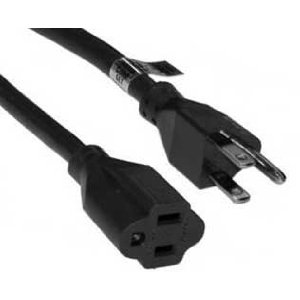
By far the most common connector you’ll run into in the US.  A simple 110-125v circuit rated at 15 amps.  Whatever you do, don’t rip the ground plug out if you need to fit this into a NEMA 1-15 two prong outlet.  I’ve seen what happens there and it isn’t pretty.

5-20
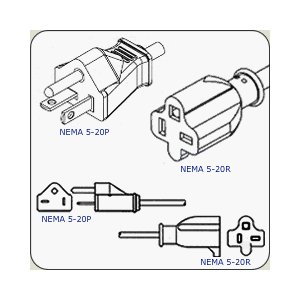
The NEMA 5-20 connector is more common as you being to start using equipment with high wattage power supplies, like Catalyst 4500 switches.  I’ve always heard the 5-20 described as a “dedicated circuit” plug, but that’s not entirely accurate.  It’s a 110-125v 20 amp circuit.  It can easily be identified by the perpendicular blade.

L5-20

Here’s where the real fun starts.  This little jewel was the source of my first head scratching moment with NEMA connectors.  This plug is the same as its 5-20 cousin above, however the connectors look all wrong.  This connector is designed to be inserted into the receptacle and then rotated counterclockwise to lock it in.  This way, it can’t simply be pulled out by someone tripping over it or by vibrations from heavy machinery.  Do take care though, as tugging on the connector too hard will cause it to rip the whole receptacle assemble out of the wall with possibly some exposed wires.

L5-30
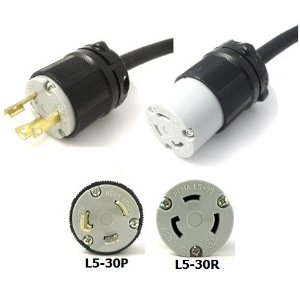
The NEMA L5-30 is the big boy of 110-125v circuits.  I found it curious that I have never really seen the non-locking version of this plug, but I’ve since been informed that the majority of devices that use 30 amp circuits prefer this connector to prevent it from being yanked out.  Uninterruptible Power Supplies (UPSs) use this connector frequently in order to ensure their devices are getting enough power.

NEMA 6


The NEMA 6 series connectors are the ones you use when you need to provide heavy duty power to a device.  These are typically 208 volt or 240 volt circuits, but I’ve always heard them referred to as “220 circuits”.  There is no neutral wire in this setup, as both non-ground wires are delivering power.  These are the kind of connectors used in the home for things like air conditioners or clothes dryers.  In my experience, the standard versions of these connectors are uncommon.  The locking version are used far more frequently, usually do to the fact that whatever is running off of that much power probably doesn’t want to go offline due to having a power plug kicked out of the wall.  These connectors all begin with a “6” followed by the amperage of the circuit, usually between 15 and 30 amps.

6-20
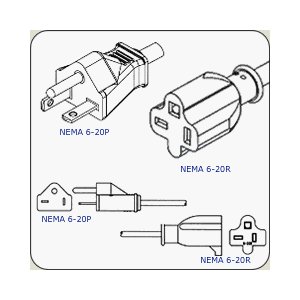
The only non-locking NEMA 6-series connector I run into on a regular basis is the 6-20.  Note that while this plug/receptacle is similar to it’s 5-20 cousin, the perpendicular blade is the opposite on this connector to prevent you from plugging the wrong cord into the wrong plug and getting a nasty surprise.

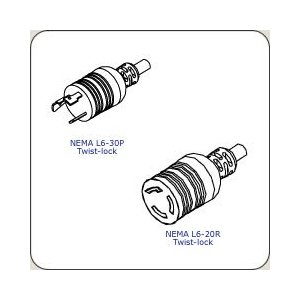
L6-20
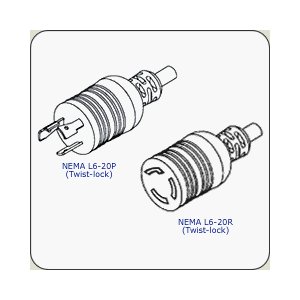
The locking version of the NEMA 6-20.  Far more common due to the ability to keep whatever this cord is powering plugged in.  Odds are good that if you are using a heavy duty power supply in a device like a Catalyst 4500 or a Catalyst 6500, you’ve got this cord powering your device.

L6-30

Big devices call for big power.  This 208/240v 30 amp circuit connector is going to power just about anything you can throw at it.  Big UPSes or huge power supplies in a switch like the 8700 watt monster in the Catalyst 6500.  You are most likely to encounter this connector in a rack-mounted PDU where it provides the power coming from the main electrical connection and then the PDU disperses the power to the devices in the rack itself.

IEC 60320


The IEC connectors are fairly common in electronics devices, however I believe that most people couldn’t pick them out of a lineup.  That’s because the IEC connectors are the ends that are on the opposite side of the cord from the power plug.  These ends plug into power transformers and power supplies.  By making them an international standard, the equipment manufacturers need only put one kind of receptacle on their equipment and then manufacture the various country-specific cords when needed.  Also, unlike the NEMA connectors above that use “P” and “R” to denote plugs and receptacles, the IEC connectors use a different number to specify the plug and receptacle, for instance the IEC C19 is the plug and the IEC C20 is the receptacle.

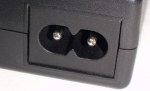
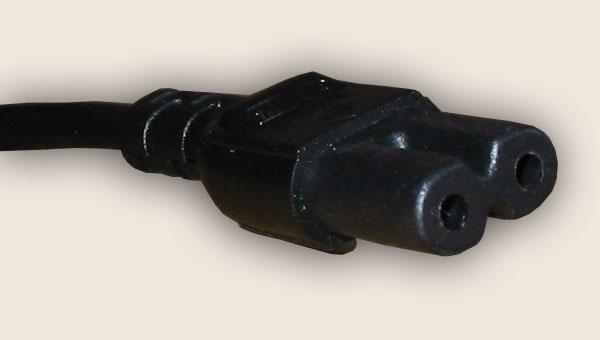
C7/C8

This connector is used for power transformers, laptop power supplies and small appliances, like the original Playstation.  This connector is shaped like a figure 8, unless you have the polarized version when is squared off on the hot end.  I’ve spent many an hour looking for one of these connectors for a forgotten device.

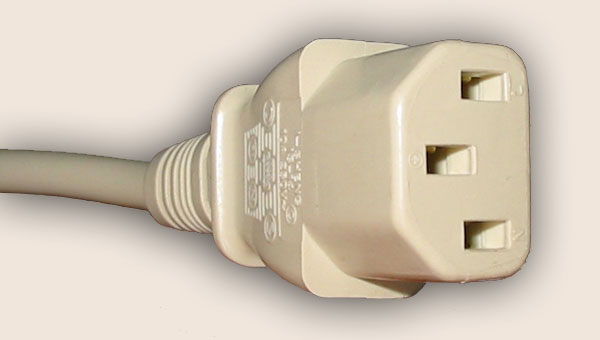
C13/C14

If you’ve ever worked with a computer, you know this power cord.  In fact, for the majority of my career I’ve called it a “computer power cord”.  This particular IEC connector run everything from desktop computer to fixed-configuration switches.  I always carry two or three spare cables with me at all times just in case I need them.  I’m also starting to see more and more higher wattage devices requiring two or more cords to work properly, like server power supplies or the newer power supplies for chassis switches.  The C14 plug is also very common on power strip type PDUs for racks where you plug the C13 end into your server and the C14 end into the PDU.  Saves a bit more space than the NEMA 5-15 connector above.

C15/C16

Odds are good you’ve seen this cable and said “Huh?”.  I’ve started seeing it ship with newer fixed-configuration switches that had Power over Ethernet (PoE) power supplies.  For the life of me, I couldn’t figure out the point of changing this connector.  A chance comment from one of my friends about this so-called “kettle cord” made me start researching what was so special about the connector.  It turns out the C13/C14 connector/cord is only rated to about 70 degrees F.  The C15/C16 was specifically designed for higher temperature devices, like electric kettles and PoE switches with higher wattage power supplies, like those that drive 802.3at or PoE+ 30 watts per port.  This connector will work in the C13/C14 receptacles, but not vice versa.  This prevents the cord melting and causing all kinds of trouble.

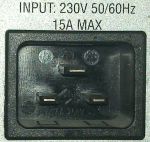
C19/C20
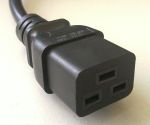
If you’ve ever installed a Catalyst 4500 switch, you’ve seen this plug on the power supply.  For a long time, I referred to it as the “chassis switch power connector” without knowing it had a real name.  The C19/C20 connectors are used for devices that require a higher current than that which can be provided by the C13/C14/C15/C16 connectors.  I’ve only ever seen it on chassis switches, but it can also appear in high end workstations or some kinds of UPSes.


Tom’s Take

When you stare at the long list of power options available for a switch or a server, you might find your eyes crossing at the multitude of unfamiliar acronyms you find.  At best you’ll end up with an extra power cord you don’t need.  At worst, you could delay a large project for many days because you ordered an L6-20 cord when you really needed a 5-20 connector.  The same goes for ensuring you have the correct power connections hooked up in your server closet or data center.  Electricians aren’t sure what you’re talking about when you tell them you want a “winking man” connector or “the twisty one” kind of plug.  If you tell them you need an L5-20R, they’ll be able to put one in without asking another question.  Network rock stars always talk about the virtues of standardization and the electrical world is no different.  By knowing the standard name for the NEMA or IEC connector you need, you can be sure that you are the one that has the power.


Software I Use Every Day – OS X Edition

For those that have been keeping up, I am now the proud owner of a MacBook Air.  I originally purchased it to use as a learning aid to get better at working on OS X Snow Leopard and Lion.  I also decided to see if I could use it to replace carrying my behemoth Lenovo w701 around to do simple things like console connections.  I’ve done my best to spend time in the last month working with it every day and trying out new software to duplicate my current job functions.  Now that I’ve got a handle on things, I figured I’d share what I’ve learned with you in a manner similar to my last software blog post.


Terminal Access – iTerm2

This was the first program I downloaded after I logged into my MacBook.  If you are a network rock star, it should be your first download as well.  This program is the terminal on steroids.  Tabs, split window panes, search-in-window, and profile support top the list of the most needed features for someone that spends most of their day staring at a CLI window.  I don’t even open the Terminal.App program any more.  I just use iTerm2.  This program replaced PuTTY for me and did a great job of replacing TeraTerm as well.  The only thing that it lacks is the ability to use a serial console connection.  I think that’s more of a single-purpose use case for the iTerm2 folks, so I doubt it will ever be rolled into the program.  All things being equal, this will probably be the most useful program you’ll download for your Mac.


Serial Console Access – ZTerm

The console is where I live.  I spend more time staring at CLI screens that I do my own kids.  The inability for me to access the familiar confines of a serial connection is a deal breaker.  I was a little apprehensive about serial console access on the Mac after hearing about some troubles that people were having after upgrading to OS X Lion.  I pulled out my trust Prolific PL-2303 serial adapter and plugged it in to test the driver support.  I had no issues on Lion 10.7.2, but I’ve been told that some may need to go to the Prolific site and download the newest drivers.  As a side note here, I had the exact same issues when I upgraded to Windows 7 64-bit on my laptop, so I think the problems with the adapter are based on the 64-bit drivers and not necessarily on your particular OS.  Once I had the adapter working in the OS, it was time to find a program to access that console connection.  ZTerm kept coming up as the best program to do that very thing.  Some of the other serial connection programs (like CoolTerm) are focused on batch serial connections, like sending commands to a serial device in programming.  ZTerm allows you to have interactive access to the console.  You can also do captures of the serial output, which is a feature I love from TeraTerm.  That way, I can just type show run and not have to worry about copying and pasting the input into a new Notepad window.  A quick note – when launching ZTerm for the first time, the baud rate of the connection is set to 38400.  Since networking equipment only plays nice at 9600, be sure to change that and save your settings so it comes up correctly after that.

Note that ZTerm is shareware and costs $20 to register.  It’s worth every penny for those that need to access equipment through old fashioned serial links.


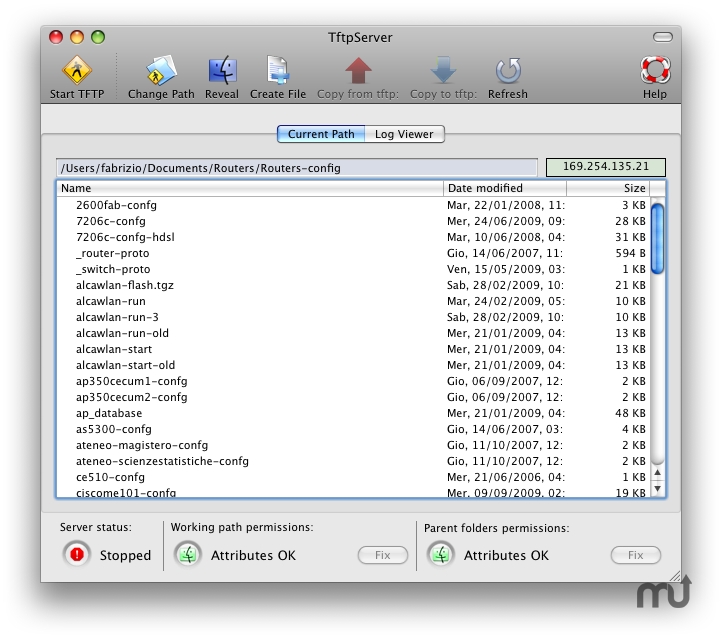
TFTP Server – TFTPServer for Mac

OS X has its own built-in TFTP server.  However, I’ve watched competent network rock stars struggle with permissions issues and the archaic CLI needed to get it running.  In the comments of my original software blog post, Simon Naughton (@norgsy) pointed me toward Fabrizio La Rosa’s TFTPServer GUI configuration tool.  This little jewel helps you get the right permissions setup on your TFTP service as well as letting you point the TFTP service to a specific directory for serving files.  I love this because I can keep the remote machine from needed to sift through large numbers of files and keep only the necessary files located in my TFTP directory.  I can also enable and disable the program in a flash without needing to remember the five argument CLI command or forgetting to sudo and get a failed error message.  Do yourself a favor and download this program.  Even if you only ever use TFTP once, you’ll be glad you have this little tool to help and won’t have to spend hours sifting through documentation and forum posts.


SFTP – Built In

This was one of my first “Ah ha!” moments with OS X.  Working with voice requires access to FTP services for COP file uploads and DiRT backups.  I have used FTP forever on my Windows machines because SFTP was such a pain to setup.  I wanted to duplicate that functionality on the MacBook Air, but a few searches found that Apple has removed the ability to configure the FTP service from the GUI.  I knew I was going to need to use FTP at some point, so I kept looking and found an article on OSXDaily about enabling FTP with a command line string.  However, buried in the article is a gem that took me by surprise.  By enabling remote login in the sharing page under System Preferences, you automatically enable SSH and SFTP!  Just like that.  After all the fits and starts I had with SFTP on Windows, OS X enables it with a simple radio button.  Who knew?  Now that I have a simple SFTP server running on my MacBook, I don’t think I’ll ever use FTP again unless I have to.  Should you find yourself in a predicament where you can’t use SFTP though, there’s the CLI command to enable the Lion FTP server:

sudo -s launchctl load -w /System/Library/LaunchDaemons/ftp.plist

And here’s the command to turn it off once you’re done with it:

sudo -s launchctl unload -w /System/Library/LaunchDaemons/ftp.plist

RSS Feeds – Reeder

My favorite RSS reader for the iDevices, Reeder allows me to digest my RSS feeds from Google Reader in a quick and clean manner.  No ads, no fluff, just the info that I need to take in.  Thankfully, Silvio Rizzi also put out a version for OS X as well.  I keep this one up and running at all times in a separate screen so I can flip over and see what my friends are posting.  It’s a great tool that allows me to be in the know about what’s going on.  It’s $5 on the Mac App Store, but once again worth every penny you pay for it.


Tom’s Take

There are a ton of other apps that I use frequently on my MacBook Air, but the ones I’ve listed shine above all others.  Those get a workout and some of the reasons why my little adventure with OS X is staring to grow on me.  Yes, there are apps that don’t really have an equivalent right now.  I’ve managed to avoid the need for modeling/graphics software so far, so I can’t compare the alternatives to Microsoft Visio.  I spend a lot of my time using Netformx DesignXpert, which I can’t use natively in OS X.  Beyond that, it’s just a matter of deciding what I want to do and finding a program that will do it for me.  There are a lot of options available, both in the Mac App Store and out on the web.  The trick with a Mac isn’t so much about worrying how you’re going to do something, but rather what you want to do.  The rest just seems to take care of itself.

IT Christmas Carols

What would Christmas be without someone trying to come up with a funny list of Christmas carols with names related to their profession?  I humbly submit…

Oh, Spanning Tree

I’ll Be /home for Christmas

#FFFFFF Christmas

Rockin’ Around the Source Tree

Little Toner Drummer Boy

Blu-Ray Christmas

Chestnuts Roasting on an Open-Source Fire

Arctic Silver Bells

AFK In A Manger

Slide Deck the Halls

The 0xC Days of Christmas

What Child Process Is This?

Here We Come A-WAASailing

Rudolph the LED-Nosed Reindeer

For what it’s worth, I almost wrote lyics for some of these.  Then I decided that this was enough torture for one year.  There’s always next season.  If you can think of some that I missed, please leave them unwrapped in the comments below.

Merry Christmas to all and have a safe and festive holiday season.

Nerd v6 – My First IPv6 Tunnel

Home - Courtesy of ThinkGeek (Click to buy this shirt!)

I realized the other day that I’ve done a lot of IPv6-related posts in the past few months, but for one reason or another I keep putting off setting up my own IPv6 presence.  I signed up for a free IPv6 tunnel from Hurricane Electric’s Tunnel Broker service almost a year ago.  However, the Cisco Valet Plus router I have running my home network has zero support for IPv6, let alone tunnels.  Because of that little omission, my tunnel sat unused for a while, gathering 128-bit dust.  As the end of the year approached, I found myself with some extra time on my hands and a bit of spare gear thanks to my local Cisco office.  I decided that maybe it was time to turn up my IPv6 nerdiness to the next level.

I found an old 2821 in my lab that wasn’t serving an immediate purpose.  I erased it and reconfigured it to serve as a gateway for my IPv6 setup.  I logged back into my account at tunnelbroker.net and found that I could create up to 5 tunnels for free.  Who in their right mind would turn that down?  I created a new tunnel for my lab environment.  In this interface, you would create a regular tunnel for basic connectivity.  You input your IPv4 address as one side of the endpoint.  HE.net provides the IP that you’re coming in on if you wanted to set this up with a home connection, for instance.  In my case, I already had a global IPv4 address ready to go.  However, the router wasn’t all the way up yet.  If HE.net can’t ping your IPv4 tunnel endpoint, they won’t reserve the address space.  So:

Tip #1: Don’t start setting up your tunnel until you’ve got your gateway ready.

I picked the closest endpoint to my geographic area – Dallas, TX.  Once the router came all the way up and the ARP caches had settled down, I registered my new tunnel without a hitch.  HE.net provides you with a /64 for your tunnel interface.  ::1 is an interface on their side, ::2 is an interface to assign to your tunnel.  They also provide you with an entirely different /64 to setup for your client devices behind your router/firewall.  If you’re wanting to bring more than one site online, you can even register for a /48.  That’s 1.20892582 × 10^24 addresses.  Per tunnel.  That’s a lot for nothing!

My first attempt with Dallas didn’t work out so well.  For some reason, I couldn’t ping the other side of my tunnel.  I gave it about 15 minutes and then gave up.  I tore down the tunnel and created a new one.  If you’re going to do that, give the HE.net servers about 5 minutes to clean up their side of things, since the tunnel creation script will think that you’re  trying to register an endpoint twice.  I picked a nice little sunny patch of hex addresses in Fremont, CA and this time it worked!  I was able to ping from one side of my tunnel to the other.  For reference, this is the sample config they gave me for the tunnel and it worked quite nicely:

interface Tunnel0
 description Hurricane Electric IPv6 Tunnel Broker
 no ip address
 ipv6 enable
 ipv6 address <Your Tunnel /64 Endpoint>
 tunnel source <Your IPv4 Interface>
 tunnel destination <HE.net's IPv4 Interface>
 tunnel mode ipv6ip
ipv6 route ::/0 Tunnel0

Easy, right?  Once that’s up and running, you can configure the other interface of your router with the routed /64 or /48 they assign you.  I’d suggest starting with the /64 first to get your feet wet.  There is one other piece of configuration you need to enable that seems to be the cause of many issues on HE.net’s forums when configuring Cisco devices.  You need to enable IPv6 routing with this command:

ipv6 unicast-routing

Tip #2: Don’t forget to enable IPv6 routing.

Now that you’ve got two sides up and running and routing between each other, you should be able to launch some packets toward the Interwebz v6.  HE.net sets you up with an IPv6 DNS server you can plug into your devices to test connectivity.  If you want to be able to ping ipv6.google.com from your router, be sure to enter this command:

ip name-server 2001:470:20::2

Now you can test to your heart’s content.  When you’re sure that your tunnel is going to stay up, you need to concentrate on getting desktops working.  That’s where the routed /64 comes into play.

HE.net gives you an additional routed /64 that is different than the tunnel address for the purposes of setting up a site for IPv6.  Most networking people know that you must have two different subnets on the router for routing to occur.  Yet, on the HE.net forums I see a lot of people that are configuring their routers with addresses from the tunnel /64 subnet.  Save yourself the headache and use the other /64 to get started.

The easiest way to setup your client device with an IPv6 address is good old fashioned static addressing.  This is very easy to do in both Windows and OS X.  Lucky for you that both of the latest versions of those OSes have IPv6 enabled by default.  You just have to click on the option for IPv6 and assign a static IP.  You should also use the HE.net IPv6 name server listed above to allow you to resolve addresses like ipv6.google.com.  I tested with an OS X Lion server and was able to get the machine running on a static IP with no real issues.  I gave my Windows 7 workstation an IP in the same range and they were able to happily ping each other with no problems.  I think I’m going to take another post to talk about the fun of configuring DHCPv6 and SLAAC on my tunnel, as that has caused me a bit of heartburn so far making everything play nice with other people’s ideas about security.

Speaking of security…I would be remiss if I didn’t end this little article without a discussion of securing your new tunneling router from the nastiness on the Internet.  I found a great access list on the HE.net forums and thought I’d share it with you:

ipv6 access-list internet_inbound_ipv6
 remark Permit IPv6 Link-Local & Multicast
 permit ipv6 FE00::/7 any
 remark Block IPv6 Bogons
 deny ipv6 ::/3 any
 deny ipv6 4000::/2 any
 deny ipv6 8000::/1 any
 remark Block own assigned IPv6 space
 deny ipv6 <Your HE.net /64>::/64 any
 remark Block anything going to Windows RPC
 deny tcp any any eq 135
 permit icmp any any
!
ipv6 access-list internet_outbound_ipv6
 remark Prohibit any contact with Windows RPC-NetBIOS
 deny tcp any any eq 135
 deny tcp any any eq 137
 deny tcp any any eq 138
 deny tcp any any eq 139
 deny udp any any eq 135
 deny udp any any eq netbios-ns
 deny udp any any eq netbios-dgm
 deny udp any any eq netbios-ss
 remark Allow traffic from own assigned IP space
 permit ipv6 <Your HE.net /64>::/64 any

Of note here, remember that in IPv6, ICMP does a lot more than just pings.  Read RFC4890 for a lot more info on the subject, but right now I’m just allowing the whole stack in.  If you want to permit traffic to servers for things like HTTP or SMTP, be sure to add those servers at the end of the Inbound ACL so the traffic doesn’t get dropped.


Tom’s Take

One of the things that impressed me when I started troubleshooting some of the issues with my HE.net tunnel was the help that people were more than willing to give in the HE.net forums.  Especially where they helped their brethren with things like establishing connectivity.  Lots of posts about being able to ping router tunnel endpoints and things like that.  It shows that setting up your own IPv6 presence isn’t really that hard and should allow you to get out on the wider Internet with IPv6 in short order.  Thanks to all the work that other’s have been more than willing to share, I had an easier time than many.  I just hope my examples here help someone to get their tunnels up and running.

Moving to CUCM 8.6 – You’ll Never Upgrade Me Alive COPpers!

Upgrades are a fact of life for network rock stars.  Whether we are patching bugs or adding new features to our systems, the installation of software never seems to end.  If you are a Cisco voice rock star, you all too often find yourself upgrading to newer releases of Cisco Unified Communications Manager (CUCM) to support new devices like the Cius or fix show stopping bugs like the 180-day uptime lockup.  However, if you are a user of CUCM 8.x and you’re trying to move to 8.6, you’ve probably had a couple of head scratching moments so far.

If you’ve popped a freshly burned 8.6(1) ISO into your DVD drive or copied it via SFTP, you kicked off you installation and likely saw the following error message:

09/18/2011 19:31:48 refresh_upgrade|********** Upgrade Failed **********|<LVL::Info>
09/18/2011 19:31:48 refresh_upgrade|*** Please install the Refresh Upgrade COP, and reattempt the upgrade ***|<LVL::Info>
09/18/2011 19:31:48 refresh_upgrade|************************************|<LVL::Info>

Huh? What’s a refresh upgrade?  Why isn’t this ISO file working?  Well, it turns out Cisco needs you to take an additional step first.

CUCM runs on an operating system.  Up until version 5, that was Windows 2000 with some hardening and customizations.  Cisco eventually ported CallManager 4.3 to Windows Server 2003, but in the end the decision was made to move to an appliance-based OS that utilized Linux.  The Telephony OS in CUCM 5.x was new for those used to working in Windows but somewhat familiar to those that have seen Linux before, even if the login shell looked nothing like bash.  Cisco provides patches for the OS with every release of CUCM software and the user never knows what’s going on because of the way the system installs the patches transparently.  However, much like the shift from Windows 2000 to Windows 2003, software eventually reaches the end of its life.  Development stops on the old version and it’s time to move to the new one.  Such is the case in CUCM.  With version 8.6, Cisco has moved away from an OS platform based on Redhat Enterprise Linux (RHEL) 4 and upgraded the underlying OS to RHEL 5.  This is good news that allows the system to stay current and support a larger variety of hardware.  The bad news is that the upgrade of the OS can be a bit destructive.  This is part of the reason for the extra steps in moving to CUCM 8.6

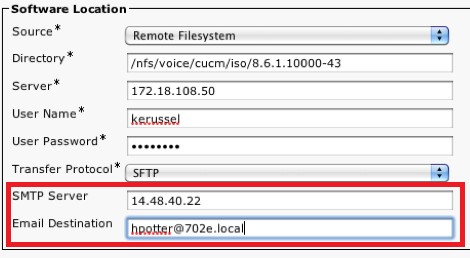
Firstly, Cisco wants you to install a special Cisco Options Package (COP) file on 8.5(1) systems.  This file is ciscocm.refresh_upgrade_v1.0.cop.sgn.  The 8.6 installer checks for the presence of this file and won’t kick off unless it’s present.  It needs to be installed on every server in the cluster.  It’s also going to reboot the server after installation.  As near as I can tell, it makes some changes to the Tomcat service on the server as well as adding two new fields to the Install/Upgrade window:


Notice the new options for email.  This allows the server to send you an email whenever the upgrade is completed.  Probably a long overdue option that comes in handy for those of us that spend more than a few stress-filled moments clicking the Refresh buttons on our web browsers waiting for CUCM to come back to life after an upgrade.  There’s another reason for putting this email field in here now, though.

It turns out that when you upgrade from 8.5 to 8.6, its going to take a while.  Quite a while, in fact.  The system is going to reboot no less than twice, perhaps even three times.  Considering that a CUCM reboot can take 15-20 minutes to complete each time during an upgrade, you’re looking at nearly an hour of rebooting time under certain circumstances.  During the upgrade, CUCM is going to do things in 3 phases:

Phase 1: Export all the pertinent CUCM data to a safe partition

Phase 2: Reboot and install RHEL 5, then reboot and install the CUCM applications

Phase 3: Import all the data from the export partition

On the 7825H3 MCS server, there isn’t enough hard drive space to contain the safe partition during the reformat and installation of CUCM 8.6.  In that case, you’re going to need to plug a 16 GB USB drive into the system to serve as a target for the data export.  If you’re trying to upgrade a CUCM Business Edition system on a 7828H3 server, you better bust out the credit card because you’re going to need a 128 GB USB drive to hold all the CUCMBE data during the upgrade.  The IBM servers aren’t affected by this little caveat, as I’ve done the 8.6 refresh upgrade on a 7825I4 and not had any issues.  Be sure to leave the USB drives plugged in the whole time the system is upgrading.  Also, whatever is on the drive is going to be overwritten without warning, so be sure it’s blank before you start.

After you’ve completed the whole installation with all the reboots, you’re going to have a fresh new system with CUCM 8.6 to support all kinds of wonderful things, like finally being able to use Google Chrome to administer things.

Tom’s Take

I kicked off an upgrade to 8.6 without reading the release notes or documentation.  Thankfully Cisco prevented me from screwing things up big time by halting the installation with the above error message.  The more I dug into things, the more interesting it was.  It also took me two hours to finish things up with many reboots and even more nail biting (Fun fact: I was doing the upgrade during Packet Pushers Show 56, which is one of the reasons why I was quiet – I was trying not to scream at my CUCM server).  However, I think I could have avoided some pain and stress if I’d just read the docs first or even searched for refresh upgrade before I got started.

IT Archetypes and Tech Field Day Delegates

Thanks to Ivan Pepelnjak’s weekly link post, I found myself reading a very interesting piece this weekend entitled The Rosetta Stone of IT Industry Analysts.  Brian Sommer took a humorous look at the types of people that he sees all the time in the analyst field.  From the grouchy old Curmudgeon to the prissy-pants Egoist, I had a very good laugh since I could identify with many of those caricatures.  Then I spent a little more time thinking about what that means to me and to those affiliated with Tech Field Day.

Obviously, many of these are oversimplifications and written for the sake of laughs.  However, I also found myself going through each of them and realizing that I’ve been that person many times in the past.  Whether it be the Fish Out of Water when people start talking about advanced fibre channel configurations or or the Snark when I have a chance to make a joke about something, I find myself floating in and out of these roles.  On the other hand, I do see that there are a couple that are great for those that are interested in Tech Field Day, as well as a couple that need to be avoided.

In the article, Brian specifically calls out the Rifleman as his preferred archetype for an analyst.  The Rifleman holds vendors to their word and cuts through the hype with a straight razor.  Their words are usually carefully chosen to ensure that the balloon of overpromises is deflated with a quick poke, usually followed by others jumping in to assist in the takedown.  For the Tech Field Day hopefuls (and delegates as well), this is the way to approach interactions with vendors.  If you can quickly understand where they are coming from and eliminate hype, you can gain the advantage and ensure that the audience, whether it be viewers on video or readers of you blog, can understand what makes a technology so great and grasp concepts with ease.

The Rifleman does run the risk of becoming the Curmudgeon or the Assassin without careful consideration.  It’s very easy to lose sight of the goals of being a skeptic when it comes to vendor presentations and begin thrashing presenters simply because it’s fun to be the bad guy.  In the IT analyst world, this is very simliar to the Dark/Light sides of the Force in Star Wars.  The slippery slope of beating people up gives way to becoming the grump that never likes anything and is more than likely just going to verbally abuse you whether you’re selling data center switches or air fresheners.  The key to avoid slipping down the dark path is to constantly ask yourself why you are being so sharp toward the vendors: Is it for your audience?  Or for your own glory?  I’ve been hard on some vendors before during Tech Field Day because I think they can do a better job of delivering their message or because they can make a better product.  I want to make sure the vendors understand where the audience is coming from.  I always try to put myself in the shoes of the people that will read my posts to be sure my motives are pure when I take someone to task.

I also do my best to avoid falling into the roles of the Ryan Secrest vendor cheerleader or the stoic Unmovable Object.  If I only spend my time giving useless platitudes to presenters and vendors my opinion isn’t worth much.  At the same time, never changing my mind or critically thinking about information being given to me is just as bad.  Without opening my mind to new ideas I become a liability in a setting like Tech Field Day where keeping up to date with people bring fresh ideas and products to market is a requirement.


Tom’s Take

The key to being a good Tech Field Day delegate is to be somewhat outgoing.  I’ve done my best to ensure I don’t spend my time at the back of the room sitting quietly and learning very little.  At the same time, I also understand that I need to be sure that my questions and commentary are carefully chosen to enhance the event and the participants rather than merely cutting them down for the sake of making a few look good.  With this list of IT analyst archetypes, I can do a much better job of identifying when I’m slipping too close to the undesirable attitudes that no one likes.  Instead, I can refocus myself on being more effective and ensuring that everyone involved, both participant and audience, gets the most they can out of the event.

Cisco Cius – My Long Overdue Review


Cisco has introduced a new unified communications endpoint into its portfolio of devices that it hopes will bring a new user experience to customers wanting to unify video and voice in the palms of their hands.  The Cisco Cius represents a large investment into the intersection of mobility, voice, and video.

I won a Cisco Cius at Cisco Live this year.  I was excited to get it into my hands and start playing with it.  I wanted to put it on my desktop and utilize every function I could.  It’s been four months since I won the device, and I’ve spent time on and off putting it through it’s paces.  Some of the things I found were good.  Others, no so much.

The Cius is an Android-based (Froyo 2.2.2) tablet.  It has a 7″ screen (1024×600) with an Atom Z615 processor and 1GB of RAM.  It has an 802.11 a/b/g/n radio and a 4G LTE radio in an upcoming model as well as front and rear cameras, the latter capable of capturing 720p video.  It is also capable of being docked with a port replicator and handset that allows for speakerphone as well as USB ports to drive a keyboard and mouse.  Why?  Because the Cius also includes a Virtual Infrastructure Experience (VXI) client for running a virtual desktop as a replacement for your desktop PC.


When I got the unit, I first had to cool my jets for a bit.  The unit had pre-production software that wasn’t quite up to specs yet.  One of the things that didn’t work was application installation.  The Cius provides its own app store, AppHQ, which can be controlled via corporate policy to restrict downloads to this store.  You can also sideload apps from the regular Android market, but if your admin overlords decree that you shant be able to do that, you’ll be locked into AppHQ.  I took my time poking around the interface and noting how different it was from my iPad.  This was my first attempt at using a Google tablet, so it did take a bit of getting used to, layout wise. As well, the construction was a little different and the unit felt more ‘solid’.  Not to say that Apple’s iPad feels cheap, but the Cius is a little more dense than the aluminum used on my gen 1 iPad.  However, due to the software difficulties I was unable to do much with the Cius.  I did use it to record my Ultimate Cisco Live Attendee video right before I packed it away for the trip home.  Here you can get a feel for the video quality from the front VGA camera:

After I got it home, I had many stops and starts trying to get the right firmware to update it to a point where I could install things.  Thanks to some help from my friend Jon Nelson, I was at least able to get the right software to register it with my CallManager server, which I finally had to upgrade to 8.5 to get everything working correctly.  When I got the new firmware load installed, I was able to browse to the Android Market and start installing apps.  The process was pretty straightforward, and every app was available for installation.  The 7″ screen did seem a little cramped from my 10″ iPad, but it was very usable for simple browsing tasks.  I also noticed that the media dock didn’t secure the unit when docked.  Normally, I expect to hear a click or a snap as the locks engage on something like that, but there was nothing here.  In fact, if you don’t pay attention when docking the unit, it will slip and slide right off into the floor.

After playing with the Cius for a few days, I hit my first show stopping bug.  In the current firmware load there is a problem with dialing calls that require Forced Authorization Codes (FACs).  The dialpad for the unit disappears when the dial string is completed and won’t show up again until the call is connected.  The problem for me is that all my long distance calls (which represent the majority of my office calls) require me to enter an access code when I dial.  Without a dialpad, I can’t enter the code to complete the call.  For this reason, the 9971 I normally use has stayed on my desk and the Cius has been relegated to the side desk where it gets tested on occasion.  I’m sure that Cisco has seen the oversight in not allowing me to have a dialpad during ring out and will be releasing a firmware to fix that in no time.  Oh, wait…

In order to expedite my firmware update desires, I signed up for the Cius developer program and gained access to the firmware update service for testing.  Never one to shy away from putting beta code on my devices, I followed the developer directions and waited patiently for my Cius to update.  It took a couple of hours to pull the new code and reboot.  Where it promptly locked up.  Every time I tried to install new code, it rebooted and hung on the restart, the Cisco logo taunting me for hours on end until I performed a hard reset.  Which of course reset the firmware back to the old version.  And erased anything I might have installed.  Oh, bother.

Figuring that beta firmware may be just a little too advanced, I decided to head over to Cisco’s website and pull down a new production firmware for CUCM so that I can update it like that.  Which is where I finally encountered the “You do not have a valid contract” error that has bitten so many people as of late, especially Ethan Banks.  Of course, I don’t have a SmartNet contract for this device since I didn’t buy it in the first place.  I figure I need to order one if I want to figure out why it keeps locking up or why I can’t get the dialpad to show up to make long distance calls.  I know the firmware I managed to load did fix some other transient issues, like the unit losing connection to CUCM every night and requiring a reboot to establish a connection again.  However, I’m going to need a lot of support to bring this device up to the point were I consider it a replacement for my 9971 deskphone.


Tom’s Take

If I had to use one word to describe the Cius, it would be potential.  Cisco has obviously invested a lot of money into this unit and sees it as a big step going forward to unify all of their cutting edge technology into a single portable unit.  It makes for a really nice demo and you can argue that it makes a statement sitting on the desk.  The hardware seems to be acceptable for use as a business communications endpoint.  However, software quirks show it to be an early 1.0 product release.  Difficulties in getting my unit into a usable condition hampered me from replacing my current desk phone.  Inability to get software to load without causing reboot loops has forced me to reformat more times than I care to count.  And short-sightedness at allowing me to download production firmware updates means that it will likely sit on the side of my desk until such time as someone decides that, as a Cisco partner, I am not a stinking filthy pirate and only want to get my Cius running so that I can show it off to coworkers and customers in the hopes that they buy a truckload of them.  However, until that day comes, my Cius will be relegated to little more than a curious desk ornament, right next to the Buckyballs and my stressball collection.  Let’s hope I can fix that sooner rather than later.


Disclaimer

The Cisco Cius I have was won in a contest at Cisco Live 2011.  I recieved a Cius and a media dock, as well as a Cisco-branded Jawbone Icon headset.  At no time did Cisco ask me to write a review of the device, nor did they place any restrictions on the content of any reviews written by me.  They did not ask for any consideration nor were they promised any by me in the crafting of this post.  The opinions and conclusions reached are mine and mine alone.